How to Fix Error Code 2003F When Entering Recovery Mode on macOS 13/12/11
If you're unable to reinstall macOS on your Mac and it displays error code - 2003F in Recovery Mode, there are several ways to resolve the issue and complete the reinstalling process.
| Workable Solutions | Step-by-step Troubleshooting |
|---|---|
| Fix1. Ensure Internet Connection | Switching to a wired connection should be your first action because a lousy internet connection is a cause...Full steps |
| Fix 2. Run Disk Utility | If the disk you plan to install macOS is flawed or damaged, this could also result in several issues...Full steps |
| Fix 3. Use a Bootable Installer | If reinstalling from Mac Internet Recovery doesn't work, you could try to install macOS from a USB...Full steps |
| Fix 4. Reset PRAM and NVRAM | The error code is related to the Mac startup issues. The system's settings, like the startup-disc option...Full steps |
| Fix 5. Restart Mac in Safe Mode | Mac Safe Mode can help check if the error is caused by hardware or software when your Mac boots...Full steps |
Mac error code - 2003F The "Internet Recovery Mode" error code, which appears as a white text on a black background, suggests that there's an issue with accessing the recovery server via the internet. This prevents the Mac from starting up in Internet Recovery Mode. The error message doesn't seem to fit the standard Mac error codes that typically appear in dialog boxes. It's more like a white text on a black background, indicating a problem with internet connectivity while trying to connect to the recovery server.

Explanation: What Is Mac Error Code 2003F
Users who try to reinstall macOS via Mac Internet Recovery Mode after formatting the drive encounter the Mac error code 2003F on the screen.
2003F error code on a Mac indicates that the internet connection is unreliable, as indicated by the earth icon and exclamation point, which prevents downloading recovery utilities from Apple's servers over the internet.
Numerous reasons might cause the Mac error code 2003F:
- Bad Internet connection
- Disk issues of the Mac
- Virus infection
- macOS update can't be installed on the disk
First - Aid: Recover Your Data When You See the Error Code
Macs are still prone to errors and accidents, and a startup error code 2003F may indicate a macOS malfunction and potential data loss, making data security a concern.
On a Mac, irreversibly erased data can be recovered using Deep Data Recovery Bootable Media, a secure and user-friendly data recovery software that allows users to recover files quickly, even if their Mac is stuck in the startup procedure.
Qiling Data Recovery for Rebooting Mac
- Restore data from crashed or unbootable systems, among other situations, using error codes to troubleshoot and recover valuable information.
- To recover permanently deleted files on a Mac, you can use a data recovery software like Deep Data Recovery. This software creates a bootable device that allows you to boot your Mac from an external drive, bypassing the operating system and allowing you to access and recover deleted files.
- Mac USB recovery allows you to recover data from various storage devices, including USB drives, hard disk drives (HDD), solid-state drives (SSD), SD cards, and more, using a Mac computer. This process involves using a recovery tool or software to scan the storage device for recoverable files, and then restoring them to a safe location on the Mac.
If you have a problem with data loss when you see the error code appearing on the screen, the steps below will help you to operate the third-party tool.
How to Create a USB Bootable Media
Step 1. To create a bootable USB drive for Deep Data Recovery on Mac, install and run the software on another Mac computer, select "File > Create Bootable USB", and choose a suitable USB drive to create the bootable disc.
- Warning
- The creator will prompt you to erase the drive to reallocate the space, then write bootable files to it. Please back up all USB files before running the "Eraser" program.
Step 2. The program creates a 2GB space on a USB drive to store boot files, while leaving the remaining space available for storage.
Step 3. To resolve the issue, boot the Mac from a bootable disc, then follow the guide to start the recovery process. It's recommended to restore the data to an external hard drive.
How to Recover Data from Mac Hard Disk
Step 1. Launch Deep Data Recovery on your Windows computer, select the file types you want to recover, and click "Fast Scan" to begin the recovery process.

Note: You can choose different search modes based on where and why the data was lost.
Step 2. Select the disk location where you lost data and click the "Search for lost files" button.

Step 3. Deep Data Recovery for Mac will immediately scan your selected disk volume and display the scanning results on the left pane, allowing you to quickly locate and recover lost files.

Step 4. To recover data from your Mac, select the desired file(s) from the scan results and click the "Recover" button to restore them.
5 Fixes: How to Solve the Mac Startup Error 2003F
Don't panic if you see the error code - just ensure your data is secure and try these five fixes to resolve the issue.
Fix 1. Ensure an Internet Connection to Fix the Error Code
If you're experiencing issues with your internet connection, try switching to a wired connection to rule out internet-related problems. You can also try turning off and then turning back on your Wi-Fi to ensure a stable connection.
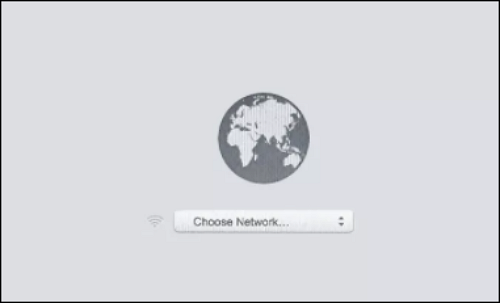
Connect your Mac to your router using an Ethernet cable, and then run Internet Recovery to see if the issue is resolved.
Fix 2. Run Disk Utility to Perform the First-Aid
If the disk where you plan to install macOS is flawed or damaged, it can cause issues like error code - 2003F, which can be resolved by running Disk Utility in Mac's Recovery Mode.
Step 1. Start up macOS Recovery on your computer.
Step 2. Select Disk Utility in the macOS utility window and click the Continue button.
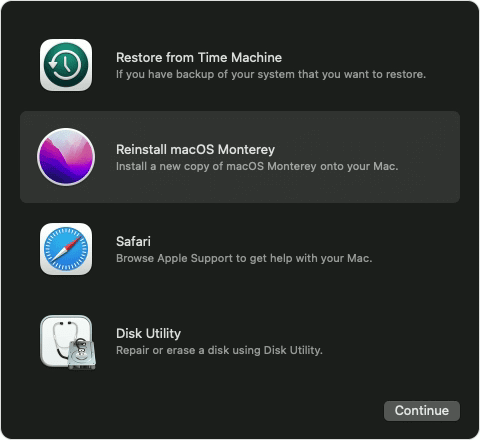
Step 3. Select View - Show All Devices.

Step 4. Choose the startup volume or Mac hard disk on the left side.
Step 5. To confirm running a disk utility, click the "Run" button in the pop-up window that appears, indicating that the process has been initiated.
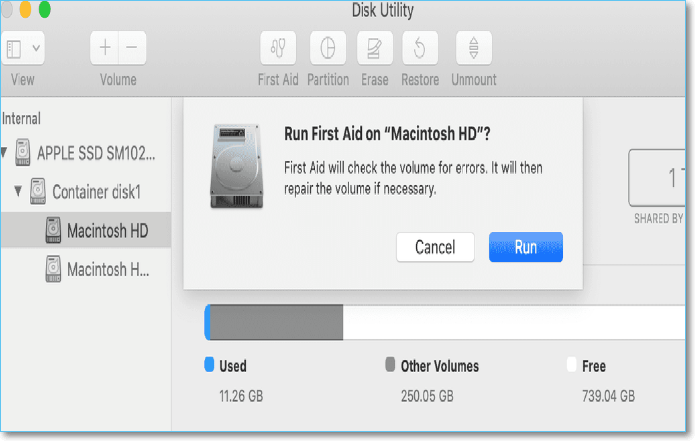
Step 6. Then click Continue.
Fix 3. Reinstall macOS With a Bootable USB Installer
If reinstalling from Mac Internet Recovery doesn't work, you can try to install macOS from a USB. To do this, you can create a bootable installer and use it to reinstall macOS on your Mac.
Step 1. Erase the USB drive you want to change into your macOS installer.
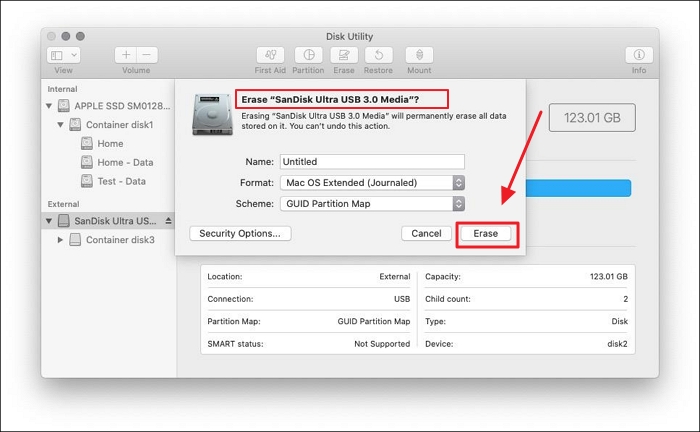
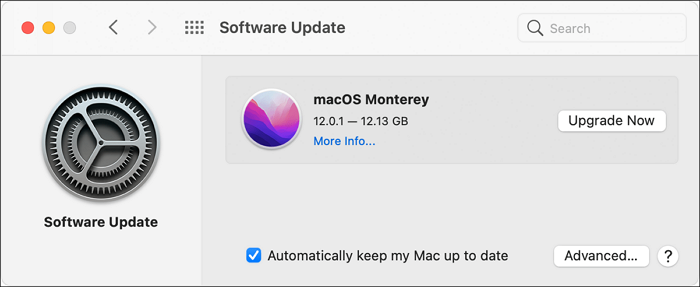
Step 2. Download the macOS from System Preference to the USB installer.
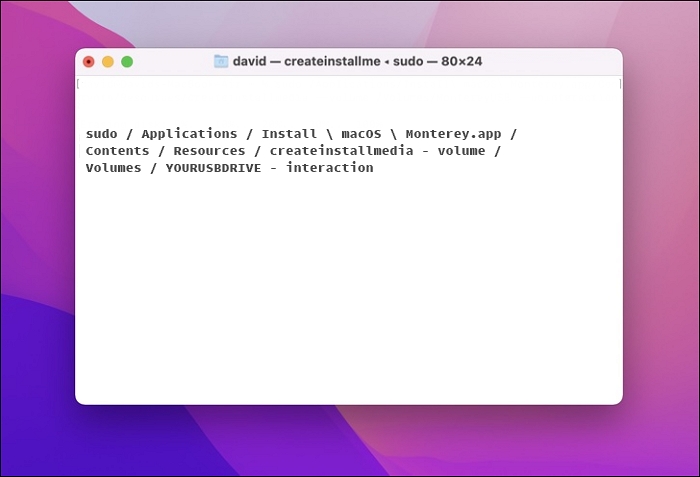
Step 3. You can create a bootable USB drive in the Mac Terminal window by typing the command line `diskutil createR EF disk [USB Drive Name]`. Replace `[USB Drive Name]` with the name of your USB drive.
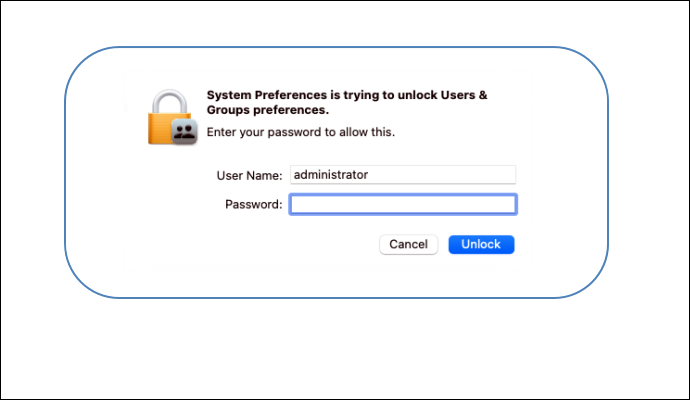
Step 4. Enter your admin password.
Step 5. To resolve the error code 2003F on your new macOS, you can try rebooting from a USB drive. This process may resolve the issue, and you should no longer encounter the error code 2003F after rebooting.
Fix 4. Reset PRAM and NVRAM to Resolve the Error Code
The error code is related to Mac startup issues, which can be caused by settings in the system's PRAM and NVRAM, such as the startup-disc option and system volume. To resolve the issue, resetting these settings may be necessary.
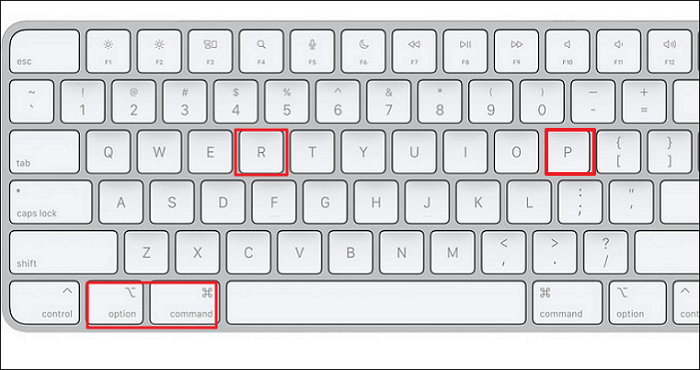
To reset NVRAM or PRAM on a Mac, turn it on and hold down the keys "Command + Option + P + R" during startup.
Fix 5. Reboot Your Mac in Safe Mode to Fix the Startup Error
When you see the error code 2003F on your Mac, you can try rebooting it in safe mode to see if the issue is hardware or software related. To do this, turn off your Mac, then press the power button until you see the boot screen, and immediately hold down the Shift key. Release the Shift key when you see the login window, and try to log in as you normally would.
Step 1. To shut down your Mac, go to the Apple menu at the top left corner of your screen, click on it, and select "Shut Down".
Step 2. Press and hold the Shift key on your Mac immediately after restarting it, and hold it for 10 seconds. Then, release the Shift key.
Step 3. Release the key when you see the safe mode's login window emerges on the screen.
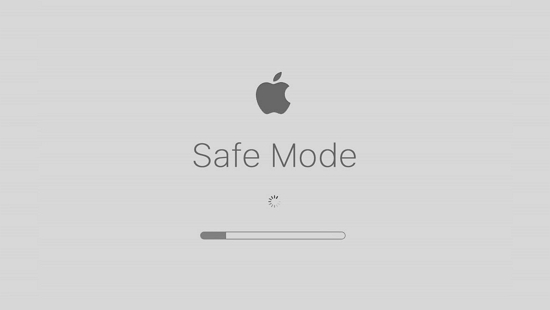
Step 4. Then, log in to your Mac in safe mode.
To Sum Up
When trying to start your Mac in Internet Recovery mode, you get error code - 2003F, which is usually caused by a connection issue with the internet. To resolve this, follow the instructions provided. Additionally, it's essential to recover your data before restarting your Mac to avoid potential data loss.
Mac Error Code 2003F FAQs
Here are 4 questions and answers to help you know more about Mac Error Code 2003F.
1. What does error 2003F mean?
2003F error code on a Mac means the internet connection is unreliable, and Apple's servers don't allow access to recovery modes.
2. Why is Command + R not working on Mac?
Besides the keyboard's fault, the reason why Command + R is not working is the same as why Mac recovery mode not working:
- The outdated version of macOS is inoperative and Mac Recovery Mode is not functioning properly.
- The recovery partition is corrupted or missing.
3. What is the other common error code?
For example, there are:
- Error code - 41: The operation can't be completed because an unexpected error occurred.
- Error code - 36: The file can't be read or written.
- Error code - 8003: macOS can't delete the file in the Trash.
4. Why do error codes happen?
An error code is a notification that an error has occurred in hardware or software usage, and it specifically identifies the precise error that caused the issue.
Related Articles
- FIXED: System Image Recovery Failed [Updated 2023]
- 4 Ways to Fix Mac Won't Start in Safe Mode [Support macOS Ventura/Big Sur/Mojave]
- 2022 Tips| Are You Sure You Want to Copy This File Without Its Properties [Fixed]
- How to Fix PS4 Cannot Access System Storage Error Code CE-34335-8
- What is a Computer Virus and How to Protect Your Computer from Viruses
Computer viruses can harm your PC, steal data, and slow performance. Learn about virus types, risks, warning signs, and how to protect or remove viruses from your computer. - More Windows Troubleshooting: Fix Freezing After an Update
Windows 10 freezing after an update? Try these 7 proven fixes: update drivers, disable LSPM, clear temp files, adjust virtual memory, run disk check, SFC scan, or perform a system restore.
Products
Articles & Tutorials
- Data Recovery
- Data Backup
- File Recovery
- File Backup
- System Backup and Restore
- Disk and Partition Clone
- Technical articles
- Mobile articles
- Disk Master Help
- Windows Data Recovery Tutorials
- Windows Secure Delete Tutorials
- Windows Partition Management Tutorials
- Windows File Backup and Restore Tutorials
- Windows System Backup and Restore Tutorials
- Windows Disk Backup and Restore Tutorials
- Windows Clone Tutorials