4 Ways to Fix Mac Won't Start in Safe Mode [Support macOS Ventura/Big Sur/Mojave]
| 4 Workable Solutions | Step-by-step Troubleshooting |
|---|---|
| Fix 1. Use the Option Key | Shut down the system. Then Press the Option key and hold it. After that...Full steps |
| Fix 2. Check the Security Settings | Press and hold the Command and R keys to restart the system...Full steps |
| Fix 3. Reset SMC | Shut down the Mac. Press the Option (Alt) key, Control key, and Shift keys...Full steps |
| Fix 4. Reboot to Safe Mode | Press Command, Option, Control, and Power buttons simultaneously...Full steps |
What Is Safe Mode on Mac
Safe mode on a Mac is a controlled environment where only essential apps and files run, while unnecessary ones are blocked. It also performs a basic system disk assessment and clears system caches, which can be a primary cause of issues. This helps to troubleshoot and resolve problems by isolating the root cause.
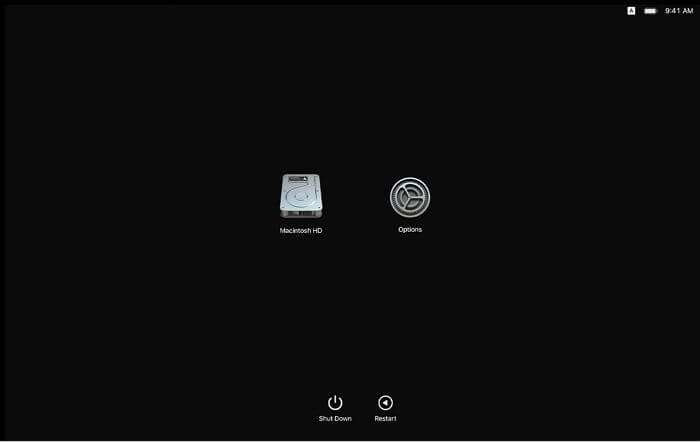
The main reason safe mode on Mac doesn't allow non-native or third-party apps to run is to optimize its performance. This mode is often used when the system freezes, can't boot normally, or crashes and restarts itself, prompting users to opt for safe mode to resolve the issue.
Many users have reported difficulties starting the safe mode, but starting it is relatively easy. If you're experiencing issues, some problems need to be resolved first.
Why Is My Mac Not Starting in Safe Mode
Your Mac won't start in safe mode due to various reasons. These include issues with the operating system, problems with the startup disk, corrupted system files, or a faulty boot process. Additionally, malware or viruses can also prevent your Mac from starting in safe mode. Furthermore, hardware issues such as a failing hard drive or a malfunctioning graphics card can also cause this error.
- The Mac might not be fully powered off before restarting it into safe mode.
- The Shift key is released immediately instead of being held down for a few seconds. This change can improve performance and responsiveness in applications that rely on keyboard input.
- Ensure the keyboard is working perfectly fine, so you can use the Shift key properly.
- Bugs present in the mac OS.
- Issues with the security settings of the system are preventing it from booting in safe mode. This could be related to the Mac firmware password or FileVault settings.
- Problems with SMC or System Management Controller.
- NVRAM/PRAM-related issues.
- File system errors are present on the startup disk.
4 Ways to Fix Mac Won't Start in Safe Mode
Numerous reasons explain why your Mac won't start in safe mode, but fortunately, there are solutions too. The top four ways to resolve this error - Mac won't start in safe mode - include a series of troubleshooting steps that can help identify and fix the underlying issue.
Fix 1. Use the Option Key to Fix Mac Won't Start in Safe Mode
To fix a Mac that won't start in safe mode, try using the Option key. Press the Power button and immediately hold down the Option key. This will give you the option to boot into safe mode.
Step 1. Shut down the system.
Step 2. To restart your Mac, press and hold the Power button on your computer. Alternatively, press and hold the Command (⌘) and Control (⌃) keys at the same time, and then press the Power button. If you're using a Mac with Touch ID, you can also press and hold the Touch ID button and the Power button at the same time.
Step 3. Here, you will get a list of the different drives on the Mac. Choose Mac's startup Drive and press the Enter key.
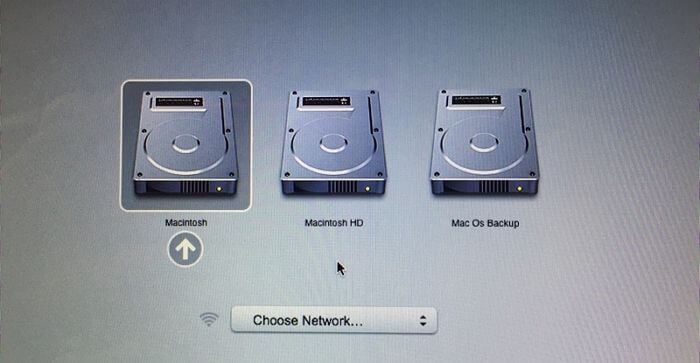
Now, check if the system can start in safe mode.
Fix 2. Check the Security Settings to Fix Mac Won't Start in Safe Mode
To fix the Mac won't start in safe mode problem, assess the security settings, as issues with them, such as Firmware password or FileVault, can cause this error.
To disable the Firmware password, follow these steps:
Step 1. To restart your system, press and hold the Command and R keys, then enter the Firmware password.
Step 2. To access the Startup Security Utility, select your language, click on the "Utility" option, and go to Startup Security Utility.
Step 3. To turn off the firmware password, you need to press the "Turn Off Firmware Password" button, then enter the firmware password again.
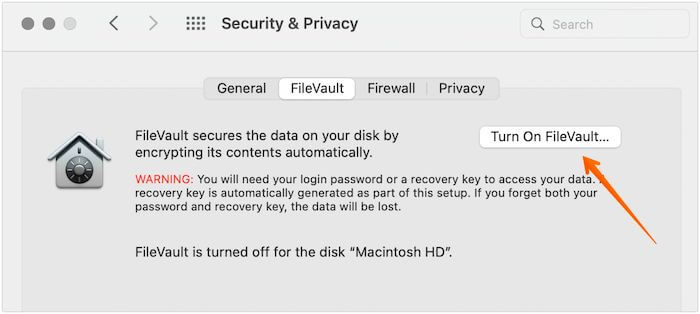
Step 4. To disable FileVault, go to System Preferences, click "Security & Privacy", and press the "FileVault" option.
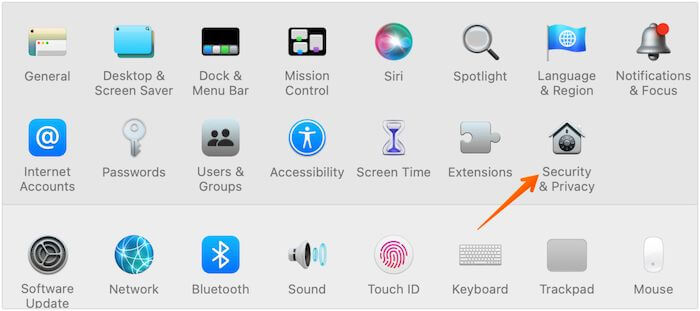
Step 5. To unlock System Preferences, press the lock icon at the bottom-left corner of the screen, then enter your authentication credentials to access System Preferences.
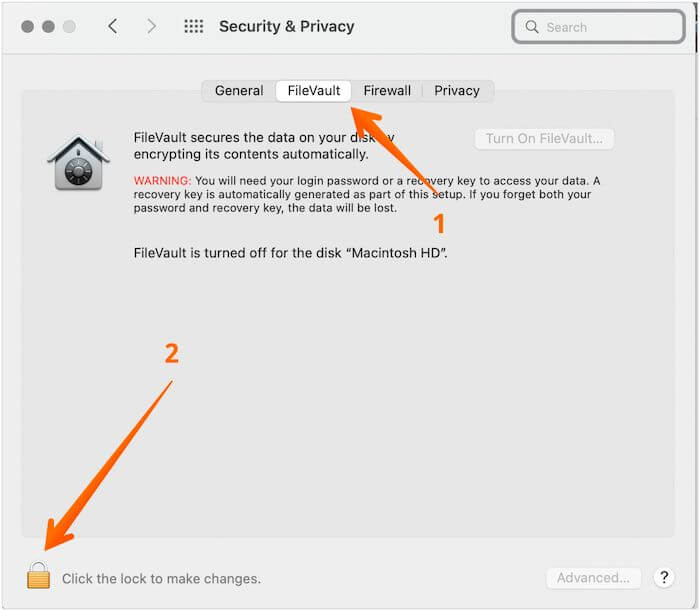
Step 6. To resolve the issue, click the lock icon and select the "Turn Off FileVault" option. Press the lock icon again to save the changes. Restart the Mac and see if it enters safe mode.
Fix 3. Reset the System Management Controller (SMC)
If your Mac has the T2, M2, or Apple M1 chip, you can try resetting the System Management Controller (SMC) to resolve the issue with your Mac not starting in safe mode. To do this, you'll need to turn off your Mac, locate the power button, and press it while pressing the power button and the volume down button at the same time, then release the power button but continue holding the volume down button for 10 seconds. After that, turn off your Mac again, press the power button and the volume down button at the same time, then release the power button but continue holding the volume down button for another 10 seconds.
Step 1. Shut down the Mac
Step 2. Press the Option, Control, and Shift keys all at once and hold them for a few seconds.
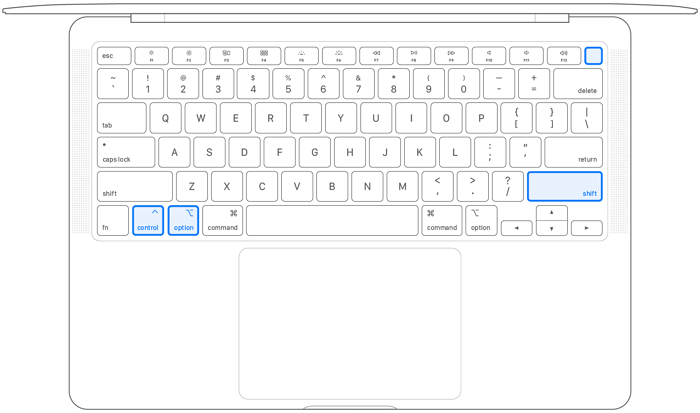
Step 3. To turn off your system, press the Power button and hold it until it shuts down.
- Notice:
- To turn on your Mac, press and hold the Power button for 10 seconds, then release it. If you have a Mac with an M1 chip, you don't need to do anything extra, just wait 30 seconds after shutting down to reset the SMC.
Fix 4. Shut Down your Mac and Reboot to Safe Mode
If your Mac freezes while trying to boot into safe mode, you may need to force the system shutdown. In this situation, you can shut down your Mac using different methods.
Option 1. To shut down your Mac, press and hold the Power button, the Command key, the Option key, and the Control key at the same time. This action will close all running apps and initiate a shutdown. Note that holding the Power button alone for an extended period will trigger a Force Shutdown, which is a more drastic shutdown that bypasses the normal shutdown process. This can be useful in cases where the system is unresponsive or frozen. However, it's generally recommended to use the combined key press method for shutting down your Mac to ensure a clean and orderly shutdown.
Option 2. If the method described above doesn't work, you need to shut it down forcefully by pressing the Command, Power, and Control keys and holding them for some time, which will lead to a Force shutdown.
Option 3. To force a Mac to shut down, press the power button and hold it until the screen returns, then start the Mac in safe mode.
Recover Data on macOS Ventura/Big Sur/Mojave (Extra Tip)
If you've experienced data loss due to issues with your macOS, you can use Deep Data Recovery Mac to retrieve your lost files. This is a reliable way to restore your data.
The Deep Data Recovery Mac is a professional software that allows users to recover lost data in just three easy steps. It can retrieve various types of data, including videos, photos, emails, music files, pdfs, and documents, without the need for a Time Machine backup.
You can recover data from various Mac-based devices, including fusion drive, SSD and HDD, SD card, Time Machine backup drive, and USB drive. If data retrieval is not possible, data experts can be contacted for data recovery services.
Follow the steps below to recover data from macOS Ventura/Big Sur/Mojave/Catalina
Step 1. Select file types and click "Fast Scan" to start
Launch Deep Data Recovery on your Windows computer, select the file types you want to recover, and click "Fast Scan" to begin the recovery process.

Note: You can choose different search modes based on where and why the data was lost.
Step 2. Select the drive to be scanned
In the main Deep Data Recovery window, select the drive you need to recover lost/deleted files from and click the "Search for lost files" button.

Step 3. Select your lost data/files
Deep Data Recovery for Mac will immediately scan your selected disk volume and display the scanning results on the left pane, allowing you to sort the results to find specific files if desired.

Step 4. Recover lost/deleted data
Once you have located the desired files, preview them and then click "Recover" to initiate the recovery of your deleted/lost Mac files.
Conclusion
Safe mode on a Mac runs only essential apps and features, but various reasons can cause it not to start. Fortunately, there are different solutions to fix this issue, and you can try adapting the methods mentioned above to resolve the problem.
Choosing the right solution for your needs is crucial, and if data loss occurs during this process, Qiling Mac data recovery software can be a reliable option. This user-friendly software allows for easy recovery of data from various devices, including cameras, USB drives, memory cards, and hard drives, making it a professional solution for data recovery needs.
Mac Won't Start in Safe Mode FAQs
If your Mac won't start in safe mode, there are several solutions you can try. First, check if the issue is related to a software problem by booting in safe mode and then trying to start up normally. If it still doesn't work, try resetting the System Management Controller (SMC) or the Power Management Unit (PMU). If that doesn't work, you can try booting in verbose mode to see if there are any error messages.
1. How to enter safe mode in Windows 10?
To enter safe mode Windows 10:
- Select Power and then restart at the sign-in screen.
- After that, press and hold the Shift key.
- When the PC restarts, go to the Choose an option screen.
- Press Troubleshoot, followed by Advanced options and Startup Settings.
- Press the Restart option, and when restarting occurs, press F4 or 4 to enter the computer in safe mode.
2. How do I force my Mac to start in Safe Mode?
To force your Mac to start in Safe Mode:
- To start your computer, press and hold the power button until you see the "Loading startup options" screen.
- After that, press the Shift key and hold it.
- Press Continue in Safe Mode, and the system will restart automatically.
3. How do I restart my Mac in Safe Mode?
To restart your Mac in safe mode, power it up and press the Shift key as it starts, holding it until you reach the login window, then release it and log in.
4. How to upgrade to macOS 13 Ventura?
To upgrade to macOS 13 Ventura, download the installer from the website and run it. Then, go to System Preferences, select Software Update, and click Upgrade Now to complete the process.
Related Articles
- Back Up and Restore Outlook 2016 for Mac
- How to Fix Diskpart Failed to Clear Disk Attributes Error
- 5 Best Free Adobe CC alternatives You Don't Want to Miss
- What Happens If You Delete the System32 Folder? Here Are the Answers
- 2 Easy Ways to Recover Ubisoft Account and Password
Lost access to your Ubisoft account or forgot your password? Learn 2 easy ways to recover it: reset via Ubisoft's official page or use Qiling Key Finder to retrieve saved passwords. - How to Recover Windows 10 Product Key from Unbootable Drive [2022 New]
If you're wondering if it's possible to recover a Windows 10 product key from an unbootable drive, there are three easy solutions. Qiling Key Finder is the most suitable and convenient tool for this task, making it easy to recover your Windows 10 product key.
Products
Articles & Tutorials
- Data Recovery
- Data Backup
- File Recovery
- File Backup
- System Backup and Restore
- Disk and Partition Clone
- Technical articles
- Mobile articles
- Disk Master Help
- Windows Data Recovery Tutorials
- Windows Secure Delete Tutorials
- Windows Partition Management Tutorials
- Windows File Backup and Restore Tutorials
- Windows System Backup and Restore Tutorials
- Windows Disk Backup and Restore Tutorials
- Windows Clone Tutorials