2023 Tips| Are You Sure You Want to Copy This File Without Its Properties [Fixed]
"Hiya! Sometimes I transfer files with a variety of flash drives. I keep getting that old message, 'Are you sure you want to copy these files without their properties?' What properties get lost anyway? Saying "yes" has never shown a problem in my case." - from Microsoft Community.
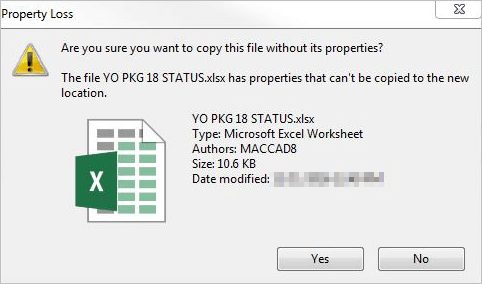
Are You Sure You Want to Copy This File Without Its Properties
When you try to copy a file without its properties, you get the error message "are you sure you want to copy this file without its properties?"
What Does Copy a File Without Its Properties Mean?
When copying a file, its properties, which are metadata describing the file's contents, are not typically carried over, potentially causing issues if the file is used in another program that relies on these properties to function correctly.
The error occurs when attempting to copy a file without its associated attributes, such as owner, group, and permissions. Without these attributes, the file would be unusable. To resolve the issue, follow the suggested solutions.
| Workable Solutions | Step-by-step Troubleshooting |
|---|---|
| 1. Convert to NTFS | Right-click This PC or My Computer, and select "Manage"...Full steps |
| 2. Change File Permissions | Right-click the file and select "Properties". Go to "Security", choose the user name...Full steps |
| 3. Compress Files | Locate the file or folder that you want to zip. Right-click the file...Full steps |
| 4. Move/Recover Lost Files | Select the drive where you lose your data and click "Scan"...Full steps |
Method 1. Convert the Destination Drive to NTFS to Fix the Error
This error - The "are you sure you want to copy this file without its properties" error can be caused by the file system, particularly when copying files from an NTFS drive to a FAT drive, as FAT drives cannot store properties related to Alternate Data Streams (ADS) and file encryption information. This results in the error message when trying to copy files with these properties.
To fix the file system error, convert FAT32 to NTFS with the steps below.
Step 1. Right-click This PC or My Computer, and select "Manage".
Step 2. Enter Device Manager and click "Disk Management".
Step 3. Open Disk Management and, right-click the target device, select "Format".
Step 4. To format the selected device, set "NTFS" as the file system, select "Quick Format" to speed up the process, and click "OK" to confirm the changes.
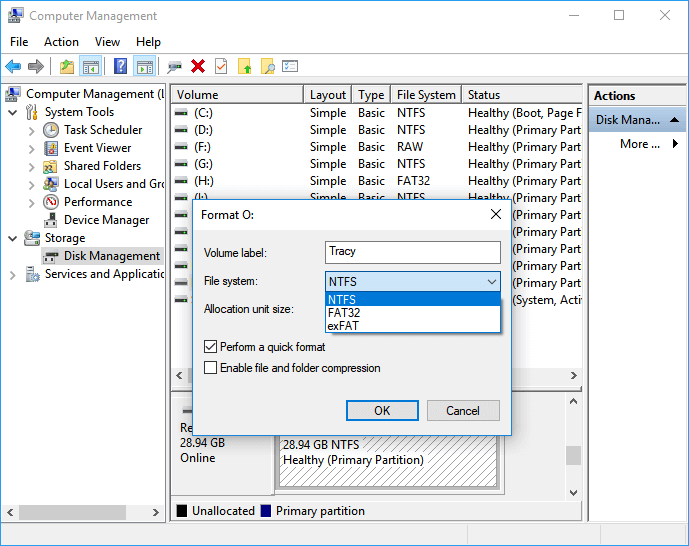
To resolve the error when copying a file to a target drive, you can try copying the file to see if the issue persists. If the error still exists, you can change the permissions in Windows 11/10/8/7 to resolve the issue.
Method 2. Set the File Permissions As 'Allow' for the Users
If a file has unique security attributes, you might encounter the "are you sure you want to copy this file without its properties" error. Changing the permissions can resolve this issue.
Step 1. Right-click the file and select "Properties".
Step 2. Go to "Security", choose the user name and click "Edit".
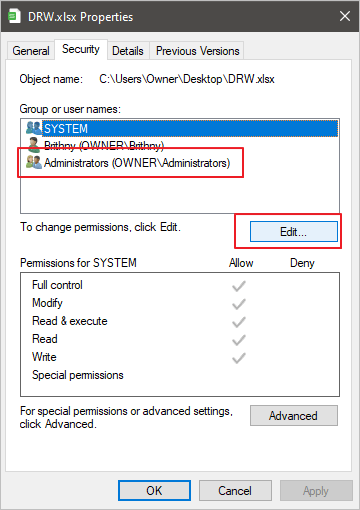
Step 3. Check if all permissions are enabled, and cancel any subsequent checks.
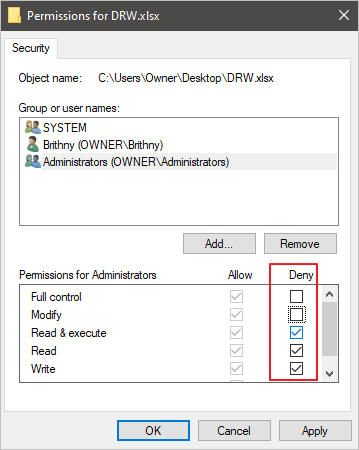
Step 4. After all permissions are enabled, click "OK".
You can now copy the files to another drive.
Method 3. Copy/Move/Transfer Files After Compressing Them
To avoid the "are you sure you want to copy this file without its properties" error, you can try compressing the files to be copied, which can also be useful for transferring them to another drive.
Step 1. Locate the file or folder that you want to zip.
Step 2. To compress a file or folder, right-click it, select "Send to", and then choose "Compressed (zipped) folder".
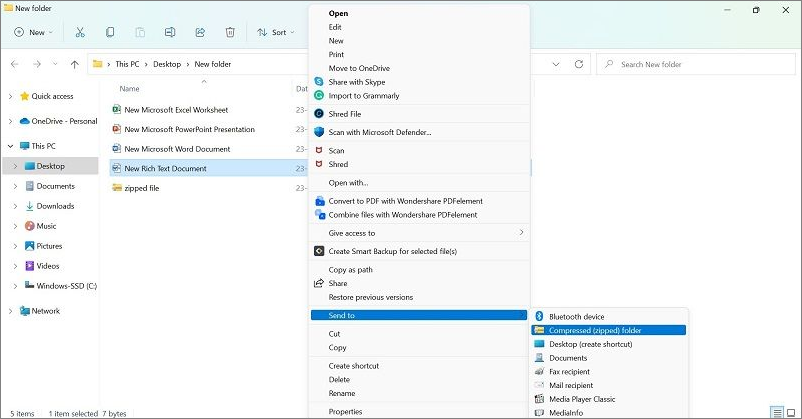
A new zipped folder with the same name is created in the same location, then to rename it, press and hold or right-click the folder, select "Rename" and type the new name.
Step 3. Copy the compressed files to the target place.
Method 4. Move/Recover Lost Files in Windows 11/10/8/7
If you're still having trouble copying files with properties, you can try using Deep Data Recovery software to scan your hard drive, SSD, SD card, or USB drive to find lost or existing files and recover or move them to your desired location in Windows 11/10/8/7.
- You can recover deleted files from various storage devices, including SD cards, hard disk drives (HDD), solid-state drives (SSD), USB drives, camera cards, and more, using file recovery software or a data recovery service. These tools can scan the device for deleted files and attempt to restore them, even if they've been overwritten or corrupted.
- Recover deleted files in Windows 11/10/8/7, including photos, videos, documents, and more, with a reliable solution that helps you get back lost data.
Download and run hard drive recovery software to recover/move/copy files to another drive.
Step 1. Select file types and click "Fast Scan" to start

Note: You can choose different search modes based on where and why the data was lost.
Step 2. To recover lost data, select the drive where the data was lost and click on the "Scan" button.

Step 3. When the scan is finished, use the "Filter" or "Search" feature to locate the lost files. This feature allows you to narrow down the search results based on specific criteria, such as file type, size, or date modified, to quickly find the files you're looking for.

Step 4. Select the files you want to recover and click "Recover". Next, choose a secure location to save them.
Conclusion
When you encounter the error "Are You Sure You Want to Copy This File Without Its Properties," check if the file location is in NTFS format. If not, convert it using one of the four methods. Then, try copying/moving/transferring the files again. If the issue persists, feel free to ask for help. Our team can assist in troubleshooting the issue.
Frequently Asked Questions
This blog post has explored four methods to resolve the error "Are you sure you want to copy this file without its properties?" and hopes that one of these solutions has helped you. If not, additional troubleshooting tips are available.
1. What to do if access is denied when copying files?
To fix access denied copying files in Windows 10:
- Take the Ownership of the File or Folder
- Change File and Folder Permission
- Decrypt the File or Folder
- Run CHKDSK Command
- Use Data Recovery Software
2. What are file properties?
File properties, also known as metadata, are details about a file that provide information about its contents and identity. They typically include a title, author name, subject, and keywords that help identify the document's topic or subject matter.
3. Are you sure you want to copy this file without its properties fix?
- Convert the destination drive to NTFS.
- Change the permission settings in Properties.
- Compress the files and copy them again.
- Use a script that automatically dismisses these dialogs for you.
- Use a third-party file copying and moving program...
Related Articles
- How to Boot Computer from USB and Make A Portable OS
- How to Format SD Card on GoPro [Quick Solutions]
- How to Fix Mac Flashes Folder with Question Mark? [Updated 2023]
- How to Fix Outlook Rules Not Working [8 Ways Included]
- CPU OPT vs. CPU FAN: How Do They Differ? [Distinct Comparison]
Are you building your system and wondering between CPU OPT and CPU FAN and where you should add the cooling fan on the motherboard? Continue reading this article to find out what CPU OPT and FAN headers are and the difference between them. - Crucial BX500 VS MX500: What's Their Difference [2024 New]
Do you know the difference between Crucial BX500 and MX500? This article focuses on Crucial BX500 VS MX500, so dive into learning if you want to compare them in price, appearance, capacity, warranty, and performance.
Products
Articles & Tutorials
- Data Recovery
- Data Backup
- File Recovery
- File Backup
- System Backup and Restore
- Disk and Partition Clone
- Technical articles
- Mobile articles
- Disk Master Help
- Windows Data Recovery Tutorials
- Windows Secure Delete Tutorials
- Windows Partition Management Tutorials
- Windows File Backup and Restore Tutorials
- Windows System Backup and Restore Tutorials
- Windows Disk Backup and Restore Tutorials
- Windows Clone Tutorials