Recover Not Showing Up/Disappeared User Folder and Files in Windows 10
User Folder Not Showing up in Windows 10
"Hi, guys. I have a problem. The other day, I updated Windows 10 to a new version, and everything went fine. But I found that my User folder is gone on the desktop in the newly updated Windows 10. I could not find the User Folder on the desktop nor the files and folders in it. So I want to how to get disappeared or not showing up User folder back on Windows 10 desktop, including the lost files and folders inside it?"
Losing the User folder and its contents in Windows 10 can occur due to system errors or false operations. Fortunately, there are several methods to recover the missing User folder and restore all lost files. This includes learning how to fix the 'can't see C:\user\folder in Windows 10' error, as well as finding ways to recover the User folder on the desktop.
| Workable Solutions | Step-by-step Troubleshooting |
|---|---|
| Fix 1. Show hidden files | Click "Start" > open "File Explorer". Click "View" > "Options" > "View". Tick "Show hidden files"...Full steps |
| Fix 2. Create a shortcut of folder | Right-click on empty location on desktop and select "New" > "Shortcut". Click "Browse" to set the path for...Full steps |
| Fix 3. Recover missing user folder | If the User folder is lost by mistaken deletion or formatting, you can use Deep Data Recovery...Full steps |
Fixes for User Profile Folder Missing on Windows 10
If your desktop User folder is missing or not showing up after a Windows 10 update, accidental deletion, or other reasons, try the following approaches. You can try accessing the folder through File Explorer by typing "C:\Users\" followed by your username in the address bar, or try using the built-in System File Checker tool to scan and replace any corrupted system files, including those related to the User folder. If the issue persists, you can also try resetting Windows 10 to its default settings or performing a System Restore to a previous point when the folder was intact.
Fix 1. Show Hidden Files and Folders
1. Right-click "Start" > search for and open "File Explorer".
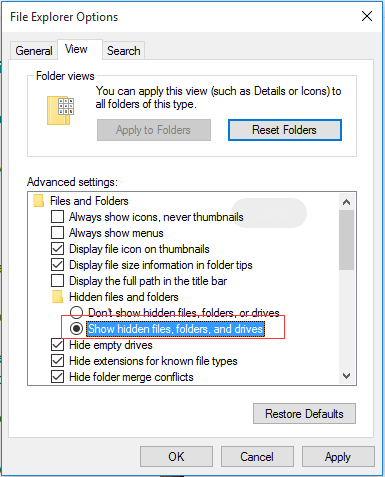
2. To view hidden files, folders and drives, click on "View" in the top left corner of the window, then select "Options" from the drop-down menu. Next, click on "View" in the left-hand menu, and tick the box next to "Show hidden files, folders and drives".
Fix 2. Create a Shortcut of Disappeared User Folder
If you can see the user folder under C:\user\folder on your PC, you can directly create a new shortcut for the disappeared User folder on Windows 10 desktop by right-clicking on the folder, selecting "Send to" and then "Desktop (create shortcut)".
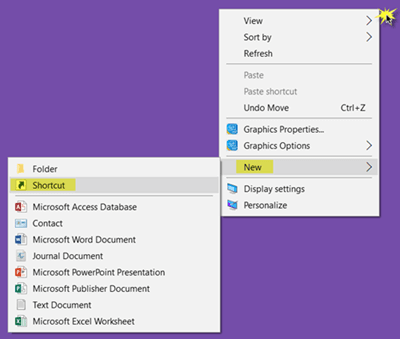
1. Right-click on an empty location on your Desktop, then select "New" and choose "Shortcut" from the menu.
2. To set the path for the User folder, click on the "Browse" button and select the desired location, such as C:\user\folder, then click "OK".
3. To create a desktop shortcut, click "Next" to open a new window and keep the same name of the shortcut. After that, click "Finish" to create the shortcut on your desktop.
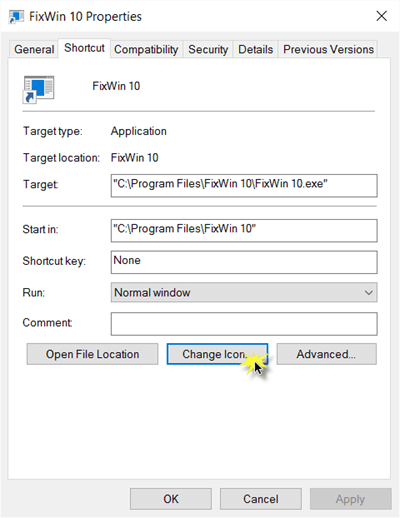
4. To change the icon for a user folder, right-click on the shortcut, select "Properties", then "Shortcut", and click "Change Icon". Choose the desired icon for the user folder and click "OK", then apply the changes.
Fix 3. Recover Missing User Folder on Windows 10 with File Recovery Software
If the quick fixes don't work, you may need to use professional file recovery software, such as Deep Data Recovery, to recover the missing User folder and its contents.
With this powerful data recovery tool, you can recover 200+ file types with ease, including recovering permanently deleted emails in Outlook, restoring lost Word/Excel/PPT documents, photos, videos, and ZIP files.
Step 1.Launch Deep Data Recovery in Windows 11/10/8/7. Choose file types and click "Fast Scan" to begin the recovery process.

Note: You can choose different search modes based on where and why the data was lost.
Step 2. Choose the place where you lost data. Then, click "Scan".

Step 3. After scanning, use the file format filter to locate the necessary files. Click the "Preview" button or double-click a file to view its content.

Step 4. To recover a file, select the file by clicking the checkbox next to it, and then click the "Recover" button to restore the lost data to a secure location.
Resolve 'unable to see C:\user\folder in Windows 10' Error
If you can't see the User folder in C:\User\, you can follow the methods below to regain access to your User folder in Windows 10.
Fix 1. Show Hidden Folders
1. Open Windows Explorer and right-click on C:\Users.
2. Select "Properties" and remove the tick mark from Hidden box.
Fix 2. Switch to Another User Profile Folder
1. Sign out and sign in with another new User Profile to see whether the User folder shows up or not.
2. If your user profile doesn't show up, you can try restoring a deleted or lost user profile in Windows 10 by following the tutorial provided.
Fix 3. Perform the System Restore to Recover User Folder on Windows 10
If all else fails, you can try restoring your Windows 10 system to a previous version, which will likely restore your User folder to its original location on the desktop and in the C:\Users\folder. This is a last resort option.
1. Click on the Start Menu and then select "Settings". From the Settings window, select "Update & Security".
2. Click "Get Started" under "Go back" to an earlier build.
You can restore Windows 10 to its previous state using a previously created Windows 10 restore point.
Related Articles
- Fixed: System Image Restore Failed, Windows Cannot Restore a System Image in Windows 10/8/7
- Free PDF Editor - Top 6 Best Free PDF Editors 2020 Update
- Fixed: How to Recover Files When Windows 10 Desktop Icons Are Missing
- Fix Windows 10 Computer Keeps Freezing Randomly
- What Is IOPS (Input/Output Operations Per Second) and How Do You Measure It?
IOPS is a measure of storage speed that helps users understand the functionality and capability of physical and network storage, allowing them to gauge overall productivity achieved by disk drives. - Internet Explorer History, Statistics & Facts
Explore the complete history of Internet Explorer (1995-2022), from its market dominance to end of life. Key statistics, version history, logo evolution, and the browser's lasting impact on the web.
Products
Articles & Tutorials
- Data Recovery
- Data Backup
- File Recovery
- File Backup
- System Backup and Restore
- Disk and Partition Clone
- Technical articles
- Mobile articles
- Disk Master Help
- Windows Data Recovery Tutorials
- Windows Secure Delete Tutorials
- Windows Partition Management Tutorials
- Windows File Backup and Restore Tutorials
- Windows System Backup and Restore Tutorials
- Windows Disk Backup and Restore Tutorials
- Windows Clone Tutorials