Fix Outlook Not Syncing with Gmail
Many people have multiple email accounts that they regularly check, whether for work, family, or personal use. Having the ability to synchronize your Outlook and Gmail accounts can be helpful in keeping all your emails in one place, making it unnecessary to constantly switch between different accounts.
When trying to synchronize Outlook with Gmail, the most common error people face is Outlook not syncing with Gmail. If you're experiencing this issue, you're in the right place for a solution. This post will explore the reasons behind this error and provide the best techniques to fix Outlook not syncing with Gmail, getting you back on track with your mailing accounts.
Save A Copy of Mails to Prevent Data Loss Before Troubleshooting
Before attempting to fix the Outlook not syncing with Gmail issue, back up your emails to prevent data loss using reliable Outlook backup software, such as Qiling Disk Master Pro, to ensure data security.
Qiling Disk Master Home makes it easy to keep a comprehensive backup of your email server, ensuring your data is secure in case of any issues while troubleshooting. With this tool, you can schedule backups, perform differential or incremental backups, and even create a backup image that can be stored at a target location and copied to an FTP server. This means you can back up your inbox while still using and editing your emails.
Key Features
- It allows you to clone a hard drive and its partition with ease.
- You can backup your mailing server to store essential information
- It helps you automatically backup files to an external hard drive, ensuring your important data is safely stored and protected.
- This tool allows you to restore your files at any time, giving you peace of mind and flexibility in managing your digital data.
To save a copy of your emails easily with Qiling Disk Master Pro, follow these steps:
Step 1. Launch Qiling Disk Master on your computer, and click Create Backup on the home screen. Then, click the big question mark to select the backup contents.

Step 2. Among the four backup options, click "Apps data".

Step 3. To back up Microsoft Outlook, find and check the "Microsoft Outlook" option in the list of available apps, select the mailbox addresses you want to back up (mails, contacts, or calendars), and click "OK".

Step 4. To save the Outlook backup, select a location on your device to save the file by clicking on the illustrated area.

Step 5. The backup location can be a local drive, external hard drive, network, cloud, or NAS, with external physical drives or cloud storage being the recommended options for preserving backup files.

Step 6. The customization settings for automatic backup schedules, such as daily, weekly, monthly, or upon an event, are available in the Options button. Users can also configure differential and incremental backups. After selecting the desired settings, clicking Proceed initiates the Outlook backup process, which displays the completed task on the left side in a card style.
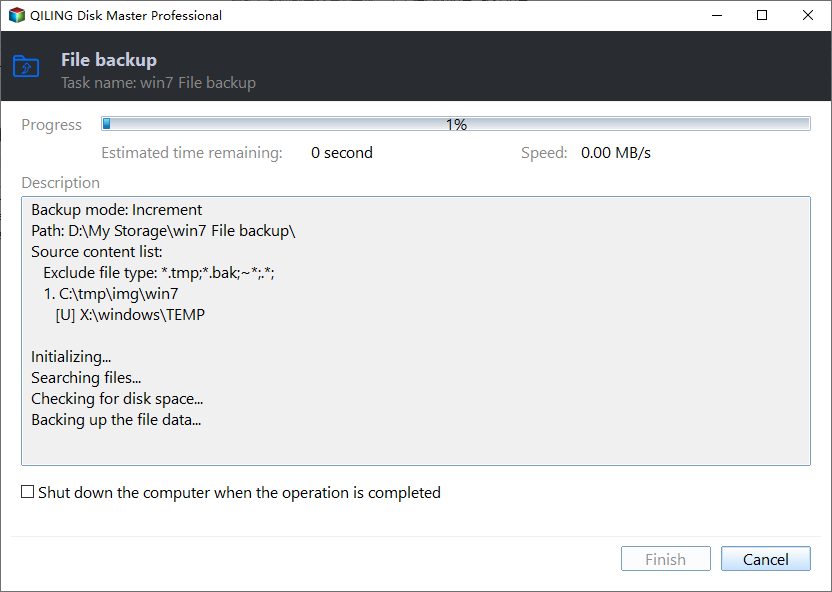
To restore an Outlook backup, you can follow the steps outlined in another post, which provides detailed instructions on how to recover your Outlook data. Simply follow the guide to retrieve your backed-up emails, contacts, and other data.
[Why & How to Solve] Outlook Not Syncing with Gmail
Now that you've backed up your emails using Qiling Disk Master, you're likely looking to fix the issue of Outlook not syncing with Gmail. The error can be frustrating, especially since synchronizing your Outlook with Gmail can save you time and offer data security. To help you resolve this issue, some common reasons behind it include, and their fixes are:
1. Your Google Sync Services Are Outdated
Google Calendar Sync and Google Sync, which were meant to sync Gmail and Outlook accounts, were discontinued in 2012, but the free synchronization with Outlook is still available. However, businesses with a paid Google Apps subscription can still use the premium synchronizing features, and those who use a reliable sync service won't have issues.
2. You Might Have a Faulty Windows Update
If Outlook isn't synchronizing with Gmail, check your Windows updates as faulty or unwanted software updates, such as KB2837618 and KB2837643, can prevent IMAP folders from synchronizing correctly.
To sync Outlook with Gmail, it must be configured for IMAP. Before syncing again, you'll need to remove outdated updates, and Microsoft recommends delaying the update until the issue is resolved and a new version is available.
3. You Need to Subscribe to Premium Google Sync
You may receive this error if you use free Gmail to sync with Outlook, as Google no longer supports Google Sync. This is because Outlook can only sync via IMAP, whereas premium Google Apps plans offer direct synchronization options. Upgrading to a premium plan may help resolve some of the issues users have been experiencing with Outlook and IMAP syncing.
4. You Might Have a Weak Network Connection
If Outlook isn't syncing with Gmail, it might be due to a weak network connection, which can prevent Google from syncing your Outlook with Gmail. To resolve this, ensure you're connected to a stable network and check that your network settings aren't restricting the syncing process.
5. You Need to Reset Your Outlook Account
If Outlook isn't syncing with Gmail or your favorites aren't syncing, there might be an issue with your Outlook account. You may have set up many Outlook settings that are now preventing it from syncing with Gmail, so you might need to reset your Outlook account.
To reset your Outlook account, follow these steps:
Step 1. Go to your Outlook account and click the File option.
Step 2. Click on the "Add Account" button, enter your login credentials in the sign-in window, and click the "Sign-in" button.
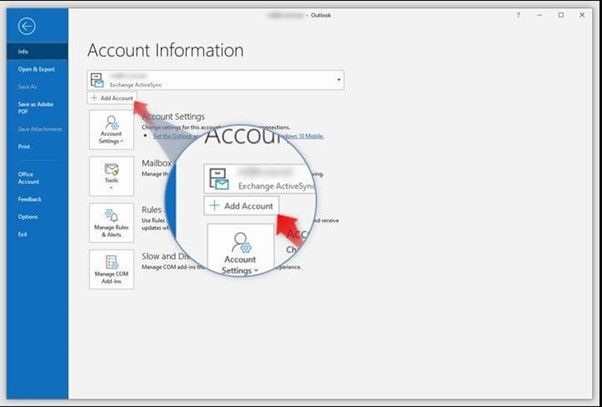
Step 3. To sync your Gmail account with Outlook, add your Gmail account to Outlook, and then click on "Connect" to sync your emails, contacts, and calendar with ease.
Concluding Thoughts
Outlook and Gmail are popular mailing servers with many users having accounts on both platforms. However, some users face the issue of Outlook not syncing with Gmail, which can be frustrating. Fortunately, understanding the reasons behind this issue and the available fixes can help resolve the problem. Before attempting to fix the issue, it's also a good idea to back up your Outlook and Gmail data using a tool like Qiling Disk Master Pro.
FAQ on Outlook Not Syncing with Gmail
Here are some of the most common questions people ask when they get Outlook not syncing with Gmail error:
1. Why does my Outlook not sync with Gmail?
Your Outlook is not syncing with Gmail due to issues like faulty Windows Update, outdated Google Sync, lack of premium syncing subscription, weak internet connection, or overly configured Outlook settings.
2. How do I force Outlook to sync with Gmail?
You can't force Outlook to sync with Gmail, but you can try troubleshooting steps to resolve the issue and then sync Outlook with Gmail. Without fixing the issues, you won't be able to connect Outlook with your Gmail account.
3. How do I fix Outlook not syncing?
To fix Outlook not syncing, try the methods discussed earlier, such as avoiding faulty Windows updates, considering a premium Google Sync or another syncing subscription, and resetting your Outlook account.
Related Articles
- ISO Is Corrupted| How to Fix a Corrupted ISO Files in Windows 11/10
- How to Create Restore Point Automatically (2 Easy Ways!)👍
- [What Is OneDrive] Do I Need Microsoft OneDrive? Find Answer Here
- Backups vs. Antivirus: Have Both in One Tool
- How to Install Windows 11 on VirtualBox (Never Forget BACKUP!)
- USB External Hard Drive Not Showing Up in Windows 11 (99% Users Rated Useful)
- 2 Tips | How to Backup Hard Drive Before Formatting on Windows 11/10/8/7
Fix a corrupted ISO file in Windows 11 or Windows 10. Learn how to verify the ISO, redownload it, repair errors, and create a bootable USB successfully.
Products
Articles & Tutorials
- Data Recovery
- Data Backup
- File Recovery
- File Backup
- System Backup and Restore
- Disk and Partition Clone
- Technical articles
- Mobile articles
- Disk Master Help
- Windows Data Recovery Tutorials
- Windows Secure Delete Tutorials
- Windows Partition Management Tutorials
- Windows File Backup and Restore Tutorials
- Windows System Backup and Restore Tutorials
- Windows Disk Backup and Restore Tutorials
- Windows Clone Tutorials