2 Tips | How to Backup Hard Drive Before Formatting on Windows 11/10/8/7
Formatting a hard drive and reinstalling Windows can fix some performance or system problems, but it also removes data from the selected drive. Backing up first lets you format the drive without losing important files.
This Qiling guide explains how to back up a hard drive before formatting and introduces practical backup methods for Windows users.
Why Need to Backup Hard Drive Before Formatting
If your Windows computer has serious bugs, malware, or software conflicts, formatting the hard disk and reinstalling Windows may help. However, you should protect your files before taking that step.
You should back up your hard drive before formatting because formatting can erase files, programs, and system data. A backup allows you to restore the full system or recover selected files after a fresh installation or factory reset.
To avoid losing important data, it's a good idea to back up your hard drive to an external drive or another destination before formatting it. This way, you can still recover your files even after formatting the original drive.
Backup Hard Drive Before Formatting with Disk Backup Software
When it comes to backing up a hard drive, using professional hard disk backup software is the way to go. This type of tool offers advanced backup options and can meet different backup needs, such as creating a scheduled backup of your hard drive, and Qiling Disk Master is a suitable option.
Qiling Disk Master Pro is a backup and recovery tool for Windows that allows automatic file, system, and app backups, encryption, and simultaneous backup of multiple drives, with storage options in local drives, external drives, NAS, Cloud, and Security Zone, and also enables easy and quick imaging of hard drives.
Key Features of Qiling Disk Master:
- Clone/migrate Windows hard drive. It allows you to migrate Windows from a hard drive to a solid-state drive (SSD) and clone a hard drive.
- Create types of backups. It allows for automatic, scheduled, full, incremental, and differential backups to be performed.
- Perform universal restore. This tool allows you to install Windows on a hard drive that will be used in another computer.
- Intuitive design. The software has a user-friendly interface that is perfect for beginners, making it easy to back up data quickly and efficiently.
- Provide free Cloud storage. It provides 250G free cloud storage to back up an external drive to Cloud.
Qiling Disk Master can suit your every demand for backing up your hard drive or external hard drive. You can download and install it on your computer, and feel free and safe to use. After installing it, simply follow the program's instructions to back up your hard drives.
Step 1. Start with selecting the backup tab page.

Step 2. There are four backup categories, File, Disk, OS, and Mail, click Disk backup.
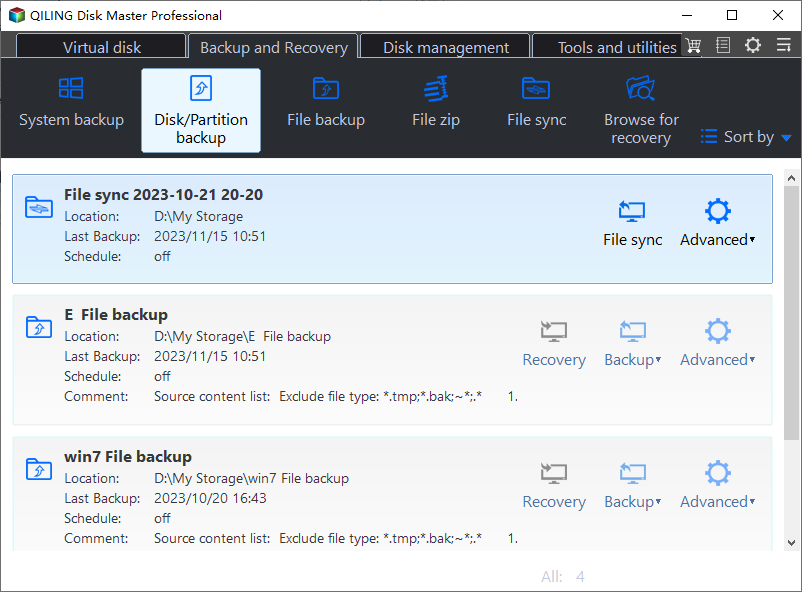
Step 3. It is available to back up a whole disk or a certain partition. Choose the one you need.
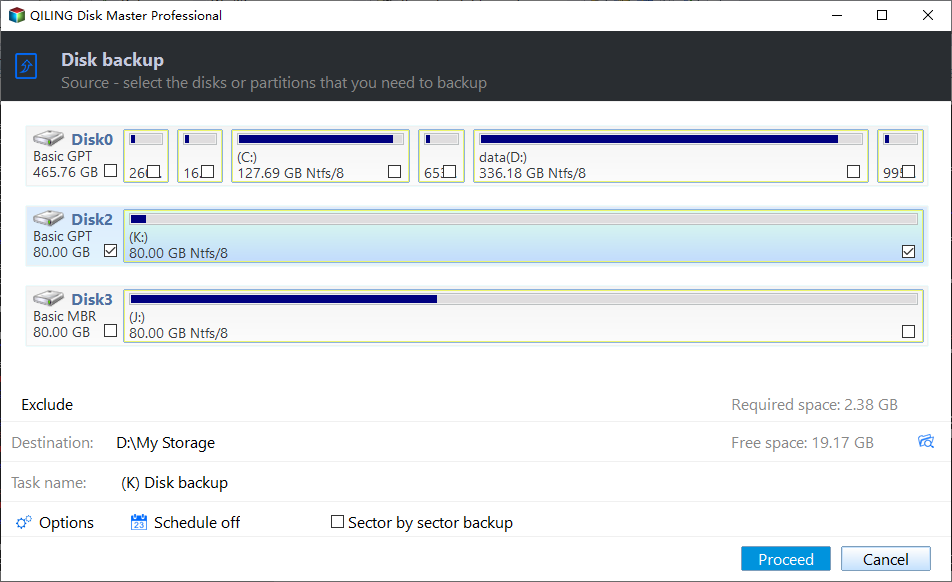
Step 4. Select the destination where you want to save the backup.
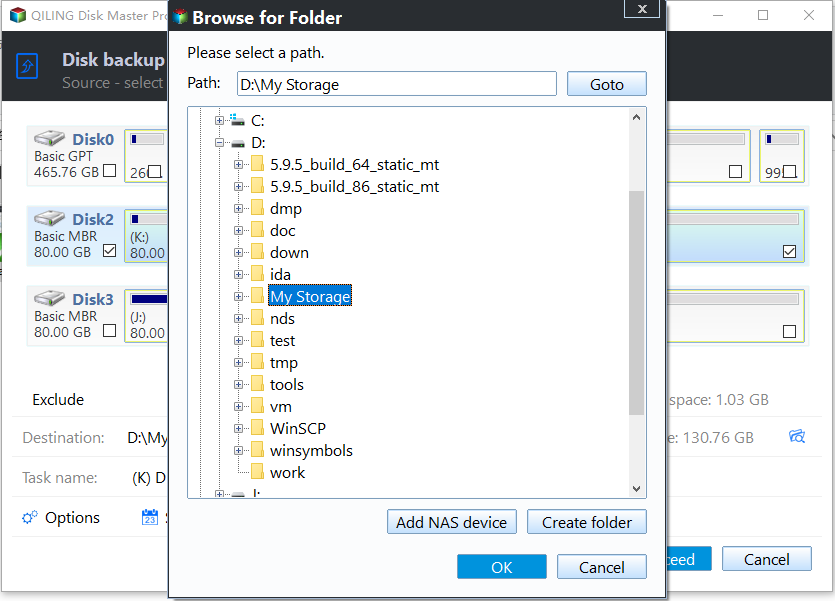
Step 5. For disk/partition backup, you can save the backup to either a local drive or a Network-Attached Storage (NAS) device.

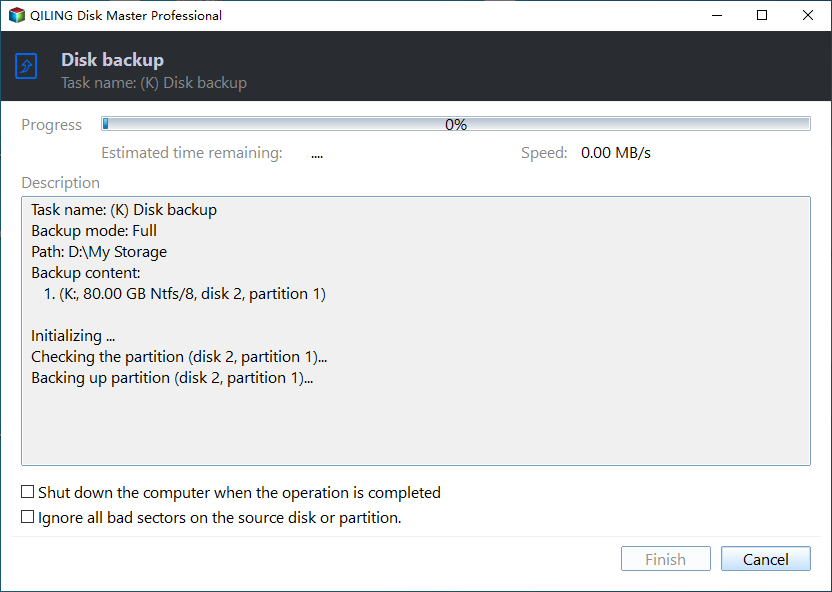
Step 6. After the backup process is completed, your task will be displayed at the left. Right-clicking on any task allows further management, such as recovering it, creating an incremental backup, and more.
Backup Hard Drive Before Formatting via Backup and Restore
You can create a backup of a hard drive before formatting it using Windows' built-in backup program, Backup and Restore, which allows you to take a snapshot of data on the hard drive and create a system image of your computer.
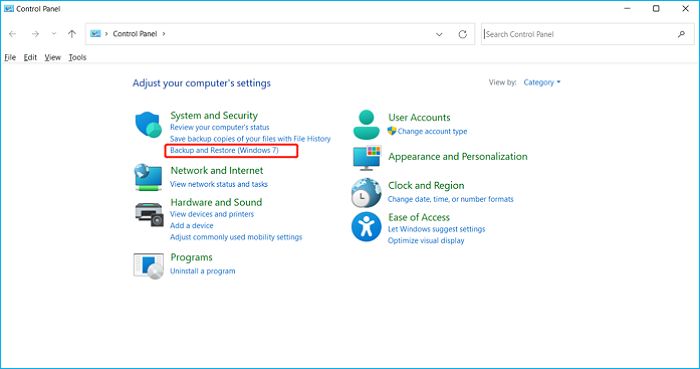
Here is how to back up your hard drive using Backup and Restore: Go to Control Panel, click on System and Security, and then click on Backup and Restore. Click on Set up backup, then select the drive you want to back up and choose the backup location.
Step 1. To access the Backup and Restore (Windows 7) feature, open the Control Panel in the Windows search box, then navigate to System and Security > Backup and Restore (Windows 7).
Step 2. Click Set up backup.
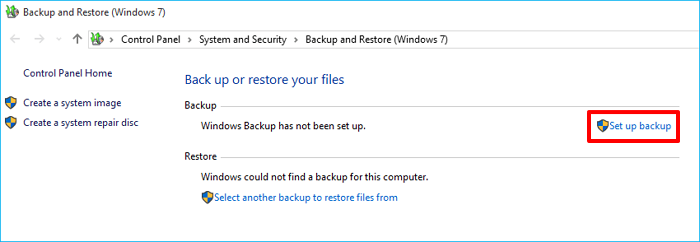
Tips: You can now connect an external drive to your Windows computer as a backup destination.
Step 3. Windows will automatically scan and list all available drives on your computer, allowing you to choose where to save the backup, including the option to select a network drive as a storage path.
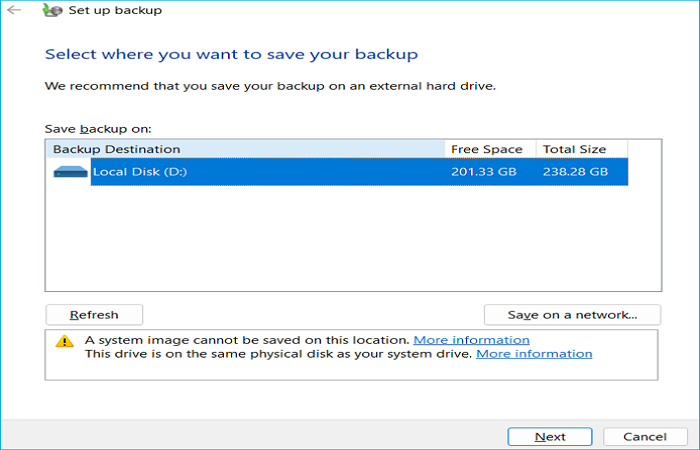
Step 4. Select what you want to back up.
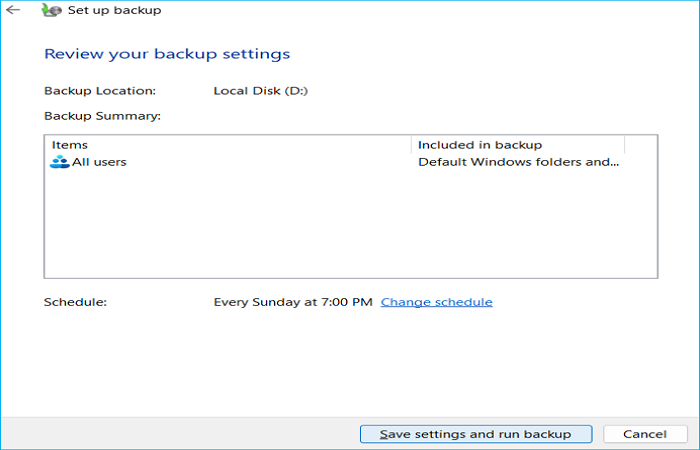
Note: Windows will automatically back up files in Windows directories and libraries, and also create a system image, by default.
Step 5. Review the backup settings and start the backup process. Wait until the task is completed before formatting the hard drive.
Note: Windows Backup and Restore is a primary backup method, but it lacks advanced features like encryption and cloud storage, so you may need to use third-party backup software for these functions.
To Wrap Things Up
You can back up your hard drive before formatting using third-party software like Qiling Disk Master or Windows' built-in Backup and Restore tool. This will ensure your data is safe and can be restored if needed.
Compared to Backup and Restore, Qiling Disk Master offers more advanced backup features and fewer limitations, making it a more suitable option for backup purposes. Additionally, it provides a range of extra functions, including cloning, imaging, encryption, Cloud backup, email notification, and premium technical support, making it a more comprehensive and user-friendly solution.
FAQs on How to Backup Hard Drive Before Formatting
1. Can we change HDD to SSD without losing data?
If you switch from a hard drive disk (HDD) to a solid state drive (SSD), you will lose your files on the HDD unless you back them up or clone them to the SSD.
2. How do I format my hard drive without losing data?
To format a hard drive without losing data, back up the drive using software like Qiling Disk Master or Windows Backup and Restore, then proceed with the formatting.
3. How do I backup directly to my hard drive?
To back up your computer or files to a hard drive, using professional backup software is the best option. It allows for automatic file backup to an external drive and offers more advanced backup features.
Related Articles
- Best Bootable USB Drive Creator Tool for Windows [2024 Update]
- How to Backup Cyberpunk 2077 Saves [Detailed Guide]
- Top 7 Best Backup Software for Windows 7 64 Bit/32 Bit Recommends [Free & Paid]
- How to Backup SD Card Before Formatting [2024]
- Windows 10 Backup Not Working? Top Solutions to Make It Work
- Stop Using Qiling Disk Master Crack, Activate with Official License Code [Latest]
Stop trying Qiling Disk Master crack, keygen, or serial numbers. Free download Qiling Disk Master 6.0 with office license code to transfer system, files, programs, settings between Windows and move local applications between local hard drives.
Products
Articles & Tutorials
- Data Recovery
- Data Backup
- File Recovery
- File Backup
- System Backup and Restore
- Disk and Partition Clone
- Technical articles
- Mobile articles
- Disk Master Help
- Windows Data Recovery Tutorials
- Windows Secure Delete Tutorials
- Windows Partition Management Tutorials
- Windows File Backup and Restore Tutorials
- Windows System Backup and Restore Tutorials
- Windows Disk Backup and Restore Tutorials
- Windows Clone Tutorials