Windows 7 Backup Fails with Error 0x80070003 [FIXED]
| Workable Solutions | Step-by-step Troubleshooting |
|---|---|
| Make a Windows 7 Backup | Click "Select backup contents" > click "File" > choose the file you want to back up > select location...Full steps |
| Fix Windows 7 Backup Failure |
Solution 1. Turn on System Protection...Full steps Solution 2. Delete the WindowsImageBackup...Full steps Solution 3. Repair files viachkdsk command...Full steps |
Windows 7 Backup Fail Error
The built-in backup tool in Windows 7 may be encountering issues such as error codes 0x80070003, error status_wait_1 0x80070001, and others. This could be due to various reasons like incorrect system configuration, corrupted system files, or other software conflicts. To resolve these issues, you may need to troubleshoot and resolve the underlying cause, which could involve checking system logs, updating drivers, or reinstalling the backup software.
Windows 7 backup fail Backing up data is a crucial habit to keep your digital life safe and accessible. However, any interruption or issue with accessing your backups can be frustrating and ruin your user experience. It's essential to have a reliable backup system in place to prevent data loss and ensure you can access your files whenever you need them.
Why Does Windows 7 Backup Keep Failing
Windows 7 is designed to handle multiple functions simultaneously, but errors while accessing these features can lead to back up process failures. One possible reason for this issue is the failure of the backup process due to interruptions while accessing different functionalities.
- Forget to enable System Protection: System protection is a Windows tool that helps protect users' systems and files by creating a system image, which is highly recommended to prevent issues with Windows 7 backup failures.
- WindowsImageBackup folder hinders system backup: The Windows Image Backup folder is a location that saves Windows Backup files and data, causing issues for users and preventing them from creating system backups, especially while creating a system image.
- Corrupted files: Corrupted files in Windows 7 can cause backup failures.
Make a Full Backup of Windows 7 in an Easier and More Reliable Way
Backup is a crucial aspect of data handling that ensures convenient access and usage of stored data. Qiling Backup is a leading data backup solution that provides hassle-free backup and instant recovery with high efficiency. It offers complete data backup, including disk images, and ensures that backups are kept in a safe condition, making it a one-stop solution for all backup needs.
Here are some features that highlight Qiling Backup:
- To create a system image backup on Windows 7, insert a blank USB drive or connect an external hard drive with enough free space. Open the Backup and Restore Control Panel applet, click on "Create a system image" and select the destination drive.
- Backup files, disks, and partitions on Windows 7
- Not only backup files but also clone hard drives and system
- Allow full backup, incremental backup, and differential backup
To make a full backup on Windows 7, follow these steps: follow the steps below.
Step 1. Click "File backup" button to initiate a backup.

Step 2. Local and network files will be displayed on the left side, allowing you to extend the directory and select the files you want to back up.

Step 3. To store the backup, select the location where you want to save it. Follow the on-screen instructions to complete the process.

Step 4. To encrypt the backup with a password, click on "Options" in the "Backup Options" section. This allows for a variety of other customization options to be applied to the backup process.

To set up a backup schedule and initiate a backup at a specific event, go to "Backup Scheme" and select the desired schedule. You can choose to back up at regular intervals or at specific events, such as when the battery level falls below a certain percentage.

Step 5. You can save the backup to a local disk, Qiling's online service, or a NAS.

Step 6. Qiling Backup allows customers to back up their data to both a third-party cloud drive and Qiling's own cloud drive.
To back up data to a third-party cloud drive, select Local Drive, navigate down to add Cloud Device, add your account, and log in.
Step 7. To start a backup, click "Proceed" after selecting the desired backup job. Once the backup process is complete, the job will be displayed as a card on the left panel, allowing for further management by clicking on it.

Once you've created a system image, you can restore it whenever you need without re-downloading and re-installing.
Restore Windows 7 from System Image Backup
Restoring Windows 7 from a system backup image created by Qiling OS backup software is a straightforward process.
How to Fix Windows 7 Backup Fail Problem Efficiently
If you're experiencing backup failure issues on Windows 7, it's essential to address them promptly. We can help you resolve this issue with three efficient methods, which can effectively eliminate the backup fail problems and get your system running smoothly again.
- Solution 1.Turn on System Protection
- Solution 2.Delete the WindowsImageBackup folder
- Solution 3.Repair the corrupted files via the chkdsk command
Solution 1.Turn on System Protection
To fix Windows 7 backup fail problem, the first choice is to turn on the system protection on your computer. To do this, follow these steps: follow the steps below. This will help you to prevent the backup fail problem.
Step 1. To open the Control Panel, press the Windows key on your keyboard, which will open the Start Menu. Then, type "Control" in the search bar, and it will appear in the menu. Click on it to open the Control Panel.
Step 2. To access System Protection, go to your device's Launch Control Panel, select "System and Security," then tap on "System," and finally select "System Protection."
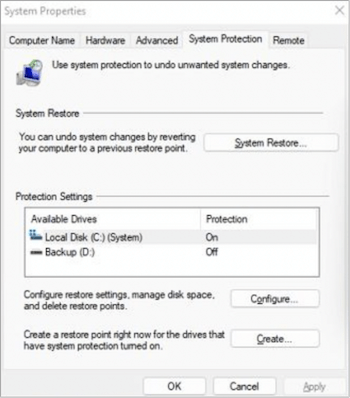
Step 3. To enable system protection, tap on the Configure option, then select the Turn on system protection option, and finally tap the Apply button and press OK to complete the process.
Solution 2.Delete the WindowsImageBackup folder
If turning on system protection didn't resolve your issue, you can attempt to delete the WindowsImageBackup folder. To do this, you can follow these steps: locate the WindowsImageBackup folder, right-click on it, and select "Delete" from the context menu. Alternatively, you can navigate to the System Protection settings, select the drive for which you want to delete the backup, and click "Delete" to confirm the action.
Step 1. To enable File History, go to the Launch Control Panel on your device, select "System and Security", and then navigate to "File History".
Step 2. To create a system image backup, tap on the "System Image Backup" option in the Settings app. Once the backup process is complete, search for the location of the backup folder, which contains the system image.

Step 3. To delete the WindowsImageBackup folder, navigate to the File History Drive, right-click on the WindowsImageBackup folder, and select the "Delete" button.
Solution 3.Repair the corrupted files via the chkdsk command
If you've already tried the two solutions and haven't found the related solution yet, you can check and repair corrupted files on your device using the chkdsk command. To do this, follow the steps:
Step 1. To open Command Prompt as an administrator, press the Windows Key + X button on your keyboard, and from the menu that appears, select "Command Prompt as Admin".
Step 2. Run a full disk check on drive X using the command line utility chkdsk, which scans the entire drive for errors and attempts to fix them. The /r option is used to run a full scan and repair any issues found.
Step 3. Run the command on each partition, waiting for the process to complete before moving on to the next one, until all partitions have been scanned and checked. This will ensure that all corrupted files are identified and processed.
More FAQs on Windows 7 Backup Fails
It is necessary to solve all the queries before opting for any solution. Here we are with some of the most asked questions in this segment so we can efficiently make things more apparent to you.
1. Is Windows 7 backup any good?
Windows 7 backup offers a reasonable and unlimited backup and restore service. It allows for both file and folder backups, as well as system image backups. Users can choose from Premium, Professional, or Enterprise packages for enhanced services.
2. Why does Windows 7 backup fail to complete?
Windows 7 backup failure can occur due to various reasons, including media failure, human error, or hardware failure.
3. How do I fix the Windows backup not working?
To fix the Windows backup not working issue, you can try various methods. One approach is to check and update the Windows Backup service, as outdated versions may cause problems.
- Manually start the service
- Format the device
- Enable Volume Shadow Copy
- Use chkdsk command
Final Thoughts
A total backup solution like Qiling Backup is reasonably necessary for securing different backup files and operating systems from threats. It's one of the easiest, most effective, and most affordable solutions to help you achieve absolute results.
You can easily check for solutions to various issues by following detailed processes, or use a tool to help you. This ensures convenient and successful access.
Related Articles
- What Is the Best Free Backup Software? Think Twice Before You Start
- Best Windows 11 Cloning Software: 5 Options
- What Is HP Cloud Recovery And How To Use It?
- Windows 11 Ruined My Computer! Slows Down and Crashes a Lot
- Full Comparison: SeagateOneTouchvsBackupPlusSlim
The Seagate One Touch and Backup Plus Slim are two popular portable hard drives that have sparked a debate among users. Both offer compact designs, ease of use, and reliable backup solutions, making it challenging to decide between them. - Server Migration: Everything You Need to Know | 2022 Complete Guide
This guide provides a step-by-step process to migrate Server data between Windows Server computers, covering everything you need to know about Server Migration to ensure a successful transfer of Server data.
Products
Articles & Tutorials
- Data Recovery
- Data Backup
- File Recovery
- File Backup
- System Backup and Restore
- Disk and Partition Clone
- Technical articles
- Mobile articles
- Disk Master Help
- Windows Data Recovery Tutorials
- Windows Secure Delete Tutorials
- Windows Partition Management Tutorials
- Windows File Backup and Restore Tutorials
- Windows System Backup and Restore Tutorials
- Windows Disk Backup and Restore Tutorials
- Windows Clone Tutorials