(Solved!) How to Effectively Download Windows 10 ISO Without Tool
Windows 10 is a remarkable and ageless operating system. So, how do you download Windows 10 ISO without tool?
It's hard to believe, but it's been over seven years since Windows 10 was first released. Since then, the operating system has undergone numerous updates, changes, and upgrades, earning it the reputation as the best operating system.
For those looking to install Windows 10 without the Media Creation Tool, there are a few workarounds. This article will explore alternative methods to download the Windows 10 ISO. Let's get started.
Problems of Windows 10 Media Creation Tool
The Windows 10 Media Creation tool is the official program by Microsoft to help users install Windows 10 from scratch. While it's a remarkable tool, its reliability can be inconsistent, making it not always the best option. Despite this, it's still the best tool available for the job.
The tool helps with downloading and installing an ISO file, then loads it onto a boot device to install it on your PC. However, underlying issues can sometimes make this process insufferable, including problems such as.
- The download speed is unreliable and can be frustrating to experience.
- The tool doesn't allow users to pause or resume downloads, requiring them to complete the process in one session.
- The new update is taking a long time to install, with some users experiencing a frustrating loop where it gets stuck on the "Getting a few things ready" screen for several hours. This has led to complaints and frustration among users, who are eager to access the new features and improvements.
- The Media Creation Tool may occasionally stop due to random or unwanted errors, which can be frustrating and disrupt the process of creating media. This can be caused by a variety of factors, such as software glitches, hardware incompatibilities, or corrupted files.
- Sometimes, the download process won't even begin due to a lack of administrator privileges for the user.
- Sometimes, the installation process of a software or application may not work as expected, resulting in errors such as missing or corrupted files, preventing it from proceeding with installation.
This tool is misleading, as it appears to be loading but actually does nothing, failing to provide any error messages for missing or corrupted files, making it a poor choice for downloading Windows 10 ISO.
Three Effective Ways to Download Windows 10 ISO
You can download Windows 10 ISO without the Media Creation Tool using three alternative methods that have been tested and tried by users worldwide. These methods will help you rid yourself of the tool and allow you to download the ISO directly.
To download Windows 10 ISO without using a tool, follow the steps correctly. First, go to the official Microsoft website and click on the "Download Windows 10" button. Then, select the language and architecture (32-bit or 64-bit) you want to download.
| Workable Solutions | Step-by-step Troubleshooting |
|---|---|
| Fix 1: Download Windows 10 ISO via Google Chrome | The first fix or workaround for this issue is downloading...Full steps |
| Fix 2. Download Windows 10 ISO Using Microsoft Edge | In this fix, we're going to try something similar, but we're using...Full steps |
| Fix 3. Download Win 10 ISO Without Tool Using Firefox | In this final fix, we'll take the same steps with Mozilla Firefox...Full steps |
Fix 1: Download Windows 10 ISO via Google Chrome
To avoid being led to download the Media Creation Tool, you can download the Windows 10 ISO directly via Google Chrome by following these extra steps:
· Go to the Windows 10 download page on your Google Chrome browser.
· Press F12 To open Inspect Element section.
· Find the mobile icon in the top-middle section.
· Select iPad Pro.
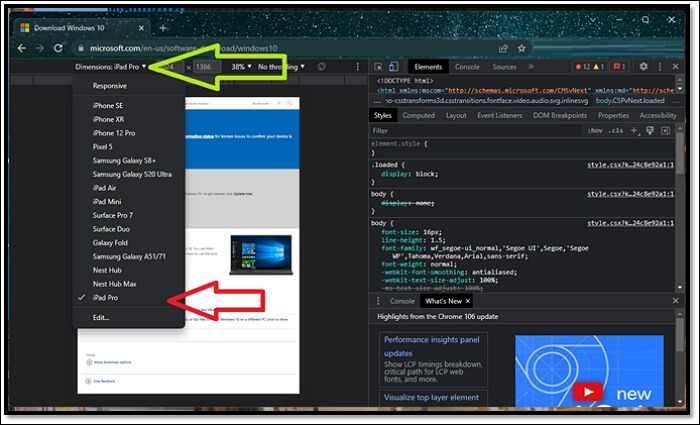
· Press F5 to Refresh the page.
You can refresh the page, close the inspect menu, and then follow the steps.
· Select the Windows 10 Multi-Edition ISO and click Confirm.
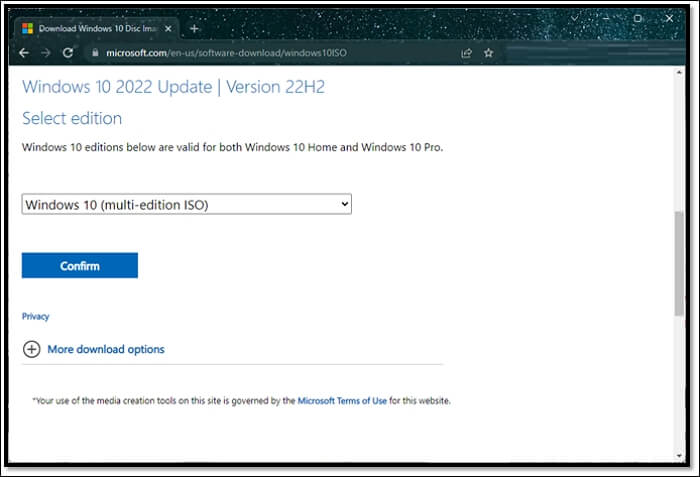
· Wait for the next options to load.
· Select English (United States) and confirm the download once more.
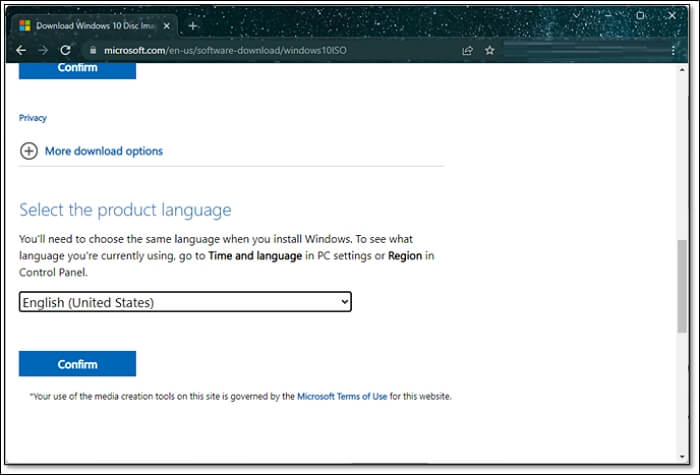
· Wait for it to validate your request.
· Select the 64-bit or 32-bit download according to your preference.
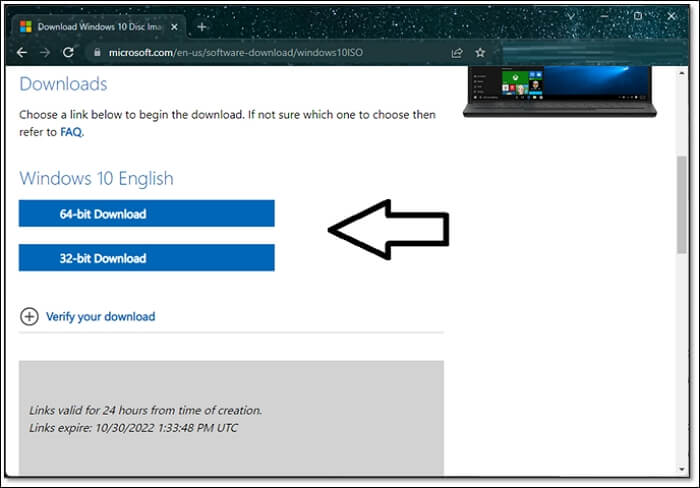
· Wait for the download to finish.
· Done.
To download the Windows 10 ISO without using the Media Creation Tool, follow these steps: Go to the official Microsoft website, navigate to the Windows 10 download page, and select your language and architecture (32-bit or 64-bit) from the dropdown menus. Then, click on the "Download" button to start the download process. The ISO file will be downloaded directly to your computer, bypassing the need for the Media Creation Tool.
Fix 2. Download Windows 10 ISO Using Microsoft Edge
To download the Windows 10 ISO without prompting the Media Creation tool, follow these steps in Microsoft Edge:
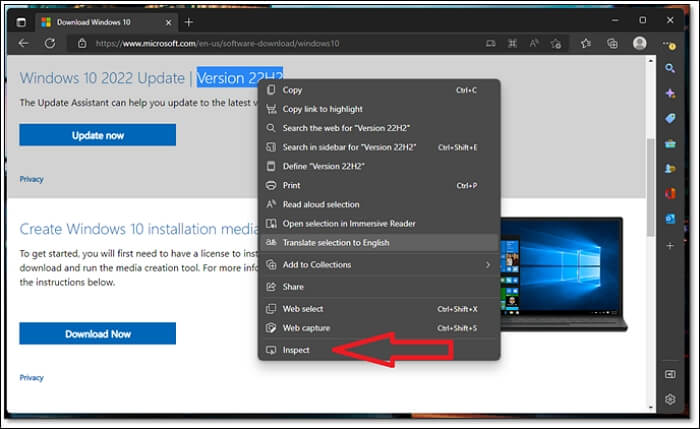
· Head to the Windows 10 download page in Microsoft Edge.
· Right-To access the developer tools, click anywhere on the page and head to the bottom of the menu to click "Inspect".
· Click on the Toggle Device Toolbar icon to simulate mobile devices and test your website's responsiveness.
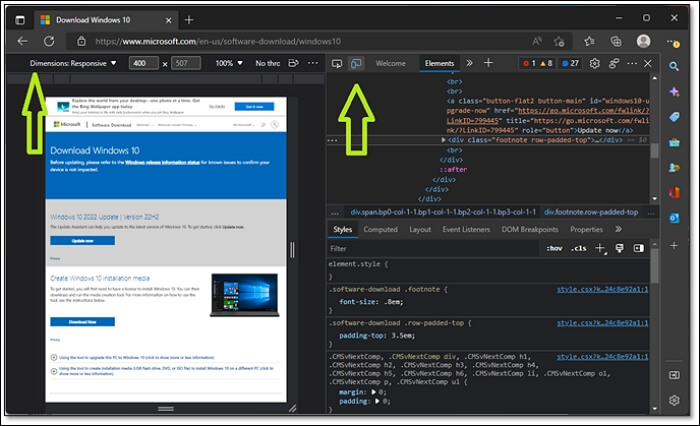
· Under the Responsive mode section, pick a mobile phone device.
· If available, pick the iPad Pro once again.
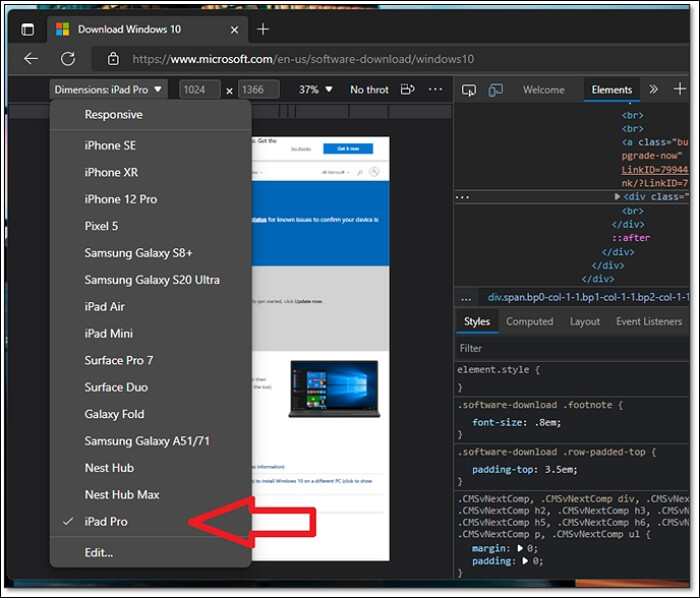
· Refresh your page to save these settings.
You can choose any page mode you prefer, but this method will give you a full-scale page without sacrificing any page space, ideal for phones. To proceed, follow the steps outlined.
· Click on Windows 10 Multi-edition ISO and Confirm.
· Then click on English (United States) and click Confirm once more.
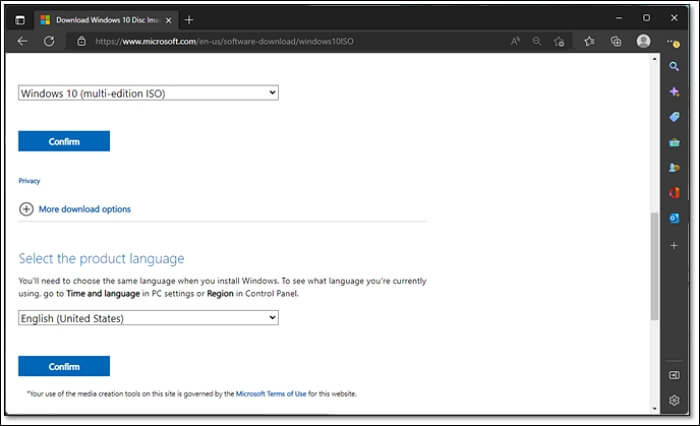
· Wait for the validation process.
· Download either 32-To install the English version of Windows 10 on a 32-bit or 64-bit Windows system, follow these steps: First, ensure that your computer meets the minimum system requirements for Windows 10. Next, download the English language pack for Windows 10 from the Microsoft website.
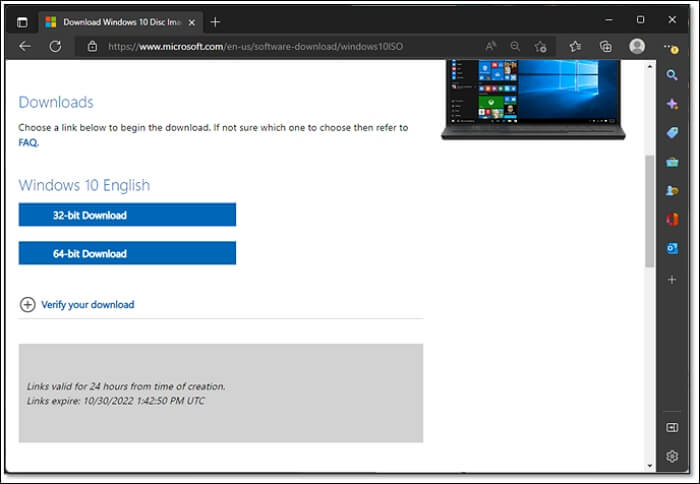
· Wait for the download to finish.
· Done.
To download the Windows 10 ISO directly, use the following command: `powershell -ExecutionPolicy Bypass -Command "Invoke-WebRequest -Uri https://go.microsoft.
Fix 3. Download Win 10 ISO Without Tool Using Firefox
To download Firefox from the Mozilla website on a Windows PC, open Firefox and navigate to the Mozilla website. Click on the "Download" button, then select the "Windows" option from the dropdown menu. However, instead of clicking on the "Download" button, click on the "Share" button next to it. This will open a new tab with the download link.
· Go to the Windows 10 Download Page on your Firefox browser.
· Press F12 or right-click anywhere on the page, then select Inspect.
· Click on the Toggle Device menu icon.
· Then select iPad Pro.
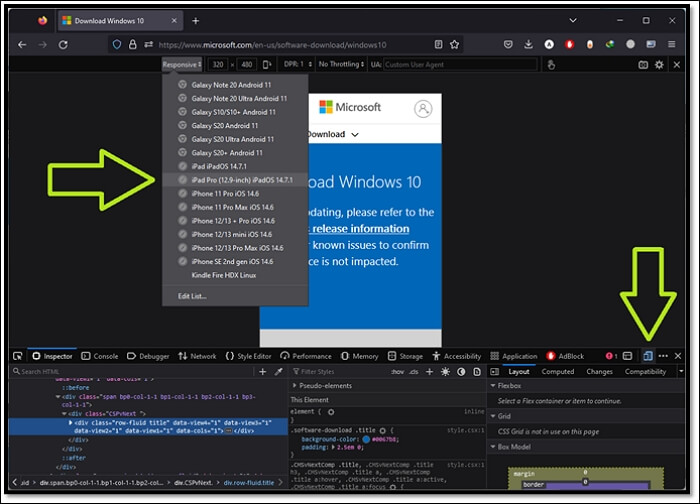
· Refresh the page and close the inspection.
You can trick the browser into loading the Windows 10 download page meant for mobile phones and other devices, which won't trigger the Media Creation Tool. To do this, you'll follow the same steps as before, such as accessing the Windows 10 download page, selecting the correct version, and following the prompts to download the ISO file. This method allows you to bypass the Media Creation Tool and download the ISO file directly.
· Confirm Windows 10 Multi-Edition ISO download.
· Confirm the language to be United States English.
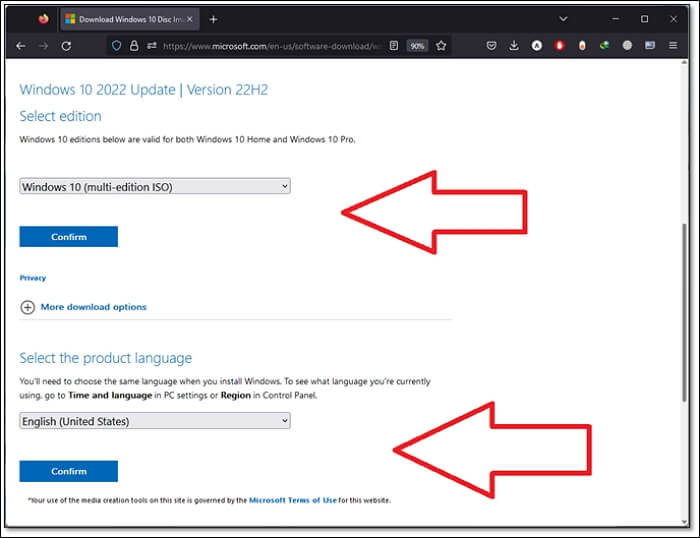
· Wait for it to validate your request.
· Download either the 32-bit or 64-bit version of the Windows 10 ISO.
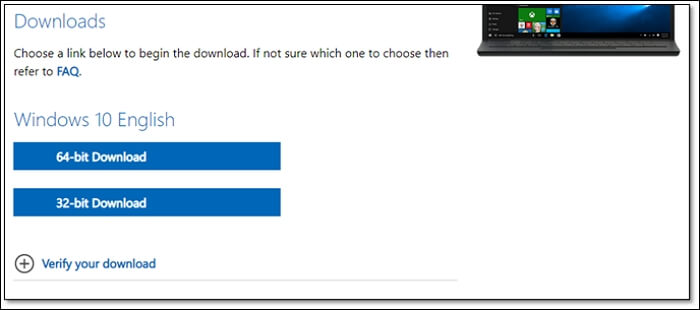
· Done.
To download the Windows 10 ISO on Firefox without using the Media Creation Tool, follow these steps: Go to the Microsoft website and select the Windows 10 version you want to download. Click on the "Download" button and choose the correct language and architecture (32-bit or 64-bit) for your computer.
The Bottom Line
To download Windows 10 ISO without using a tool, there are several viable options available. You can visit Microsoft's official website and download the Windows 10 ISO directly, or use a third-party website that provides the ISO file for download. Additionally, you can also use the Windows Update feature to download the ISO file, or use a browser extension to download the file.
To download the Windows 10 ISO, first, go to Microsoft's official website, click on the 'Download' button, and select the correct version of Windows 10 based on your system architecture. Next, choose the language and edition of Windows 10 you want to download.
FAQs
1: How do I download Windows 10 ISO only?
We explored three methods to download Windows 10 ISO only, allowing you to choose the one that suits your browser, and then download the Windows 10 ISO file alone.
2: Are Windows 10 ISO free?
Windows 10 ISO is free to download, but a license key is required to activate it after installation.
3: How do I make an ISO image bootable?
You can make your ISO image bootable and copy it to your USB using a tool like Rufus or any other media creation tool, allowing you to boot from the USB drive.
4: How do I know if my ISO is bootable?
You can explore the contents of the ISO file by opening it with WinRAR or 7zip on your computer. If you see a folder named "boot" inside the ISO, it indicates that the ISO is bootable.
Related Articles
- Windows Backup 0 Bytes | Get the Answer here!
- What Happens When You Format an SD Card? [2022 Ultimate Answer]
- How to Fix "Mac Documents Folder is Empty" Error
- How to Restore Files from OneDrive to PC [A Full Guide]
- [PNG Files] What Is a PNG File? Everything You Should Know
PNG is a popular picture file format, perhaps a second format only to JPG nowadays. It is easier to work with than JPG and has a few advantages over that format. What you should know is as follows. - What Is Rsync Windows And How to Use It? [Quick Tips]
Don't know what is Rsync and how to use it on Windows? Read this article as we tell you everything about Rsync and how to install and use it on Windows
Products
Articles & Tutorials
- Data Recovery
- Data Backup
- File Recovery
- File Backup
- System Backup and Restore
- Disk and Partition Clone
- Technical articles
- Mobile articles
- Disk Master Help
- Windows Data Recovery Tutorials
- Windows Secure Delete Tutorials
- Windows Partition Management Tutorials
- Windows File Backup and Restore Tutorials
- Windows System Backup and Restore Tutorials
- Windows Disk Backup and Restore Tutorials
- Windows Clone Tutorials