What Happens When You Format an SD Card? [2022 Ultimate Answer]
Formatting an SD card does indeed erase all the data on it, including files, pictures, and videos. The formatting process essentially rewrites the SD card's file system, making it ready for new data to be written onto it. However, the erased data can potentially be recovered using specialized software, especially if the SD card hasn't been used extensively since the formatting. If you're looking to reuse an SD card, it's recommended to format it to ensure it's clean and ready for new data.
Formatting an SD card involves erasing all data on the card, making it ready for new data to be written. This process can be done using various methods on Windows and Mac, including built-in formatting options and third-party software like Qiling Partition Master Free, which can also resize partitions and clone disks. By formatting an SD card, you can remove any existing data, including photos, videos, and files, and prepare the card for use with a new device or operating system.
What Happens When You Format an SD Card?
Formatting an SD card erases all data on it, allowing it to be reused for other devices. This process creates a new file system, making the SD card available for use with smartphones, cameras, or video game consoles.
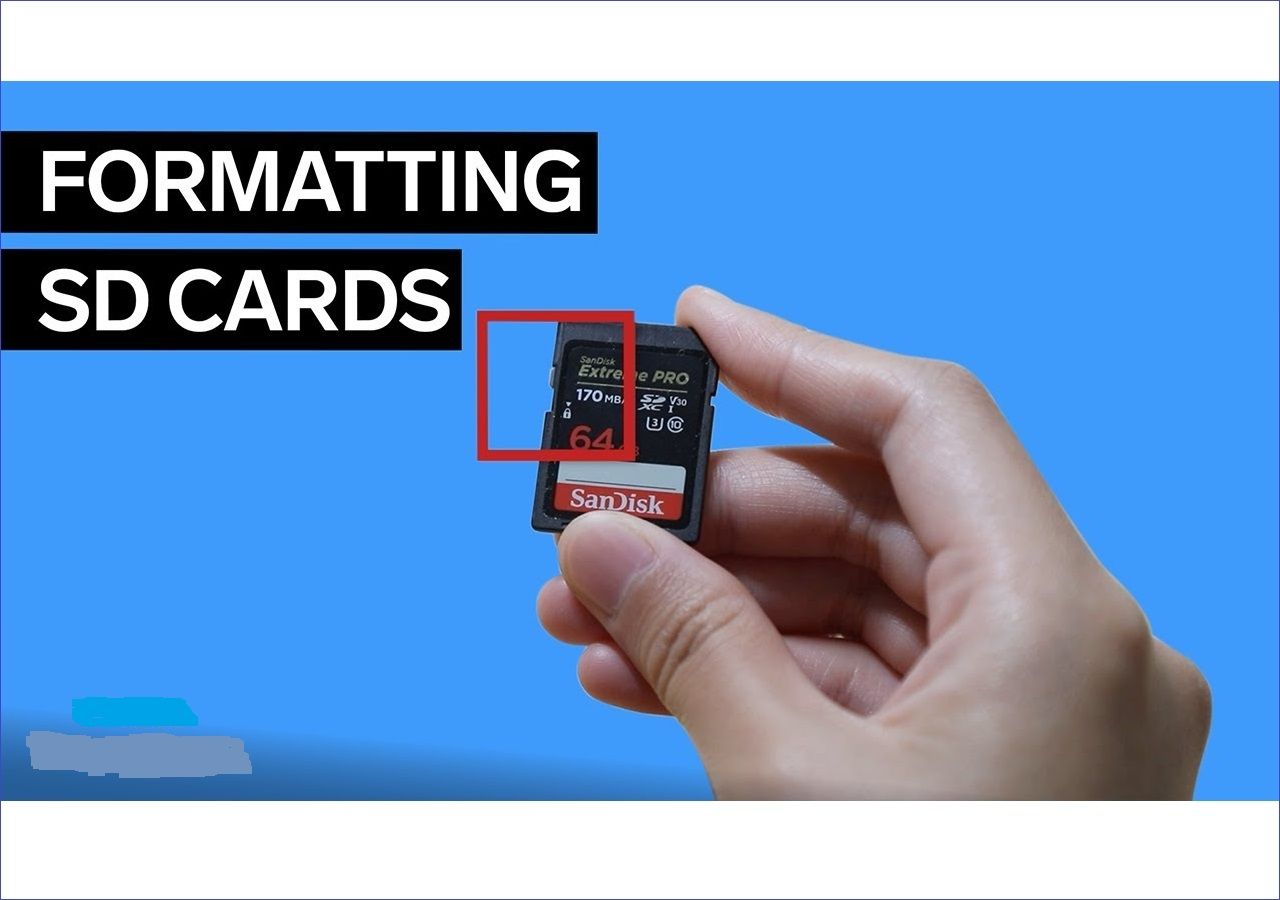
Formatting your SD card solves the issue if it has corrupted files, making it safe for reuse. It also frees up space to store new files, as all old files are erased.
Does Formatting an SD Card Delete Everything?
Formatting an SD card deletes everything on it, but it doesn't erase the data permanently. It only makes the data unavailable for use on the SD card.
How to Format an SD Card on Windows?
Windows provides several options to format an SD card, making it ready for other uses. The four ways to format an SD card on Windows involve using the built-in Disk Management tool, the Command Prompt with the format command, the Diskpart command, and the built-in File Explorer to format the SD card.
1. A Third-Party Tool: Qiling Partition Master
Let's discuss how each method works.
Method 1. Format an SD Card with Qiling Partition Master
Qiling Partition Master is a reliable software for removing data from an SD card and formatting it for different use, allowing users to wipe all data and convert the card to NTFS or FAT32.
Since it's an efficient disk management tool, Qiling supports operating systems, including Windows 11/10/8.1/8/7, Windows XP, and Windows Vista. Below are simple steps to format your SD card using Qiling Partition Master.
Step 1. To format your SD card, locate it, right-click on the partition you want to format, and select "Format" from the options.
Step 2. Set a new partition label, file system (NTFS, FAT32, EXT2, EXT3, EXT4, or exFAT), and cluster size to the selected partition, then proceed.
Step 3. Click "Yes" on the pop-up window to start formatting your SD card. This will erase all data on the card and prepare it for new files.
Other Functions of Qiling Partition Master
This software allows you to format your SD card, in addition to other features. It also enables you to perform other tasks.
Method 2. Format an SD Card with Disk Management
Disk Management is a Windows built-in tool that allows you to view the information of all the drives on your computer. You can use this tool to format your SD card by accessing it through the following steps:
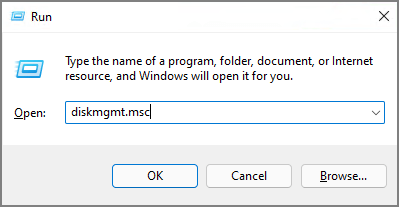
Step 1. To open Disk Management, press the Windows logo key + R to open the Run window, then type "diskmgmt.msc" and select OK. This will open the Disk Management utility.
Step 2. Find your SD card and right-click on it. Select "Format."
Step 3. Ensure you've checked the "Perform a quick format" option.
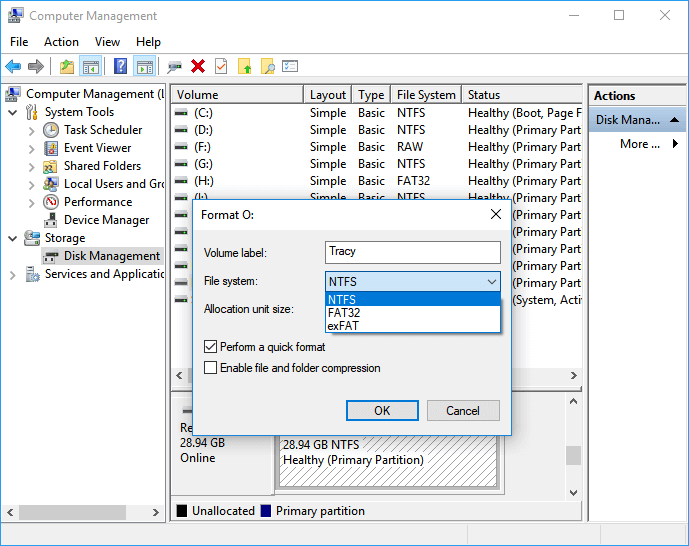
Step 4. To prepare your SD card for use, select a preferred file system and allocation unit, then click "OK" to initiate the formatting process. The formatting process will begin, and you should wait until it completes before using your SD card. Once finished, your SD card will be completely formatted and ready for other use.
Method 3. Format an SD Card with File Explorer
You can format your SD card via File Explorer, which lists all available drives on your computer, including the SD card. To do this, follow these steps:
Step 1. Connect the SD card to your computer.
Step 2. Press "Windows + E" to open File Explorer.
Step 3. To access "This PC" on your computer, navigate to the left side of the panel and click on it.
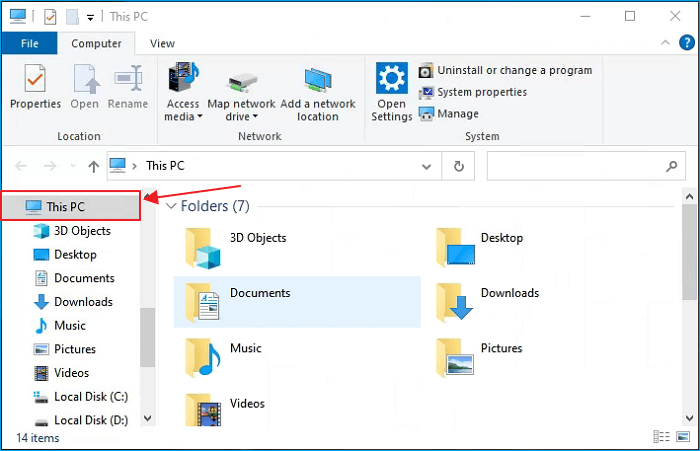
Step 4. To format your SD card, locate it in the list of available drives, right-click on it, and select the "Format" option.
Step 5. Select the preferred file system for your formatted drive.
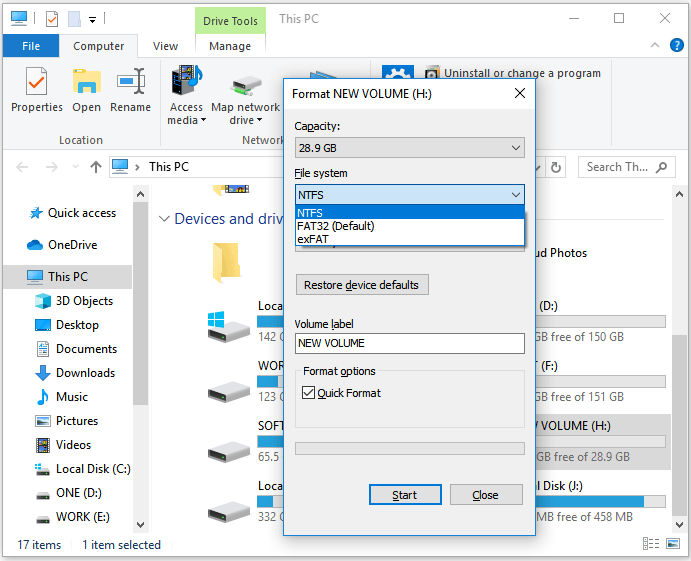
Step 6. Next, click on the "Start" button. File Explorer will start formatting your SD card and delete all the data.
Method 4. Format an SD Card with CMD
The Command Prompt (CMD) is a powerful Windows tool that allows you to easily format your SD card. Using a series of executable commands, you can delete all files on the SD card and make it ready for a different use. The steps to format your SD card using CMD involve a series of commands that can be executed to seamlessly delete all files and prepare the SD card for a different use.
Step 1. To open Command Prompt, type "cmd" on the search bar and click "Run as administrator."
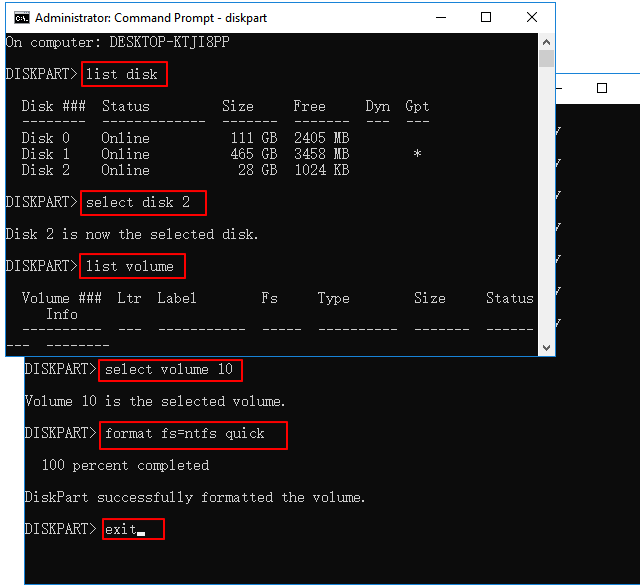
Step 2. Once the Command Prompt window opens, type "diskpart" and hit Enter, launching the Diskpart Utility.
Step 3. To list all available disks on your computer, type "list disk" and press Enter.
Step 4. To select your SD card, you can enter the command "select disk [name of SD card]" in your terminal, replacing [name of SD card] with the actual name of your SD card. For example, if your SD card is named "SD Card 1", you would enter "select disk SD Card 1".
Step 5. To clear data from your SD card, type "clean" and press Enter.
Step 6. The command to partition the cleaned disk is "create partition primary".
Step 7. To format your SD card, select the file system you want to use, which in this case is NTFS, by typing format fs=ntfs
.
Step 8. Assign a drive letter to the formatted SD card using the command "assign letter=E" (replace "E" with the correct drive letter).
How to Format an SD Card on Mac?
Mac allows you to delete data on your SD card using built-in tools like Disk Utility and Terminal, allowing for formatting of the SD card.
Method 1. Format an SD Card with Disk Utility
Disk Utility is a built-To safely format connected drives, including SD cards, using Mac's Disk Utility, follow these steps:
Step 1. Connect the SD card to your Mac.
Step 2. Launch Disk Utility.
Step 3. Select the name of your SD card from the list of available drives and click on "Erase."
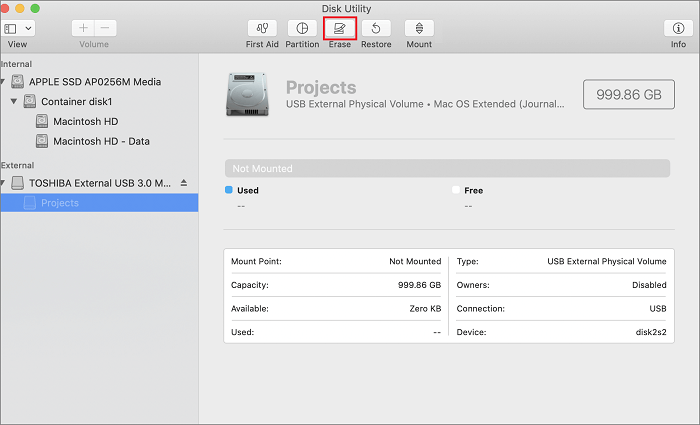
Step 4. Type a new name for your SD card.
Step 5. Select your preferred file system.
Step 6. Click the "Erase" button.
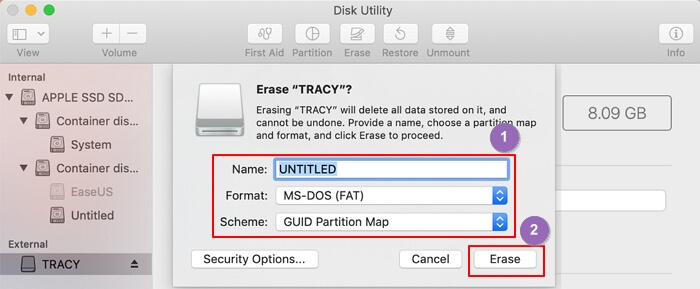
Step 7. Once you've selected the SD card, Disk Utility will start formatting it. Wait for the process to complete, then click Done to exit.
Method 2. Format an SD Card with Terminal
To format an SD card on a Mac using Terminal, you can follow these steps: First, insert the SD card into your Mac's card reader or a USB adapter. Then, open Terminal on your Mac by searching for it in Spotlight or finding it in Applications/Utilities. Next, navigate to the SD card by typing 'diskutil list' and identifying the disk number of the SD card. Use the 'diskutil eraseDisk' command followed by the disk number and the desired file system (e.
Step 1. Connect the SD card to your Mac.
Step 2. Press Cmd+Space to launch Terminal.
Step 3. To view all the drives on your Mac, you can use the command "diskutil list" in the Terminal app. This will display a list of all the drives connected to your Mac, including internal and external drives, as well as any USB drives or other storage devices that are plugged in.
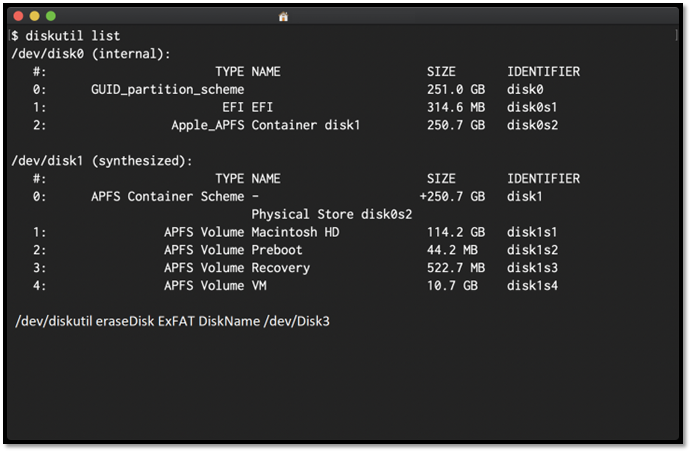
Step 4. If your SD card is among the listed drives, paste the following command to select and format it (replace "/dev/disk4" with the correct name for your SD card) and press Enter.
Sudo diskutil eraseDisk ExFAT SDCARD MBRFormat /dev/disk4
Step 5. Input your Mac password.
Step 6. The terminal will wipe all the data on your SD card and make it ready for use.
Conclusion
Formatting an SD card on Windows or Mac deletes all its files, but doesn't permanently erase them, making them unavailable for use on the SD card. To format an SD card on Windows, you can use Qiling Partition Master, Disk Management, File Explorer, or Command Prompt.
For Mac users, Disk Utility or Terminal can be used to format an SD card, but the most efficient method is using Qiling Partition Master, a free third-party application that can delete all files on the SD card quickly.
It supports FAT32 and NTFS file systems and is compatible with various Windows operating systems, including Windows 11/10/8.1/8/7, Windows XP, and Windows Vista.
FAQs of What Happens When You Format an SD Card
Formatting an SD card will erase all data on it, and it can't be recovered. So, it's essential to back up any important files or data before formatting the card. Once formatted, the SD card will be empty and ready to be used again.
1. Does Formatting an SD Card Delete Everything?
Formatting an SD card deletes all files and data, but doesn't erase them permanently.
2. What Happens If I Format SD Card?
Formatting an SD card will erase all data and assign a new file system, potentially resolving issues with a misbehaving card.
3. How Do I Format My SD Card without Losing Everything?
To format an SD card without losing data, back up all files to another SD card or a designated drive on your computer before wiping them. This ensures your data is safe even when you format the card.
Related Articles
- Will System Recovery Delete My Files? Answered Here!
- Fix macOS Sierra 10.12.1 Update Stuck or Fail to Download Error
- How Do I Format USB Drive on Linux? Linux Beginners in 2026
- Fix: There Was a Problem Resetting your PC in Windows 10/8.1/8
- How to Fix "Convert GPT Grayed Out" Error in Windows [2023 New Fix]
The GUID Partition Table (GPT) system allows for more storage capacity and flexibility compared to the traditional Master Boot Record (MBR). Unlike MBR, GPT enables the creation of multiple partitions, making it a more efficient and scalable option for managing disk space. - How to Solve Convert to MBR Greyed Out in Disk Management [Best Ways]
Fix Convert to MBR greyed out in Disk Management. Learn why the option is unavailable and how to convert GPT to MBR safely when needed.
Products
Articles & Tutorials
- Data Recovery
- Data Backup
- File Recovery
- File Backup
- System Backup and Restore
- Disk and Partition Clone
- Technical articles
- Mobile articles
- Disk Master Help
- Windows Data Recovery Tutorials
- Windows Secure Delete Tutorials
- Windows Partition Management Tutorials
- Windows File Backup and Restore Tutorials
- Windows System Backup and Restore Tutorials
- Windows Disk Backup and Restore Tutorials
- Windows Clone Tutorials