How to Fix "Convert GPT Grayed Out" Error in Windows
Disk Management only converts a non-system disk that is empty to a GPT system. If there are existing partitions on the disk, it results in the error "Convert GPT grayed out" when trying to convert MBR to a GPT disk system.
To fix the error, delete all partitions and convert the MBR disk to a GPT disk, allowing you to avoid the grayed-out error message. This can be achieved through two methods, as outlined in the tutorial guide.
The "Convert GPT" option in Disk Management is grayed out due to several reasons, including the disk being in use, the disk being a system disk, or the disk not being a basic disk. To resolve this issue, you can try restarting your computer, booting from a Windows installation media, or using the command line to convert the disk.
Here are some related articles about converting GPT grayed out.
Why "Convert GPT Grayed Out" in Disk Management
The main reason for the "grayed out" error when trying to convert MBR to GPT in Disk Management is that the disk is not empty and there are partitions or volumes on it that cannot be converted. This is because the conversion process requires the disk to be empty, and any existing partitions or volumes would prevent the conversion from happening.
The inability to convert an MBR disk to a GPT disk is primarily due to existing partitions on the disk. Disk Management can only convert an empty non-system disk from MBR to GPT or vice versa. To overcome this, you must first back up all partitions on the disk, then erase all partitions before initiating the conversion.
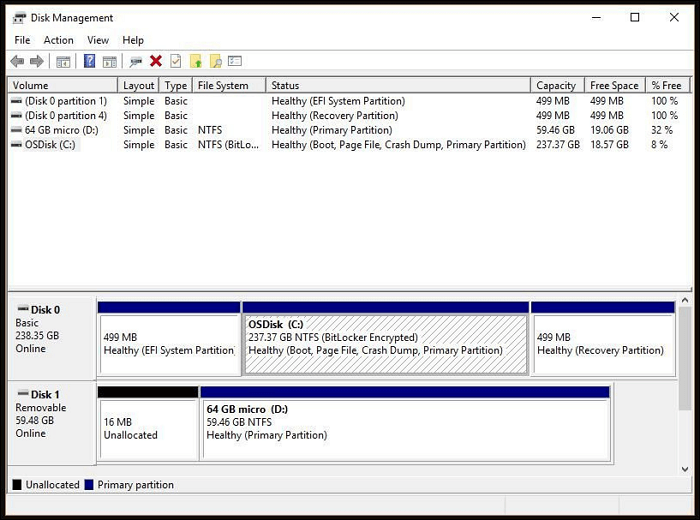
When trying to convert a data disk using Windows Disk Management, it's essential to back up any important data first, as the process can't convert MBR to GPT. To proceed, delete each partition, and once that's done, the "Convert to GPT" option will become available, allowing for a seamless conversion.
We'll cover the top two ways to fix GPT to MBR conversion problem in detailed steps.
How to Fix the "Convert GPT Grayed Out" Error
After understanding why you can't convert MBR to GPT in Disk Management, fixing this error requires a few steps. The top two ways to resolve this issue involve taking a few steps.
- Way 1. Use Third-Party Tool to Fix Convert GPT Grayed Out Error
- Way 2. Delete the Existing Partitions to Fix Convert GPT Grayed Out Error
Let's begin with using a third-party tool to fix the issue.
Way 1. Use Third-Party Tool to Fix Convert GPT Grayed Out Error
With Qiling Disk Master, you'll have a safe and powerful partition manager compared to Disk Management, allowing you to perform advanced features such as converting MBR and GPT without losing data or deleting any partition, checking bad sectors, merging partitions, moving partitions, and formatting the SD card with a few clicks, all while being highly compatible with Windows 11/10/8/7.
Follow these steps to use Qiling Disk Master:
Step 1. Download and launch Qiling Disk Master on your computer.
Step 2. Go to Disk Converter by select "Disk management" tab page.
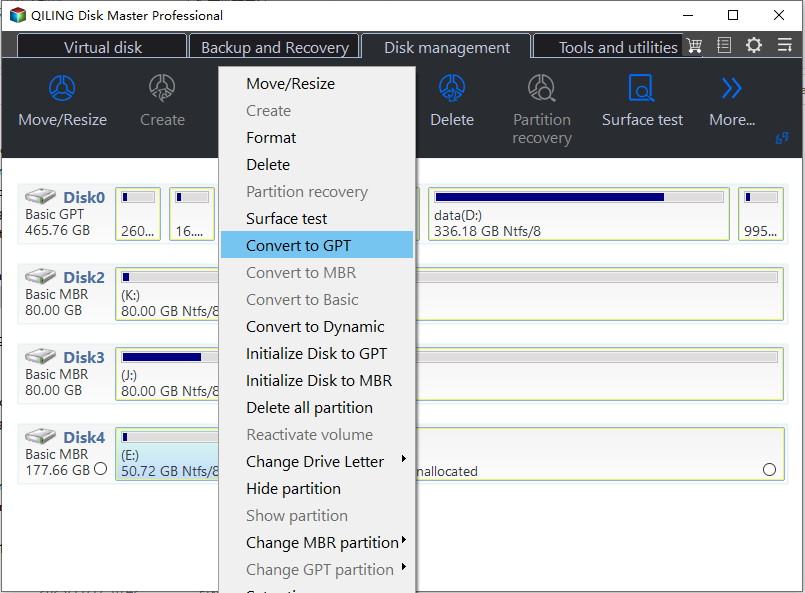
Step 3. To convert a target MBR disk to GPT, right-click on the disk and select the "Convert to GPT" option. This will initiate the conversion process.
Way 2. Delete the Existing Partitions to Fix Convert GPT Grayed Out Error
To convert an MBR to GPT while losing data using Diskpart, you can execute the Diskpart command, which is a specialized tool for managing computer disks. This allows you to manage disk partitions, hard disks, volume extension, assigning or removing drive letters, and other functions. Simply type "Diskpart" in the command prompt to access it.
Here are the steps to convert MBR to GPT using Diskpart: To convert MBR to GPT, you will need to delete all partitions on the disk, which will result in data loss. First, open Command Prompt as an administrator and type "diskpart" to open the Diskpart utility. Next, type "list disk" to list all disks on your system, and then type "select disk X" where X is the number of the disk you want to convert.
Step 1. You should perform a complete backup of the disk before opening Diskpart, as the tool will remove all data from the partition, making it irrecoverable.
Step 2. Type cmd in the Start menu.
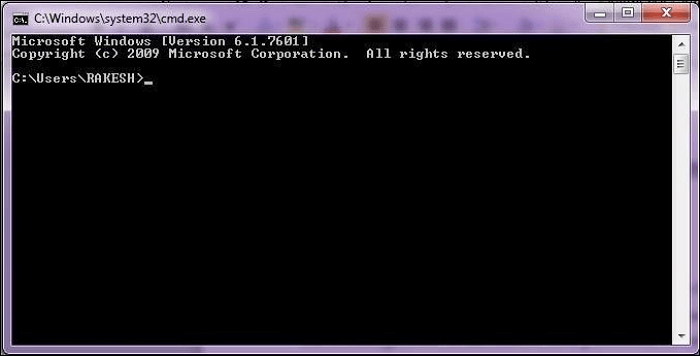
Step 3. After right-clicking "Command Prompt," choose "Run as administrator."
Step 4. Type diskpart and hit "enter." Click on "Yes," when you see a confirmation prompt.
Step 5. Type the following commands and hit "enter" at a time:
diskpart
list disk
select disk 1
list partition
select partition 1
delete partition
Step 6. All partitions will be deleted from the disk and converted to GPT.
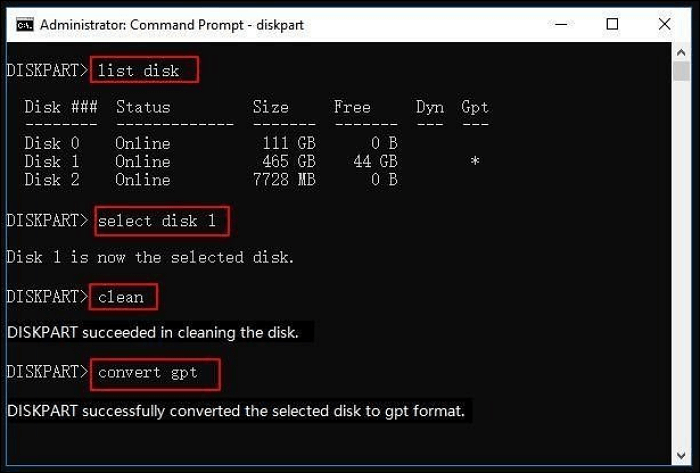
Step 7. Type exit when you've completed the conversion process.
Conclusion
Windows Disk Management can help convert MBR to GPT disk, but its limitations mean it's only suitable for non-partition hard disks. If you want to convert a disk with data, a third-party tool is a better option. Qiling Disk Master is a recommended tool that allows for quick conversion while preserving your data.
Convert GPT Grayed Out FAQs
What does it mean when the "Convert GPT" button is grayed out? The "Convert GPT" button is grayed out when the model is not compatible with the current version of the GPT model, or when the model is not in the correct format.
1. Why can't I convert my hard drive to GPT?
To convert a disk to GPT or MBR in Disk Management, you need to delete all partitions from the disk drive first, as these conversions can only be created from an empty disk. This means you'll have to remove every partition from the disk drive before you can convert it to a GPT disk.
2. How do I force MBR to GPT?
Right-click and delete each of the volumes or partitions if you have partitions or volumes on the disk. Then, right-click on the MBR disk you wish to convert into a GPT disk, and click Convert to a GPT disk.
3. Does all HDD support GPT?
GPT partitioned disks can be used with all HDD versions, including non-SSD models. This is because GPT is a 64-bit design that allows for more flexibility and compatibility with various operating systems, such as macOS and Windows 8/10, which can use GPT if the motherboard supports UEFI.
Related Articles
- Dish Hopper External Hard Drive Format: What Is the Best & How to Set [Ultimate Guide]
- Computer Shuts Down When Put to Sleep: Fixes Are Here
- How to Fix Xbox External Hard Drive Not Working [Full Guide in 2026]
- Real Fixes: This app can't run on your PC in Windows 10
- How to Fix Virtual Disk Service Error: The Disk Is Not Empty [Full Guide]
Fix Virtual Disk Service errors in Windows DiskPart or Disk Management. Learn causes and safe ways to repair disk operations. - What Is Volume Shadow Copy and How to Use It Correctly on Windows 11/10
Learn what Volume Shadow Copy is, how it works in Windows, and how it helps create snapshots, backups, and previous versions of files.
Products
Articles & Tutorials
- Data Recovery
- Data Backup
- File Recovery
- File Backup
- System Backup and Restore
- Disk and Partition Clone
- Technical articles
- Mobile articles
- Disk Master Help
- Windows Data Recovery Tutorials
- Windows Secure Delete Tutorials
- Windows Partition Management Tutorials
- Windows File Backup and Restore Tutorials
- Windows System Backup and Restore Tutorials
- Windows Disk Backup and Restore Tutorials
- Windows Clone Tutorials