How Do I Format USB Drive on Linux? Linux Beginners in 2026
The most commonly used file system format for USB drives that are compatible with all three operating systems is FAT32 or exFAT, as they are widely supported by Linux, Windows, and macOS. These formats are a good choice for USB drives that need to be used on multiple operating systems. However, if you only plan to use the USB drive on a Linux system, you can also consider using the ext4 file system format, which is native to Linux.
We can't get what we need if we only use Linux-compatible formats. Both don't follow Apple-only formats. FAT32 was the closest file system to a universal standard, allowing USB devices to be shared across Windows, Linux, and macOS. However, it had a 4GB file size limit, which was a major limitation.
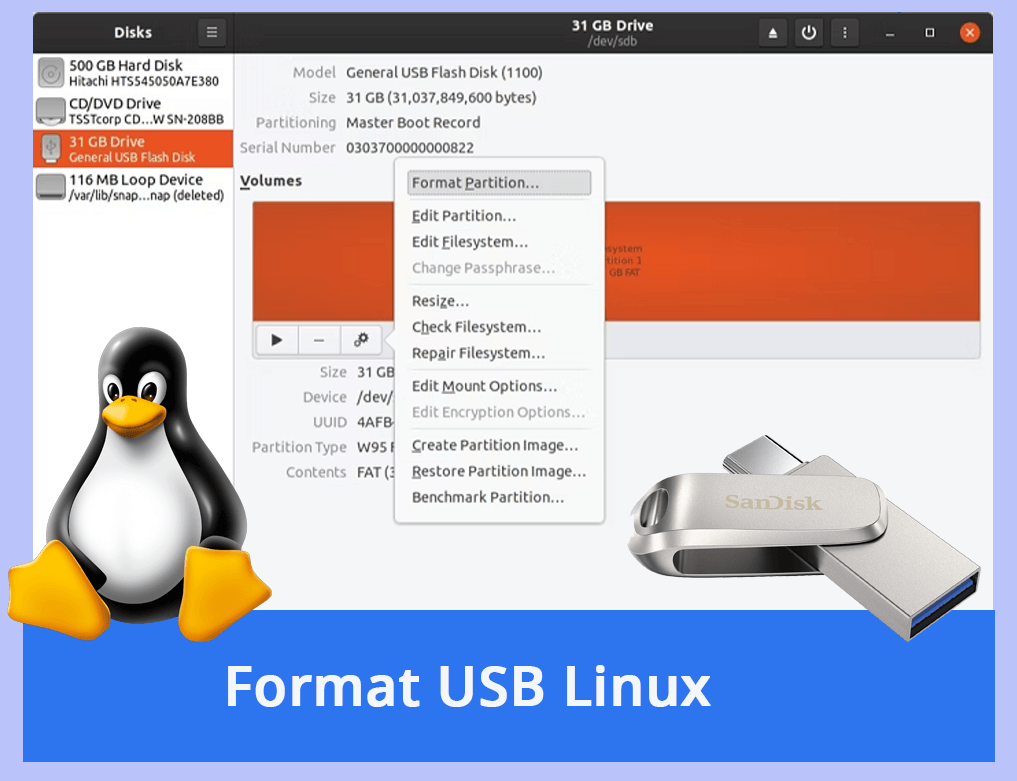
The exFAT file system is a Microsoft format that works with macOS and Linux, making it a strong contender for the best file system for USB devices. It removes the restriction of FAT32, lacks the overheads of NTFS, and has additional capabilities, making it quick and efficient.
Formatting a USB drive can be a tedious process, but it's necessary at times. You can use either the "Disks" program or the terminal to format your USB drive. Here's a step-by-step guide to help you through the process.
Formatting a USB drive can seem like a daunting task, but it's actually quite straightforward. While Windows can be a bit tricky to navigate, Linux makes the process much easier. With this tutorial, you'll be able to format your drive with confidence and ease.
What Is the Best Format for USB on Linux
To free up storage space on USB sticks, we often need to format them to make all the space available again for storing programs, movies, music, or our operating system.
ExFAT is the recommended filesystem for transferring files between Windows and Linux, particularly when using USB flash devices and SD cards, due to its ability to handle large files without the 4GB limit of FAT32, and its native support in modern Linux kernels.
The Disk File System, Flash File System, Tape File System, and others can be used with various types of storage, but this article focuses on the FAT32, NTFS, and Ext4 disc file systems.
Three major file systems - FAT32, NTFS, and Ext4 - store data on storage devices. Understanding their advantages and disadvantages is essential to choose the best file system for your needs, as each has its own set of benefits and drawbacks.
Comparison of Formats
#1. FAT32
- The oldest drive format is FAT32, while the more recent ones are NTFS and Ext4.
- The FAT32 file system was first developed in 1977, while NTFS was introduced in 1993. In a separate development, the stable version of the Ext4 file system was made available on October 21, 2008.
- Most current and recently retired operating systems, including DOS, Windows up to 8, Mac OS X, and many UNIX-derived systems like Linux and FreeBSD, are compatible with FAT32 in terms of reading and writing.
#2. NTFS
- NTFS is fully compatible with Windows, from Windows NT 3.1 to Windows 8, and can be read by Mac OS X 10.3 and later versions.
- To access an NTFS volume on a Mac, a third-party application like Paragon NTFS for Mac is required.
#3. EXT
- One of the newest and best file formats for Linux is called Ext4.
- The Ext4 filesystem has made significant changes to its core data structures, specifically those responsible for storing file data. This includes the implementation of a new data structure known as the "ext4_inode" which replaces the traditional "ext3_inode" used in previous versions of the filesystem.
- The ext4 Format allows users to still read the filesystem from other distributions and operating systems that do not support the ext4 standard.
- The Ext3/4 filesystem is considered one of the most incredible formats, but unfortunately, neither Windows nor Macs have native support for it. To access ext4 partitions on these systems, users can create a tiny FAT32 partition, install a program like Ext2Fsd, and then format the remaining space as ext4. This workaround allows users to utilize the ext4 filesystem on their Windows or Mac devices.
Best Format for USB Using on Linux
Microsoft introduced NTFS, which had a heavy data overhead, making it unsuitable for small storage devices. However, they also developed a new file system that retained the higher storage space limit of NTFS but was more lightweight, similar to FAT32.
exFAT is a file system that allows storage of up to 128 PB, making it ideal for large storage devices, while being space-efficient and using minimal system resources.
Macintosh also supports exFAT, making it a more portable option compared to Windows, and while it may require some extra steps on Linux systems, it is still possible to read and write on them.
What You Will Need Before Formatting USB on Linux
This tutorial will guide you through formatting a USB drive in Linux using three simple methods. You will learn how to format your USB drive using the command line interface with the mkfs and fsck commands, using the built-in disk formatting tool in the Linux desktop environment, and using the GParted partition manager.
#1. Back up all essential files on USB drive
If you have important files on the USB drive you're about to format, make sure to back them up to a safe location first.
#2. Pick a reliable USB formatting tool for Linux
Here are two common tools that most Linux users would apply to set the best format for their USB flash drives and you can pick one for help.
You May Also Like: For help with formatting a USB drive on other platforms, you can follow the guide on the linked pages listed here.
How to Format USB on Linux With Step-by-Step Instructions
Sharing files between platforms is easy with USB devices, which can also be used to make live Linux installation mediums. Dedicated flash drives are plug-and-play, making them simple to use. However, sometimes you might need to format your USB drive on Linux.
Formatting a flash drive is a straightforward process that can be completed using the Linux terminal and Disks.
#1. Format USB Drive Using the Linux Terminal
Formulating a USB device is a straightforward process if you're comfortable with the terminal. Several command-line tools can be helpful in this process, making it easy to create and manage a USB device.
Step 1. Locate the USB Drive
To format a USB drive, you first need to identify the device name for your drive. You can do this by using the `lsblk` command. Once you've done that, you can format the drive using the `mkfs` command. For example, to format a USB drive with a size of 16 GB, you would use the command `mkfs -t ext4 /dev/sdb1`, replacing `/dev/sdb1` with the actual device name for your drive.

The necessary gadget can be determined by examining its size, which should be something like /dev/sdX, where X can be one of a, b, c, etc., representing the name of the gadget.
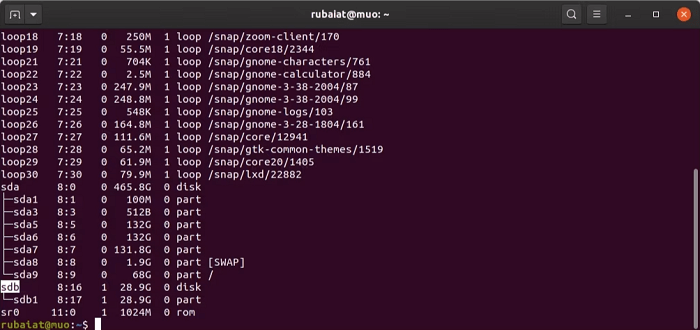
Step 2. Unmount the USB
To unmount the USB partition, run the command: `sudo umount /dev/sdb1` and then confirm by typing "y". Next, suppose the USB device's name is `/dev/sdb` and its disc partition is `/dev/sdb1`. This guide will proceed with these names.

The device is unmounted with the umount command, and you're now ready to format the USB.
Step 3. Format the USB Drive
To format a device, you need to unmount it first. This is because formatting will erase all data on the device, so you must back up any important files beforehand. Once you've backed up your files, you can proceed with unmounting the device, after which you can format it with a new file system.

You can format your USB drive using the popular FAT32 file system, but you can also choose an alternative file system like NTFS or exFAT.
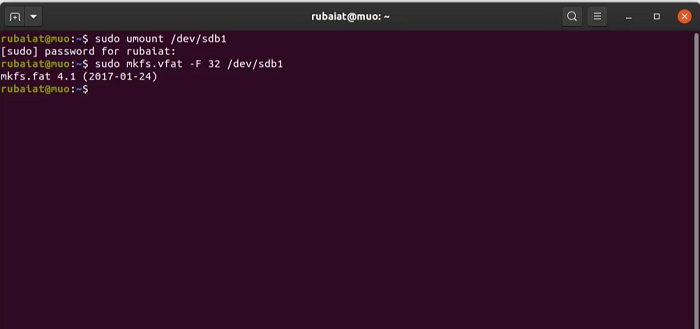
To give your gadget a name, use the -n option.

Format USB Drive Using Disk Utility
The majority of well-Many known Linux distributions come with a disc manager already installed, such as GNOME Disk Utility—Disks on Ubuntu. To format a USB on Linux, follow these simple steps using this tool.
Step 1. Start Disks
To find the Disks program, type "discs" into the dash search menu and click on it to launch the software.
Step 2. Locate the USB Drive
To select a USB, first, plug it in. Then, look for it in the list of connected devices. Once you see it, click on it to choose it.
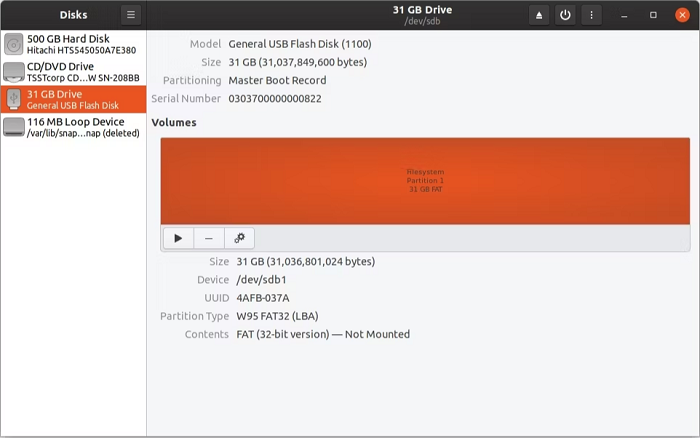
Step 3. Format the USB Drive
Once you've chosen the proper device, you can begin formatting by selecting the Gear icon in the bottom menu and choosing the Format Partition option.
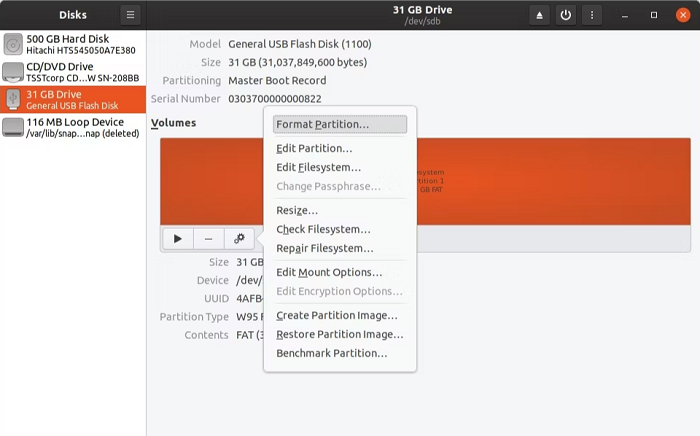
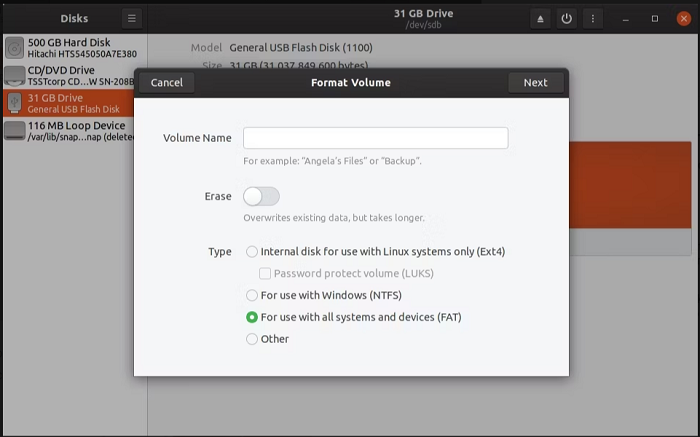
You can choose the partition type, name your USB drive, and wipe any previously stored data using the dialogue that appears. FAT is recommended for its compatibility with all systems and gadgets. Other options are available if you prefer.
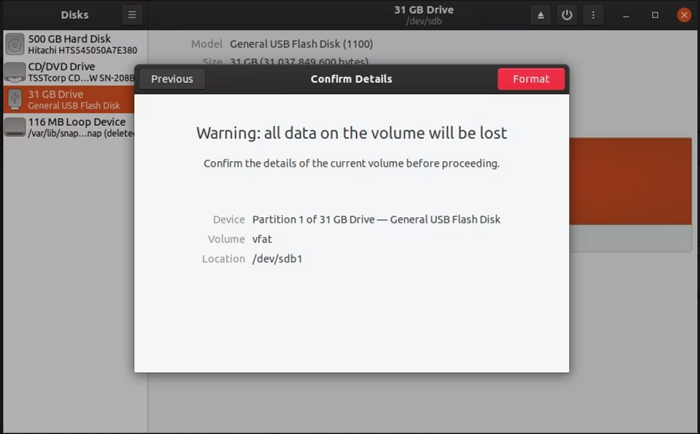
To finish formatting your USB in Linux, click Next to move on to the prompt that displays a data loss warning, then click Format.
If you're using KDE, you can replace Disks with the KDE Partition Manager software, as the steps are very similar.
Conclusions
Linux offers various reliable tools for managing and operating USB device discs, including tools that make it easy to format USB drives and establish a new file system. For those comfortable with the command line, formatting a USB drive can be done quickly from the terminal, while beginners may find GNOME Disks a more user-friendly option.
FAQs about Formatting USB Linux
If you still have some doubts, read the answers to the following questions.
1. How do I format USB in Windows 10?
There are some steps to follow;
- 1. A USB disc should be inserted into a USB port.
- 2. To access File Explorer, activate it. Then, in the left pane, select This PC by clicking on it.
- 3. Right-click the flash drive in the Devices and drives section and choose Format.
- 4. Choose the appropriate option from the "File system" drop-down menu.
- 5. To change the allocation unit size in Windows, go to the "Properties" tab of the drive you want to adjust, click on the "General" tab, and then select the desired option from the "Allocation unit size" drop-down menu. The default option is usually 4096 bytes, but you can also choose 1024 bytes or 2048 bytes.
- 6. In File Explorer, check the "Volume label" column to verify the drive name, specifically looking for the label "KingstonUSB".
- 7. To choose the Quick format, go under the "Format options" and select Quick. This selection depends on the situation in which you are using the format.
- 8. Select "Start" from the menu.
- 9. Select "Yes" from the menu.
Once the formatting is complete, the USB flash drive will be ready to store documents, photos, videos, and other types of information.
2. Can I format USB for both Linux and Windows?
Yes, sure. NTFS-Formatted discs can be used on both Windows and Linux platforms, and they can be set to a USB drive, making them a reliable and trustworthy option.
3. How Do I format USB in Ubuntu?
- 1. Open the "Disk Utility" in Ubuntu.
- 2. In the "Storage Devices" section, choose the USB drive you want to format.
- 3. Under "Volumes," click the "Unmount Volume" button.
- 4. To format a USB device, select the desired file system format, such as FAT, by clicking the "Format" button. This allows non-Linux systems like Windows to use the device.
- 5. Select "Format" on the menu.
- 6. When prompted, "Are you sure you want to format the volume?" click the "Format" option.
Formatting a USB drive can take anywhere from a few seconds to several minutes, depending on the file system, USB interface speed, and storage capacity.
Related Articles
- Fixed: Windows 10 Reset Stuck or Windows 10 Fails to Reset
- Fix 'DCIM Folder Shows Empty But Not' Error on PC/Android/iPhone
- How to Format Unallocated Disk [Step-by-Step Guide]
- Solution for Windows 10 Reset Stuck Issue
- Where and How Do I Find or Recover Origin Password
Find or recover an Origin password with practical account recovery tips and learn how to protect saved login information. - 3 Ways to Find Product Keys for Installed Programs
Need to reinstall software? Learn 3 proven ways to find product keys for installed programs on Windows 11/10, including Registry Editor, product key finder tools, and vendor support.
Products
Articles & Tutorials
- Data Recovery
- Data Backup
- File Recovery
- File Backup
- System Backup and Restore
- Disk and Partition Clone
- Technical articles
- Mobile articles
- Disk Master Help
- Windows Data Recovery Tutorials
- Windows Secure Delete Tutorials
- Windows Partition Management Tutorials
- Windows File Backup and Restore Tutorials
- Windows System Backup and Restore Tutorials
- Windows Disk Backup and Restore Tutorials
- Windows Clone Tutorials