Beginners' Guide: Format SD Card for Android with How-To Tutorials 2022
Key Takeaways of Formatting SD Card for Android:
To format an SD card for use with Android, follow these tips: insert the SD card into your Android device, go to Settings > Storage > SD card, and select "Format SD card" or "Erase SD card" to erase its contents. Alternatively, you can also format the SD card using a computer by inserting it into a card reader and using the computer's file explorer to format it.
- To use the SD card on your Android device, simply insert the SD card into the SD card slot, which is usually located on the side or top of the device, and gently push it in until it clicks into place. Make sure it is securely seated to ensure proper function.
- Open Settings on your phone, and tap on "Device Care".
- To access the storage settings, select the "Storage" option, then tap on "Advanced" and choose the "SD card" option under "Portable storage".
- To format the SD card, tap on the "Format" option and read the popup message, then select "Format SD Card".
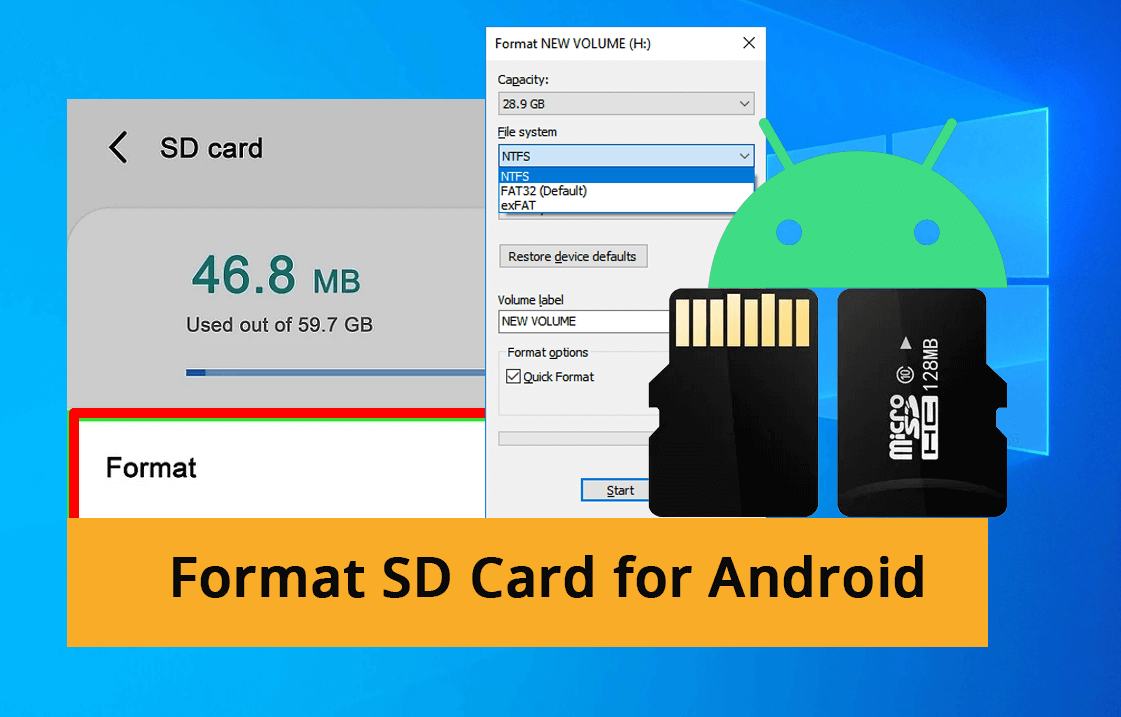
This tutorial guides Android and Windows beginners on how to format a new or used SD card for Android. By following this page, you'll learn how to format your SD card, the best format for Android SD cards, and what to do when you encounter specific errors that prevent you from formatting the card.
Ready to go? Let's start here.
What Happens When You Format an SD Card on Android?
The process of formatting an SD card is similar to formatting a disk in Windows, it will erase all the data on the card and prepare it for new data to be written onto it. This process will also check the card for any errors and correct them, making sure the card is ready to use.
1. Remove all existing data on the SD card
If you have a used SD card with important personal data, it's a good idea to back it up and store the backup in a safe location before it's too late.
2. Reset the file system to an SD card
If the current file system of your SD card is not supported on an Android phone, it's necessary that you reset the format to the card. The best format for an SD card on an Android phone is ExFAT, which is the most compatible format for Android devices.
What Is the Best Format for SD Card for Android?
There are various file system formats used on storage devices, including Windows formats like NTFS, FAT32, and ExFAT, as well as Mac formats like APFS, HFS, and Mac OS Extended. These formats enable different operating systems to read and write data on storage devices.
Android phones accept both FAT32 and ExFAT as default file system formats for SD cards. For SD cards with storage capacity less than 32GB, FAT32 is suitable. For SD cards with storage space exceeding 64GB, ExFAT is recommended.
- Two Things You Need to Know:
-
1. If you have an SD card larger than 64GB with ExFAT format and you've rooted your Android phone, it may not be able to read or recognize the SD card due to the ExFAT format.
To resolve the issue where a 64GB SD card is not working on an Android phone, you can first back up the files on the SD card to another location, then format the SD card to FAT32, and finally restore the backed-up files to the SD card, which should allow it to work normally on the Android phone.
2. When formatting an SD card on an Android device, it's recommended to choose FAT32 as the file system format instead of NTFS, which is typically used for Windows hard drive partitions.
If you want to use SD cards on your Android phone, FAT32 is a more suitable format. If your current SD card is NTFS, you can convert it to FAT32 without formatting or losing any data on the card by following the instructions linked here.
To format an SD card for Android, you can follow these steps:
If your SD card is brand new, follow the instructions in Method 1 to learn how to format it. If you have an old SD card and need to format it for use with an Android phone, follow the steps in Method 2.
Guide 1: How Do I Format New SD Card for Android in Mobile Phones
- Tools: To set up an SD card on an Android phone, first insert the new SD card into the phone's SD card slot. Then, go to the phone's settings, which can be accessed by tapping the gear icon or swiping down from the top of the screen.
- Applies to: Format SD card in mobile, like Samsung, Xiaomi, Sony, Huawei, etc., format SD card Android 13/12/11, etc.
To make your new SD card recognizable, readable, and accessible for internal or portable storage on your Android phone, you need to format it. This is a necessary step to ensure your device can use the card for storing files, apps, or other data.
To format your new SD card and set it up for Android, start by inserting the card into your Android device. Then, go to Settings > Storage > SD card, and tap on the "Format SD card" option.
#1. Format SD Card for Portable Storage on Android
If you want to use the SD card to store files only, follow the steps here to set it up for Android:
Step 1. Take out the SD card slot and place your new SD card into the slot.
Step 2. Insert the SD card back into your Android phone.
Step 3. Open settings on Android, tap "Storage" > "SD Card".
Step 4. To format your storage card, go to the Settings menu and select "Storage Settings". From there, tap on "Format" and then confirm your choice by tapping "Format card".
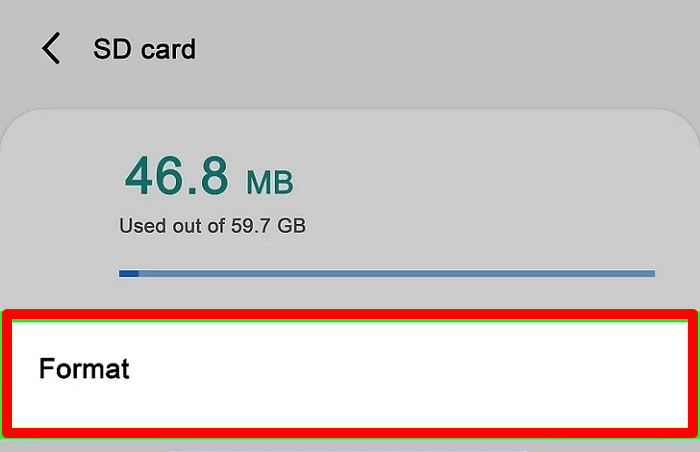
To set up your new SD card to store files on Android, you can follow these steps:
#2. Format SD Card for Adoptable Storage on Android
To install apps on your SD card and store files on it, you'll need to format your SD card for internal and adoptable storage. This process allows you to use your SD card as internal storage, freeing up space on your device and enabling you to install apps and store files directly on the card.
Step 1. Take out the SD card slot and place your new SD card into the slot.
Step 2. Insert the SD card back into your Android phone.
Step 3. Open settings on Android, tap "Storage" > "SD Card".
Step 4. To format your device, go to Settings > Storage Settings, then tap on "Format" and select "Format another way" to proceed with the formatting process.
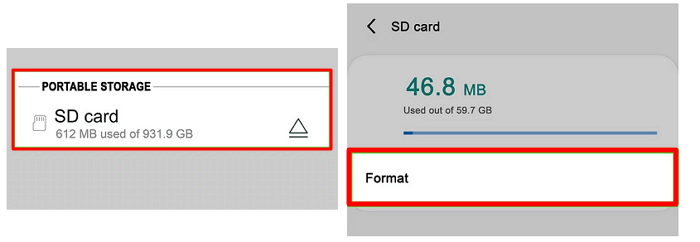
When the process completes, your SD card is ready to store both files and apps on your Android phone.
Guide 2: How to Format SD Card for Android on Windows PC
- Tools: To format an SD card on an Android phone, you can use the phone's built-in file explorer or a dedicated SD card formatting app, similar to how you would use File Explorer on a Windows PC.
- Applies to: Format SD card on PC, format SD card to ExFAT or FAT32.
To format an SD card for Android use on a Windows PC, you'll need to format the card on your PC instead of using your mobile phone if it was previously used for other purposes or formatted as something other than ExFAT or FAT32. To do this, simply connect your SD card to your PC, open File Explorer, right-click on the SD card drive, and select "Format" from the context menu. Follow the on-screen instructions to complete the formatting process, and your SD card will be ready for use with your Android device.
#1. Connect SD Card to PC
- To remove your SD card from a media player or camera, you simply need to locate the card slot, which is usually on the side or back of the device. Gently pull out the SD card from the slot, taking care not to push any other components.
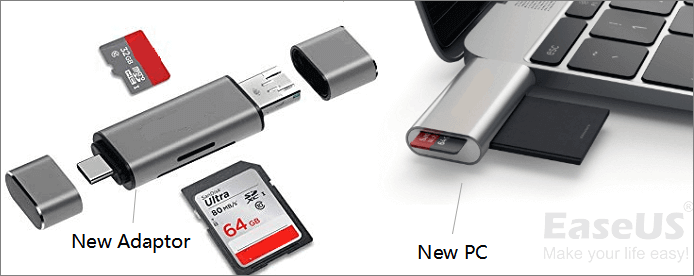
- To transfer files from a USB drive to an SD card, you can insert the SD card into an SD card reader, and connect the reader to your PC. This will allow you to access the SD card as a removable drive on your computer, where you can drag and drop files from the USB drive onto the SD card.
- Open File Explorer and back up essential files in advance.
#2. Format SD Card on Windows PC
Here we have two simple solutions to assist you to format SD card on the computer:
1. Format with Free SD Card Formatting Software
Qiling Partition Master Free is a free partition manager software that simplifies formatting SD cards, USB drives, external hard drives, and HDD/SSD with just a few clicks.
This tool breaks the limit of FAT32, allowing you to format larger SD cards to FAT32 successfully. For example, you can format a 128GB SD card to FAT32 using the tool, which is not possible with traditional formatting methods.
Step 1. Find your SD card, right-click the partition you want to format, and select "Format" from the menu.
Step 2. Set a new partition label, file system (NTFS/FAT32/EXT2/EXT3/EXT4/exFAT), and cluster size to the selected partition.
Step 3. Click the "Proceed" button to start formatting your SD card.
Step 4. Click "Yes" on the pop-up window to continue.
2. Format SD Card Using File Explorer
You can also format the SD card with File Explorer on your PC with the next steps:
Step 1. To connect your SD card to your PC, simply insert the SD card into an SD card reader, which is a small device that can be plugged into your computer's USB port. This will allow your computer to recognize the SD card and access its contents.
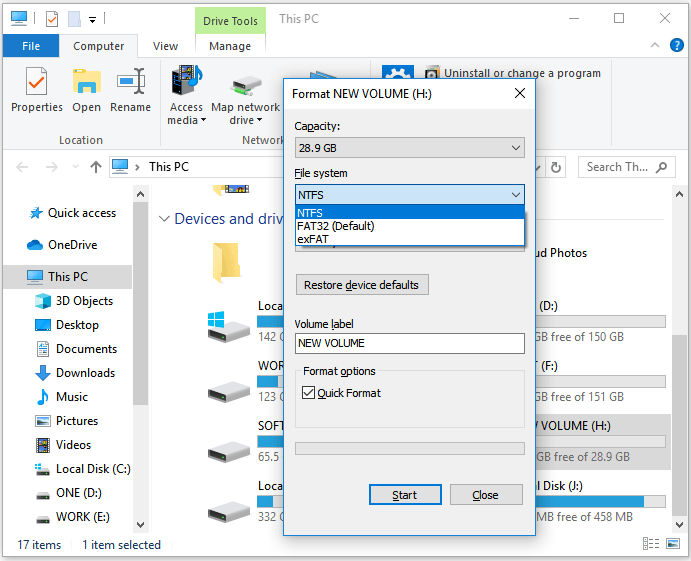
Step 2. To format your SD card, open File Explorer by pressing Windows + E, locate your SD card, right-click on it, and select the "Format" option.
Step 3. To set a new file system to your SD card, select the "Format" option, check the box next to "Quick Format" to speed up the process, and click the "Start" button. This will erase all data on the SD card and prepare it for a fresh start.
Step 4. When the formatting process completes, click "OK" to confirm.
#3. Insert SD Card to Your Android Phone
Step 1. To properly eject and unplug the SD card reader from your PC, start by unpluging it from the USB port, then press the eject button on your PC to ensure it's fully removed. Next, carefully pull out the SD card from the reader and unplug the power cord.
Step 2. To insert an SD card into a device, locate the SD card reader and remove the SD card from it. Then, locate the SD card slot on the device and insert the SD card into it, making sure it is fully seated and the gold contacts are facing the correct direction.
Step 3. Insert the SD card slot into your Android phone.
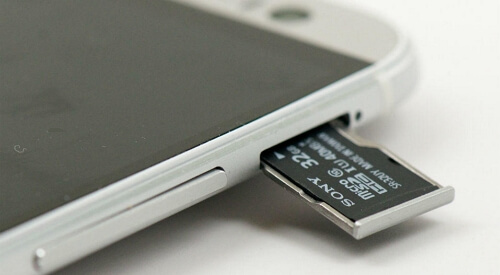
Now, you can make use of the SD card on your phone to store files or save files flexibly.
Bonus Tip: Why I Can't Format My SD Card on My Android? How to Fix?
We've identified two effective solutions to help you format SD cards for Android. By following the guidelines provided, most users can successfully set up both old and new SD cards on their Android phones.
However, sometimes you may encounter the following errors:
- Unable to format SD card
- SD card won't format Android
- SD card is write-protected and cannot format it
The SD card may not format on both Android phones and Windows PCs due to various reasons such as the card being write-protected, corrupted file system, or physical damage, which can prevent the device from accessing and formatting the card. Additionally, outdated drivers or firmware on the device or card reader may also hinder the formatting process. Furthermore, if the card is heavily used or has a large number of files, it may take a long time to format, or the device may not be able to handle the formatting process.
- SD card file system format is not supported on Android.
- SD card is not initialized or has no partition.
- SD card is locked due to write protection or encryption.
- The SD card may not be recognized or detected by a PC or phone due to various reasons. These include issues with the SD card itself, such as physical damage, corrupted data, or a faulty controller.
- Virus or malware infection.
If your SD card is not recognized, corrupted, or has issues that prevent you from formatting it, stay calm and follow this quick guide to fix it.
Step 1. Reconnect the SD card to your PC.
If the SD card reader is malfunctioning, you can try replacing it or reconnecting it to a different USB port on your PC. This may resolve the issue and allow you to access your SD card again.
Step 2. Run anti-virus software on your phone, PC, and SD card to clean up viruses and malware.
Step 3. If the SD card is locked or write-protected, follow the links here to unlock the SD card:
Step 4. To reformat the SD card, use your PC's File Explorer or a third-party SD card formatter like Qiling Partition Master Free, following the steps shown in Guide 1 and Guide 2.
Format SD Card for Android Is Easy, and You Can Manage This On Your Own
To set up an SD card for use on Android, you have two options: formatting the card using the phone's built-in settings or using a computer to format the card. This process will erase any existing data on the card, so be sure to back up any important files before proceeding.
1. Format SD card using an Android phone
2. To format an SD card on a PC using Windows, you can use the built-in formatting tool or specialized SD card formatting software. The Windows built-in formatting tool can be accessed by right-clicking on the SD card drive in File Explorer, selecting "Format," and following the prompts.
For a new SD card, we recommend using the first method to make it ready for use on Android phones. If you're using a used SD card, the second method can be a helpful alternative. Both methods are effective, so you can choose the one that suits your needs.
To simplify the SD card formatting process, a third-party tool like Qiling Partition Master Free can be used, making it easy for anyone to format the card like an expert.
FAQs About Formatting SD Card for Android
If you're concerned about formatting your SD card for Android, you're not alone. Many users have questions about this process.
1. Can I format SD card for Android online?
You can't format an SD card for Android online. Currently, there is no online solution or online formatting option that can help you format an SD card online. However, you can format an SD card using a computer or a mobile device with an Android operating system.
You still need a format tool pre-installed on Windows or on the phone to format your SD card.
2. What format does Android use for SD cards?
To use an SD card on Android phones, you can set it to FAT32 for 32GB or smaller SD cards and ExFAT for 64GB or larger SD cards.
3. How to move apps to SD card?
To convert an SD card to internal storage, first check if it's already formatted as internal storage. If not, format it to adoptable storage. This can be done by going to Settings > Storage > SD card > three dots > Settings > Format as internal.
- To format the SD card, go to Storage > SD Card > Storage Settings > Format > Format another way > Format.
To free up space on your device, you can move apps to your SD card. This can be done by going to your device's settings, then storage, and finally selecting the app you want to move.
- To move apps to your SD card, go to Settings, then Apps, tap on SD card, select Applications, and tap Move to SD card.
Related Articles
- 4 Tips| How to Format C Drive in Windows 11/10/8.1/8/7
- What is Seagate Discwizard? How Can I Use It and Its Alternative?
- Top 8 Best Free Windows 11/10/8/7 Disk Management Tools (2026 Update)
- Does formatting a Hard Drive Remove OS? Check Your Full Guide
- DiskPart: Format Disk Partition in Windows 11, 10, 8, 7
DiskPart format command enables you to quick format a disk partition in Windows 11, 10, 8, 7. Here comes the step-by-step guide. - Windows 10/8/7: How to Shrink Volume Using Diskpart Command Line?
Learn how to use DiskPart to shrink volume from in command line prompt with the syntax in Windows 11/10/8/7. But sometimes, it may tell you there is an error. Fortunately, Qiling Disk Master can fix it.
Products
Articles & Tutorials
- Data Recovery
- Data Backup
- File Recovery
- File Backup
- System Backup and Restore
- Disk and Partition Clone
- Technical articles
- Mobile articles
- Disk Master Help
- Windows Data Recovery Tutorials
- Windows Secure Delete Tutorials
- Windows Partition Management Tutorials
- Windows File Backup and Restore Tutorials
- Windows System Backup and Restore Tutorials
- Windows Disk Backup and Restore Tutorials
- Windows Clone Tutorials