How to Recover Locked SD Card Pictures/Files
Part 1. How to Unlock SD Card in 4 Proven Ways
Here are four effective ways to unlock a locked or write-protected SD card: manually unlock the SD card, remove write protection in Windows or Mac, or unlock the SD card with a password.
Method 1. Manually Unlock the SD Card
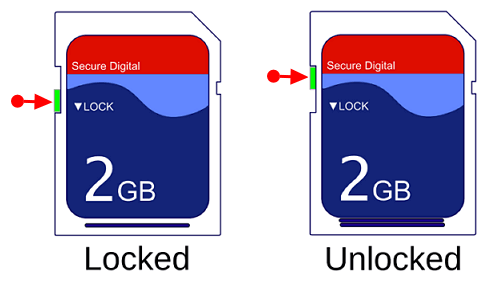
To remove physical write protection from an SD card, slide the Lock switch on the left side to the unlock position. This will allow you to modify or delete the contents on the memory card. If the switch is slid up, it means the card is unlocked. If it's slid down, it's locked and you won't be able to modify or delete any contents.
If the lock switch is loose and moves easily, it's likely sliding to the locked position when the card is inserted, requiring a card replacement.
Method 2. Remove Digital Write Protection in Windows 10/8/7
This method aims to remove the write protection from an SD card using CMD, a command-line interface. If you're not familiar with CMD, you can use an alternative. To unlock the SD card, follow the information below.
Step 1. Make sure that you're using an administrator account. And connect the SD card to your computer.
- If your computer has an SD card reader, the SD card should slide in label-up and gold connectors-first into the reader.
- To use your SD card in your PC, you'll need a card reader or an SD card adapter. If your PC has a card reader, you can simply insert the SD card into the reader and transfer the files.
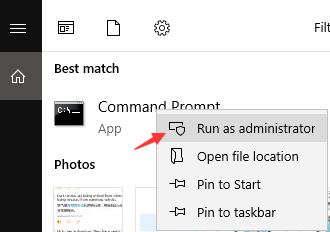
Step 2. To open Command Prompt as an administrator, click the Windows logo in the bottom-left corner of the screen, then search for "Command Prompt" and click on "Run as Administrator".
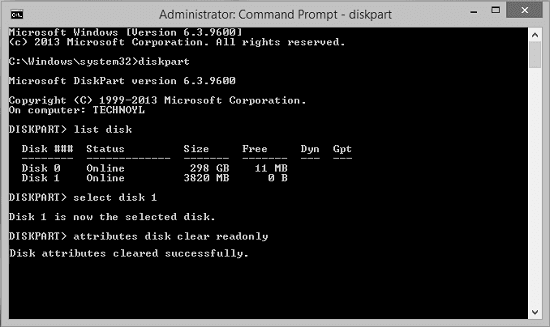
Step 3. Type these commands one by one and press "Enter" after each:
diskpart list disk select disk # attributes disk clear readonly
# is the number of the SD card with which you're getting the write-protected/ locked error.
The process of clearing disk attributes is now complete, and your SD card is no longer write-protected. A confirmation message reads "Disk attributes cleared successfully", indicating that the operation was successful.
Also read: The disk is write-protected in Windows 10/8/7.
CMD Alternative - Write-Protection Removal Tool
If you're not tech-savvy and not familiar with command lines, don't worry - there are graphical-based solutions to help you remove write-protection from your hard drives, USB drives, and even SD cards.
Qiling CleanGenius is a tool that helps fix issues on drives without requiring command-line knowledge.
Here is a brief guide on how to use this tool:
Step 1: DOWNLOAD and install Qiling CleanGenius (free) on your computer.
Step 2: Run Qiling CleanGenius on your PC, select Optimization and choose the Write Protection mode.
Step 3: Select the device that is write-protected and click Disable to remove the protection.
Method 3. Removing Digital Write Protection on a Mac Device
To unlock the SD card on a Mac, you can remove the read-only property by right-clicking on the file, selecting "Get Info," and then unchecking the "Locked" box. This will allow you to make changes to the file. Alternatively, you can also unlock the SD card by using the Terminal command "chmod" to change the permissions of the file. However, the first method is usually the easiest and most straightforward way to unlock the SD card on a Mac.
Step 1. Connect your SD card to your Mac device.
Step 2. Check and remove the write protection on the SD card.
Right-To change the file permissions on your SD card, click on the file you want to modify, select "Get Info", and then click on "Sharing & Permissions". Look for "Read only" under Privilege. Click the lock icon, enter your administrator password, and change "Read only" to "Read & Write".

If your SD card is locked due to an error, First Aid can fix the error and unlock your SD card.
Step 1. To start the Disk Utility program, click on the "Go" menu in your computer's menu bar, then select "Utilities", and finally click on "Disk Utility".
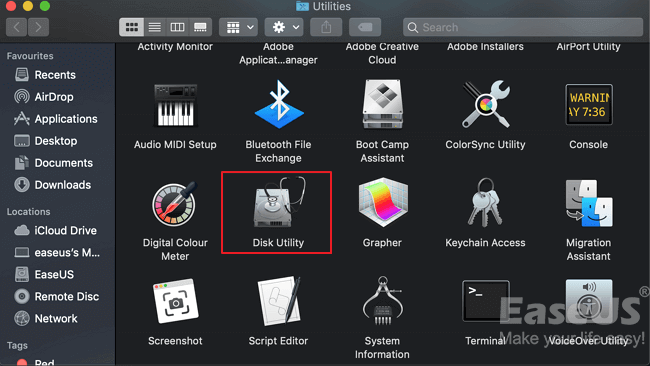
Step 2. To run First Aid on your Mac, choose the SD card on your Mac, then click the "First Aid" tab.
Step 3. Click "Run" to repair the disk volume errors and permissions. When it finishes, click "Done".
Method 4. Unlock/Decrypt SD Card with Password
To decrypt an SD card that was locked on a Samsung phone, use the phone's built-in encryption tool to enter the password and follow the prompts to decrypt the card. This will allow you to access the data on the SD card. If you used a third-party encryption tool, use the tool to decrypt the card with the password. If the SD card was locked using an Android phone, decrypting it will allow you to access the data.
- Tip
- You can't decrypt an SD card on another phone because different phones have different encryption algorithms and decryption methods, so it's best to decrypt the card on the source phone to access all saved data.
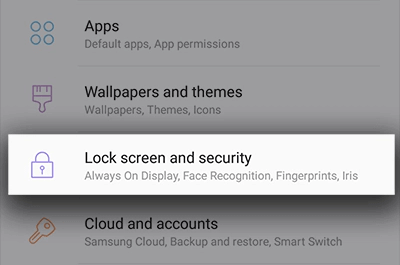
Step 1. Insert the SD card into the source Samsung phone, restart the phone, then go to "Settings" and tap on "Lock screen and security".
Step 2. Scroll to the bottom and tap on "Decrypt SD Card".
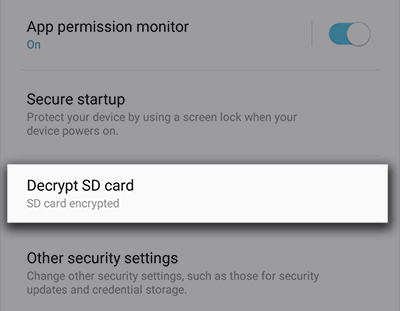
Step 3. Tap on "DECRYPT SD CARD" and enter your password. Wait for the decryption process to finish, keeping the device charged during the process.
Also read: How to decrypt files without the key
Part 2. How to Recover Lost Pictures/Files from SD Card
Here are three ways to recover lost SD card files using Windows computer, a Mac and an Android phone: you can use a data recovery software like Deep Data Recovery, a Mac or Windows computer, or an Android phone to scan and recover lost files and pictures from your SD card.
Solution 1. Recover SD Card Files Using a Windows Computer
To recover lost SD card data after removing or disabling write protection on the SD in Windows 10/8/7, I recommend using professional data recovery software from Qiling. This powerful tool is safe and clean, offering numerous benefits for recovering your lost data.
- Data recovery software can help recover deleted, formatted, and inaccessible data in various data loss situations, such as accidental deletion, formatting, virus attacks, and hardware failures. This software can scan storage devices, including hard drives, solid state drives, and memory cards, to locate and retrieve lost files and folders, even if they have been overwritten or corrupted.
- Recover deleted files from any storage, including photos, audio, music, and emails, with a safe and complete process.
- You can recover data from various storage devices, including the recycle bin, hard drive, memory card, flash drive, digital camera, and camcorder.
Follow the steps to recover files from your SD card:
Step 1. Select file types and click "USB/SD Scan" to start
- Download and install Deep Data Recovery on your Windows PC.
- 1) Ensure the card is securely inserted into the card reader. 2) Connect the card reader to the computer using a USB cable. 3) Wait for the computer to recognize the card, which may take a few seconds.
- Open Qiling SD card recovery software, select file types, and click "USB/SD Scan" to initiate the recovery process.

Note: You can choose different search modes based on where and why the data was lost.
Step 2. Select the SD card to scan
- Select your SD card and click "Scan" to see the files on it.

Step 3. Check for scan results
- Wait for the scanning process to complete.
- Click "Filter" and select the desired file types, such as Pictures, Word, Excel, PDF, Videos, and more, to display in the search results.
- Click "Preview" to check if they are the wanted files.

Step 4. Recover SD card data
- Choose desired files and click "Recover".
- If you're recovering files from a damaged SD card, it's generally a good idea to save the recovered files in a different location than the original SD card. This is to avoid overwriting any existing data on the SD card that might still be recoverable.
Solution 2. Recover SD Card Files With Mac
Deep Data Recovery for Mac has a reasonable price and offers professional data recovery methods to recover lost files, including videos, music, documents, applications, and audio, with support for SD cards and other storage devices, allowing users to restore as many files as they want.
Step 1. Connect your memory card to your PC, then launch Deep Data Recovery. Select the file types you want to recover and click "USB/SD Scan" to begin the process.
Note: You can choose different search modes based on where and why the data was lost.
Step 2. Select the card and click Scan to let the software search for lost files on it.
Step 3. After a quick scan and deep scan, all files will be displayed in the left panel in the scan results.
Step 4. Select the files you want to recover, click the "Recover" button, and avoid saving them on the SD card to prevent data overwriting.
Solution 3. Recover SD Card Files from Android Phone
If you accidentally delete data from your Android phone, don't panic! You can still recover your lost pictures, videos, contacts, and other data from the SD card using Qiling MobiSaver for Android, a mobile app that can restore deleted files, including photos, videos, contacts, call logs, SMS, and WhatsApp messages.
Step 1. Launch the app on your phone, select "SD card", tap "START SCAN", and deleted photos and videos will be displayed on the screen.
Step 2. To access settings, tap on the settings icon, allowing you to customize preferences and tailor the software to your needs, such as specifying file sizes or formats to scan and display.
Step 3. After the scan, select the files you want to recover and tap on "Recover". The recovered files will be displayed, and you can view them by tapping on the eye icon.
The End
To recover data from a locked SD card, it's crucial to unlock it first. Four effective methods can help with this. Once unlocked, you can use reliable data recovery software to retrieve the desired data. Additionally, having a backup in advance can be beneficial, even if you're unable to unlock the SD card.
Related Articles
- How to Undo Quick Format on Hard Disk
- [Solved] - Window 10 Quick Access Files/Folders Missing
- Free Toshiba HDD Recovery: Perform Toshiba Hard Drive Recovery for Free
- Top 10 Best Free SD Card Data Recovery Software (100% Working)
- 2 Ways for How to Recover Deleted Files from Avast Antivirus
The article help you how it is possible to bring vital data files back on the system without any virus. - How to Recover Deleted Files from Dell Laptop/Desktop
If your photos, videos, documents, music, and other files were lost from your Dell laptop or desktop, you can recover them using a Dell data recovery tool. This tool can help you retrieve deleted files from your Dell laptop or desktop.
Products
Articles & Tutorials
- Data Recovery
- Data Backup
- File Recovery
- File Backup
- System Backup and Restore
- Disk and Partition Clone
- Technical articles
- Mobile articles
- Disk Master Help
- Windows Data Recovery Tutorials
- Windows Secure Delete Tutorials
- Windows Partition Management Tutorials
- Windows File Backup and Restore Tutorials
- Windows System Backup and Restore Tutorials
- Windows Disk Backup and Restore Tutorials
- Windows Clone Tutorials