How to Fix macOS Monterey Won't Install [8 Ways]
Some users are struggling to install macOS Monterey, despite multiple attempts, and are seeking a solution to this issue.
If you're experiencing issues like "Can't download macOS Monterey" or "An error occurred while preparing the installation", don't worry, there are solutions. You can try fixing the error by checking your internet connection, ensuring your Mac meets the system requirements, verifying the installation media, and restarting your Mac. Additionally, you can try resetting the System Management Controller (SMC) or the Power Management Unit (PMU), or even resetting the NVRAM. If none of these solutions work, you may need to seek further assistance from Apple support or a professional.
| Workable Solutions | Step-by-step Troubleshooting |
|---|---|
| Fix 1. Check the Internet | The easiest solution to fixing the macOS Monterey installation problem is...Full steps |
| Fix 2. Check for Compatibility | Another reason for the macOS Monterey installation issue is compatibility...Full steps |
| Fix 3. Check the Storage Space | Check out the storage space if you encounter issues with the macOS Monterey...Full steps |
| Fix 4. Perform First Aid | You can run First Aid and repair errors that might interfere with installation...Full steps |
| More Fixes | The other 4 fixes are available here for you to follow, and fix macOS Monterey won't install...Full steps |
When you're having trouble installing macOS Monterey, understanding the possible reasons behind the issue is key to finding a solution. This is because the installation process for macOS Monterey is generally straightforward, so if it's not working, there's likely a specific reason that needs to be addressed. By investigating the reasons, you can apply the most effective solutions.
Take a look at the reasons -
💾Reason 1. Low Storage Space
If you're upgrading from macOS Sierra or later, you'll need 26 GB of free space. However, if you're upgrading from an older macOS version, you may need more space. Make sure you have enough storage space to download and install macOS Monterey, as a lack of space can halt the installation process.
🌐Reason 2. Problematic Internet Connectivity
To download and install macOS Monterey, you need a stable and robust internet connection. If your internet connectivity is not reliable, you won't be able to complete the process.
❌Reason 3. Software Incompatibility
To upgrade to macOS Monterey, you need to check if your Mac model is compatible with the operating system. Not all Macs are compatible, and older systems are less likely to be compatible. You should check the list of compatible Mac models before installing the update.
🍏Reason 4. An issue with the Apple Server
If you're still experiencing issues, it's possible that the problem lies with Apple's servers, not your system. You can check the System Status page to see if there are any reported outages.
If you're having trouble installing Ventura, don't worry, the reasons why can't install Ventura are generally the same regardless of whether you're a Ventura user or not. You can read this page to learn how to fix the problem.
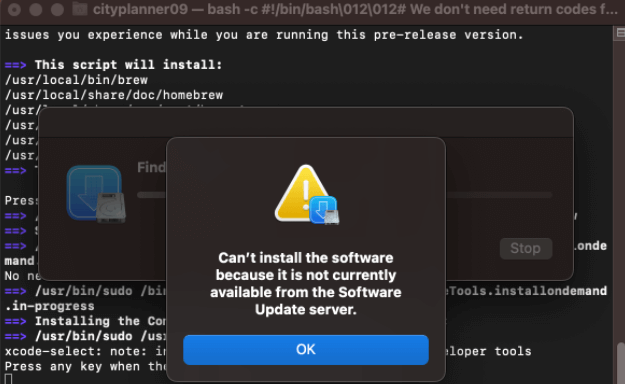
Can't Install macOS Ventura? Here Are the 9 Best Solutions
When you install macOS 13 and receive this error message - can't install macOS Ventura, what can you do? Don't worry, you will learn at least nine ways to fix macOS installation errors.
Fix macOS Monterey Won't Install in 8 Ways
If you're experiencing issues with macOS Monterey installation, don't worry - we have solutions to help you resolve the problem. Before attempting any fixes, make sure to back up your data to prevent any potential loss.
Check these out -
Fix 1. Check the Internet or Cable Connection
To fix the macOS Monterey installation problem, start by checking your internet connection. Ensure you have a strong and stable connection, and if it's spotty, contact your service provider. You can also try switching to a different Wi-Fi connection to see if the issue is resolved.
Fix 2. Check for Compatibility
The macOS Monterey installation issue may be caused by compatibility problems between the operating system and the system itself, particularly if the system is older. The latest versions of Monterey come with features that may not be supported by the hardware of older systems, making installation more challenging.
Here are the systems that are compatible with macOS Monterey –
- Mac Pro (late 2013 and later)
- Mac Mini (late 2014 and later)
- iMac (late 2015 and later)
- MacBook Air (early 2015 and later)
- MacBook Pro (early 2015 and later)
- MacBook (early 2016 and later)
- iMac Pro (2017 and later)
Fix 3. Check the Storage Space of Your Mac
If you're experiencing issues with installing macOS Monterey, check the available storage space on your Mac. The installer requires at least 405 GB of free space, and if you're upgrading, you'll likely need even more space. This is often the main culprit behind installation problems, so make sure you have sufficient storage capacity before proceeding.
Upgrading to macOS Sierra or later requires 26 GB of free space, while older systems need 44 GB of free storage.
To check storage space –
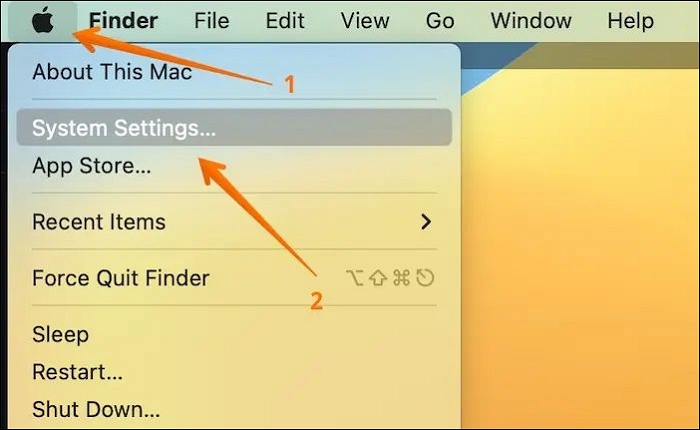
Step 1. To access System Settings on a Mac, go to the Apple menu, which is located at the top left corner of the screen, and click on "System Settings" from the drop-down menu.
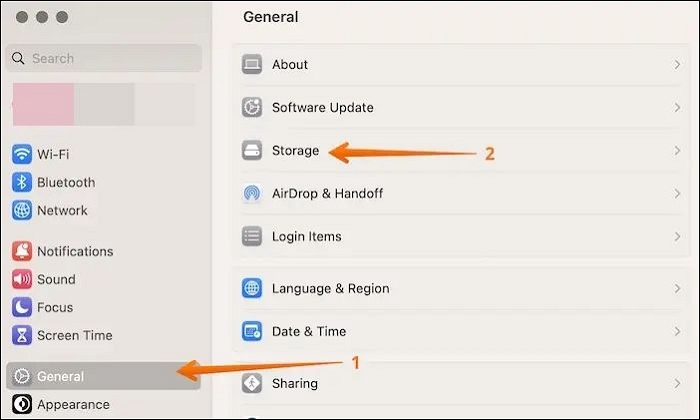
Step 2. To access storage settings, click on "General" from the sidebar, followed by "Storage" on the right-hand side.
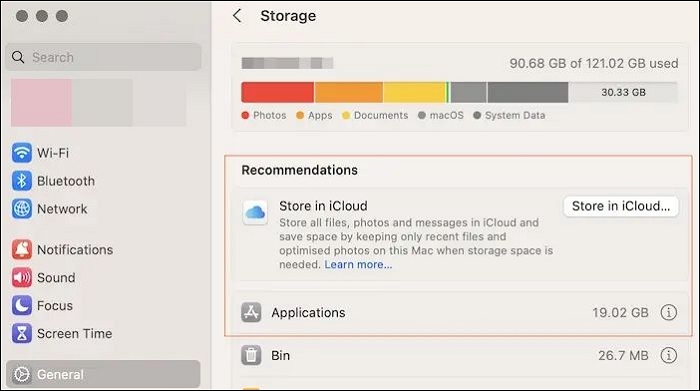
Step 3. You will see a bar on the top showing the space left.
Fix 4. Perform First Aid in Recovery Mode
You can run First Aid and repair errors that might interfere with installation.
Take a look at the steps –
Step 1. Restart the system.
Step 2. At the same time, press and hold Command and R keys.
Step 3. Select "Disk Utility".
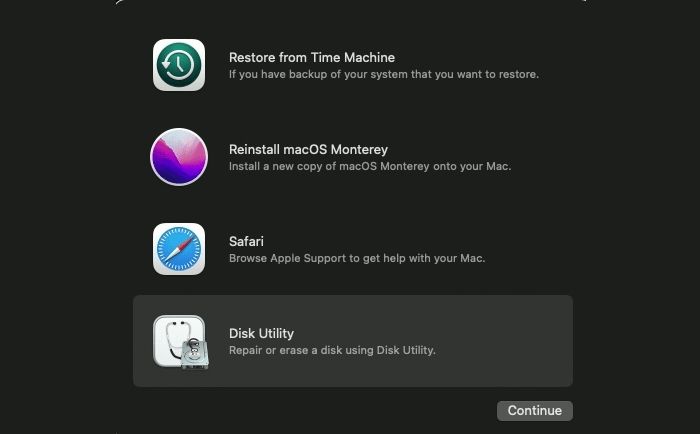
Step 4. Choose "Continue".
Step 5. Select the drive.
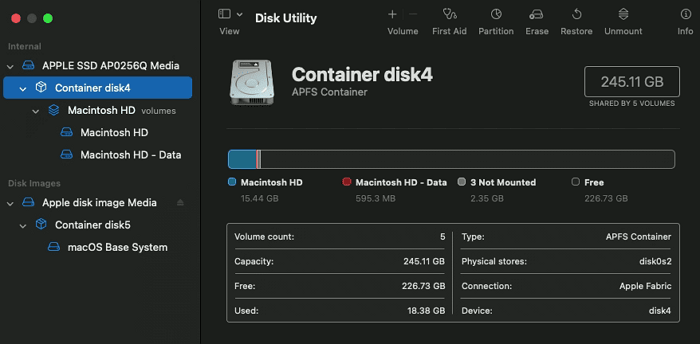
Step 6. Choose "First Aid".
Step 7. Click on "Done".
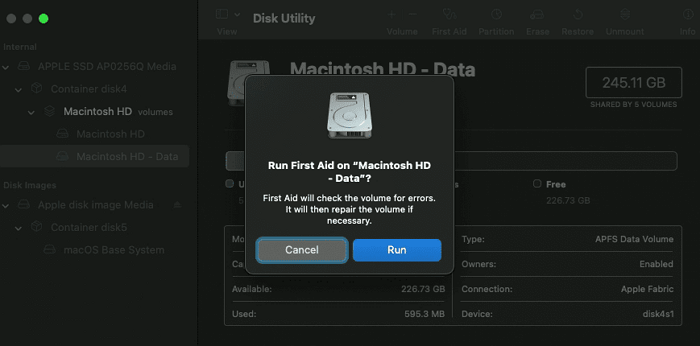
Step 8. Restart the system again.
Now, you can try to reinstall macOS Monterey.
If one of the methods helps resolve the macOS Monterey won't install issue, please share it on social media platforms like Facebook, Twitter, Instagram, and others to help others who are experiencing the same problem.
Fix 5. Check the Format of the USB Drive
To fix the macOS Monterey installation issue, check the USB drive format, specifically ensuring it's formatted as Mac OS Extended (Journaled), also known as HFS+.
Here are the steps you need to follow –
Step 1. Connect the drive to Mac.
Step 2. Go to "Disk Utility".
Step 3. Choose the drive.
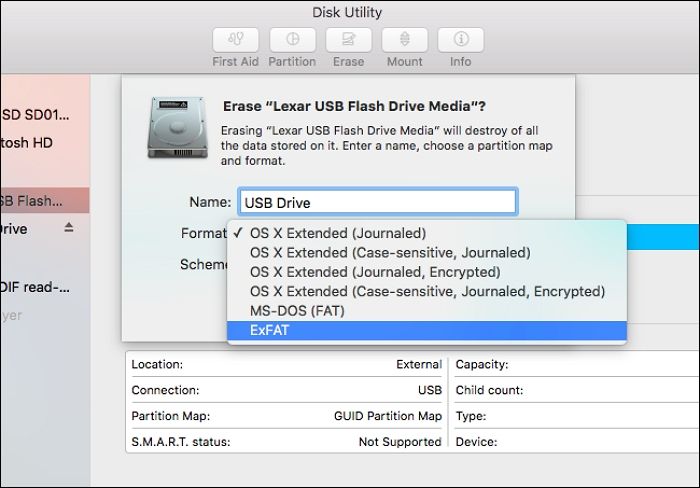
Step 4. Check the format.
Step 5. If the format doesn't match, backup files and reformat them.
Fix 6. Clean reinstall macOS
To avoid losing important data, back up your files using Deep Data Recovery for Mac Pro before installing or updating macOS, and then consider a clean install of macOS on the system.
Back Up Your Mac and Never Lose Data
You can back up and restore your MacBook or iMac without using Time Machine, iCloud, or external hard drives. To do this, you'll need to use the built-in "Archive and Install" feature in macOS, which allows you to create a bootable clone of your startup disk.
The steps vary based on the model.
For Silicon Macs –
Step 1. Turn off the system.
Step 2. Press and hold the power button until you see the Startup options, then release the button.
Step 3. Select "Options".
Step 4. Click "Continue".
Step 5. Opt for "Disk Utility".
Step 6. Go to "Macintosh HD".
Step 7. Select "Erase".
Step 8. Give a name and choose the format (APFS).
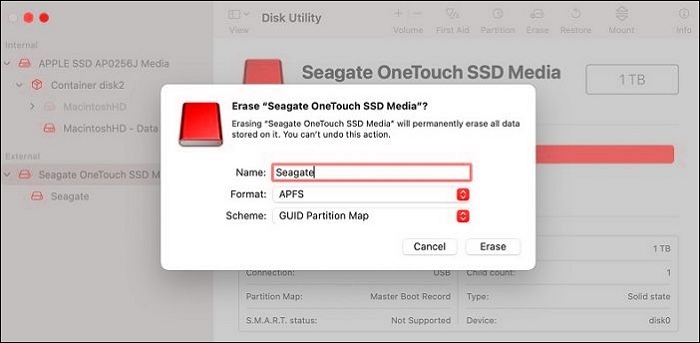
Step 9. Click "Erase Volume Group".
Step 10. Go back to the main recovery mode screen.
Step 11. Choose "Reinstall macOS Monterey".
For Intel-based Macs –
Step 1. Reboot the system.
Step 2. Enter the recovery mode.
Step 3. Choose "Disk Utility".
Step 4. Right-click "Macintosh HD" - "data".
Step 5. Choose to "Delete APFS volume".
Step 6. Click on the "Macintosh HD volume".
Step 7. Select "Erase".
Step 8. Go back to the macOS Utilities window.
Step 9. Select "Reinstall macOS".
Fix 7. Restart Mac and Check Again
Sometimes, a simple system restart can resolve installation issues caused by temporary errors. To try this, restart your Mac and see if the problem is resolved.
To download macOS Monterey, go to the Apple icon, select Restart, and if the system is unresponsive, hold the Power button. After a few seconds, press the Power button again to restart it. Then, visit the App Store to download macOS Monterey.
Fix 8. Try Installing it from the Mac App Store
If you've tried installing macOS from System Preferences or a USB drive without success, you can visit the App Store to download the operating system directly.
Here are the steps –
Step 1. Go to the Apple menu.
Step 2. Select App Store.
Step 3. To find macOS Monterey in the search bar, click on the "View" button.
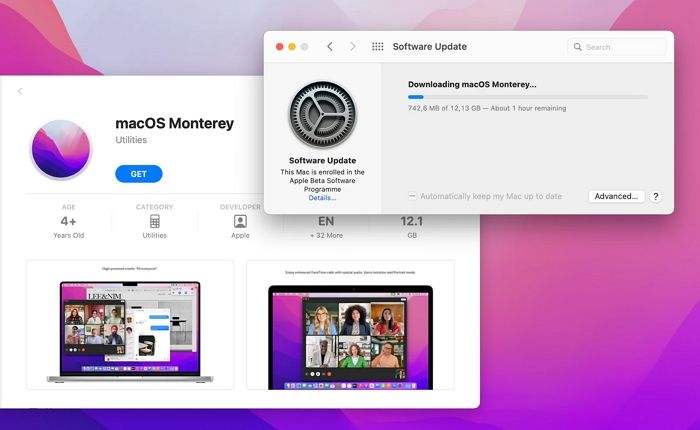
Step 4. Select Get.
Step 6. Wait for the download to complete.
Step 7. Select Monterey Installer.
Step 8. Follow the instructions given on the screen.
Downgrade macOS Ventura to Monterey
If the above solutions don't work, consider downgrading your operating system. To ensure a fully functional system, follow these steps:
Step 1. Connect Time Machine drive to your system.
Step 2. Restart your Mac.
Step 3. On an Intel-based Mac, press and hold the Command and R keys. Wait for the Apple logo to appear on the screen.
For Silicon Macs, press and hold the Power button until you see the startup screen, then select Options and Continue.
Step 4. From the macOS utility window, select the "Restore from Time Machine Backup" option.
Step 5. Select the drive.
Step 6. Follow on-screen instructions to complete the installation process.
There are other ways to downgrade your macOS, but this method may not work for everyone. If it doesn't, you can try other methods. Would you like me to list them?
- Using macOS Recovery
- Using a Bootable Installer
Recover Data When macOS Installation Failed
When installation problems occur during a macOS reinstall, users often reinstall the operating system. However, this can lead to critical data loss. To avoid this, it's essential to have a backup of all valuable data. But if a backup wasn't made, there's still hope for recovering data.
You can recover lost data with the help of a professional data recovery tool like Deep Data Recovery for Mac. This specialized tool is designed to help users recover their lost data, featuring a user-friendly interface and a wide range of features.
Highlights:
- Retrieve music files, videos, photos, documents, etc., efficiently.
- Hassle-free restoration of data from different Mac-based devices.
- Deep and quick scan to aid in faster file loading.
- To quickly recover deleted files on a Mac, utilize file filter and file preview options. These features allow you to easily locate and restore lost files.
Here are the steps:
Step 1. Select the drive to be scanned
In the main Deep Data Recovery window, select the drive you need to recover lost/deleted files from and click the "Search for lost files" button.
Note: Before attempting data recovery, create a backup of your Mac by clicking "Disk Backup" from the left sidebar to ensure your data is safe. This backup will allow the software to recover data from the backup, and your computer can then be used for new data entry.

Step 2. Select your lost data/files
Deep Data Recovery for Mac scans the selected disk volume, displaying the results on the left pane, allowing users to sort and find specific files.

Step 3. Recover lost/deleted data
Once you have found the desired files, preview them and then click "Recover" to start the recovery of your deleted/lost Mac files.

If you experience any issues, you can contact the remote IT support team's data recovery service for assistance.
Final Words
If you're struggling to install macOS Monterey, there are several potential reasons behind the issue, including weak internet or compatibility problems. Fortunately, there are various solutions you can try to resolve the installation problem, offering a potential fix.
Start by checking your internet connection, available storage space, and compatibility to see if they're the cause of the issue. If not, try restarting your system and checking again. If that doesn't resolve the problem, you can also consider downgrading your macOS. However, keep in mind that attempting these solutions may result in the loss of critical data.
To recover lost data efficiently, consider using Deep Data Recovery for Mac, a powerful yet user-friendly software that enables users to restore data without hassle, making it a great choice for users looking to retrieve lost files.
macOS Monterey Won't Install FAQs
If you're experiencing issues with installing macOS Monterey, there are several solutions to try. Some possible fixes include checking for software updates, running the installer in verbose mode, and checking for any hardware compatibility issues. Additionally, you can try resetting the System Management Controller (SMC) and the power management unit (PMU), or booting in safe mode and then installing the update.
1. Why can't I install macOS Monterey on Macintosh HD?
There are multiple reasons why you can't install macOS Monterey on Macintosh HD, including low free space on your drive and incompatibility issues.
2. How do I force my Mac to update to Monterey?
To force your Mac to update to Monterey, follow these steps below.
- Go to the Apple menu.
- Choose System Preferences.
- Select Software Update.
- If you see any updates, download and install them.
3. Why won't my Mac let me install macOS?
Your Mac won't let you install macOS due to various reasons such as insufficient free space on the system, corrupted installer files, or issues with the startup disk.
4. Can I downgrade from Monterey to Big Sur?
Downgrading from Monterey to Big Sur is possible, but it depends on the Mac model. Silicon Macs are limited to Big Sur, while M1 Pro and M1 Max Macs cannot be downgraded from Monterey.
Related Articles
- Fix IE Browser Shuts Down Suddenly in Windows 10/8/7 Error
- Windows 7 Black Screen with Cursor - 7 Quick Solutions
- Solved: Taskbar/Start Button Not Working Windows 10
- How to Fix Xbox External Hard Drive Not Working [Full Guide in 2023]
- What Is Dynamic Routing and What are the Dynamic Routing Protocols
Dynamic routing automatically finds the best data path across networks. Learn about RIP, OSPF, EIGRP, and BGP protocols, along with their pros and cons. - What Is File Compression and How Does File Compression Work
Fix Windows 7 black screen with cursor using seven troubleshooting methods to help your PC boot normally again.
Products
Articles & Tutorials
- Data Recovery
- Data Backup
- File Recovery
- File Backup
- System Backup and Restore
- Disk and Partition Clone
- Technical articles
- Mobile articles
- Disk Master Help
- Windows Data Recovery Tutorials
- Windows Secure Delete Tutorials
- Windows Partition Management Tutorials
- Windows File Backup and Restore Tutorials
- Windows System Backup and Restore Tutorials
- Windows Disk Backup and Restore Tutorials
- Windows Clone Tutorials