Xbox One Stuck on Green Screen? Causes & Quick Solutions!
The Xbox green screen of death occurs when the console gets stuck on a green loading screen that displays "Loading..." indefinitely, preventing it from starting. If you're experiencing this issue, Qiling can help you identify possible reasons and provide solutions to resolve the problem.
Note: This guide also applies to the Xbox Series' green screen of death issue. And this article covers the latest 2024 fixes that you can fully rely on.
Why Xbox One Stuck on Green Screen
Xbox One users often encounter the issue of being stuck on the green screen, which means their console has frozen. This problem is not unique and has been experienced by many gamers, with the green screen being a common symptom.
Xbox One stuck on the green screen of death issues are often caused by hardware or software problems. Hardware issues may include read/write errors, such as hard disk or file system corruption, while software issues are typically related to failed or interrupted system updates. This article provides solutions for both hardware and software-related problems.
| ✍️Cause | 🧑💻Solution |
|---|---|
| 💻Temporary software failure | |
| 🗂️Console caught in System Integrity Check | |
| 🎈Failed or interrupted system update | |
| ⛏️Final solution | |
| 🏀Hard drive corruption | |
| 🖥️Microsoft server error | Wait for the problem to go away |
If you're experiencing the Xbox One green screen of death issue, this guide offers six detailed solutions to help you resolve the problem. Depending on your situation, you can choose the fix that best suits you, and if others are experiencing the same issue, feel free to share this guide to help them as well.
Fix Xbox One Stuck on Green Screen for Software Issue
If your Xbox One system is experiencing the green screen of death issue, there are four potential solutions to try. Firstly, try restarting your console, as a simple reboot can often resolve the issue.
Restart the Xbox One
Restarting the console will fix most of the problems, such as an Xbox external hard drive not working, by simply turning it off and on again. This is the most straightforward way to fix an Xbox One stuck on green screen.
Step 1. Hold down the console's power button while doing so.
Step 2. Reboot your system.
Some users on the Microsoft forums have reported that this method doesn't work, possibly due to a temporary software glitch, so it's worth trying other options.
Bypass Xbox One Security Checks
Here are the steps to fix the Xbox One getting stuck during the green screen using a controller:
Step 1. When your Xbox One is stuck on the green screen, try connecting the controller to the console simultaneously. This can sometimes resolve the issue by forcing the console to recognize the controller and potentially recover from the stuck state.
Step 2. Click the "Guide" button on the controller until it vibrates.
Step 3. Then press the "Start Menu" button for 2 seconds.
Step 4. Remove the batteries from the controller.
The console will automatically start up in normal mode if you wait. This feature only works if you loaded green due to an integrity check. If not, try another solution.
Update Xbox One Offline Using USB
If an Xbox system update fails, it might be due to partially corrupted firmware. To resolve this, users can utilize the Offline System Update (OSU) or Offline System Update feature to rectify the issue. This process involves downloading the latest firmware to a USB flash drive and then using it to update the Xbox console offline via the Xbox One Troubleshooter.
First, you need to prepare these things:
- Windows computer: It should be a device that can be connected to the internet via a USB port.
- USB flash drive: The device requires more than 6GB of free storage space and is formatted with the NTFS file system.
To complete an offline system update on your Xbox One, follow these steps: First, make sure your Xbox One is connected to a power source and turned on. Next, go to Settings > System > Console Update.
Stage 1. Download the Offline System Update file (OSU1) on your Windows PC
Step 1. Connect USB to PC.
Step 2. Download the OSU1 offline system update file from the official Xbox website as a zip file.
Step 3. Use a program called ZIP Extractor or other similar software to extract the $SystemUpdate file to a USB drive.
Step 4. Eject the USB drive.
Stage 2. Updating the Xbox One Console
If your Xbox One console is experiencing issues, you can try using the Offline System Update option on the Xbox Startup Troubleshooter to install the offline System Update file. This process allows you to update your console's software without requiring an internet connection.
Step 1. Unplug the power cord from your Xbox One, wait a few seconds, and then plug it back in to turn it back on.
Step 2. Press and hold the BIND button on the left side of the device and the EJECT button on the front. Then press Xbox Next and continue to hold the BIND and EJECT buttons.
Step 3. Release the BIND and EJECT buttons when you hear two "power on" tones. The system will then power on and you will hear a series of tones that will guide you through the boot process.
Step 4. The Xbox One console will turn on and enter the Xbox Start Troubleshooter, where you can troubleshoot and resolve any start-up issues.
Step 5. Link a USB disk to your Xbox One gaming system.
Step 6. To update your Xbox One offline, use the arrow keys and A button on your controller to navigate to and select the Offline System Update option.
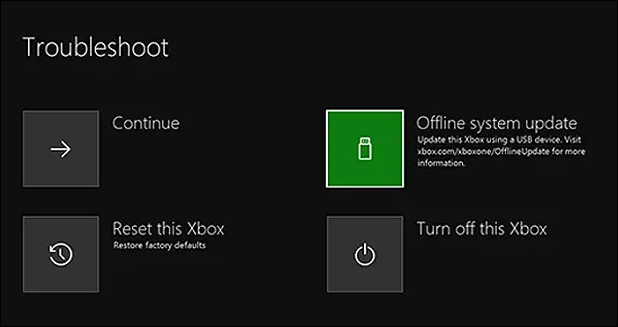
Once the update process is complete, you can fix the issue of your Xbox getting stuck on the green loading screen by following the steps provided in the previous response. The process will take some time, so please be patient. I will not repeat the steps here.
Restore Factory Settings
If the previous methods haven't solved the Xbox One green screen issue, try resetting the console to its factory settings, but be aware that this will erase all data, so make sure to back up any important information beforehand.
Step 1. To turn off the Xbox console, press and hold the Xbox button on the front of the device for approximately 10 seconds. This will initiate the shutdown process.
Step 2. To force restart your iPhone, press and hold the sleep/wake button and the volume down button at the same time for at least 10 seconds, then release both buttons when the Apple logo appears. If that doesn't work, try pressing and holding the sleep/wake button and the volume up button at the same time for at least 10 seconds.
Step 3. When you hear a buzzer, release the buttons.
Step 4. Check the on-screen menu and select "Reset this Xbox."
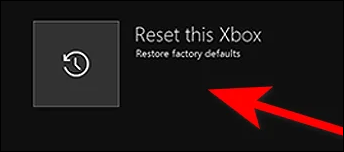
Then follow the on-To troubleshoot the issue, you'll need to boot your console in safe mode and run a system update. To do this, turn off your console, then press and hold the power button until it shuts down. Next, press and hold the power button again until you hear the console's startup sound.
📖Extend Reading: Xbox One Not Reading Disc
Fix Xbox One Stuck on Green Screen for Hard Drive Issue
If your Xbox One's hard drive is physically damaged, it may get stuck on a green or black screen, preventing it from booting. In this situation, it's best to either reformat the damaged drive or replace it with a new one.
Format the Xbox One Hard Drive
Xbox One may green screen due to file system or data corruption, which can be resolved by re-formatting the disk. To do this, you'll need to format the Xbox One using your computer, as it's not possible to turn it on. We recommend using Qiling Disk Master for quick and easy formatting, which can save you time and effort. This will ensure that the Xbox One's game storage, which uses the exFAT file system, is properly formatted and ready for use.
This formatting tool is simple and easy to use, allowing you to repair a damaged hard drive in just three easy steps.
Step 1. Launch Qiling Disk Master, right-click the partition on your external hard drive/USB/SD card which you want to format and choose the "Format" option.

Step 2. Assign a new partition label, file system (NTFS, FAT32, EXT2, EXT3, EXT4, exFAT), and cluster size to the selected partition.

Step 3. Click the "Proceed" button to begin formatting your external hard drive, USB drive, or SD card.

Step 4. In the Warning window, click "Yes" to continue.
Unplug the drive from the PC after formatting is complete, then reinsert it into the console.
Replace the Drive or Try An External Hard Disk
If the hard drive error on your Xbox One is not repairable, you may need to replace the hard drive with a new one or add an external hard drive instead of the internal hard drive. To replace the hard drive, you'll need to purchase a new one, power down the console, unplug it, and remove the screws to access the internal components. You'll then need to disconnect the old hard drive, remove it, and install the new one, reconnecting the necessary cables and replacing the screws.
Step 1. To access and remove the hard drive from an Xbox, you need to use a screwdriver to open the case and the heatsink. This allows you to reach and disconnect the hard drive, making it possible to remove it from the console.
Step 2. If you have a hard drive with crucial data, use Qiling Disk Master to bypass bad sectors and clone the data instead.
Step 3. Unpack the Xbox One and install the new hard drive.
For detailed steps, check out the article on Xbox One SSD upgrades and replacements:

To upgrade your Xbox One to an SSD, first, ensure your Xbox One is compatible with the new storage. Then, purchase an M.
Upgrading your Xbox One's hard drive to a solid-state drive (SSD) is a straightforward process that can significantly improve your gaming experience. You can do this without losing any data or reinstalling games and apps by using the built-in transfer feature in the Xbox One's settings. This feature will automatically transfer all your data, games, and apps to the new SSD, allowing you to seamlessly switch to the faster drive and enjoy improved loading times and performance.
Conclusion
If your Xbox One gets stuck on a green screen when booting up, you can try resolving the issue by updating your console, resetting it, or bypassing security checks to address software problems. Alternatively, if the issue is hardware-related, you can try troubleshooting and repair or replacement of faulty components. By following these steps, you should be able to get your Xbox One up and running smoothly again.
If the problem is related to the hard drive, we suggest using Qiling Disk Master to format the Xbox One hard drive and clone the hard drive with bad sectors. If the issue is not related to the hard drive, please contact Xbox Support before proceeding.
FAQs About Xbox One Stuck on Green Screen
If your Xbox One is stuck on a blue screen, there are several solutions that may help. Typically, these fixes work for most users, and can be tried if you're experiencing issues with your console.
1. How to fix Xbox One green screen error without USB?
To update your Xbox One offline, you'll need a USB drive to install the Offline System Update (OSU) file. However, if you don't want to use a USB drive, you can try resetting your Xbox One to its factory settings or formatting the hard drive. This will erase all data, so be sure to back up your games and other important files first. If you're experiencing a green screen of death, these options might help resolve the issue.
2. Why is my Xbox One stuck on the loading circle?
If your Xbox One gets stuck on the loading circle while booting up, it's likely due to an issue with the console loading incorrectly, possibly because it can't connect to the internet or the internet has been disconnected.
3. Why is Xbox One stuck on the green screen and then going black?
If your Xbox One has a green screen and then goes black, it might be due to a failed or incorrect system update. This could be related to an Xbox Live issue, and you can try switching to offline mode. Alternatively, restoring the console to its factory settings can quickly resolve the problem.
Related Articles
- ReFS VS NTFS VS FAT32, Which One Should You Use?
- Samsung 990 Pro vs 980 Pro: Which SSD to Choose?
- Windows Update Not Installing - Try These 6 Fixes
- How to Factory Reset Lenovo Laptop Without Password [with 4 Practical Ways]
- Full Guide on GPT Max Size | What Is GPT Max Size?
This article provides a detailed guide on GPT max size and introduces a professional tool to help you convert MBR to GPT. - How Big of a Flash Drive Do I Need to Backup Windows 10?
Are you trying to back up Windows 10 but don't know what size flash drive to prepare? Well, read this post and find your answer here.
Products
Articles & Tutorials
- Data Recovery
- Data Backup
- File Recovery
- File Backup
- System Backup and Restore
- Disk and Partition Clone
- Technical articles
- Mobile articles
- Disk Master Help
- Windows Data Recovery Tutorials
- Windows Secure Delete Tutorials
- Windows Partition Management Tutorials
- Windows File Backup and Restore Tutorials
- Windows System Backup and Restore Tutorials
- Windows Disk Backup and Restore Tutorials
- Windows Clone Tutorials