Fixed: Green Screen of Death on Windows 10/11 - 6 Tips 💡
A hardware failure, such as a damaged screen, malfunctioning graphics card, or loose video cable, may be the cause of the green screen of death. In this scenario, the solution would be to replace the failing hardware. Alternatively, you can refer to the guides provided to troubleshoot and potentially resolve the issue on Windows 10/11.
This guide will discuss why your computer screen appears green and provide six step-by-step solutions to fix the Green Screen of Death on Windows 10/11. Qiling will explain the reasons behind this issue and offer practical solutions to resolve it.
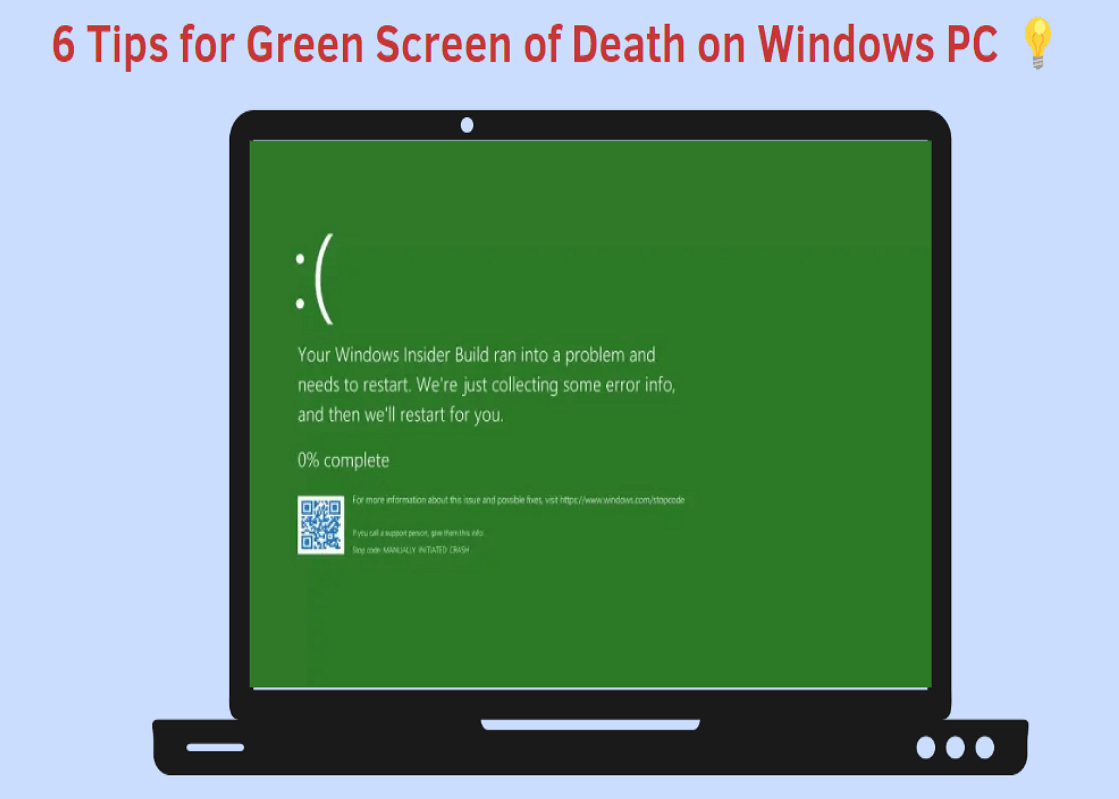
Tip 1. Use Boot Repair Tool
The Green Screen of Death can be fixed using the ultimate Windows startup repair tool, Qiling Disk Master Professional. This tool offers a startup repair feature that can resolve various startup-related issues and errors, including the computer getting stuck on a green screen. With its comprehensive and user-friendly interface, Qiling Disk Master Professional is an effective solution to fix the Green Screen of Death.
The Boot Repair function can fix errors such as corrupted boot sectors, misconfigured bootloader, boot device not found, boot sector not found, and other boot-related issues. It can also fix errors related to the Master Boot Record (MBR) and the Partition Table.
- ✔️Start any computers that are not starting properly.
- ✔️Computer users often encounter various screen issues, including the green screen, blue screen, black screen, and white screen problems, among others. These issues can be frustrating and may require troubleshooting to resolve.
- ✔️Computer freezes, boot loops, and other errors.
Step 1. After connecting the external drive/USB to your computer, start Qiling Disk Master, navigate to the "Bootable Media" section, and click on "Create bootable media."

Step 2. Select an available USB Drive or CD/DVD and click "Create." You can also burn the Windows ISO file to the storage media.

Step 3. Connect a bootable drive to a new computer, reboot the computer by pressing F2/Del to enter the BIOS, set the bootable drive as the boot disk, and exit the BIOS by pressing F10.
Step 4. Boot the computer again and enter the WinPE interface. From there, open Qiling Disk Master and click on the "Fix Boot" option under the "Tools" page.

Step 5: Select the system you want to repair and click "Proceed".

Step 6. Wait a moment, and you will receive an alert that the system has been successfully repaired. Click "OK" to complete the boot repair process.
You can also use other tips to try fixing this error; however, the following fixes require you to boot your PC into safe mode. If you are not a computing pro, use Qiling Disk Master to repair the GSOD on your PC.
⭐Additional Help
Here are some tips to help you write a great cover letter:
Qiling experts offer 1-on-1 manual services 24/7 to help fix Windows boot errors, BSOD, and computer boot loops. They provide free evaluation services and efficiently diagnose and resolve system boot failures, Windows stop codes, and OS lagging issues with their extensive experience.
- 1. Fixing a Blue/Black Screen of Death (BSOD) error due to Windows update or other reasons can be a frustrating experience. To resolve the issue, start by restarting your computer in Safe Mode, which can help you identify if the problem is caused by a third-party software or a Windows update.
- 2. To resolve Windows boot errors such as "no bootable device found" or BCD file corruption, try the following steps: Run the built-in Check Disk utility (chkdsk) to scan and fix disk errors. Use the System File Checker (sfc) tool to scan and replace corrupted system files.
- 3. To resolve 0X000_error codes on a Windows system or OS boot loop issues, you can try the following steps. First, boot in Safe Mode and run a System File Checker (SFC) to scan and replace corrupted system files.
Tip 2. Update Graphics Driver
Outdated or corrupt graphics drivers can cause a green screen of Death on Windows 10/8/7. To resolve this issue, update your drivers by following the necessary steps.
- Press the Windows key + X and select Device Manager from the menu.
- To update the graphics card driver, expand the Display Adapters category in the Device Manager, right-click the graphics card, and select "Update Driver" from the context menu. This will initiate the driver update process.
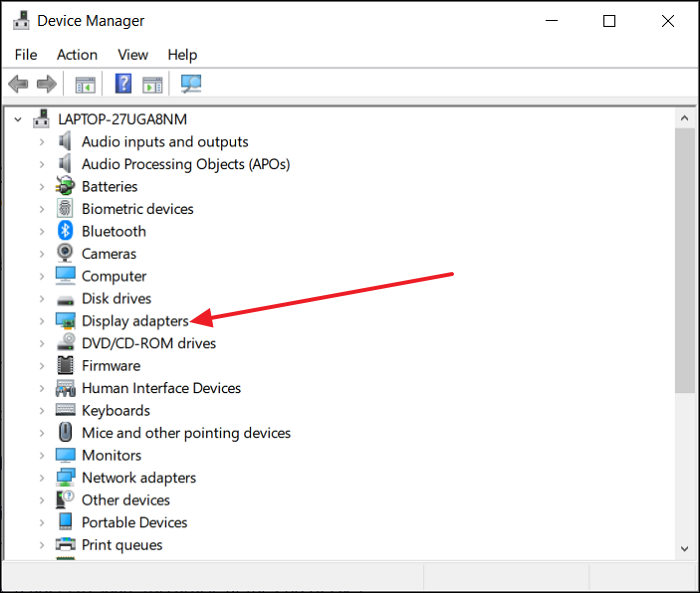
- Select "Search automatically for updated driver software" which means that Windows will search for and install the latest graphic driver.
To resolve the Green Screen of Death issue, restart your computer. This is the most basic yet effective solution.
🔎Read Also:
Tip 3. Remove the Peripheral Devices
If your Windows computer is experiencing issues and resulting in a green screen error, it's possible that interference from external devices connected to your computer is the cause. To troubleshoot this, try disconnecting all peripherals such as USB keyboards, mice, webcams, etc. and see if the issue persists.
If the problem is resolved, you can reconnect peripherals one at a time to identify the device causing the issue.
Tip 4. Disable Third-Party Antivirus Software
A third-To resolve the current green screen error, disable any third-party antivirus programs running on your PC, as they may be interfering with Windows processes.
To do this, just right-To disable the antivirus program temporarily, click on its icon on the taskbar and select the option that says "Disable until the computer restarts" or the equivalent, depending on the antivirus software you're using. This will temporarily suspend the antivirus program's activity until you restart your computer.
Tip 5. Delete or Remove Recently Installed Apps and Programs
If disabling the antivirus program doesn't resolve the green screen issue, it's possible that another app is causing the problem. You can try troubleshooting and resolving Windows green screen errors by uninstalling any recently installed applications.
- Press the Windows key + I key simultaneously to open the Windows Settings app.
- Click Apps > Select Installed Apps.
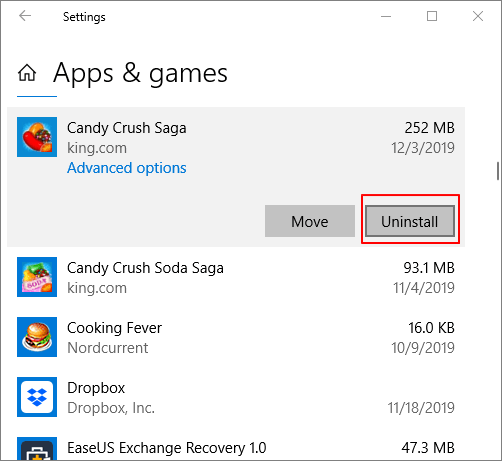
- Click the drop-down menu next to "Sort by" and select "Installation date."
- Click the three-To remove an app or program, click the dot menu icon next to it and select Uninstall.
Don't forget to share this article with the others stuck in the Green Screen of Death error.
Tip 6. Reinstall Windows
Performing a clean installation of Windows can help resolve Windows system-related issues, but it should only be done as a last resort, after backing up important files, as it will delete all data on the computer.
- Press the Windows + I keys to open Settings.
- Go to Update & Security, then Recovery, and click on Start under the Reset this PC tab.
- You can choose to remove everything, which will delete all the content on the page. This option is usually used when you want to start from a blank slate or remove all previous changes. Is that what you're looking for?
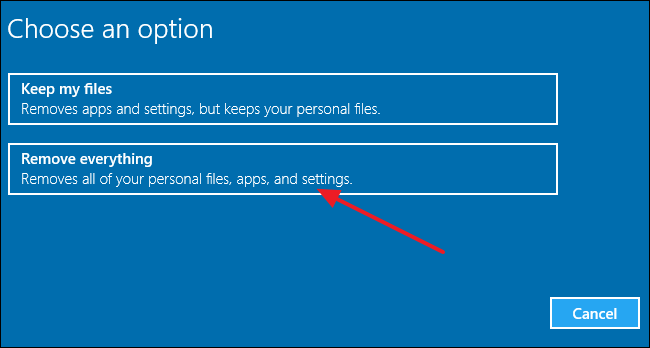
- Wait a few seconds until you see "Prepare to reset this PC."
- To reinstall Windows 10, you'll need to boot from a Windows 10 installation media, such as a USB drive or CD/DVD. This will erase all data on the computer, so make sure to back up any important files before proceeding.
What Causes GSOD Error
The Green Screen of Death (GSOD) is an error on Windows computers that appears when the operating system encounters a serious problem that cannot be recovered, similar to the well-known Blue Screen of Death (BSOD). The GSOD can be caused by either hardware issues or software reasons, making it a critical error that requires immediate attention to prevent data loss and system crashes.
- Green screens caused by hardware errors can be resolved by repairing or replacing the faulty hardware, such as a graphics card, video cables, or screen.
- Other software issues, such as connected peripherals, third-party antivirus programs or other software, corrupted system files, outdated drivers, can be solved using the six tips above.
The article discusses the benefits of using a password manager to securely store and generate strong passwords. It highlights the importance of password security in today's digital age, where data breaches and cyber attacks are becoming increasingly common.
Conclusion
GSOD is a critical error that occurs on Windows PCs when the operating system encounters a severe issue that cannot be recovered, causing a Green Screen of Death, which is the same as a BSOD.
GSOD FAQs
The Green Screen of Death (GSOD) occurs when a Windows 10 PC experiences a system error that it can't recover from. This error is often caused by a critical system failure, which can be triggered by a variety of factors, including hardware issues, driver problems, or corrupted system files. If your PC encounters a GSOD, it will display a blue screen with a cryptic error message, and the system will automatically restart.
1. What does a Green Screen of Death mean?
A Green Screen of Death (GSOD) is a severe error on a Windows PC that the OS cannot recover from, similar to the "Blue Screen of Death" (BSOD). When a GSOD error occurs, the computer screen turns green and displays an error message describing the cause of the problem, often accompanied by stop codes that help technicians diagnose the issue.
2. How do you fix a green screen of Death?
In most cases, you can fix the Graphics Device Interface (GSOD) on a Windows 10/11 PC by updating the Graphics driver, which can usually be done through the Device Manager or by downloading and installing a newer version from the manufacturer's website. This should resolve the issue and allow the system to function normally.
- Press the Windows and X keys and select Device Manager.
- To update the graphics card driver, expand the Display Adapters category in the Device Manager window, right-click the target graphics card, and select Update Driver.
- To update the driver, select "Search automatically for updated driver software" and restart your PC afterwards to try.
3. Why does the green screen happen?
The Green Screen of Death (GSOD) is a critical error in the Windows operating system caused by a glitch, often resulting from hardware failure, but also potentially triggered by connected peripherals, third-party antivirus programs, corrupted system files, or outdated drivers.
Related Articles
- How to Format USB/External Hard Drive to ExFAT [Windows & Mac]
- How to Remove Write Protection from Pen Drive
- How to Tell If a Hard Drive Is Corrupted (with Pictures)
- What Is USB Write Protected Formatter and How to Use It? [2024 Guide]
- How Do I Run SSD Speed Test Online? Your Guide Is Here [Easy & Efficient]
To test your SSD speed, you can use free programs that allow you to check your SSD's performance online. These programs can help you determine how fast your SSD is and may provide additional information that can be useful for you. - Top 5 Best SSD Speed Test Software Recommend with Pros & Cons
Many SSD speed test software enable you to test your SSD's speed within a few seconds rapidly. In this blog, we've sorted out five speed test software with complete details. After reading this blog post, you can choose any software that suits you best.
Products
Articles & Tutorials
- Data Recovery
- Data Backup
- File Recovery
- File Backup
- System Backup and Restore
- Disk and Partition Clone
- Technical articles
- Mobile articles
- Disk Master Help
- Windows Data Recovery Tutorials
- Windows Secure Delete Tutorials
- Windows Partition Management Tutorials
- Windows File Backup and Restore Tutorials
- Windows System Backup and Restore Tutorials
- Windows Disk Backup and Restore Tutorials
- Windows Clone Tutorials