How to Tell If a Hard Drive Is Corrupted (with Pictures)
Key Takeaways of How to Tell If a Hard Drive Is Corrupted:
- When a hard drive is corrupted, you can diagnose the issue by looking out for symptoms such as files or folders becoming inaccessible, data loss, slow performance, and error messages.
- To check the health of your external hard drive, you can use a reliable hard drive health check software. This software can help you identify any potential issues with your drive and provide a detailed report on its condition.
To determine if a hard drive is corrupted, consider the following aspects: check for error messages, examine the drive's file system and disk structure, look for signs of physical damage, and verify the drive's compatibility with your system. If you notice any of these indicators, it's likely that your hard drive is corrupted and may need to be replaced or repaired.
| Workable Solutions | Target | Duration |
|---|---|---|
|
#1. Check Hard Drive Corruption Symptoms🥉 |
Quick check if the hard drive contains corruption symptoms. |
3-5 minutes |
| #2. Check If the Hard Drive File System Is Corrupted🥈 | Further confirm if the disk file system is corrupted. | 3-5 minutes |
| #3. Check If Hard Drive Is Corrupted with Diagnostic Software🏆🥇 | Diagnose hard drive corruption status with technical skills. | 2-4 minutes |
If your hard disk drives are malfunctioning and you're unsure whether the disk itself is corrupted, failing, or experiencing other issues, follow the tips below to diagnose the problem and learn what's happening on your drive.
The methods help identify if an SSD, USB flash drive, external HDD/SSD, or SD card is corrupted by checking its integrity and functionality. This can be done by running disk checks, scanning for errors, and verifying the card's compatibility with the device it's being used in. Additionally, checking the card's capacity, format, and file system can also indicate if it's corrupted.
#1. Check Hard Drive Corruption Symptoms
- Price: $0
- Complex Level: ⭐⭐
- Tools: hard drive, computer, connection cable, visual inspection.
When you notice 2 or 3 symptoms from the list, it's likely your hard drive is corrupted.
- Hard drive often crashes or freezes: A computer that often crashes or freezes may be a sign of hard drive corruption, but it can also be caused by other factors such as overheating, outdated software, or malware. A more accurate statement would be: "If a computer frequently crashes or freezes, it may be a sign of a larger issue, such as hard drive corruption, overheating, or malware.
- Hard drive suddenly slows down or becomes extremely slow When a hard drive suddenly slows down or becomes extremely slow in writing new data or file transferring, it could be a sign that the disk is corrupted.
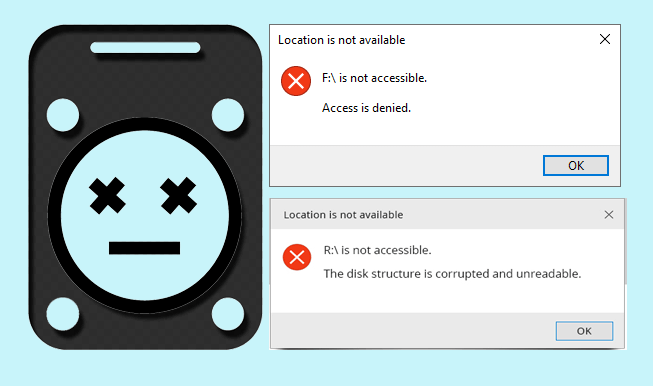
- Hard drive pops up error message: If you notice the computer popping an error message mentioning your hard drive, such as "the disk structure is corrupted and unreadable", it's likely that your drive is corrupted.
- A hard drive becomes inaccessible or inaccessible, preventing access to saved content, and the computer may display an "access denied" message.
#2. Check If the Hard Drive File System Corrupted
- Price: $0
- Complex Level: ⭐⭐⭐
- Tools: hard drive, computer, connection cable, Disk Management.
To check if a hard drive is corrupted, you can use the built-in Disk Management tool on your PC to view the file system or test for corruption. This can be done by following a series of steps that allow you to examine the drive's file system and identify any potential issues.
- Right-To access Disk Management in Windows, click on the Windows icon from the menu bar and select "Disk Management".
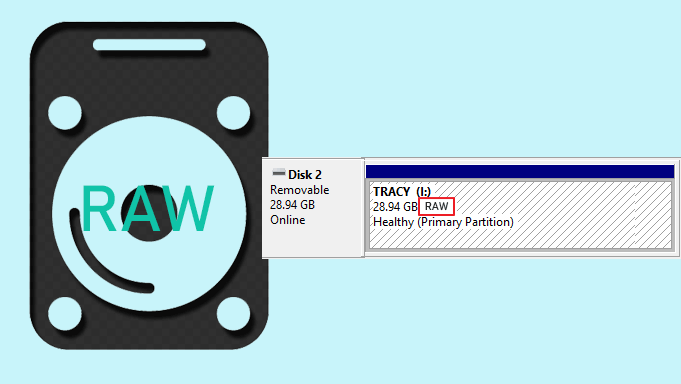
- Locate your hard drive, which you suspect it's corrupted, and check its partition state in the file system section.
- If the file system format shows as "RAW", it indicates that the disk is likely corrupted.
Here are some tips for fixing a RAW hard drive:
#3. Check If Hard Drive Is Corrupted with Diagnostic Software
- Price: $0
- Complex Level: ⭐
- Tools: A computer system consisting of a hard drive, computer, and connection cable, along with hard drive health diagnostic software, such as Qiling Disk Master, for monitoring and maintaining the hard drive's performance and health.
You can use Qiling Disk Master to thoroughly check and diagnose if a hard drive is corrupted by utilizing its Disk Health, Check File System, and Test Disk Surface features.
To check if a hard drive is corrupted using Qiling Disk Master's DiskHealth feature, you can follow these steps: Run Qiling Disk Master and select the hard drive you want to check. Click on the "DiskHealth" feature and follow the on-screen instructions.
- Launch Qiling Disk Master, go to the "Tools and utilities" section, and click "DiskHealth" to check the disk health.

- To check if your hard drive is corrupted, select the target hard drive you want to scan, and let the software perform a disk scan.
- If the Status section displays as "Bad", it means your disk is likely corrupted.
- If the Status shows as "Unknown", it also means that your disk could be highly possibly corrupted.
This software allows you to check the hard drive status, as well as apply Check File System and Disk Surface Test features to determine if the hard drive is corrupted.
You May Also Like:
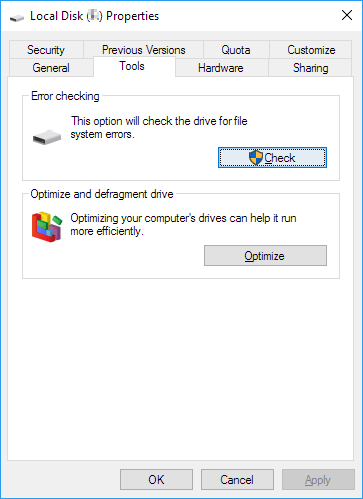
Check Disk In Windows 11 and Windows 10
This page provides a step-by-step guide on how to check file system errors on your hard disk and fix the issue that caused hard drive corruption in simple steps. By following the instructions, you can identify and resolve the problem that led to the corruption, ensuring your hard disk is functioning properly again.
What to Do When a Hard Drive Is Corrupted? 100% Working Tips
If your hard drive is corrupted, you can try to recover your data using data recovery software, and then replace the hard drive with a new one. You can also try to run a disk check or disk cleanup on the corrupted drive to see if that resolves the issue. If the drive is physically damaged, you may need to seek professional help to repair or replace it. Additionally, you can also try to use a hard drive recovery service to recover your data. However, if the corruption is due to a virus or malware, you may need to take steps to remove the infection before attempting to repair the drive.
Here are some practical tips to repair and fix a corrupted hard drive due to logical errors: Use a data recovery software, run a disk check and repair, use a bootable USB to boot your computer, use a hard drive repair tool, and lastly, if all else fails, consider seeking professional help from a data recovery service. We tested each of these methods to ensure their effectiveness.
- ✔️ Recover Data from Corrupted Hard Drive
- ✔️ To fix hard drive errors, run the CHKDSK /F /R /X command in the Command Prompt. This command checks the file system and physical disk for errors, fixes any errors it finds, and provides detailed information about the process.
- ✔️ Format RAW Hard Drive to NTFS
- ✔️ Scan and get rid of viruses, malware
- ✔️ Replace the problematic drive instantly when you've tried the above tips, but the disk still keeps corrupting. If the drive is still corrupting after trying the above tips, it's likely that the drive itself is faulty and needs to be replaced. In this case, it's best to replace the drive immediately to prevent further data loss.
- Warning
- If your hard drive is experiencing corruption issues, the following tips may help. However, if your hard disk drive is physically broken or damaged, these tips are not applicable and you should instead seek guidance on how to proceed. If you're unsure about what to do, consider the following steps:
- 1️⃣ How to Tell if a Hard Drive Is Bad
- 2️⃣ Clone a Damaged Hard Drive for Possible Data Recovery
To avoid further data loss, consider backing up valuable personal data to an external hard drive or cloud drive as soon as you experience disk corruption symptoms, ideally after the first or second occurrence.
For Your Information - IMPORTANT:
A brand new hard drive is efficient and fault-tolerant, but as it ages (3-5 years or more), it becomes more prone to errors and corruption due to accumulated bad sectors.
To protect your personal data and privacy, it's essential to transfer your vital system disk and data storage drive to a newer and healthier disk. You can refer to a step-by-step guide, such as a tutorial, for assistance with this process.
How Do I Clone HDD to SSD in Windows 11
Here is a step-Here's a one-paragraph, step-by-step guide to cloning a hard drive to SSD in Windows 11:
Conclusion
To efficiently detect and confirm if your hard drives, SSDs, or other storage devices are corrupted, there are 3 major effective ways to consider, whether you're a Windows beginner or professional.
In most cases, the most direct way to confirm if a disk is corrupted is to check if the disk file system has turned into RAW. If it has, it's 100% certain that the disk is corrupted. However, if the disk drive suddenly becomes inaccessible or inaccessible, it could also be a corruption issue. To further confirm, professional disk health checking software like Qiling Disk Master can be used for assistance.
This software offers a one-click disk health check, allowing you to quickly determine if a disk is healthy or corrupted. It's a reliable tool for detecting internal errors in storage devices, and can scan disks efficiently without causing any damage, keeping your data intact.
If you're looking to master the skill of checking disk health and determining if your drives are corrupted or intact, this guide is a great resource to help you get started. By following the steps outlined, you'll be able to identify potential issues with your drives and take corrective action to prevent data loss.
FAQs About Telling If Hard Drive Is Corrupted
If you're interested in learning more about disk corruption diagnostic, we have additional questions that are related to this topic. You can find the answers to these questions by following the link and exploring the content.
1. How do I know if my external hard drive is corrupted?
Here are 3 tips to check if your external hard drive is corrupted:
- Check if the external hard drive is accessible or openable.
- The file system of the external disk turned into RAW, which means it's no longer recognized as a usable file system and will not be accessible until it's reformatted.
- Turn to reliable disk health test software like Qiling Disk Master for help.
2. What happens when a hard drive corrupted?
A corrupted hard drive can lead to a range of issues, including data loss, system crashes, and hardware failure. The drive may become unresponsive, or it may display error messages and strange behavior.
- If you're experiencing an "Access Denied" error on your hard drive, it's likely due to a permissions issue. This means that the operating system is restricting your access to certain files or folders on the drive.
- File or data loss in corrupted hard drive.
- Disk unbootable.
- Computer pops warning message.
- BSOD error.
- System crash or boot failure issue.
3. How do I run hard drive corrupted recovery?
Follow these steps to save and restore data from a corrupted hard drive:
Step 1. Stop using the hard drive at first.
Step 2. Run reliable hard drive recovery software to scan the disk data.
Step 3. When the scanning procedure completes, select and restore all found data to an external disk or another safe location immediately.
Step 4. Once the recovery process is complete, open File Explorer, Disk Management, or a third-party hard drive format tool, such as Qiling Disk Master, to format the corrupted hard drive.
Step 5. Reset the hard drive file system format to NTFS and confirm the formatting.
Related Articles
- How to Boot Windows 10 from USB Flash Drive
- How to Extend Partition Using Diskpart [Step-by-Step Guide]
- Best Diskpart Alternatives for Windows 11, 10, 8, 7 (New Guide 2024)
- Convert to GPT Greyed Out in Windows 10? Fix It Instantly
- Run USB Flash Drive Speed Test on Windows 10/11 - 2 Ways
If you're looking to test the speed of your USB flash drive, there are two quick and accurate methods to consider. We'll delve into these methods in detail, so you can choose the best one for your needs. - Top 5 Best Free USB Formatter Software for Windows Recommend 2024
What is the best USB formatter for Windows operating systems? Follow this page, and you'll get a list of the top 5 best paid and free USB formatters for Windows users to apply and set up their USB storage devices efficiently.
Products
Articles & Tutorials
- Data Recovery
- Data Backup
- File Recovery
- File Backup
- System Backup and Restore
- Disk and Partition Clone
- Technical articles
- Mobile articles
- Disk Master Help
- Windows Data Recovery Tutorials
- Windows Secure Delete Tutorials
- Windows Partition Management Tutorials
- Windows File Backup and Restore Tutorials
- Windows System Backup and Restore Tutorials
- Windows Disk Backup and Restore Tutorials
- Windows Clone Tutorials