How to Extend Partition Using Diskpart [Step-by-Step Guide]
Partition management is a crucial aspect of maintaining your computer's storage space and organization, especially with the ever-increasing amount of data being stored. Knowing how to manage and extend partitions effectively is a skill every computer user should possess. A step-by-step guide from Qiling will walk you through the process of extending partition using Diskpart.

As you seek to expand the storage allocation for a data partition, this guide will provide the necessary expertise and assurance to complete the task. We will delve into the details of Diskpart, exploring its advantages and constraints, to equip you with the knowledge needed to successfully expand the storage allocation.
Things You Should Know Before Extend Partition Using Diskpart
To extend a partition using Diskpart, it's essential to first open Command Prompt as an administrator, then type 'diskpart' and press Enter. Next, you'll need to list the disk and select the one you wish to extend, followed by inputting the command 'list partition' to identify the partition you want to extend. After that, you'll use the 'select partition' command to choose the partition, and finally, you can use the 'extend' command to enlarge the selected partition.
1. Diskpart Works with NTFS Partitions
To begin with, Diskpart is primarily tailored to resize NTFS partitions. If you're handling a partition configured in a different file system, it might be practical to explore alternative techniques. This constraint underscores the significance of opting for the appropriate tool that aligns with your situation.
2. System Partition Expansion Limitations
When trying to increase the size of the Windows system drive, keep in mind that Diskpart can't extend the system partition. Instead, consider using third-party software to manage partitions.
3. Adjacent Unallocated Space Requirement
Diskpart can only extend a partition if there is existing adjacent unallocated space on the same hard disk, requiring unpartitioned space next to the partition to be extended.
Share this post with your friends to help them prepare for extending partitions.
Use Diskpart to Extend Partition
Diskpart, a highly flexible command-line utility, allows users to oversee disk partitions on Windows systems. Once you've confirmed that Diskpart is indeed the ideal solution for your task, you can extend a partition using Diskpart by following a systematic procedure: first, open a Command Prompt as an administrator, then type "diskpart" and press Enter to launch the Diskpart utility; next, type "list disk" and press Enter to display a list of all disks on the system, including the one you want to extend; then, type "select disk X" (where X is the number of the disk you want to extend) and press Enter to select the disk; after that, type "list partition" and press Enter to display a list of all partitions on the selected disk; next, type "select partition Y" (where Y is the number of the partition you want to extend) and press Enter to select the partition; finally, type "extend" and press Enter to extend the selected partition.
Step 1: To access the Diskpart utility, open the Windows search bar, search for "Command Prompt", and click "Run as administrator" to launch it with admin privileges. Then, run the "diskpart" command within the Command Prompt.
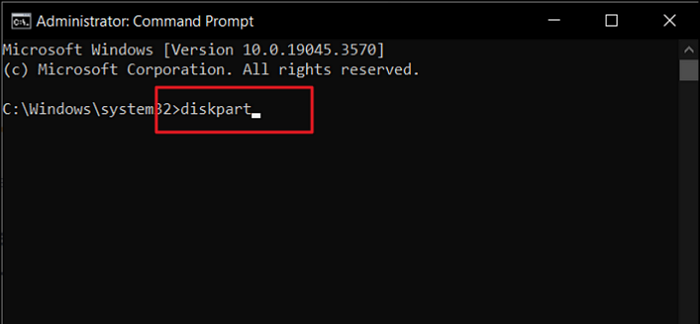
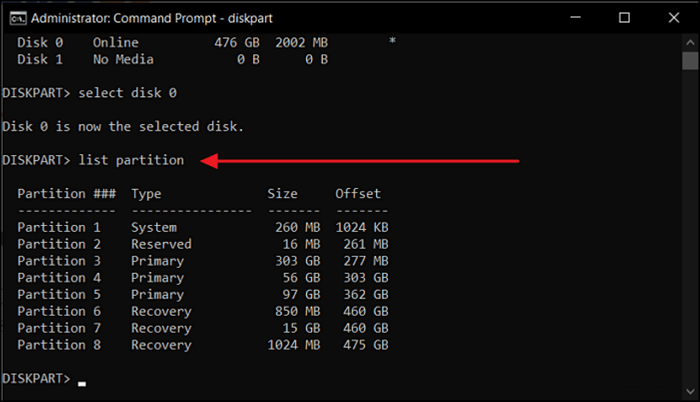
Step 2: To access the list of available disks on your system, type "list disk" and press "Enter". Then, run the command "select disk X" where "X" is the number of the disk you want to target. Finally, run the command "list partition" to view the available partitions on that disk.
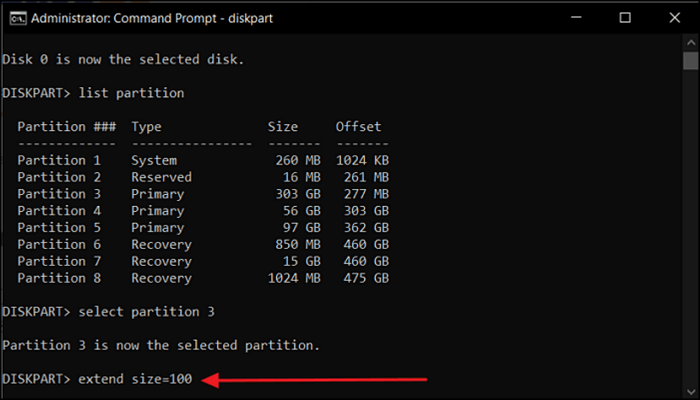
Step 3: To extend a partition into unallocated space, run the command "select partition Y" followed by "extend size = N", replacing "Y" with the partition number and "N" with the desired size, and then type "exit" to complete the process.
If you fail to extend the partition with Diskpart, this article might be able to help you.
If you're encountering the "Diskpart failed to extend the volume" error, there are several efficient ways to resolve the issue. Firstly, ensure that the volume you're trying to extend is not the system volume, as this can cause problems.
This article provides solutions to the issue of Diskpart failing to extend a volume, offering detailed guides to resolve the error, as well as an introduction to a recommended disk management tool to avoid such problems.
Better Way: Use Qiling Disk Master
While Diskpart is a useful native tool for managing partitions in Windows, a more user-friendly and feature-rich solution is available: Qiling Disk Master Professional. Unlike Diskpart, Qiling Disk Master Professional has an intuitive and clear interface, making it easy to handle partition management even for those not familiar with command-line complexities.
The software offers a unique feature called "Resize & Move" which enables users to expand a partition using unallocated space that is not directly adjacent, providing more flexibility than Diskpart which requires adjacent unallocated space.
Using Qiling Disk Master Professional to Extend a Partition
To extend a partition using Qiling Disk Master Professional, start by launching the software and selecting the disk where the partition you want to extend is located. Next, click on the "Partition" tab and select the partition you want to extend.
Step 1. Locate the Target Partition.
To resize or move a partition, go to Partition Manager, locate the target partition and select "Resize/Move" from the available options.

Step 2. Extend the Target Partition.
To add unallocated space to your current partition, simply drag the partition panel to the right or left, incorporating the unallocated space into your existing partition. This action allows you to utilize the newly freed space within your current partition, effectively expanding its capacity.

Extra Option: Get Space from Another Drive
If there's not enough unallocated space on your disk, right-click on a larger partition with sufficient free space and select "Resize/Move" to free up space.
To extend a partition, select the target partition at the "Allocate space to" column in the "Partition" tab.
Step 3. Execute Operations to Extend Partition.
Drag the dots of the target partition into the unallocated space.
Click the "Proceed" button to keep all the changes.
Qiling Disk Master Professional is a reliable and efficient solution for partition management, making it easy to download and install on your computer. Its simple interface and powerful features streamline tasks, and it stands out with its "Extend with 2nd Disk" feature, which allows you to extend a partition by taking space from another disk, a capability that Diskpart lacks.
Say goodbye to the limitations of Diskpart and embrace the enhanced capabilities offered by Qiling Disk Master Professional, a versatile software that allows you to easily control your disk partitions.
After extending the partition, you may also want to check those articles.
Conclusion
This guide provides a comprehensive overview of extending partitions using Diskpart and introduces an alternative, Qiling Disk Master Professional, which offers a user-friendly interface and advanced features to make partition management more accessible and flexible.
FAQs About Computer Stuck on Restarting
If your computer gets stuck on the "Restarting" screen, you're not alone. Many users have encountered this frustrating issue, and some common questions may help you troubleshoot the problem.
1. How do I extend my C drive partition?
Install and launch Qiling Disk Master on your computer and follow these steps to extend your C drive partition:
- To extend the C: drive, right click on it and select the "Resize/Move" option from the context menu.
- To increase the storage capacity of the C: drive, move the endpoint of the system partition into the available unallocated space. This will extend the storage capacity of the C: drive.
- To successfully expand the C: drive, select "Proceed" to confirm and apply all the modifications.
2. Can I extend my C drive from another disk?
Extending the size of your C drive from another disk is possible, but often requires using third-party partition management software, such as Qiling Disk Master. This software enables you to take space from another disk and allocate it to your C drive, effectively increasing its size. However, it's essential to use reputable software and follow instructions carefully to avoid data loss.
3. Can I increase partition size without formatting?
You can increase a partition size without formatting it by using tools like Qiling Disk Master or Windows Disk Management, but you'll need unallocated space on the same or an adjacent disk, and it's always a good idea to back up your data first.
Related Articles
- How to Merge Partitions by Disk Management and Free Partition Software
- How to Reset Windows 11 Password with USB - 3 Easy Tips
- [New] Get 2024 Official Qiling Disk Master License Code, Serial Key Here!
If you're looking for a Qiling Disk Master license code, we offer official access to get a genuine license code to upgrade to the full edition and enjoy all features at a low cost. - How to Fix Remove PIN (Greyed Out) on Windows 11
To fix the issue of a greyed out PIN on Windows 11, follow these steps below. This will help you resolve the problem and remove the greyed out PIN within a few minutes. - Why Is Hogwarts Legacy Not Downloading on My PC? [Causes and How-To Fix]
Is your computer not downloading the newest Harry Potter game - Hogwarts Legacy? - Full Guide to Check How Much Disk Space Do I Have in 2024
Users of Windows PCs can use this page to find out how much disk space do I have. Discover five practical strategies that solve this question by following this tutorial.
Products
Articles & Tutorials
- Data Recovery
- Data Backup
- File Recovery
- File Backup
- System Backup and Restore
- Disk and Partition Clone
- Technical articles
- Mobile articles
- Disk Master Help
- Windows Data Recovery Tutorials
- Windows Secure Delete Tutorials
- Windows Partition Management Tutorials
- Windows File Backup and Restore Tutorials
- Windows System Backup and Restore Tutorials
- Windows Disk Backup and Restore Tutorials
- Windows Clone Tutorials