How to Reset Windows 11 Password with USB - 3 Easy Tips
Forgot your Windows 11 password? Don't worry, you can reset it using a bootable USB drive. This can help you log back into your computer, whether you use a local account or a Microsoft account, and guide you through four quick and easy methods to do so.
- 1. Qiling Disk Master
- 2. Windows 11 Recovery USB
- 3. Windows 11 Installation USB
- 4. Windows 11 Password Reset USB Drive
To reset a Windows 11 password using a USB, you can use Qiling Disk Master, a tool that can create a password reset USB for the current and other PCs, even if they're locked already. This is the easiest method.
Method 1. Reset Windows 11 Password with Bootable USB - Qiling Disk Master
Qiling Disk Master Professional has a feature called "Password Reset" that allows you to create a password reset USB on one PC to unlock a locked PC, bypassing Windows' limitation that such a USB can only be created before the PC is locked.
If you've forgotten your password and can't log in to Windows 11, you can resolve the issue by downloading a tool that allows you to create a bootable password reset USB, which can then be used to unlock your Windows 11 PC.
Step 1. Connect a USB drive or external drive to a working computer, then open Qiling Disk Master (RE) and click "Create Bootable Media".

Step 2. Insert your USB drive/external drive, select it as the target device, and click "Proceed" to create an image on it.

Step 3. Connect a bootable drive to a faulty computer, reboot it by pressing and holding "F2"/"Del" to enter the BIOS, set the bootable drive as the boot disk, and exit the BIOS by pressing "F10".
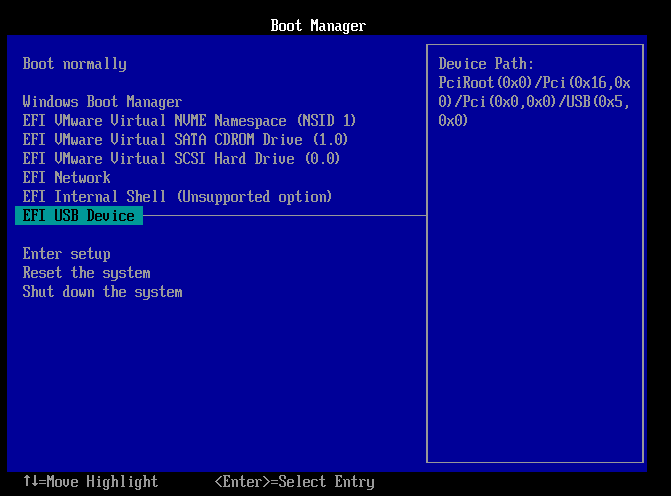
Step 4. The computer will enter the WinPE desktop, where you can find and launch the Password Reset tool.

Step 5. To reset a Windows account, you need to select your Windows version and choose the Windows account you want to reset. This will allow you to proceed with the account reset process, which will restore the account to its original settings and remove any installed apps, settings, and files.

Step 6. Wait patiently, and you will receive an message that the password has been changed successfully.

This tool simplifies the Windows 11 password resetting process, making it easier and safer to regain access to your locked PC when you've forgotten your password.
Method 2. Use Windows 11 Recovery USB
To reset your Windows 11 password using a recovery USB, follow these steps carefully to avoid any errors. You'll need to create a recovery USB drive, boot from it, and then select your user account to reset the password. This process allows you to regain access to your Windows 11 system even if you've forgotten your password.
Stage 1. Create a Recovery USB Drive
- Insert a USB flash drive into any computer running Windows 10/11.
- To create a recovery drive in Windows 11, open the Start menu and type "recovery drive" in the search bar, then press Enter to open the Recovery Drive panel.
- In the Recovery Drive window, uncheck the "Back up system files to the recovery drive" checkbox and click Next.
- Select the correct USB flash drive and click Create on the next page to start creating the recovery drive.

- Click "Finish" when prompted that this recovery drive is ready.
You need to add the password editor NTPWEdit to the recovery USB drive, besides.
- Please open http://www.cdslow.org.ru/en/ntpwedit/
- Download the ntpwed07.zip file and save it in the root directory of the USB drive.

- To continue the recovery process, you need to extract the contents of the downloaded ntpwed07.zip file to the recovery USB drive. To do this, simply right-click on the zip file and select the "Extract All" option, which will unpack the folder to the USB drive, making the necessary files and tools available for the recovery process.
- After unzipping, the NTPWEdit program required to reset your Windows 11 password is saved on the recovery USB drive.
If you found it a difficult option, turn to Qiling Disk Master by clicking the following blue button.
Stage 2. Boot Locked PC From the Recovery USB
To boot Windows 11 from the bootable recovery USB, insert the USB drive into a USB port on the computer and restart the computer. As the computer boots, press the key to enter the boot menu (usually F2, F12, or Del, depending on the computer model).
- Insert the recovery USB drive into the locked computer where you want to reset your Windows 11 password. Follow the on-screen instructions to start the recovery process.
- To access the boot menu, restart your computer, and as soon as the screen lights up, press and hold the F12 or Delete key. This will allow you to select an alternative boot device or operating system.
- To boot from a recovery USB drive, select the option to set the USB drive as the first boot order in the boot menu, and your computer will start booting from it.
Want to reset your Windows 11 password? You can use a bootable USB drive to do so.
Stage 3. Reset Windows 11 Password Using Recovery USB
- Once your computer has finished booting from the recovery USB drive, you will see the "Choose a keyboard layout" screen, where you will select America.
- Go to Settings > Update & Security > Troubleshoot > Advanced Options > Command Prompt to open the command prompt.

- To run the DiskPart tool, open the Command Prompt window, type "diskpart" and press Enter.
- In the Diskpart interface, enter the following command:
list volume
select volume 0
allocate To assign a drive letter to your operating system volume, press Enter. (Note: I assume this is in the context of a command line or terminal, as the original text was not provided)
- Type list volume again and press Enter, then check the newly assigned Windows drive letter.
- To exit the DiskPart tool, enter 'exit' and press Enter. Then, enter 'notepad' and press Enter.
- To open the Notepad window, go to "File" > "Open" and then click on "This PC" from the "Open" window. Select "All Files" from the "File Type" menu and double-click on the recovery USB drive to open the netpwed07 folder.
- Right-click the ntpwedit64.exe file and click "Open."
- When the file opens in a new window, select your username from the list of users and click Change Password.
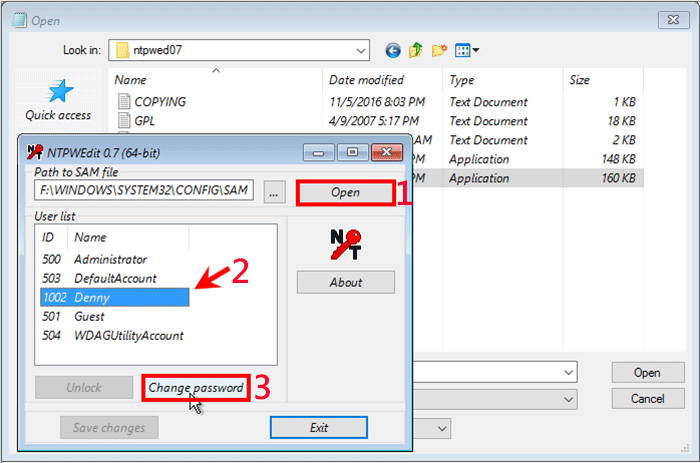
- Enter your new password and verify it, then click OK.
You May Also Like:
Method 3. Use Windows 11 Installation USB
Windows 11 installation USB drives can reset forgotten Windows 11 passwords without losing data, but it requires knowledge of Windows commands. If you don't have a USB drive, you can create one by burning the Windows 11 ISO to USB.
Start the calculator from the installation disk and replace the utility manager with the Command Prompt:
Step 1. Insert the Windows 11 installation USB or CD into the computer that needs to reset the Windows local administrator password, and let the computer boot from the disk.
Step 2. After the computer starts, the Windows setup screen will appear. From there, press the Shift + F10 keyboard shortcut on the Windows Settings screen to open a Command Prompt window. Then, run the command (replacing "c" with the current system drive) in the command prompt window.
- move c:\windows\system32\utilman.exe c:\
- copy c:\windows\system32\cmd.exe c:\windows\system32\utilman.exe

Step 3. Remove the Windows 11 installation disk and restart the computer, either by using the command "wpeutil restart" or turning it off and on again.
Use CMD to Reset Password for Windows 11:
Step 1. After the computer restarts and comes to the Windows 11 sign-in screen, click on the Ease of Access icon, which will bring up a new Command Prompt window.
Step 2. To reset the password for your Windows 11 local admin account, type the command "net user username password" in the Command Prompt window and press Enter, replacing "username" with your actual username and "password" with the new password you want to set.
Step 3. Once the password reset process is complete, close the Command Prompt and sign back into your account with the new password.
You May Also Like:
Method 4. Create a Windows 11 Password Reset USB
A password reset USB can also be used to reset Windows 11 passwords, but it requires creating the USB beforehand, ideally before the PC is locked. If the PC is already locked, using Qiling Disk Master from Method 1 is a better option.
Stage 1. Create a Password Reset USB Drive
To sign in with your local account, go to Settings, then click on Accounts, and then select "Your email and accounts". From there, click on "Add a local account" and follow the prompts to create a new account. This will allow you to use the Windows 10 Settings app without needing to sign in with a Microsoft account.
Step 1. To create a password reset disk, simply insert a qualified USB flash drive into the PC. This process won't format or reformat the drive, but it's recommended to back up any data on it beforehand.
Step 2. To open the Control Panel, type "Control Panel" in the search box on the taskbar and select it from the list of results.
Step 3. To create a password reset disk, type "create password reset" in the Control Panel search box, select "Create a password reset disk" and follow the Forgotten Password Wizard window instructions.
Step 4. In the Forgotten Password wizard window, select Next. Then, click and choose your USB flash drive, and select Next.
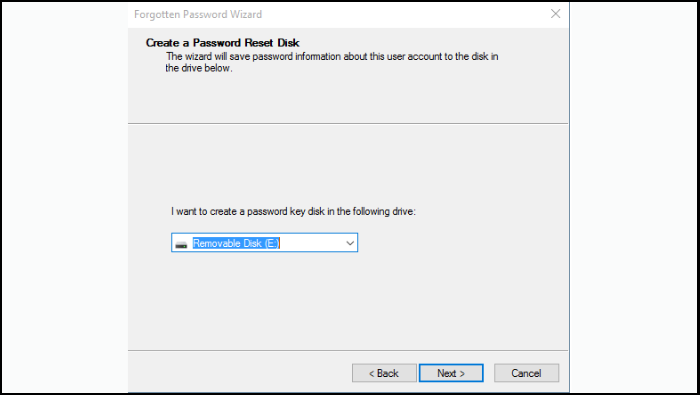
Step 5. Type your current password and select Next. When the wizard is done, click Finish.
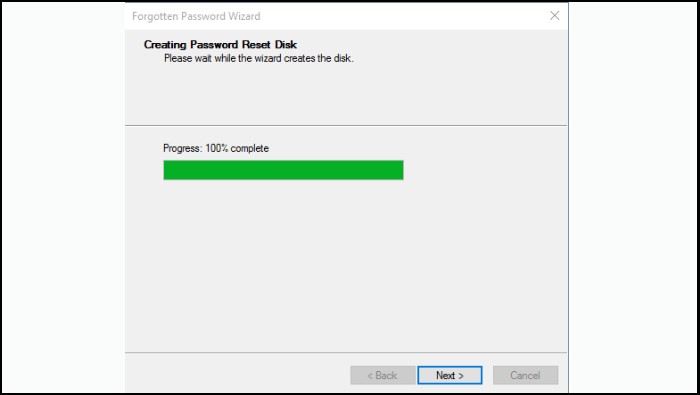
When changing your password, you don't need to create a new disk, even if you change it multiple times. Just be sure to keep the USB drive in a safe place so you don't forget where you put it.
Read Also: Can't Create Windows 10 Password Reset Disk
Stage 2. Use the Windows 11 Password Reset USB
Follow the steps to reset your Windows 11 password via the password reset USB:
Step 1. Connect that bootable Windows 11 USB drive to your PC.
Step 2. At the Windows 11 login screen, type an incorrect password to bring up the "Reset password" option, which allows you to reset your password.
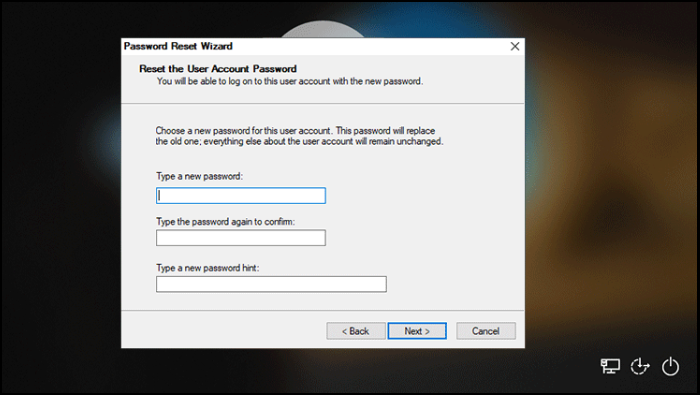
Step 3. To reset your password, click on the "Reset password" button and follow the Password Reset Wizard procedure that will be opened.
Step 4. To set a new password on Windows 11, enter a new password and click "Next".
If you're looking for a more detailed guide on resetting Windows passwords, there's a helpful video that covers the process using CMD and Qiling Disk Master.
Conclusion
You can reset your Windows 11 password using USB with three quick and effective methods, with Qiling Disk Master being the simplest option. It requires only a few steps to complete the entire password reset process without any prerequisites or command-line entries, making it a convenient choice.
You May Also Like:
Use Bootable USB to Reset Windows 11 Password FAQs
If you're looking to reset the password for a Windows 11 PC, you can use a bootable USB to do so. For those who are unsure, FAQs are available to provide more details.
1. How do I get into Windows 11 if I forgot my password?
If you've forgotten your Windows 11 password, you can reset your Microsoft account password to regain access to your account. Alternatively, if you set up security questions for your local account, answering them can also help you sign back in.
2. How do you reset your Windows 11 password?
To reset your Windows 11 password using a password reset USB, follow these steps:
- If you enter the wrong password on the Windows 11 login interface and click "Reset password," Windows will prompt you to answer security questions or use a recovery drive to reset your password. You can choose one of the options and follow the on-screen instructions to reset your password. If you don't have a recovery drive or can't remember the answers to your security questions, you can contact the Windows support team for further assistance.
- After the password reset wizard shows up, insert the Windows 11 password reset disk and click "Next."
- Select the correct USB drive, enter the new password, and prompt. Close the Password Reset Wizard when you are done.
3. Why do I need a USB flash drive to reset my password?
The password reset process requires creating a password reset disk, such as a USB drive, which serves as a backup. This allows someone with the drive to access your computer. If you forget your password, the USB can help reset it by launching the password reset wizard.
Related Articles
- How to Format DVD RW/CD & How to Erase CD in Windows 10/11
- 3 Best Disk Repair Tools for Windows Server Free Download 2024
- How to Clone Windows to a New Drive [2024 Full Guide]
- How Much Disk Space Does Windows 10 Take [Full Explanation]
- Safest Way to Convert MBR to GPT/GPT to MBR without Data Loss in Windows 10
Sometimes, you might need to convert MBR to GPT Windows 10. Here we show you how to convert MBR and GPT using Command Line, Disk Management, MBR2GPT.exe and a professional converter (which can convert disk to MBR or GPT without data loss and without reinstalling Windows in Windows 11, 10, 8, 7). - Effectively Fix "We Couldn't Update the System Reserved Partition" Error
"We couldn't update the system reserved partition" appears when you upgrade to Windows 10 from Windows 7/8? Here you can fix it within 5 simple steps.
Products
Articles & Tutorials
- Data Recovery
- Data Backup
- File Recovery
- File Backup
- System Backup and Restore
- Disk and Partition Clone
- Technical articles
- Mobile articles
- Disk Master Help
- Windows Data Recovery Tutorials
- Windows Secure Delete Tutorials
- Windows Partition Management Tutorials
- Windows File Backup and Restore Tutorials
- Windows System Backup and Restore Tutorials
- Windows Disk Backup and Restore Tutorials
- Windows Clone Tutorials