4 Ways to Factory Reset Windows 7 Without Password
Factory resetting a Windows 7 OS can be a complex process, especially if you've forgotten your password. However, Qiling Software offers 4 Ways to Factory Reset Windows 7 Without a Password, making it possible to start your desktop or laptop with a clean slate.
Remove Admin Password to Factory Reset Windows 7 Without Password
Removing the admin password to perform a factory reset in Windows 7 without the password can be complicated and cumbersome. However, user-friendly applications like Qiling Disk Master Professional offer efficient password reset mechanisms to help users regain control of their Windows 7 computer without compromising their OS or data.
The software's password reset feature allows users to reset passwords and create external bootable devices, such as USB drives, to help restore the system. This feature is particularly helpful for users with limited technical expertise. The application prioritizes safety and security, making it a top choice in such situations. However, it's essential to note that data preservation is only possible if a backup has been created beforehand.
Step 1. To create a bootable USB disk, insert the target USB disk into the computer, download and run Qiling Disk Master, and click "Tools" > "Create bootable media".

Step 2. After selecting the correct USB flash drive or external mobile hard disk, click "Proceed" again, then wait patiently. Once the password reset USB drive is created, click "Finish."

Step 3. To reset the password on a locked PC, insert the password reset USB into the PC, restart it, and follow the prompts to change the boot drive to boot from USB. The system will then automatically boot from the USB, allowing you to access the PC.
Step 4. After restarting, find Qiling Disk Master again and go to "Password Reset". All accounts on the PC will be displayed, click on the target account and check "Reset" to proceed.

Step 5. When you receive this prompt, click "Yes". Your password will be erased.

After removing the password from your Windows 7 computer, you can factory reset it through the normal procedure:
To successfully factory reset a computer running Windows 7, start the PC by turning it on and then press F8 during the start-up process to enter the Advanced Boot Options interface. From there, you can select "Repair Your Computer" and follow the timely prompts to reset the system to factory settings.
This tool can also be used to create a bootable USB drive from a Windows installation media, and it can also be used to create a bootable USB drive from a Linux installation media. It can also be used to create a bootable USB drive from a macOS installation media. Additionally, it can be used to create a bootable USB drive from a Windows 10 installation media, and it can also be used to create a bootable USB drive from a Windows 11 installation media.
- Burn Windows 7 ISO to USB
- Bypass Windows 7 password
- Reset Windows 7 password with USB
- Check hard drive health on Windows 7
- Reset Dell/Lenovo/ASUS laptop password
Qiling Disk Master offers a range of features beyond password resetting, including disk partition and storage management, making it a valuable addition to a user's toolkit. Its user-friendly interface ensures a seamless and stress-free experience, making it a useful tool for managing disk partitions and storage.
How to Factory Reset Windows 7 Without Password
If you want to factory reset your Windows 7 laptop, there are alternative methods beyond removing its password. You can also try the following: (insert three methods here). However, if you're looking for a simpler solution, removing the password might be a better option.
Use Command Prompt
Resetting a Windows 7 computer to its factory defaults can be done using the Command Prompt, allowing users to restore their system to its original settings. To accomplish this, follow these steps:
Step 1. Turn off the computer and unplug all cables except the power cord, monitor, keyboard, and mouse.
Step 2. Switch on the computer by pressing the Power button.
Step 3. Press the F8 key repeatedly when the startup logo appears to enter the Advanced Boot Options menu.
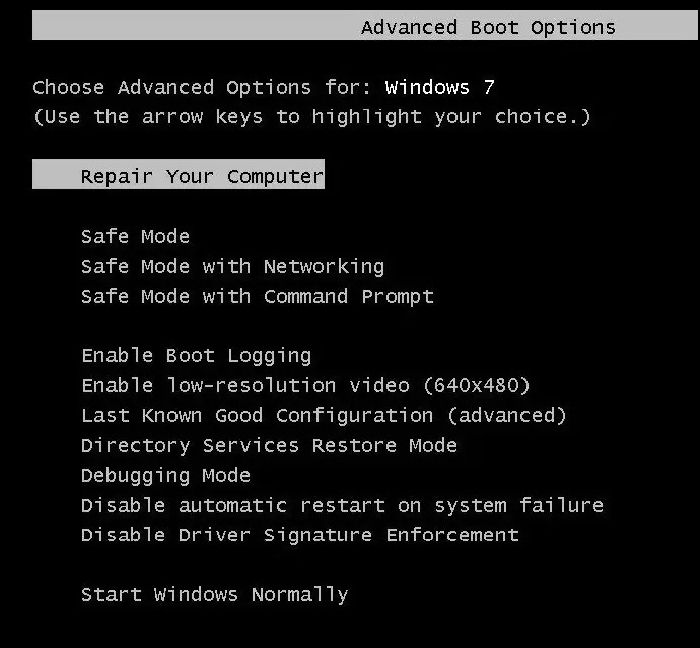
Step 4. To boot your computer in Safe Mode with Command Prompt, navigate to the option "Safe Mode with Command Prompt" using the arrow keys, and press Enter to select it.
Step 5. To access System Restore, log in as Administrator or Local User, open the Windows Terminal, type rstrui.exe, and press Enter to open the System Restore window.
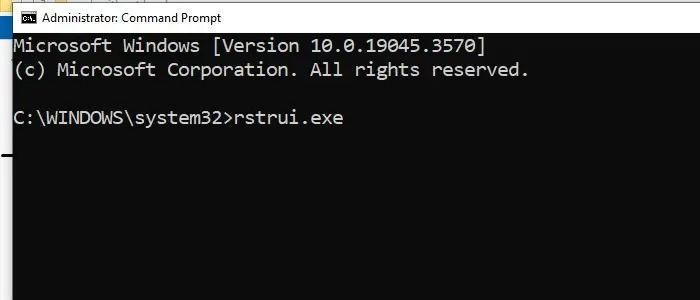
Step 6. Click on Choose a different restore point.
Step 7. To restore your system to a previous state, select a restore point from the list that appears when the system is functioning correctly and click Next.
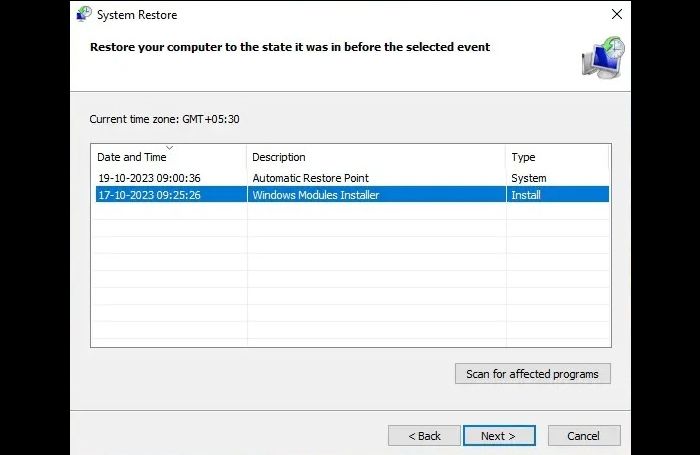
Step 8. To restore the system to the best configuration, click on the "Finish" button. This will finalize the changes and ensure the system is running optimally.
You May Also Like:
Use Recovery Partition
Some computers have a Recovery Partition that allows users to restore their system to its factory settings using the following steps.
Step 1. Turn off the system and disconnect all the attachments except the Keyboard, Mouse, and Monitor.
Step 2. Turn on the computer and press the specific recovery key (usually F2, F12, or Del) to access the recovery partition, as the key may differ depending on the computer's make and model.
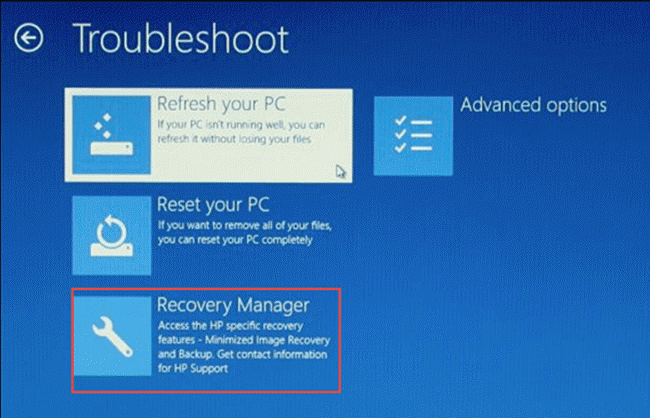
Step 3. Follow the on-screen instructions to reset the system.
This guide provides a detailed overview of the process of creating a 3D model from a 2D image. It explains the steps involved in preparing the image, importing it into a 3D modeling software, and transforming it into a 3D model. The guide also covers the use of various tools and techniques, such as texture mapping and lighting, to enhance the 3D model.
Factory Reset Windows 7 Without Password Using Startup Repair
To reset a Windows 7 computer to its factory settings, you'll need a Windows 7 Recovery or Installation Media, such as a bootable USB or DVD. This process can be useful when the password can't be remembered. To proceed, follow the steps below.
Step 1. After inserting the USB drive or DVD, restart your computer. Then, enter the boot menu by pressing a specific key such as F12, F2, or another key depending on your computer's model. Once in the boot menu, select the DVD or USB drive as the boot device to proceed with the installation.
Step 2. Select the Repair your Computer option from the list.
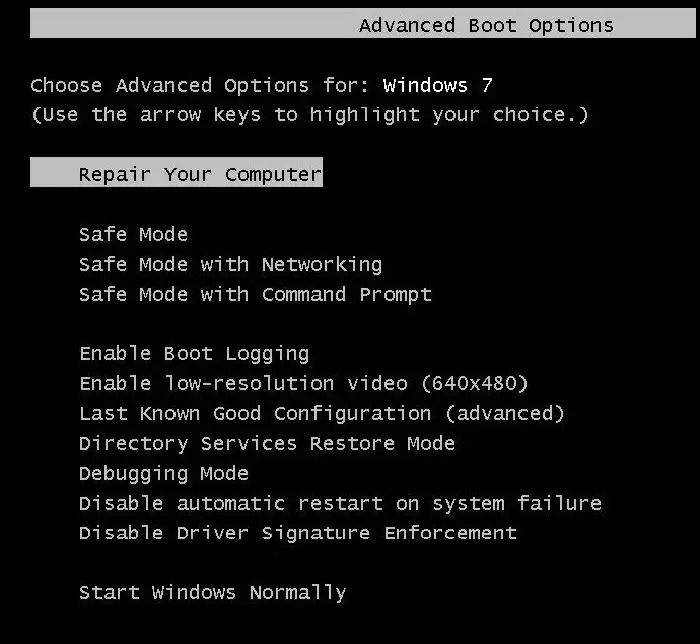
Step 3. To open the Windows Terminal, click on the Start menu and select the "Windows Terminal" app. Alternatively, you can search for "Windows Terminal" in the search bar and click on the result to open it.
Step 4. Type the below-mentioned command in the Windows Terminal to rename the Utility Manager and rename the Command Prompt to Utility Manager.
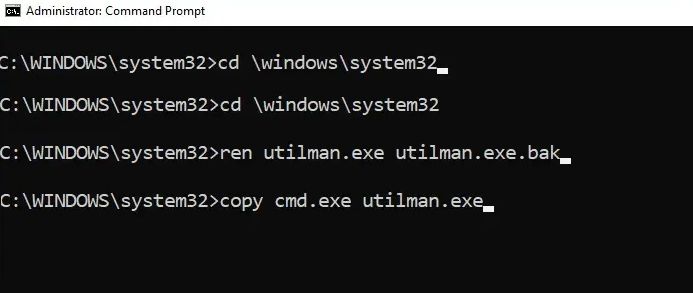
cd \windows\system32
ren utilman.exe utilman.exe.bak
copy cmd.exe utilman.exe
The Utility Manager in Windows 7 allows easy access to accessibility features like the on-screen keyboard, narrator, and magnifier. Renaming this feature to "Command Prompt" enables users to execute commands as an administrator without needing the original password, thereby gaining administrative control.
Step 1. In the Windows Terminal, the password of the system can be reset using the below-mentioned command:
net user [username password]
To regain access to a computer and change the Administrator password without using the old one, the concerned username and a new password can be entered, allowing the password reset. This step can help regain access to the computer and change the Administrator password without using the old or original one.
Step 2. You want me to tell you to restart the computer by typing a command in the Terminal. Is that correct?
shutdown /r /t 0
The /r option in the shutdown command forces a restart, and /t specifies the time interval, with 0 indicating an immediate restart.
Step 3. Once the system reboots, the user can use the username and the new password created to log in.
Step 4. To rename the Utility Manager, open the Windows Terminal as an Administrator and run the command `reg add "HKEY_LOCAL_MACHINE\SOFTWARE\Microsoft\Windows\CurrentVersion\Run" /v "Utility Manager" /t REG_SZ /d "C:\Program Files\Windows Utilities\Utility Manager.exe" /f`.
ren c:\windows\system32\utilman.exe.bak c:\windows\system32\utilman.exe
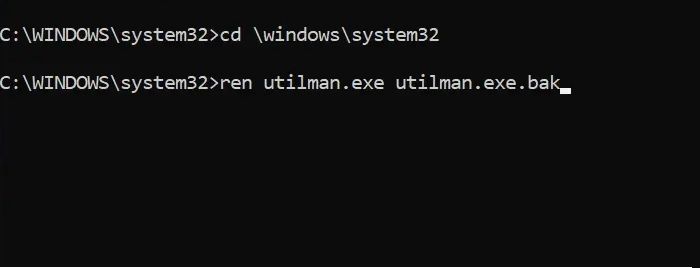
The backup of the Utility Manager taken before renaming it is restored using the above command to ensure that the accessibility features work as expected and prevent any unintended consequences.
You can check this video for a more detailed guide on resetting Windows passwords using CMD and Qiling Disk Master Pro.
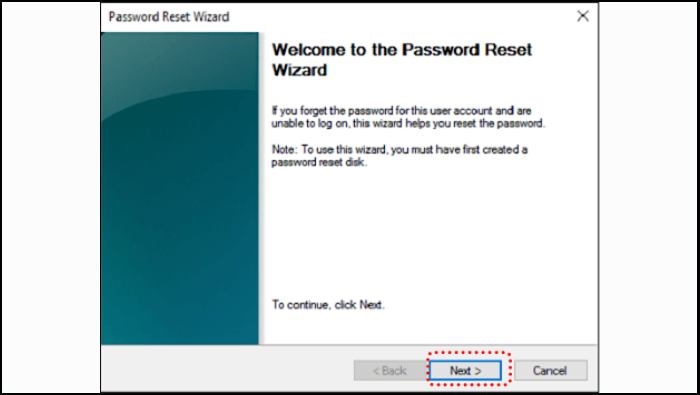
If you're interested in creating a password reset disk for Windows 7, this guide can help. This article provides you with the necessary information to create a password reset disk, allowing you to regain access to your Windows 7 account if you forget your password.

Password Reset Disk Windows 7: How to Create and Use
To create a password reset disk for Windows 7, insert a blank CD, DVD, or USB drive into your computer, go to the User Accounts section in Control Panel, click on "Create a password reset disk," and follow the prompts to complete the process. Once created, the password reset disk can be used to reset the password for a Windows 7 PC by booting from the disk, selecting the "Reset password" option, and following the on-screen instructions to reset the password.
Conclusion
To reset a Windows 7 system to factory defaults without the password, follow these steps: boot from a Windows 7 installation disc, access the command prompt, and use the built-in System Restore feature to restore the system to a previous state. Alternatively, use a Windows 7 installation disc to access the System Recovery Options, and then use the Command Prompt to access the system's registry and reset the password. If the above methods fail, use a third-party tool to reset the password.
Factory Reset Windows 7 With No Password FAQs
If you have any queries or doubts regarding the steps or processes detailed above, feel free to browse through this section for answers to the most common questions. We're here to help clarify any confusion and provide additional information to ensure you have a smooth and successful experience.
1. How do I force a factory reset on Windows 7?
If the original Windows 7 Installation Disk is available, you can reset the system to its factory defaults by booting from the disk, selecting the "Repair Your Computer" option, and then choosing the "System Restore" option. This will restore the system to its original state, overwriting any changes made since the installation.
To factory reset your Windows 7 computer, start by turning it on and holding F8 during the start-up process to enter the Advanced Boot Options interface. From there, select "Repair Your Computer" and follow the prompts to reset Windows 7 to its factory settings.
2. How to Reset the admin password on Windows 7 without a password?
The below-To reset the Admin password in Windows 7 without the original password, you can create a new Admin account, boot in Safe Mode, use the built-in Administrator account, or use a Windows installation disk to reset the password. You can also use a third-party utility like Ophcrack or Hiren's Boot CD to reset the password.
Step 1. After inserting the USB drive or DVD, restart the computer. Press F12, F2, or the appropriate key to enter the boot menu, and then select the DVD or USB drive as the boot device to proceed.
Step 2. Once the system boots using the installation media, select the preferred language, time, and keyboard preferences from the initial Windows Setup screen.
Step 3. To access the System Recovery Menu, click Next and select Repair your Computer.
Step 4. Select Startup Repair in the System Recovery options available to initiate an automated repair process that the system runs to diagnose and fix any problems it encounters.
Step 5. In the next window, click on "View advanced options for system recovery and support" and then on "Command Prompt".
Step 6. The password of the system can be reset in the Windows Terminal using the command "net user" to change the password of the current user.
Step 7. Restart the system and log in with the new password assigned in the previous step.
3. How to factory reset Windows 7 to factory settings without a CD?
The below-To reset a Windows 7 system to factory settings without a CD, you can use the built-in System Restore feature to revert to a previous restore point, or use the System Recovery Options to repair or restore the system to its original settings. Alternatively, you can use the Windows 7 installation media (which can be created on a USB drive) to perform a clean installation of the operating system, or use the built-in Refresh Your PC feature to reset the system to its factory settings.
Step 1. Click on Start and select Control Panel>System and Security
Step 2. In the System Settings Window, select the Backup and Restore
Step 3. Select "Recover system settings" on your computer on the next window.
Step 4. In the ensuing Window, select Advanced Recovery Methods.
Step 5. Clicking Advanced Recovery Methods would open up two options: Restore Files from a System Image backup and Return your Computer to Factory Conditions.
Step 6. To reset your computer to its factory conditions, select the "Return your Computer to Factory Conditions" option. This will restore the system to its original settings, erasing all installed applications, user accounts, and other data.
Related Articles
- Guide to Check Disk Space Using PowerShell [2024 Tutorial]
- Guide to Test Disk Speed on Windows Computer [Your Free Guide Is Here]
- How to Repair Windows 11 with Command Prompt| 2024🔥
- How to Reset Windows XP Passwords [Full Guide]
- How to Resize NTFS Partition in Windows 11/10 [Full Guide]
This article will introduce how to resize NTFS partition on Windows 11/10. And you will learn three different ways to resize NTFS partition without losing data. you can find the Windows built-in tools and the best third-party software to finish the task. - How to Tell If a Hard Drive Is Corrupted (with Pictures)
Do you know how to tell if a hard drive is corrupted or not? On this page, we collected 3 major ways to assist you in confirming if your drive is corrupted or not by checking disk symptoms, file system format, or using third-party disk health checking software.
Products
Articles & Tutorials
- Data Recovery
- Data Backup
- File Recovery
- File Backup
- System Backup and Restore
- Disk and Partition Clone
- Technical articles
- Mobile articles
- Disk Master Help
- Windows Data Recovery Tutorials
- Windows Secure Delete Tutorials
- Windows Partition Management Tutorials
- Windows File Backup and Restore Tutorials
- Windows System Backup and Restore Tutorials
- Windows Disk Backup and Restore Tutorials
- Windows Clone Tutorials