How to Check Hard Drive Health on Windows 7 [Detailed Guide]
Regularly reading and writing to a hard drive will continue to shorten its lifespan, making it essential to monitor its health when using Windows 7 to prevent unexpected crashes and data loss.
This article covers various methods to check hard drive health on Windows 7. Let's dive in and explore these methods right now.
How Do I Know If My Hard Drive Is Healthy
A single, loud click can indicate that the heads are being parked, but if the forceful clicking continues, especially if it's accompanied by a clunking (or grinding) sound, there's likely a physical problem with the drive.
Here are some warning indicators to look out for to ensure a healthy hard disk and prevent corrupted data:
Physical hard drive failure symptoms:
- Overheating
- Sharp screeching or clicking sounds
- Slow boot or slow processes
Logical hard drive failure symptom:
- Frequent system crashes
- Files/folders disappearing
- A blue screen of death appears
- The operating system is unable to boot
- Longer file load times in File Explorer
To prevent data loss and inconvenience, it's essential to check the SMART status of your hard drive before any issues occur. This can be done by examining the SMART status for Windows 7, and there are numerous methods to do so. By doing so, you can identify potential problems with your hard disk and take preventive measures to ensure the health and longevity of your drive.
How to Check Hard Drive Health on Windows 7 - 4 Ways
To ensure your hard drive's health, it's crucial to monitor its condition. In Windows 7, you can utilize four solutions to check hard drive health, providing you with valuable insights to prevent potential issues.
- Way 1. Check Hard Drive Health on Windows 7 via Qiling Disk Master
- Way 2. Check Hard Drive Health on Windows 7 via Defrag and Optimize
- Way 3. Check Hard Drive Health on Windows 7 via CMD
- Way 4. Check Hard Drive Health on Windows 7 via CHKDSK
Determining the condition of a hard drive can be done through various reliable techniques. One option is to use a reliable third-party program to simplify and speed up disk-related operations, providing a straightforward approach to assessing the drive's condition. We'll examine the in-depth instructions for each available approach.
Way 1. Check Hard Drive Health on Windows 7 via Qiling Disk Master
If you're using a Windows computer and need to partition your hard drive, Qiling Disk Master is the way to go. This program allows you to inspect the hard drive's free space, health, temperature, performance, and more using its "Disk Health" function, giving you a comprehensive view of your hard drive's status.
This program is designed to help even the most computer-illiterate person learn to use Windows system tools like a pro. If you're concerned about the state of your disc, simply follow the instructions provided.
Step 1. Launch Qiling Disk Master, click the blue arrow to activate the "Disk Health" feature under the "Tools and utilities" tab page.

Step 2. To check the health condition of your disk, select the target disk and click the "Refresh" button. This will display the current status of your disk.

Qiling Disk Master can help diagnose and correct issues on your hard drive after examining it, and it can also manage your hard drive well by performing various tasks such as disk partitioning, formatting, and data recovery.
- Check disk
- Check SSD health Windows 10
- Check SSD temperature on Windows 10
- To repair bad sectors on an SD card or other external hard drive, you can try using built-in tools or third-party software. On Windows, you can use the built-in Check Disk (chkdsk) tool to scan and repair bad sectors.
Qiling Disk Master is a tool that allows you to check all the SMART attributes related to your hard drive's health. Downloading it can help you monitor and maintain your hard drive's well-being.
Way 2. Check Hard Drive Health on Windows 7 via Defrag and Optimize
Windows' built-in disc defragmenter can help if your hard drive is fragmented. This tool puts the pieces back together, improving overall computer health and disc speed. To finish defragmenting, you can follow these steps:
Step 1. To defragment your computer, click on the search box, enter "defrag," and choose "Defragment and Optimize Driver."
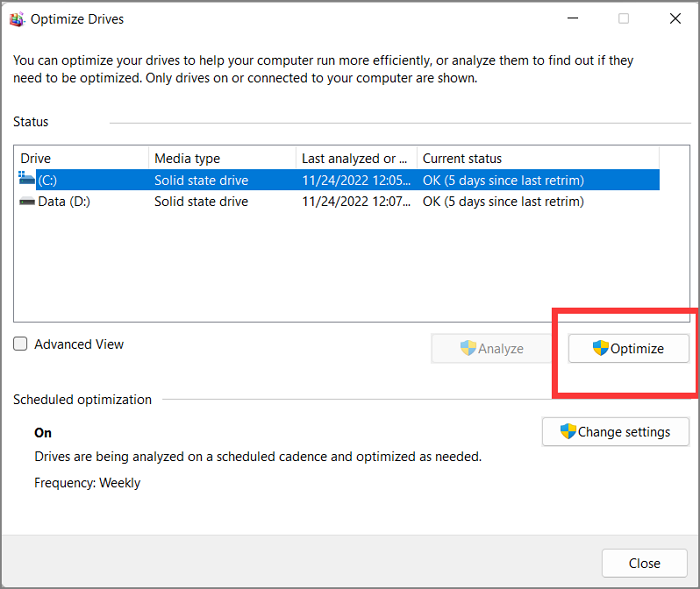
Step 2. Select the hard drive you want to optimize and click "Optimize" to begin the defragmentation process.
Way 3. Check Hard Drive Health on Windows 7 via CMD
Windows has command line utilities that can quickly assess the health of a hard drive and return a simple verdict such as "OK" or "Pred Fail." A quick hard drive health check can be performed using WMIC (Windows Management Instrumentation).
Step 1. To open the Run window and type cmd, press the Windows key + R on your keyboard, which will open the Run window. Then, type "cmd" in the text box and press Enter to open the Command Prompt.
Step 2. Type "wmic" and press Enter.
Step 3. To view the disk health status, type "wmic diskdrive get status" and press Enter. This will display the current status of the disk drives connected to your system.
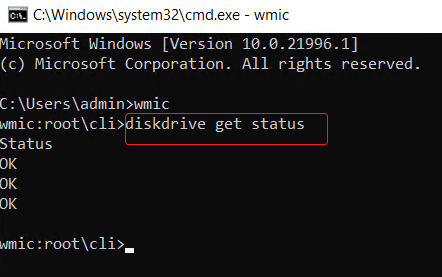
If the drive checks out with an "OK" message, it's good to go. However, if you see a "bad," "unknown," or "warning" message, it's best to back up your data ASAP as the drive is likely to fail soon.
How to Check SSD Health on Windows 10 via CMD
Knowing how to check SSD health is crucial for protecting your data. To do this on Windows 10, you can use the CMD command, which provides valuable information about your SSD's condition and helps prevent potential data loss. This process is essential for maintaining the health and longevity of your Solid-State Drive.
Way 4. Check Hard Drive Health on Windows 7 via CHKDSK
CHKDSK is a command that checks a disc for errors and ensures the file system is error-free by detecting and correcting logical problems.
Step 1. Open a Run window and type cmd.
Step 2. To run a basic scan using the Command Prompt, type "chkdsk" and press Enter. This will initiate a quick scan of the drive to identify any issues.
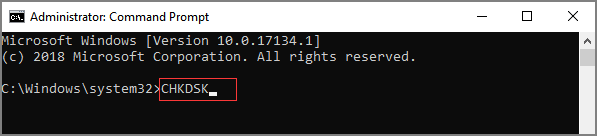
You can also use `chkdsk /f/r` to deeply check and repair the bad sectors on your hard drive.
Conclusion
If your hard drive is making unusual noises, getting hot, or giving you error messages frequently, it may be time to monitor its condition more closely in Windows 7. This article will assist you in checking hard drive health.
In Windows 7, there are four tried-and-true methods to fix a damaged disc partition, with Qiling Disk Master being the most user-friendly option. This disc partition tool can detect faulty sectors and fix broken file systems, making it a vital tool for maintaining disc health.
Check Hard Drive Health Windows 7 FAQs
To gain a deeper understanding and avoid confusion, you can read the frequently asked questions section, which addresses common concerns and provides detailed information.
1. How do I run a health check on my hard drive?
You can turn to an easy-To use Qiling Disk Master, a third-party tool, follow these steps. First, download and install the software on your computer. Once installed, launch the program and select the disk you want to clone or restore from.
Step 1. Download and open Qiling Disk Master.
Step 2. Choose "Disk Health" in the "Discovery" section.
Step 3. Choose the target hard drive and click "Refresh."
2. How can I check my hard drive health without OS?
In the BIOS, check the disk drive's status to diagnose any issues without using the operating system. If your motherboard is relatively modern, you can perform hard drive diagnostics directly within the BIOS. This allows for troubleshooting and identifying problems with the disk drive without needing to boot into the operating system.
- Use Optimal Storage and Defragmentation Techniques.
- To troubleshoot and repair issues with a hard disk drive (HDD), you can use various tools and software, including the HDD manufacturer's own diagnostic and repair tools, the built-in Windows CHKDSK utility, and the Windows Management Instrumentation Command-line (WMIC) tool. These tools can help identify and fix problems such as bad sectors, file system corruption, and other issues that may be affecting the HDD's performance or causing it to malfunction.
- Check the hard drive's condition with an external utility.
3. How do I know if my hard drive is damaged?
Here are the most common signs of a failing hard drive:
- Overheating
- System crashes
- Strange sounds
- Major slowdowns
- Stuck spindle motor
- Blue screen of death
- Frequent error messages
- Have corrupted data, files, and folders
Related Articles
- Boot Device Not Found Hp Laptop? How to Fix?
- Fixed: WD My Passport Ultra Not Showing Up/Detected
- Diskpart Has Encountered an Error Access Is Denied | How to Fix
- MBR vs GPT Windows 11? Learn How to Convert MBR to GPT
- Top 5 Free Disk Formatter Recommend for Windows & Mac
To format your SD card, you can use the built-in formatting tools on your device or computer. On Windows, you can right-click on the SD card drive, select “Format,” and follow the prompts. On Mac, you can use Disk Utility to format the SD card. - Top 9 Best Hard Drive Format Software Free Download 🏆
What is the best hard drive format software that works to format all types of storage devices with desired file system formats? We selected 9 best hard drive format software for you to free download and set the best format to your disk on Windows and Mac.
Products
Articles & Tutorials
- Data Recovery
- Data Backup
- File Recovery
- File Backup
- System Backup and Restore
- Disk and Partition Clone
- Technical articles
- Mobile articles
- Disk Master Help
- Windows Data Recovery Tutorials
- Windows Secure Delete Tutorials
- Windows Partition Management Tutorials
- Windows File Backup and Restore Tutorials
- Windows System Backup and Restore Tutorials
- Windows Disk Backup and Restore Tutorials
- Windows Clone Tutorials