How to Check SSD Health on Windows 10 via CMD
Knowing how to check SSD health is integral to protecting your data, and this article guides you on how to use the CMD command to check SSD health on Windows 10, providing a detailed guide on this topic.
How to Check SSD Health on Windows 10 via CMD
The Command Prompt, also known as CMD in Windows, is a command line interface that allows users to execute various commands. To check SSD health through CMD, follow these steps:
Step 1. To open Command Prompt, press the Windows key + R to open the Run dialog, type "cmd" in the text box, and then press Enter. This will open a new Command Prompt window.
Step 2. To open the Command Prompt window, type cmd in the Windows Search bar and hit "Enter." Then, type wmic in the Command Prompt window and hit "Enter."
Step 3. After that, type "diskdrive get status" and hit "Enter" again.
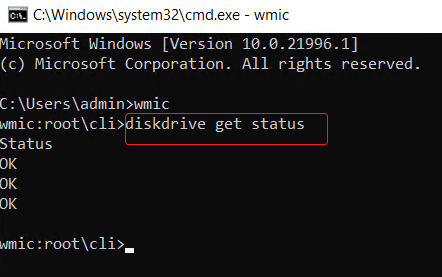
Step 4. Then, Command Prompt will display each drive and its status:
- OK means the SSD is healthy.
- Pred Fail means the SSD may crash anytime soon.
While CMD can simply check disk, it lacks the ability to display all attributes related to an SSD's health condition. Additionally, CMD requires some computing knowledge, making it less user-friendly.
Well, if you want to learn more about SSD health checks, there is a link for you.

To check SSD health on Windows 10, first, open the Command Prompt as an administrator. Then, type "wmic diskdrive get status" and press Enter.
To protect your SSD and the data stored on it, it's essential to check its health on Windows 10. You can do this by using built-in tools like the Command Prompt or PowerShell, or by downloading and installing third-party software like CrystalDiskInfo or HDTune.
Check SSD Health on Windows 10 via CMD Alternative - Easier
Qiling Disk Master is a solid alternative to CHKDSK commands for checking SSD health. It provides a comprehensive view of SSD health, including attributes such as SSD status, temperature, power on hours/count, and total host write/read. This utility is widely compatible with various Windows versions, including Windows 10/11/8/7, Windows XP, and Windows Versa, making it a convenient tool for users to check their SSD health with just two steps.
Step 1. Launch Qiling Disk Master and click the blue arrow to activate the "Disk Health" feature under the "Tools and utilities" tab page.

Step 2. Select the target disk, then you can see the health condition of your disk.

You can see clearly if your SSD is in good condition or not by checking the SSD SMART status, which can effectively help you protect your SSD, and Qiling Disk Master has many other features.
Qiling Disk Master Key Features:
- Format new SSD or wipe it
- Merge partitions on SSD/USB
- Speed up hard drive and computer
- Test SSD read/write speed
- Resize/create/delete/move partitions
- Check SSD temperature on Windows 10
Now, as you can see, Qiling Disk Master can do a lot to help you manage your SSDs well. Hence, download it to try.
Conclusion
To ensure the health of your SSD on Windows 10, it's essential to regularly monitor its condition to prevent data loss, privacy issues, or performance problems with games and other applications.
The Command Prompt can test the health of an SSD, but Qiling Disk Master is still a highly recommended alternative due to its more user-friendly interface and powerful additional features.
There are no links to click. I can only provide information in text format. If you would like, I can provide a rewritten version of the original text in a single paragraph.
Check SSD Health Windows 10 CMD FAQs
Regularly checking the disk is crucial to know how to protect your device. This allows you to monitor the health of your SSD on Windows 10 using CMD, which can help you identify potential issues and take necessary precautions.
1. How to check SSD health in CMD?
Here are the steps to check if the SSD is healthy using the command line:
Step 1. To open the Command Prompt, press Windows and R keys to open the Run window, then type "cmd" and press Enter.
Step 2. Type the commands and hit "Enter" after each command:
- wmic
- diskdrive get status
Step 3. You can see the status of your SSD:
- OK means healthy
- Pred Fail means it's gonna crash
2. Should I run CHKDSK on SSD?
CHKDSK is a command that helps check the file system structure, name linkage, and security descriptors of a disk, and can be used to identify any errors related to the disk.
3. How do I know if the SSD is faulty?
There are some common symptoms to look out for. They include the symptoms below.
- SSD becomes read-only
- Your machine won't boot
- Computer running slow
- Frequent blue/black freeze errors
- App freezes or crashes frequently
Related Articles
- How to Restart MacBook Pro in 6 Ways [Troubleshoot Frozen MacBook Pro]
- HP USB Disk Storage Format Tool Free Download [New]
- Python Delete File: How to Delete a File in Python [Recovery Is Available]
- Excel AutoSave Not Working Error in Windows 10/8/7
- Top 8 SSD Temperature Monitor Software Recommended in 2023
Want to manage the temperature of your SSD? Then follow this guide, where we've shared some SSD temperature monitor software for Windows. These tools allow you to monitor your SSD's temperature in real-time and receive alerts when it gets too high. - Stardew Valley Saves Location: All You Want to Know
Find Stardew Valley saves location on Windows, Mac, Linux, and mobile. Learn how to back up, move, and recover Stardew Valley save files.
Products
Articles & Tutorials
- Data Recovery
- Data Backup
- File Recovery
- File Backup
- System Backup and Restore
- Disk and Partition Clone
- Technical articles
- Mobile articles
- Disk Master Help
- Windows Data Recovery Tutorials
- Windows Secure Delete Tutorials
- Windows Partition Management Tutorials
- Windows File Backup and Restore Tutorials
- Windows System Backup and Restore Tutorials
- Windows Disk Backup and Restore Tutorials
- Windows Clone Tutorials