How to Restart MacBook Pro in 6 Ways [Troubleshoot Frozen MacBook Pro]
Here are some available solutions to restart a MacBook Pro, you can skip to the target method by clicking "Full Steps".
| Workable Solutions | Step-by-step Troubleshooting |
|---|---|
| Fix 1. Restart MacBook Pro with Restart Option | Click the Apple logo. Select Restart from the drop-down menu. When a pop-up comes...Full steps |
| Fix 2. Restart MacBook Pro with Shortcut | Press and hold the Power, Command, and Control buttons simultaneously. That's right! Take...Full steps |
| Fix 3. Force Restart MacBook Pro with Keyboard | There is no need to worry if you can't use the cursor to restart MacBook Pro. There is an alternative...Full steps |
| Fix 4. Restart MacBook Pro with Terminal | Launch the Terminal app. You need to click on the Applications from the dock area...Full steps |
| Other Solutions | Is your MacBook Pro frozen? Don't worry! You can force shut down the system to restart it...Full steps |
Why Need to Restart MacBook Pro
If your MacBook Pro freezes or has startup issues, a force restart can help resolve the problem. This can be especially helpful when working and the system becomes unresponsive.
If you can't use your cursor to turn off your device, you can opt for a hard reset instead. Don't worry about losing data, as this method won't result in any data loss.
To restart your MacBook Pro or MacBook Air, you can refer to the following methods.
Rescue Data from a Frozen MacBook Pro to Avoid Data Loss
If your MacBook Pro is frozen, the thought of data loss can be overwhelming. But, you can restore data with the help of professional data recovery software. To do this, install Deep Data Recovery, which can recover data even when your MacBook is stuck or unable to boot.
Deep Data Recovery
- Data recovery software can recover music files, videos, emails, documents, and other types of data from Mac devices, allowing users to restore lost or deleted files.
- This software supports recovery from various types of storage devices, including SD cards, memory cards, flash drives, digital cameras, and camcorders, making it a versatile tool for retrieving lost data on a Mac.
- If your MacBook won't turn on after installing macOS Ventura or is stuck or frozen, don't worry! You can still recover your data using a few methods.
Do you want to know how to use Deep Data Recovery for Mac? Take a look at the steps listed below:
Step 1. Install and run Deep Data Recovery for Mac on another Mac computer, select "Unbootable Mac > Start" to initiate the recovery process.
Step 2. Insert a prepared USB drive, and then select "Next" to start creating the bootable disk.
- Warning
- The creator will prompt to erase the drive to reallocate the space; then it can write the bootable files to this drive. Please back up all USB files before processing "Eraser".
Step 3. The program creates a 2GB space on the USB, saving the boot files, while leaving the remaining space available for storage.
Step 4. Once the process is complete, boot the corrupted Mac from the bootable disc and start the recovery. We suggest restoring the data to an external hard drive.
Step 5. After booting the Mac, launch Deep Data Recovery for Mac, select the disk location (an internal HDD/SSD or a removable storage device) where you lost data and files, and the recovery tool will automatically scan for lost files.
Note: Before attempting data recovery, it's recommended to create a backup of your Mac to prevent further data loss. Once a backup is made, the software can then recover data from the backup, allowing your computer to be used for new data again.

Method 1. How to Restart MacBook Pro with Restart Option
To restart your MacBook Pro, simply follow these simple steps: you can restart it via the menu bar, which is the most straightforward method. Just go to the Apple menu, select "Restart", and confirm that you want to restart your MacBook Pro. This will immediately shut down your computer and restart it, getting you back up and running in no time.
Step 1. Click the Apple logo. Select Restart from the drop-down menu.
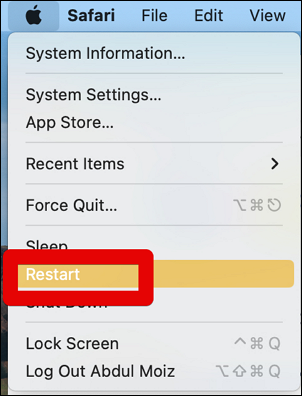
Step 2. When a pop-up appears, click on Restart again. The system will turn off, then turn back on. You can also change the Mac startup disk during this process, whether it's by restarting the Mac or MacBook.
Method 2. How to Restart MacBook Pro with Shortcut
You can use keyboard shortcuts to restart your MacBook Pro. To do this, press Command (⌘) + Option (⌥) + Power button at the same time. This will immediately shut down your MacBook Pro. Note: This method is not as commonly used as other methods, but it's still a viable option.
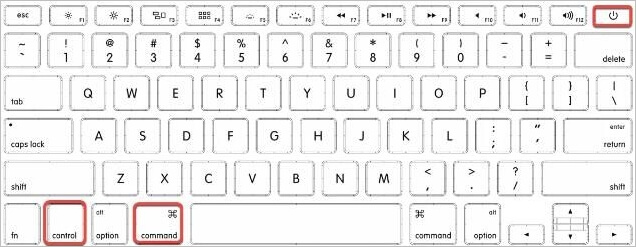
Step 1. Press and hold the Power, Command, and Control buttons simultaneously.
Step 2. Hold the power button until the device shuts down completely. It should take a few seconds. Once it's off, press the power button again to turn it back on.
Method 3. Force Restart MacBook Pro with Keyboard
You can force restart your MacBook Pro by pressing and holding the power button for at least 10 seconds. This will shut down the system, and you can then turn it back on. No need to use the cursor!
In newer models (2016 onwards), the power button is replaced by Touch ID, which is located on the upper-right part of the keyboard. In older models, the power button is situated in the same location.
Method 4. How to Restart MacBook Pro with Terminal
To restart a MacBook Pro through the command line, you can use the `shutdown` command with the `-r` option. For example, you can type `sudo shutdown -r now` in the Terminal app to restart the system immediately. This method requires administrator access and can be used in situations where the graphical user interface is not available or functional.
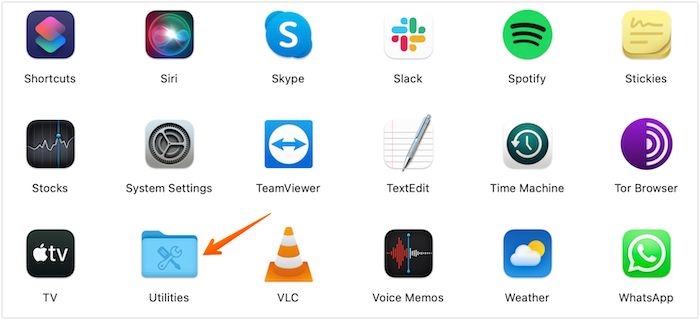
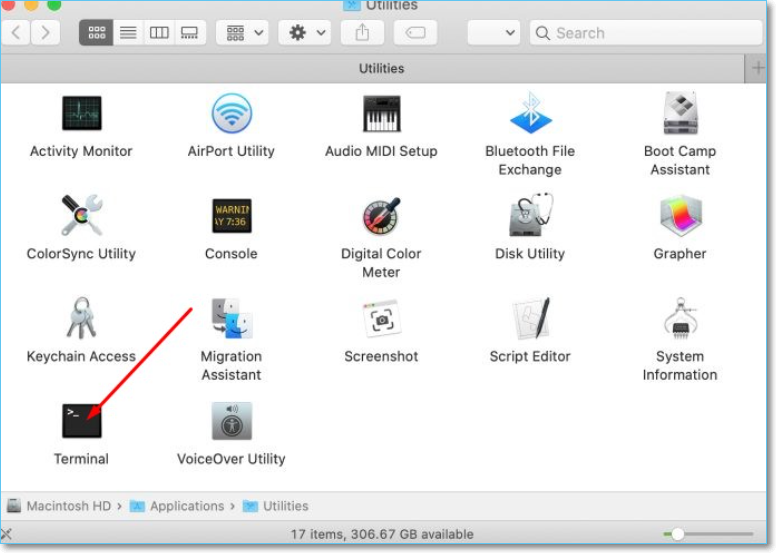
Step 1. To launch the Terminal app, click on the Applications folder from the dock area.
Step 2. To open the Utilities folder, click on the Start menu, then select All apps, followed by Utilities. Alternatively, you can type "Utilities" in the search bar.
Step 3. Launch the Terminal app, type "sudo shutdown -r now" and press Return to restart your Mac.
Step 4. Enter the password. Press Return.
Method 5. Drain the Battery to Shut Down and Restart MacBook Pro
If your MacBook Pro is frozen, you can force shut it down by disconnecting the power supply, but be aware that draining the battery can be potentially dangerous.
If you're considering using the Windows built-in feature to reset your computer to its original settings, be aware that it can potentially lead to data loss and the creation of corrupt files on your hard drive. This consequence is worth understanding before proceeding with this solution.
Method 6. How to Restart MacBook Pro to Factory Settings
If your MacBook is experiencing issues, you can try a factory reset as a last resort. However, be aware that this will erase all data on the device.
Here are the steps you need to adopt:
Step 1. Click on the Apple menu. Select System Settings.
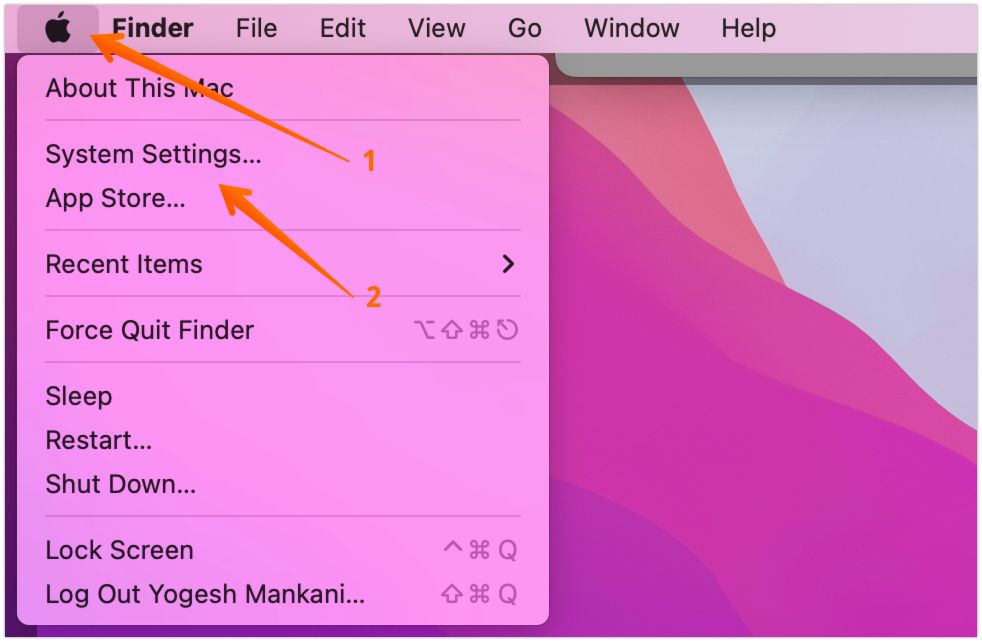
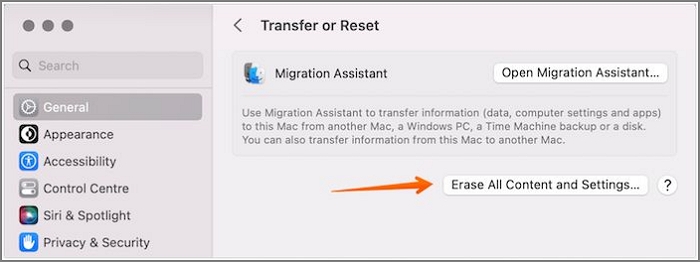
Step 2. Choose General from the left-hand side. Click on Transfer or Reset, which you will be able to find on the right-hand tab.

Step 3. The administrator should enter the admin credentials, then select OK to initiate the Erase All Content and Settings process. This will delete all data, settings, and apps on the device, restoring it to its factory settings.
Step 4. If you don't want to use backup, press the Continue button. If you want to use backup, you can use Time Machine Backup to back up your data.
Step 5. To erase all settings, media, and data on a device, move ahead with the option, select "Continue", and then restart the device, which will show a black screen or progress bar during the process.
To factory reset your MacBook Air without a password, click the link to learn how to do it.
Conclusion
You can restart your MacBook Pro using various methods. The simplest way is to press the power button to shut down and then turn it back on. Alternatively, you can force shut down the system if needed.
If you experience data loss, you can rely on the effective Deep Data Recovery for Mac. This tool is user-friendly, efficient, and helps in swiftly recovering various types of data.
Try out Deep Data Recovery for Mac today!
Restart MacBook Pro FAQs
To restart a MacBook Pro, there are various methods to consider. What method to use depends on the specific situation, and here are some of the most common scenarios and their corresponding solutions.
1. How to Restart a MacBook Air?
To restart a MacBook Air, go to the Apple Menu, click on the Restart option, and confirm the restart by pressing the button in the pop-up. Alternatively, press the Power button, or press Command (⌘) + Option (⌥) + Eject (⌫) and select Restart from the menu.
- 1. Restart MacBook Air with a keyboard shortcut.
- 2. Press the power button to restart MacBook Air.
- 3. Restart MacBook Air with Terminal.
- 4. Drain the battery to shut down and Restart MacBook Air
- 5. Restart MacBook Air to Factory Settings.
2. How to restart a MacBook Pro with the keyboard?
To restart a MacBook Pro with the keyboard, press and hold the Control, Command, and Power keys at the same time. Wait until you see the black screen, and the system will restart.
3. How to restart a MacBook Pro to the factory setting?
To restart a MacBook Pro to its factory settings, go to System Settings, click on General, select Transfer or Reset, click on Erase All Content and Settings, enter the admin credentials, and follow the on-screen instructions.
4. How to restart my MacBook Pro when the screen is black?
If you see a blank screen, press the power button and hold it for at least ten seconds. When you see the startup options window, select options. Click on Continue and restart the system.
Related Articles
- Easy Ways to Fix "Unrecognized Database Format" Error
- Clean Install macOS Sonoma: Latest Update Steps
- Windows Update Reset (Fix It) Tool Download [Full Guide in 2023]
- Samsung TV USB Format: Best Choice and Efficient Tutorial
- How to Connect PC to WiFi and Fix PC Can't Connect to WiFi Issue
Do you want to know how to connect your PC to Wi-Fi but are unsure how to do so? You couldn't have found a better destination! If you follow the guidelines outlined in this article, you will have no trouble connecting to your wireless network. - How to Delete Apps on Chromebook
If you've got any apps you don't want on your laptop anymore, then knowing how to delete apps from a Chromebook will come in handy. Want to learn how to delete apps on Chromebook? Here are the steps for removing different apps based on device type.
Products
Articles & Tutorials
- Data Recovery
- Data Backup
- File Recovery
- File Backup
- System Backup and Restore
- Disk and Partition Clone
- Technical articles
- Mobile articles
- Disk Master Help
- Windows Data Recovery Tutorials
- Windows Secure Delete Tutorials
- Windows Partition Management Tutorials
- Windows File Backup and Restore Tutorials
- Windows System Backup and Restore Tutorials
- Windows Disk Backup and Restore Tutorials
- Windows Clone Tutorials