Easy Ways to Fix "Unrecognized Database Format" Error
If you're experiencing the error "MS Access Unrecognized Database Format" while using your Microsoft Access database, there could be several reasons behind it. This error can occur due to a variety of factors, including issues with the database file itself, problems with the Access version you're using, or even conflicts with other software on your system. To resolve the issue, you may need to try troubleshooting steps such as checking the database file for corruption, updating your Access version, or running a database repair tool.
Access Database error 3343 is frequently encountered by users using older versions of the Access MDB/ACCDB file. We will discuss the reasons behind the Unrecognized Database Format error in the coming part of the article. After that, we shall discuss easy steps to fix the error. Read on to find out.
What Causes "Unrecognized Database Format"
This error can occur if the database file is too large due to limited space in the hard disk. Listed below are the reasons that caused the error:
- The latest version of the file opened into an older version of the database: To access a file created in MS Access 2019/2016/2013 in an older Access database version like 2007/2010, you need to save the file in the older version's format. To do this, open the file in Access 2019/2016/2013, go to File > Save As, and select the "Access Database (.accdb)" or "Access 2002-2003 Database (.
- File located in a bad sector: If your files reside on a hard drive or other storage device that's experiencing a hardware-related issue, such as a bad sector, the database may become unrecognizable. In this case, you'll need to address the underlying hardware problem to resolve the issue.check disk errors.
- Access database text is corrupt: Many things can harm a file, including a sudden system shutdown, a corrupted file system, bad sectors on the hard drive, a virus attack, and more.
- Large database file: You can't open a file that's too large, and it might cause your hard drive to run out of space, leading to an error message.
- The system received a virus attack: If your system is under a virus attack, all your files can be affected.
- Malfunction of Microsoft Office suite: When Microsoft Access splits a database, it reorganizes it into two separate files. The first file contains queries, forms, and reports, while the second file holds the backend database with the actual data tables.
- Use of outdated MS Office service packs: If you haven't updated Microsoft Office service packs in a while, you may be missing out on some important security patches and features. Service packs are cumulative updates that include all previous updates, so it's a good idea to install the latest one to ensure you have the most up-to-date version of Office.
- Improper splitting of Access database file: When splitting a database in Microsoft Access, but the split isn't done correctly, the resulting files may become unusable or unable to open.
The error "unrecognized database format" typically occurs when the database file is corrupted or has been created with a version of the software that is not compatible with the current version being used. To resolve this issue, you can try the following steps: 1) Check if the database file is corrupted by trying to open it in a different software or version of the software.
How to Fix "Unrecognized Database Format" Error
Here are the methods to fix the database error:
- Fix 1. Scan Hard Drive for Bad Sectors
- Fix 2. Rename the Database File
- Fix 3. Open the Database in the Correct Version
- Fix 4. Import the Corrupt Database
- Fix 5. Troubleshoot frxque32.mdb File Issue
- Fix 6. Convert the Database File to ACCDB File Format
- Fix 7. Run the Compact and Repair Tool
- Fix 8. Free the Disk Space
Fix 1. Scan Hard Drive for Bad Sectors
You can fix a hardware issue of corrupted files by using Qiling Partition Master Free to check bad sectors and other errors on your Windows hard drive, which can help identify and fix corrupted files.
Follow these steps to fix the problem:
Qiling Partition Master can run a disk surface test to identify bad sectors and mark them as red. If the bad sectors are small, you can use the disk repair tool. Otherwise, you need to clone the drive or migrate OS to SSD and replace it with a healthy one.
Fix 2. Rename the Database File
If the database files are small or have names longer than 32 characters, rename them immediately to resolve the issue with opening the database file.
This workaround is only effective for small files. It will be useful if you have small files, but it may not work for large files.
Please use the appropriate Access version to open the database file. Using the correct version of Microsoft Access, you can import the database file by performing the following steps.
Fix 3. Open the Database in the Correct Version
To ensure the file opens in the correct version of the database, please follow these steps:
Step 1: Open Access by typing Access into the Windows search bar.
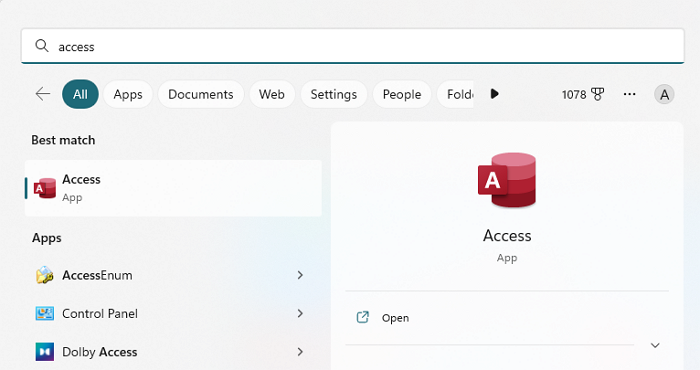
Step 2: To open the required database file, click on "Open other files" and select the desired database file. Then, go to the "File" menu and click on "Options".
Step 3: To create a new database, navigate to the General tab and find the "Creating Database" option.
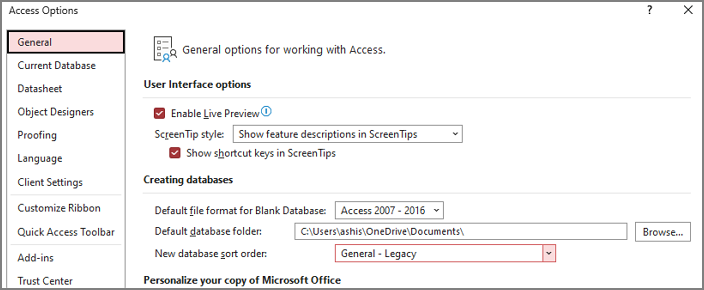
Step 4: To correct the database sort order, go to the settings and select "New database sort order." Verify that all the settings are correct.
Step 5: To ensure that the Legacy settings under the General tab are applied, go to the General tab, click on the dropdown menu next to "Settings", and select "Legacy settings". This will apply the Legacy settings to the current session.
If you're experiencing the error "Unrecognized database format" when trying to open your database file, try the following steps to resolve the issue: First, check if the database file is in the correct format by looking at its file extension. If it's not in the correct format, try converting it to the correct format. If the issue persists, try reinstalling the database software or checking for any corrupted files.
Fix 4. Import the Corrupt Database
To fix the issue, import the corrupted database into the new MS Access database by following these steps:
Step 1: To create a new database in Microsoft Access, open the application, click on the "Blank desktop database" option, and a new database file window will open.
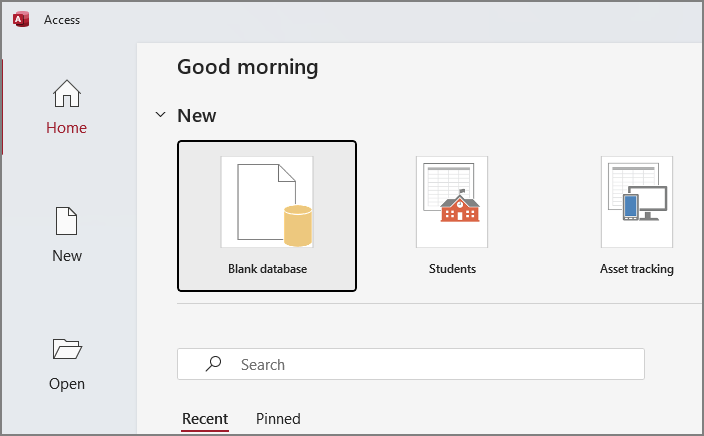
Step 2: To access external data, click on the tab labeled "External Data" and select the "Access" option below it.
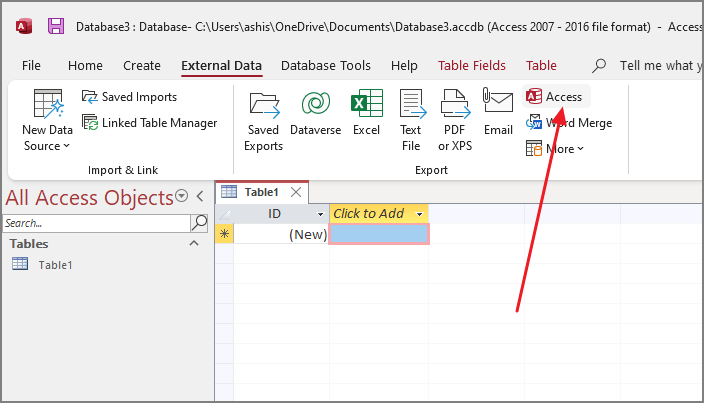
Step 3: In the Get External Data - Access Database window, click the Browse button and select the corrupted database file to import it into the new database you created.
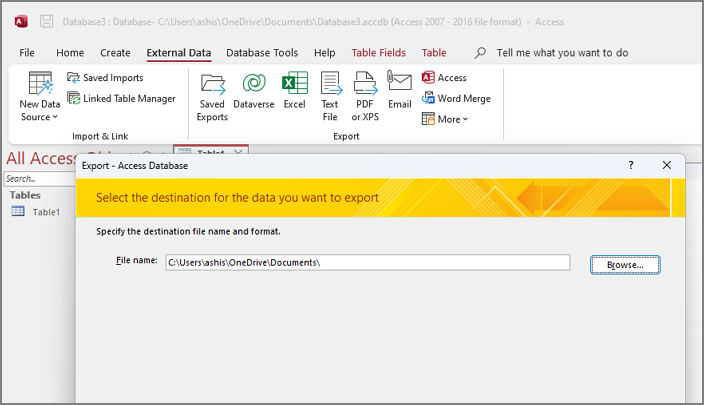
Step 4: Select the corrupted database file and press Open.
Step 5: Select the desired objects in the Import Objects dialogue box, and then press the OK button.
Step 6: Next, click Save import and close the window.
The error message you're encountering is likely due to a corruption or incompatibility issue with the imported database file. To troubleshoot this, try opening the imported database file directly to see if the error persists.
Fix 5. Troubleshoot frxque32.mdb File Issue
To uninstall the frxque32.mdb file and install a new one, follow these steps: uninstall the existing file, navigate to the installation directory, and install a new frxque32.mdb file. This will ensure that the system has the most up-to-date and correct file.
Step 1: First, rename the frxque32.mdb file stored in the sysdata folder to frxque32.old.
Step 2: Look for the frxque32.tpl file on the local hard disk. Next, look for the frxque32.
Step 3: Copy the frxque32.tpl file into the sysdata folder.
Step 4: Select Yes to replace the current frxque32.tpl file with the new one.
Step 5: After that, rename the frxque32.tpl file to frxque32.mdb.
Finally, restart your computer to apply all the modifications.
Fix 6. Convert the Database File to ACCDB File Format
The MDB file format was used for Microsoft Access databases before 2007, but was replaced by the ACCDB file format with the release of Microsoft Access 2007 and Access 2010.
Users of Access versions before 2007 may experience issues due to the substitution of the file format, resulting in the "Unrecognized Database format MDB" error when trying to open files in earlier formats.
Not to worry, you can convert the MDB database file produced by Access versions before Access 2007 to the ACCDB file format.
To convert an MDB database file to ACCDB format, you can use the Access database conversion tool. Simply open Access, click on the File tab, select "Open", then browse to and select your MDB file.
Step 1: Open Microsoft Access.
Step 2: Open a Blank desktop database.
Step 3: Next, go to the File tab and click Open.
Step 4: Open the database file you want to convert.
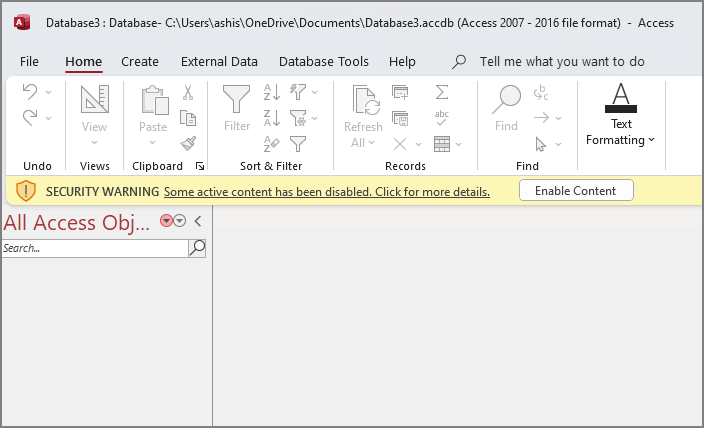
Step 5: You will get a security warning and press the Enable Content button next to it.
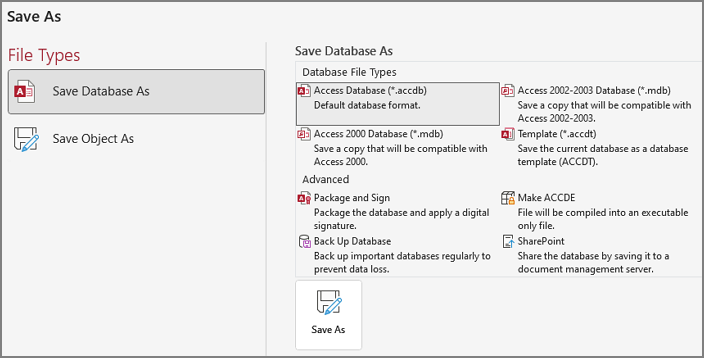
Step 6: Save the file as an Access database by going to File > Save As, selecting Access Database under Database File Types, clicking Save As, naming the file, and then clicking Save.
Open the database and check if the error message reappears.
Fix 7. Run the Compact and Repair Tool
Access comes with a built-The Compact and Repair Database tool can be used to resolve issues with a database file. If the file is corrupted or its size has become too large, running this tool may be beneficial.
However, there are two things that you should not ignore before using this tool:
- The tool could potentially cause a database failure due to its highly invasive nature in accessing and modifying database data.
- If the database file is in a shared location, ensure everyone has instructions to shut it down.
Now follow the given steps below:
Step 1: Open Access and select Blank desktop database.
Step 2: To compact and repair a database, go to the Database Tools tab and select the "Compact and Repair Database" buttons, pressing the "Enable Content" button next to the Security Warning if prompted.
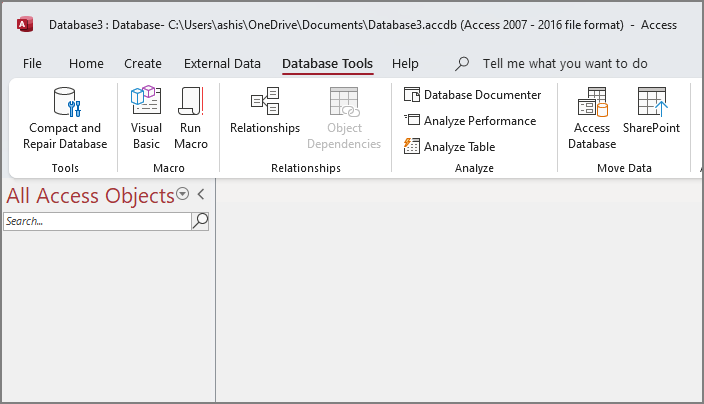
Step 3: Select the database file that needs to be repaired and click the "Compact" button.
Step 4: In the Compact Database Into the dialogue box, change the name of the compact database and press the Save button.
The tool will start to repair queries, indexes, tables, and other data, and compact the database file.
Open the database file again and check if the error message reappears.
Fix 8. Free the Disk Space
The error "unrecognized database format" may occur when there's not enough hard drive space. To resolve this, check the hard drive usage and free up space by extending the partition using a tool like Qiling Partition Master, which can help free up more space to open the database.
Step 1. Shrink partition to free up space to extend partition.
If the hard drive has enough unallocated space to extend the target partition, jump to Step 2, and continue. If not, free up space by deleting unnecessary files, emptying the Recycle Bin, or removing unused programs to make space for the partition extension.
- To resize or move a partition, right-click on a partition next to the target partition at the Partition Manager section and select "Resize/Move".
- To free up space, drag the partition ends to make room, leaving enough unallocated space behind the target partition, then click "Proceed".

Step 2. Extend the target partition.
Right-Select the target partition you want to extend and click on the "Resize/Move" option.

To extend the target partition, drag the partition handle into the unallocated space. This action will increase the size of the target partition by using the available free space.
Step 3. Keep all changes.
Click the "Proceed" button to keep all changes.
Conclusion
Did you enjoy the tutorial? Always remember the causes behind this error message so you can be alert and avoid it the next time. Also, ensure your hard drive has enough space and is only sometimes full.
To avoid the error message "Unrecognized database format", you can try using the correct database driver, check the database file format, and use the correct SQL syntax. If you're still experiencing issues, you can try reinstalling the database software or seeking help from a database administrator.
FAQs of Unrecognized Database Format
If you have further questions about Unrecognized Database Format, check out these frequently asked questions about it.
1. What causes an Unrecognized database format?
This issue may occur if the database file is too large and the hard drive is running low on free space.
2. How do I fix a corrupt database in Access?
To compact and repair an Access database, go to the Database Tools tab, then click on Compact and Repair Database. This process will create a copy of the database in the same location and repair any issues found during the process, effectively compacting the database and making it more efficient.
3. How do I open ACCDB files on Windows?
Microsoft Access can open ACCDB files, but you'll need to import them into Microsoft Excel to edit them, and it's recommended to save the data in another format. Alternatively, anyone can open and edit ACCDB files using the free MDB Viewer Plus application.
Related Articles
- Samsung TV USB Format: Best Choice and Efficient Tutorial
- 4 Ways to Fix Windows System Backup Failed in Preparing the Backup Image
- Mac Format SSD: How to Format SSD on Mac [Step-by-Step Guide]
- FIXED: Windows Update Error 80072EFE [Windows 7 Tips]
- Can't End Task Access Denied (Cuauses & Solutions)👍
Fix cannot end task access denied in Windows Task Manager. Learn why processes refuse to close and how to stop stubborn apps safely. - How to Change the Administrator on Windows 10 [Step-by-Step Guide]
The highest position in Microsoft Windows is the administrator, which grants access to all Windows' features, allowing modification of the operating system's functionality.
Products
Articles & Tutorials
- Data Recovery
- Data Backup
- File Recovery
- File Backup
- System Backup and Restore
- Disk and Partition Clone
- Technical articles
- Mobile articles
- Disk Master Help
- Windows Data Recovery Tutorials
- Windows Secure Delete Tutorials
- Windows Partition Management Tutorials
- Windows File Backup and Restore Tutorials
- Windows System Backup and Restore Tutorials
- Windows Disk Backup and Restore Tutorials
- Windows Clone Tutorials