How to Delete Apps on Chromebook
Chromebooks are gaining popularity due to their user-friendly interface and robust app management system. They are similar to laptops but offer less storage capacity, making them lightweight and fast to boot up, which appeals to budget-conscious users, such as students.
While the app library in Chromebook is impressive, not all apps are necessary to keep on the system, and some may even be blocked from removal. This article will guide you on how to delete apps on Chromebook safely, so you can read ahead.
How to Delete Apps on Chromebook
There are various sequences available to remove apps from a Chromebook, with process steps changing depending on the type of application and device version.
Method 1: Uninstalling Chrome Apps from Chromebook
To remove a Chrome app that you downloaded from the Chrome Web Store, the process is straightforward. You can simply click on the three vertical dots next to the app's icon on the Chrome toolbar, and then click on "Remove" to delete the app.
Chromebook with trackpad:
Step 1: To find the specific app on your Chromebook homepage, click on the Launcher icon in the bottom left corner of the screen, then click on the "All apps" button. From there, you can search for the specific app you're looking for, and click on it to open it.
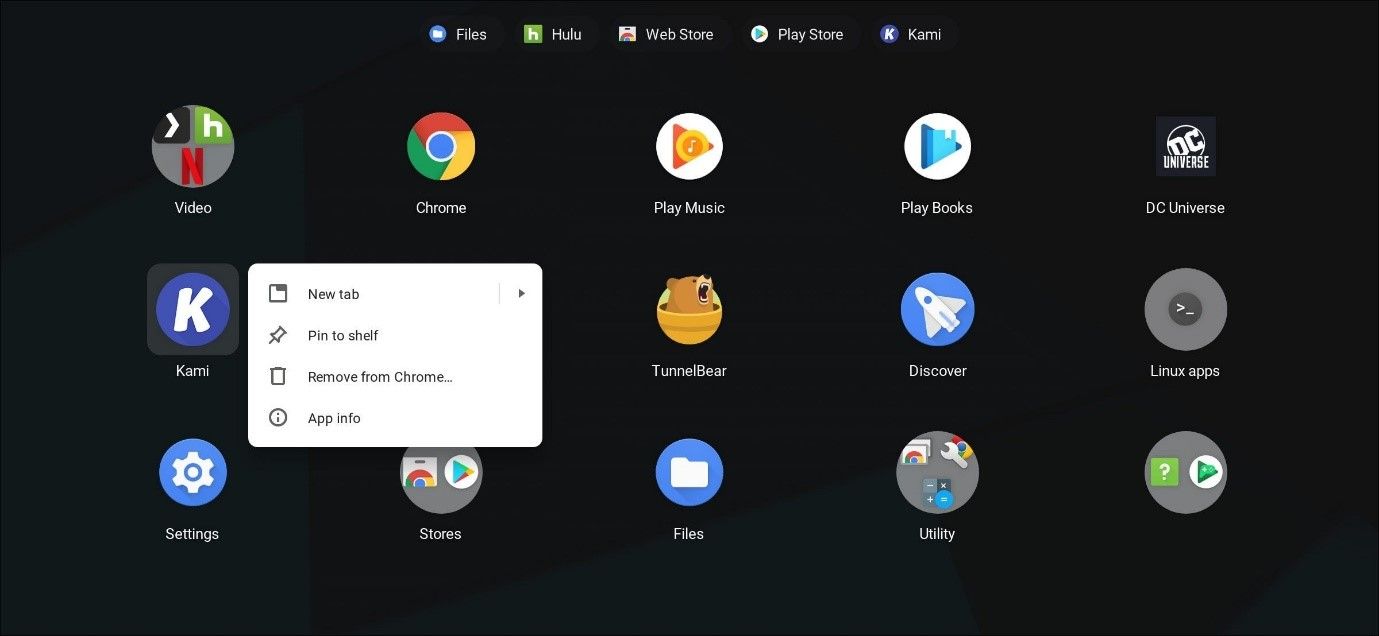
Step 2: To open the app, hover your cursor over the app icon and perform a two-finger click on it.
Step 3: Click on the "Remove from Chrome" option.
Chromebook with a mouse:
Step 1: On the homepage, hover your mouse pointer over the chosen app and right-click on it.
Step 2: Press "Remove from Chrome" from the drop-down menu.
ChromeOS tablet:
Step 1: To tap an app on the touchscreen, place your finger on the app icon and hold it for a brief moment. This action will select the app, and you can then proceed to launch it by releasing your finger.
Step 2: When the drop-down menu appears, tap the "Remove from Chrome" option.
Method 2: Delete Android Apps on Chromebook
Users can download apps from the Chrome Web Store, and since 2017, Chromebook devices have been compatible with Android OS, allowing access to the Google Play Store through the home Launcher pad.
The installation process of Chrome apps is similar to any Android tablet or smartphone, and users must follow the same steps to uninstall them, with the only difference being the platform.
Step 1: To get started, tap the circle visible on the bottom-left side of the screen.
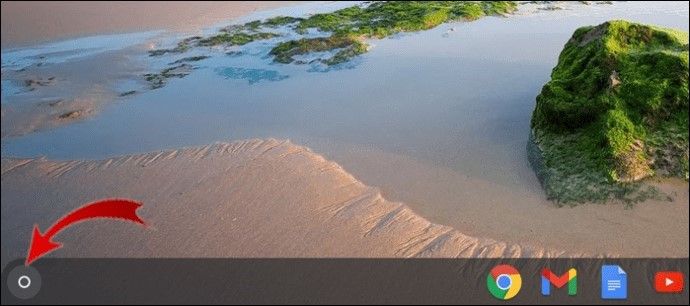
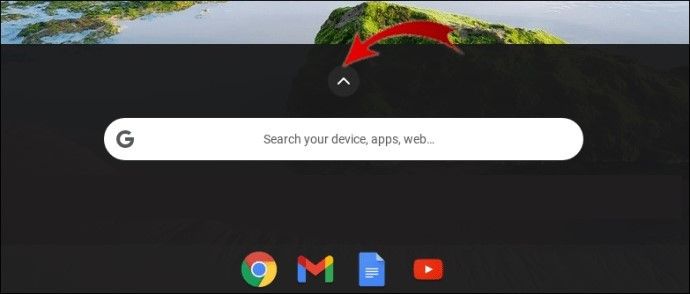
Step 2: Type the name of the app you want to delete in the search field or tap the upward-facing arrow at the bottom of the screen to browse through the list of apps installed on your device.
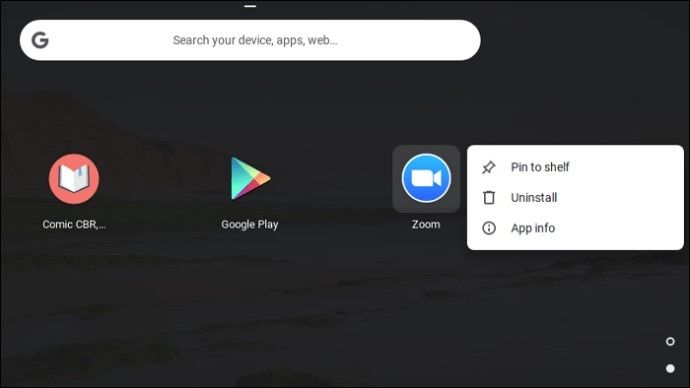
Step 3: Right-click the preferred app for deleting.
Step 4: From the drop-down menu, click on Uninstall.
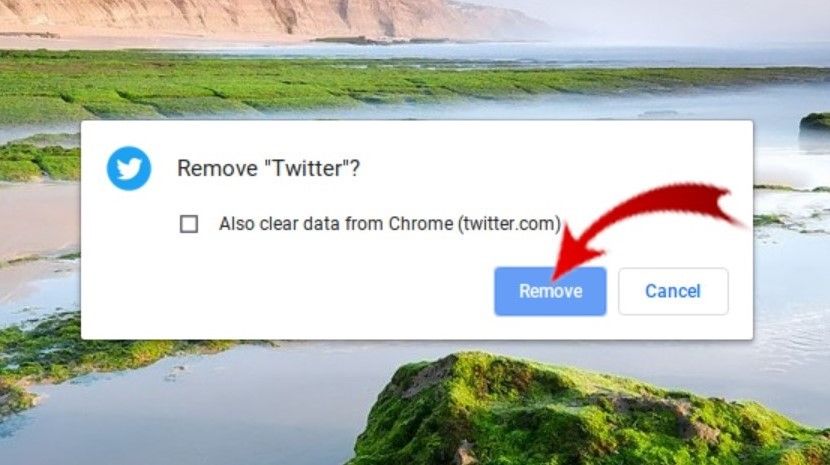
Step 5: Confirm the removal action by clicking on the "Remove" button on the confirmation popup, which will delete the app.
Conclusion
To delete apps on a Chromebook, follow the steps based on your device type: if you have a mouse, click on the app you want to delete and drag it to the trash icon, while on a touch-enabled trackpad, long press on the app and drag it to the trash icon. The process is the same for all Chrome apps, including those from the Android or Chrome store, with a slight variation.
To delete apps properly, follow the sequences mentioned and tick the checkmark for cache clearing if prompted. Additionally, use an app like Qiling Backup to store important app data before deleting it.
Related Articles
- Real Fixes: This app can't run on your PC in Windows 10
- How to Clear Memory and Increase RAM in Windows 10/8/7?
- Download Windows 10 21H2/21H1/20H2/2004/1909/1903 ISO and Fix Fail to Install Error
- How to Fix Windows Startup Repair Infinite Loop
7 fixes for Windows startup repair infinite loop in Windows 7, 8, 8.1, and 10. Fix boot loops with Safe Mode, CHKDSK, Bootrec, System Restore, and more. - What Is System Partition? [Best Explained in 2023]
A system partition is a specific partition on a computer's hard drive where the operating system is installed. It's a crucial part of the computer's setup, and in this article, we'll explore what a system partition is, its importance, and how to create one if needed.
Products
Articles & Tutorials
- Data Recovery
- Data Backup
- File Recovery
- File Backup
- System Backup and Restore
- Disk and Partition Clone
- Technical articles
- Mobile articles
- Disk Master Help
- Windows Data Recovery Tutorials
- Windows Secure Delete Tutorials
- Windows Partition Management Tutorials
- Windows File Backup and Restore Tutorials
- Windows System Backup and Restore Tutorials
- Windows Disk Backup and Restore Tutorials
- Windows Clone Tutorials