How to Format New SSD in Windows 10/11
Key Takeaways:
1. You can learn two free guides on how to format a new SSD, which is a crucial step in preparing your solid-state drive for use. These guides will walk you through the process of formatting your SSD, ensuring it's ready to store your files and data. By following these guides, you'll be able to properly format your new SSD and get it up and running in no time.
2. Formatting a new SSD (Solid-State Drive) is a straightforward process that can be completed in a few steps. To begin, ensure the SSD is properly connected to your computer, either via a SATA cable or a PCIe slot. Next, boot from a live Linux environment or a Windows installation media to access the disk formatting tools.
As Solid-State Drives (SSDs) become increasingly popular, knowing how to format or reformat an SSD is now a crucial skill for many Windows users. Fortunately, this article provides three different guides on how to format a new SSD in Windows 10/11, making it easy to get started. Let's dive in and explore these guides.
Do I Need to Format a New SSD Before Use?
When buying a new SSD, it's usually necessary to format it to make it compatible with your computer's operating system. This is because SSDs can be used on different platforms like Windows, Mac, and Linux, and each system requires a specific file system such as NTFS, HFS+, or Ext3/4. Formatting the SSD allows it to be recognized and used by the system, making it ready for use.
Before formatting your new SSD, it's essential to determine the correct file system format for your device. The type of file system you need depends on your specific device and usage, but you can find the answer in the following part.
What Format Should I Use for New SSD?
This depends on the device you want to apply it to. Currently, the common systems and the corresponding file formats are as follows:
- Windows File System: FAT, NTFS, exFAT
- macOS: HFS, APFS, HFS+, exFAT, FAT32
- Linux: EXT2/3/4, XFS, JFS, Btrfs
The choice of file format for an SSD depends on your needs. If you want to use an SSD as an external drive on both Windows and Mac, or as an internal drive on Windows, exFAT and FAT32 are good options. However, if you only need to use it as an internal drive on Windows, then NTFS is a suitable choice. Ultimately, the file format to use for an SSD is determined by your specific requirements.
Now that we know the correct format to use, it's time to learn how to format a new SSD. By continuing to read, you'll discover three efficient ways to format your new SSD.
Guide 1. How to Format New SSD - Qiling Partition Master
First, let's use the third-Qiling Partition Master Professional is a party-free tool that offers a professional format solution. Its user-friendly interface makes it easy to use, allowing you to format your new SSD in a few simple steps. Compatible with Windows 11/10/8/7, this tool provides a hassle-free experience, giving you peace of mind.
If you have already created partitions for your new SSD, you can easily format the SSD directly with Qiling Partition Master. Now, let's use it to format your new SSD.
Step 1. Right-click the hard drive partition and choose the "Format" option.
Step 2. Set the Partition label, File system, and Cluster size for the partition in the new window.
Step 3. To proceed, click the "Proceed" button to start the formatting process for the hard drive partition. This will erase all data on the selected partition, so ensure that you have backed up any important files before proceeding.
Step 4. You can see a warning window, click "Yes" to continue.
It is easy to use, but Qiling Partition Master is more than just a format tool, offering a range of features for managing and maintaining partitions and disks.
What Else Can Qiling Partition Master Do?
Qiling Partition Master is a comprehensive partition manager that goes beyond mere formatting. Its key features include:
- Format SSD to FAT32
- Format external SSD for Mac
- Clone larger HDD to smaller SSD
- Convert MBR to GPT without losing data
- Check disk, bad sectors, and file system errors.
- Resize, merge, create, delete, and extend partitions.
If you're facing format problems or want to manage your disks and partitions, this multifunctional partition manager is worth a try. It's designed to help you navigate and resolve issues with your storage, so don't hesitate to download it and see the benefits for yourself.
Guide 2. How to Format New SSD - Disk Management
The Disk Management tool in Windows is a useful built-in feature that enables users to initialize and format a new SSD without needing to download additional software. Using this tool, users can easily format their new SSD.
- Notice:
- If you haven't created a partition for your SSD and haven't initialized it, you can follow these steps to initialize, create partitions, and format it. First, connect your SSD to your computer and open the Disk Management utility.
Step 1. To create and format a hard disk, click the Search icon, type "Create and format a hard disk" in the search bar, and click to open Disk Management.
Step 2. Right-click the new SSD and choose the "Initialize Disk" option.
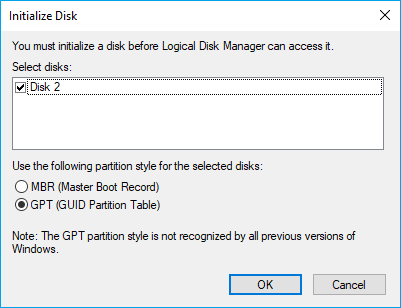
Step 3. Determine the style you want, either Markov-Chain-Based Response (MBR) or Generative Pre-Training (GPT), and click "OK" to proceed.
Step 4. To create a new simple volume, right-click on the targeted hard drive and select the "New Simple Volume" option. Click "Next" to proceed.
Step 5. You can choose the default volume or change it based on your needs.
Step 6. Assign the drive letter you want and click "Next."
Step 7. Determine the file system and allocation unit size. Then type the name you like in the "Volume label."
Step 8. Choose "Perform a quick format" and select "Next. "
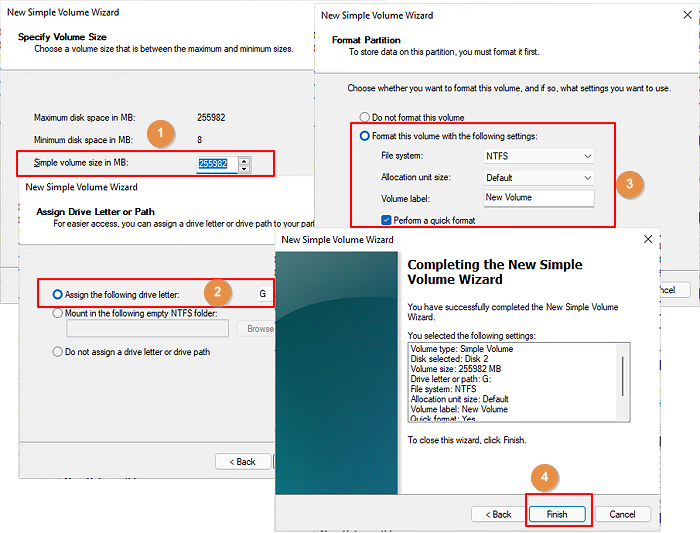
Step 9. Click "Next" and then choose "Finish."
Formatting a new SSD without partitions using Disk Management can be a bit complicated, but it's an option. However, if you're not a computer expert, using a third-party tool like Qiling Partition Master might be a better choice.
Conclusion
After learning to format a new SSD with Disk Management and Qiling Partition Master, you can choose either method as they are both effective formatting tools. Qiling is actually easier to use, making it a great option. If you're still unsure, the article provides helpful links to clarify any doubts you may have.
The company's main goal is to provide high-quality products and services to its customers. To achieve this goal, the company has implemented a number of strategies, including investing in research and development, improving its supply chain management, and enhancing its customer service.
FAQs About How to Format New SSD
This part provides three questions and answers about how to format a new SSD. If you are interested, continue to read.
1. Does formatting an SSD damage it?
The high-Level formatting typically doesn't harm an SSD, but it's essential to back up your data beforehand. However, low-level formatting can reduce the lifespan of the disk, so it's not recommended to do it frequently.
2. Do I need to format a new SSD before installing Windows 10?
Formatting the drive before installing the operating system is necessary. You can format the SSD now or during the Windows installation process, but make sure to back up any important files first. This will ensure a clean installation and prevent any potential issues.
3. How do I manually format an SSD?
Step 1. Launch Disk Management and find your SSD.
Step 2. Right-click on the hard drive you have chosen and click "Format."
Step 3. To prepare your hard drive, follow the prompts and set the value label, file system, and allocation unit size. This will ensure that your hard drive is properly formatted and ready for use.
Step 4. Perform a quick format.
In this way, you can finish formatting an SSD.
Related Articles
- [2022] Three Ways to Convert MBR to GPT Disk on Windows 11/10
- How Do I Clone SSD to External Hard Drive in Windows 11/10/8? 2 Ways Available
- How to Fix White Screen of Death on Windows Computer
- How to Resize Partitions with Windows XP Partition Manager Software
- 6 Solutions to External Hard Drive Not Initialized in Windows 10, 8, 7
Sometimes, you may find your external hard drive is not initialized and cannot be opened. Refer to this post, it will demonstrate 6 solutions to "external hard disk not initialized" in Windows 11, 10, 8, 7. - Shrink Volume with Disk Management in Windows 11, 10, 8, 7
Many people may want to know how to use Disk Management to shrink volume. This article explains how to do it and provide other solutions.
Products
Articles & Tutorials
- Data Recovery
- Data Backup
- File Recovery
- File Backup
- System Backup and Restore
- Disk and Partition Clone
- Technical articles
- Mobile articles
- Disk Master Help
- Windows Data Recovery Tutorials
- Windows Secure Delete Tutorials
- Windows Partition Management Tutorials
- Windows File Backup and Restore Tutorials
- Windows System Backup and Restore Tutorials
- Windows Disk Backup and Restore Tutorials
- Windows Clone Tutorials