Easy Ways to Fix SSD Not Showing Up in Windows 10
If your SSD isn't showing up in Windows File Explorer or Disk Management, this tutorial can help. It covers four cases of Windows 10 not detecting a new or old SSD, and provides a solution for each. If you need to recover data from the inaccessible or formatted drive, you can download Deep Data Recovery.
If your SSD disk isn't showing up on your computer, There are four common cases to check: if the disk is not recognized by the BIOS, try updating the BIOS or booting from a different device. If the disk is recognized but not initialized, try running a disk initialization tool. If the disk is initialized but still not showing up, check the disk's file system and try repairing it if necessary.
| Workable Solutions | Step-by-step Troubleshooting |
|---|---|
| Case 1. Drive Letter Missing | Open Disk Management > Right-click SSD...Full steps |
| Case 2. SSD Not Initialized | Open Disk Management > Right-click SSD...Full steps |
| Case 3. Unsupported File System | SSD becomes RAW, Run Deep data recovery...Full steps |
| Case 4. SSD Driver Issue | Open Device Manager > Go to Disk drives...Full steps |
SSD not showing up in My Computer
To make the Samsung SSD visible under My Computer, you can try right-clicking on the Start button, selecting Disk Management, and then initializing the SSD by selecting it and clicking on "Initialize". This should make the SSD visible under My Computer. Alternatively, you can also try connecting the SSD to a different USB port or checking the BIOS settings to ensure the SSD is recognized. If the issue persists, you may need to reinstall the Samsung SSD drivers.
New SSD not showing up in Disk Management
You've recently installed a new Intel M.2 SSD, but it's not being detected by your PC. This could be due to a driver issue or a problem with the SSD itself. To troubleshoot, try checking the BIOS settings to ensure the M.2 slot is enabled and the SSD is properly seated. You may also need to update your motherboard drivers or reinstall the Intel RST (Rapid Storage Technology) driver to resolve the issue. If the problem persists, it's possible that the SSD is faulty and you may need to contact Intel support for further assistance.
Users may experience issues where their external Solid State Drive (SSD) is not detected in Windows 10 or earlier operating systems, preventing them from accessing or adding files to the device. This can be frustrating, and the primary concern is resolving the issue quickly and efficiently.
If your SSD is not showing up in Windows 10, there are four possible cases to consider. To resolve the issue, you can try fixing it accordingly. If necessary, download Deep Data Recovery to recover files from an inaccessible or formatted Solid State Drive.
Important
Solutions from Case 1 to Case 3 are based on the prerequisite that the SSD is not showing up in File Explorer but is visible in Windows Disk Management. These solutions can be replaced by third-party free partition manager software, such as Qiling Partition Master, which offers ease of use and can perform tasks like changing drive letters and paths, initializing hard drives, and formatting hard drive partitions.
Case 1. SSD not showing up because the drive letter is missing or conflicting
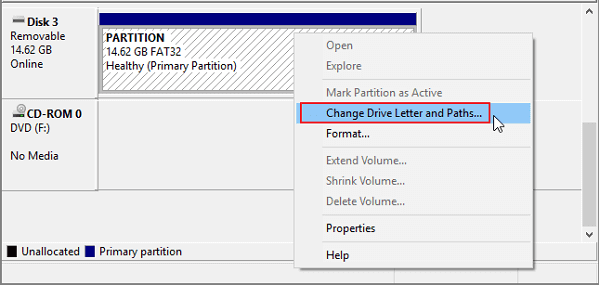
Sometimes your SSD isn't showing up because the drive letter is missing or conflicting with another disk, causing Windows to not recognize it. You can fix this by manually assigning a new drive letter to the SSD in Windows Disk Management.
To assign a new drive letter to an SSD, you can follow these steps:
Step 1: Right-click on "This PC", select "Manage". Under the Storage section, click "Disk Management".
Step 2: Right-click on the SSD partition and select "Change Drive Letter and Paths...".
Step 3: To change the drive letter, click on the "Change" button, and then select a new drive letter from the list. Click "OK" to confirm the change.
Case 2. SSD not showing up because it is not initialized
If you've installed a new SSD and it's not showing up in Windows Explorer, it's probably because it's in an uninitialized state, requiring initialization before Logical Disk Manager can access it.
If you're experiencing issues with an SSD, such as "disk unknown not initialized" or an old SSD showing the same error, try connecting it to another working computer to see if the issue persists. If it does, you'll need to initialize the SSD in Windows 10 to resolve the problem.
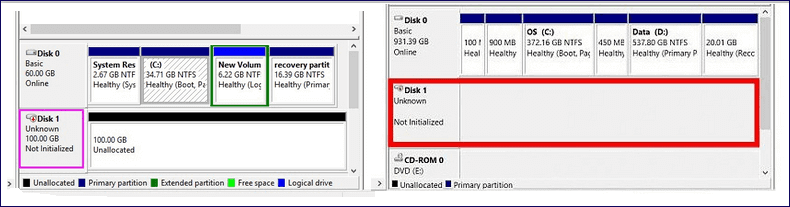
To initialize an SSD, follow the steps:
Step 1: Open Disk Management on your computer.
Step 2: Find and right-click the SSD you want to initialize, and then click "Initialize Disk".
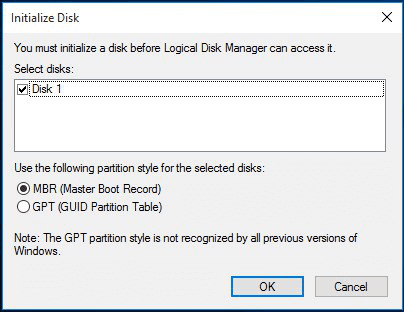
Step 3: In the Initialize Disk dialog box, select the disk(s) to initialize, choosing either the master boot record (MBR) or GUID partition table (GPT) partition style.
Case 3. SSD not showing up because the file system is not supported
If the above two methods don't work, it's possible that the file system is corrupted or Windows doesn't support it, so we need to think further.
The main file system issues are shown as 'RAW', 'Free space', or 'Unallocated space'. Reformatting the disk is enough to fix these issues.
Warning
If you didn't create a data backup before formatting your SSD, you can use Deep Data Recovery software to recover data from the formatted drive. This will allow you to restore any important files or information that were on the drive before the format.
Step 1. Download and Install for Deep Data Recovery Software
Click the download button to download the software installation package. Install it on your computer, run it, and follow the on-screen instructions, starting by clicking "USB/SD Scan".

Note: You can choose different search modes based on where and why the data was lost.
Step 2. Select your SD card. Then click "Scan" to start finding lost data on your SD card.

Step 3. Preview SD card data
To find a specific type of file, you can use the "Filter" feature or search bar. Alternatively, you can sort through lost files by category, such as "Deleted Files" or "Other Lost Files," which are listed on the left side of the program.

Step 4. Restore SD card data
Click "Recover" to save found files to a secure location on your PC or external storage.
Case 4. SSD not showing up because of disk driver issues
If the SSD is detected but not displayed in "My Computer", try reinstalling the SSD driver to see if it resolves the issue.
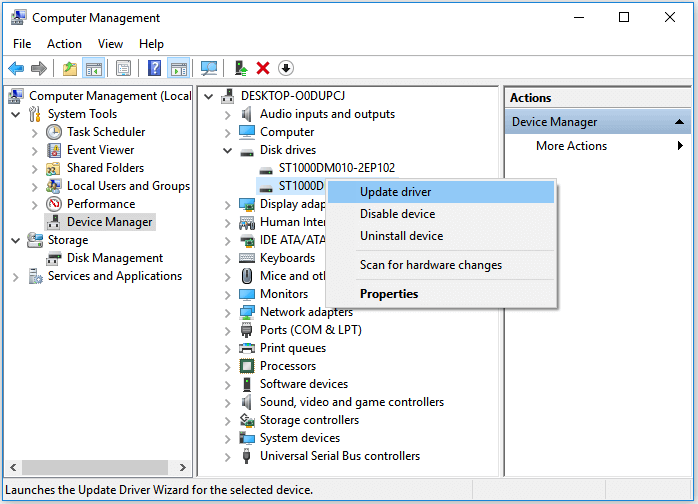
Step 1: Right-click on "This PC", select "Manage". Under the System Tools section, click "Device Manager".
Step 2: Go to Disk drives. It should list the storage devices that you have connected to your PC.
Step 3: Right-click the SSD and choose "Uninstall device".
Step 4: Remove the SSD from your system, restart, and then try to connect the SSD again to see if Windows 10 detects it normally.
Conclusion & FAQs
SSDs, along with other storage media, are vulnerable to mechanical failure and physical damage. To protect data on storage drives, it's wise to have a backup plan. This can be done by saving a copy of hard drive data to a safe location, such as a backup drive, cloud storage, or network drive. A software like Qiling Backup Free can be used to make a complete backup of the hard drive.
Upon the topic of SSD not showing up in Windows 10, we analyzed four cases and showcased the corresponding fixes. The repair process involves various steps, including checking the SSD's compatibility, updating the BIOS, and running a disk checking tool, with three assistive tools recommended during the middle and final repair process.
1. Deep data recovery involves recovering lost data from inaccessible and formatted hard drives or partitions.
2. Qiling Partition Master is a software tool that enables users to assign a drive letter, initialize a disk, and format a hard drive, among other partition management functions.
3. Qiling Backup: to back up a hard drive/partition.
In the end, we selected some top asked questions that are related to the SSD not showing up problems in Windows. For example:
1. Why is my SSD not showing up?
Driver issues are a common reason why an SSD may not be detected in My Computer. Just like a hard drive, the SSD is detected but not showing up due to a faulty disk driver installation. Reinstalling the SSD driver may resolve the issue.
2. How do I get my new SSD to show up?
If your new SSD isn't appearing in Windows Disk Management, it's probably in an uninitialized state and needs to be initialized before Windows can access it.
3. How do I fix SSD not detected in BIOS?
To make BIOS detect the SSD, configure the SSD settings in BIOS by setting the SATA mode to AHCI (Advanced Host Controller Interface) and enabling the SSD as a boot device, then save the changes and restart the computer. This allows the BIOS to recognize the SSD and allows the operating system to optimize its performance.
- To restart your computer and enter the BIOS settings, follow these steps: Restart your computer. Immediately after the first screen, press the F2 key.
- Press the Enter key to enter Config.
- Select Serial ATA and press Enter.
- Then you'll see the SATA Controller Mode Option.
- Save your changes and restart your computer to enter BIOS.
Related Articles
- Fix Micro SD Card Not Detected in PC, Android Mobile Phone or 3DS
- Fix 'This Drive Is Read Only' on SD Card/USB/Hard Drive [5 Methods]
- External Hard Drive Keeps Freezing or Freezes Computer (3 Solutions)
- Repair and Recover Corrupted/Unreadable VHD or VHDX Files
- Where Are Steam Games Stored? How to Locate
Where are Steam games stored? In this guide, you will learn the Steam game location on Windows, macOS, and SteamOS. When you encounter Steam games accidental deletion, you can restore Steam game files with Deep Data Recovery. - [SOLVED] While Organizing Files You Accidentally Delete an Entire Folder
If you've accidentally deleted an entire folder while organizing files, there are solutions to recover your data. In Windows 11/10/8/7, you can try the following: use Qiling data recovery software, which is the most effective solution to restore deleted folders from Windows 10.
Products
Articles & Tutorials
- Data Recovery
- Data Backup
- File Recovery
- File Backup
- System Backup and Restore
- Disk and Partition Clone
- Technical articles
- Mobile articles
- Disk Master Help
- Windows Data Recovery Tutorials
- Windows Secure Delete Tutorials
- Windows Partition Management Tutorials
- Windows File Backup and Restore Tutorials
- Windows System Backup and Restore Tutorials
- Windows Disk Backup and Restore Tutorials
- Windows Clone Tutorials