Python Delete File: How to Delete a File in Python [Recovery Is Available]
What Is Python (An Overview)
Python is a popular programming language created in the 1980s, known for its simplicity and versatility. It is widely used today for various applications, including web development, scientific computing, artificial intelligence, and software engineering, making it a sought-after skill in the industry. Additionally, Python is often taught in introductory computer programming courses due to its ease of use and readability, making it an ideal language for beginners.
Python's versatility and extensive libraries make it a popular choice for various tasks. Its unique indentation rules, such as the if statement, also contribute to its widespread use. This allows developers to write clean and efficient code, making Python a go-to language for many applications.
|
if age<21: print "You cannot buy wine ! \n" You can buy chewing gum, which is outside of the if statement. This is outside if. |
There are many other essential statements and commands. What we are going to talk about today is the way to delete a file in Python. Read the methods below and clear Python files with simple steps. To delete a file in Python, you can use the `os` module, which is a built-in module.
How to Delete a File in Python (3 Ways)
Python offers multiple ways to delete files, including the OS module, Shutil module, and Pathlib module, each with its own advantages and disadvantages, making it essential to choose the right one for your specific needs to force delete file.
Method 1. How to Delete a File with the OS Module in Python
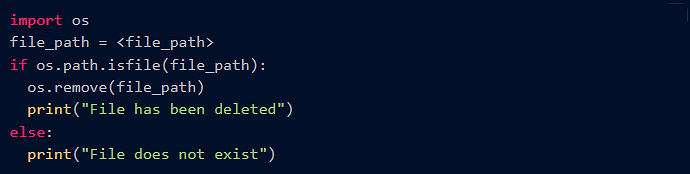
To delete a file or directory in Python using the OS module, you can use the `os.remove()` function to delete a single file, and the `os.rmdir()` function to delete an empty directory. If you're deleting a directory that contains files or subdirectories, you can use the `shutil.rmtree()` function to recursively delete the entire directory tree.
|
import os file_path = if os.path.isfile(file_path): os.remove(file_path) print("File does not exist") |
Method 2. How to Delete a File with the Shutil Module in Python
The Shutil module in Python is a more comprehensive tool for deleting files, offering the ability to delete single files, directories, and entire directory trees. It also provides features for managing permissions and error handling, but its complexity makes it essential to carefully read the documentation before using it.
To delete a file if it exists using Python, you can use the `os` module and its `remove()` function. First, import the `os` module at the top of your Python script with `import os`.
|
import shutil shutil.rmtree('path') |

To remove existing files, you can provide the path to the folder you want to clear, such as /home/school/math/final, to delete all files within that directory.
Method 3. How to Delete a File with the Pathlib Module in Python
The Pathlib module provides an object-oriented interface for working with files and directories in Python, making it easy to use and offering features like deleting multiple files at once, but lacks support for permissions and error handling.
You can watch this video first to see the Python deleting process with details.
- 0:01 Introduction
- 0:36 Import files
- 1:29 Delete files in Python
You can use the following code to clear/delete the file or folder:
Step 1. Create a Path object.
|
import pathlib p_object = Path(".") type(p_object) |

Step 2. Use the unlink() function to delete a file.
|
import pathlib file = pathlib.Path("test/file.txt") file.unlink() |
Step 3. use the rmdir() function to delete the directory.
|
import pathlib directory = pathlib.Path("files/") directory.rmdir() |
If you're still unsure about which code to choose, you can refer to the comparison table below for further assistance. It provides a side-by-side comparison of the different codes, helping you make a more informed decision.
| Situations | Command |
|---|---|
| Delete a single file |
|
| Delete/empty directories? | rmdir() |
| Delete non-empty directories | rmtree() |
Python Data Recovery: How to Recover a File Deleted with Python
You can recover Python deleted data. There are two ways to do this: using the restore feature in Python or reliable data recovery software. This means that even if you accidentally delete a file, you can potentially get it back.
Tip 1. Recover Deleted Files with Python
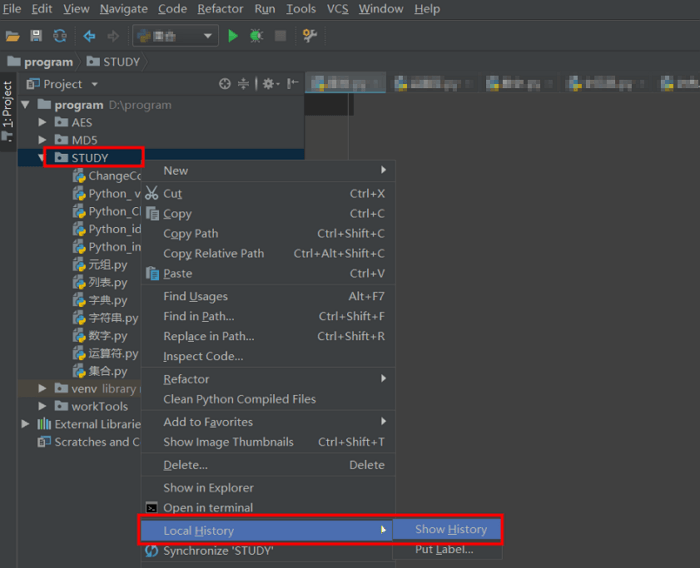
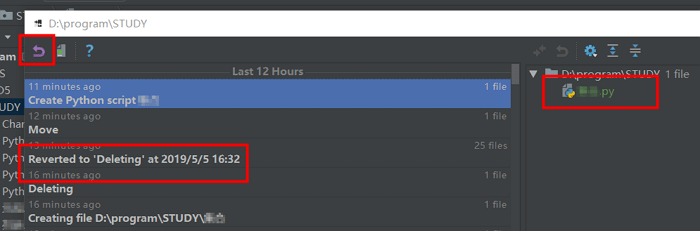
If you've deleted files in Python, there's still hope for recovery. Look for the history folder in Python, which stores deleted files, and follow the steps to retrieve them.
Step 1. Right-click on the folder above the deleted file and select "Local History > Show History" to view the file's deleted version.
Step 2. Select the wanted file or folder and click "revert" on the top left.
Tip 2. Run Python Data Recovery with Data Recovery Software
You can recover deleted Python files using data recovery software, which is designed to search through all drives on your computer for any traces of Python files and then recover them. This software is very effective and can help you recover your deleted files quickly and easily, with one of the most effective tools being Deep Data Recovery.
Qiling free data recovery software is a powerful tool that can recover deleted files and data from Python databases, offering a wide range of features for deleted file recovery.
- The software supports various file formats, including jpg, png, bmp, and gif, allowing users to work with a range of image types.
- Data recovery services help restore lost data due to unexpected events such as partition loss or damage, software crashes, virus infections, and other unforeseen circumstances.
- Recover deleted files from both internal and external hard drives, including those using FAT, NTFS, and exFAT file systems.
Deep Data Recovery is an excellent choice for recovering files and data deleted by Python. To recover deleted Python data, you can follow these steps, which involve using Deep Data Recovery to scan your system, locate the deleted files, and retrieve them. This process is effective in recovering lost data, making Deep Data Recovery a reliable solution for Python data recovery.
Step 1. Launch Deep Data Recovery software, select the desired file types, and click "Fast Scan" to initiate the recovery process.

Note: You can choose different search modes based on where and why the data was lost.
Step 2. To proceed, select the exact file location you wish to scan and click the "Scan" button.

Step 3. After the process, select the "Deleted Files" and "Other Lost Files" folders in the left panel, then apply the "Filter" feature or click the "Search files or folders" button to find the deleted files.

Step 4. Once you've clicked the "Recover" button, save the restored files. It's a good idea to save them in a location different from the original one to avoid any potential conflicts or overwrites.
Conclusion
Python offers several ways to delete a file, including using the built-in "os" module, which provides functions for interacting with the operating system. For deleting directories and their contents, the "Shutil" module can be used, offering high-level operations on files and directories. Additionally, the "os.unlink" function can be used to delete a single file, regardless of whether it is open or not.
If Python deletes a file you don't want to delete, you can recover the file with the built-in "revert" option or data recovery software.
Python Delete Files FAQs
To get additional help, read the Python-related questions and answers below.
1. How do I delete a text file in Python?
Use file. truncate() to erase the file contents of a text file
- file = open(sample.txt, r+)
- file. truncate(0)
- file. close()
2. How to fix Python Setup.py egg_info?
To fix Python setup.py egg_info:
- Check if Pip and Setuptools Are Installed Correctly
- Upgrade Pip to Fix Python Setup.py egg_info
- Upgrade Setuptools
- Try to Install the ez_setup
3. How do you delete a file if it already exists in Python?
Here are three ways to remove a file if it exists and handle errors in a single paragraph:
- Run os. remove
- Use shutil module
- Run os. unlink
Related Articles
- How To Check Storage On Mac? [Step By Step]
- 5 Ways to Fix Hard Drive Read Speed Slow Error
- How to Fix DXGI_ERROR_DEVICE_REMOVED on Windows 10/11 [Fixed]
- What Graphics Card Do I have? Here's How to Check Graphics Card
- What Is Firewire? [Definition & Working Principle & Differences Between USB]
Firewire is a kind of connection interface standard which is used to connect external electronic devices. Do you know how it works? What the difference between Firewire and USB? Read this post, it will give you a thorough guide to Firewire. - What Is FTP? File Transfer Protocol Explained
FTP is one of the key network protocols in internet and data transfer. So, how does it work and why is it so important? This article will answer these questions and help you understand FTP in a more in-depth light.
Products
Articles & Tutorials
- Data Recovery
- Data Backup
- File Recovery
- File Backup
- System Backup and Restore
- Disk and Partition Clone
- Technical articles
- Mobile articles
- Disk Master Help
- Windows Data Recovery Tutorials
- Windows Secure Delete Tutorials
- Windows Partition Management Tutorials
- Windows File Backup and Restore Tutorials
- Windows System Backup and Restore Tutorials
- Windows Disk Backup and Restore Tutorials
- Windows Clone Tutorials