What Is SSD SMART Status, Everything You're Concerned About
Many laptop users experience SSD failure, but a lesser-known feature called SMART can help predict the health status of the SSD, allowing users to take relevant actions based on the results.
This guide will explain about SSD SMART status and how to get a convenient report of its health prediction.
What Is SSD SMART Status
SMART is a predictive function in Self-Monitoring, Analysis, and Reporting Technology that monitors internal performance regularly. The SSD SMART system is designed to assess the performance, health, and lifespan of drives, making the SSD SMART test crucial for maintaining drive integrity. It analyzes various attributes, such as I/O and read/write speed, to provide updated results, helping identify potential issues like corrupted or damaged partitions.
Read Also:
What Does SMART Status Mean, Here Is Everything You Want
This guide explains what SMART status means and shows you how to use it to inspect your hard disk thoroughly. SMART (Self-Monitoring, Analysis, and Reporting Technology) status indicates the health of your hard disk, allowing you to detect potential issues before they become major problems.
The SMART system is an independent and built-in system in solid-state drives (SSDs) that provides live information on the drive's status. It's a practical approach that allows drive manufacturers to choose from multiple parameters according to the drive's configuration, unaffected by the computer's BIOS and operating system.
Is SSD SMART Status Directly Usable
The SSD SMART feature can track various drive health metrics, including loading count, power circulation, and storage errors, but as a non-technical user, you might not be familiar with these terms.
To get the best output from the SSD SMART facility on your computer, you'll need specialized software to interpret the over 50 factors in the result, as regular SMART results often lack explanations or categorization of each variable.
The following section will introduce an advanced yet user-friendly tool that allows users to easily access SSD's SMART feature, providing quick and convenient access to this important data without getting overwhelmed by the wealth of information.
Use a Professional Tool to Check SSD SMART Status
Qiling Disk Master is a tool that displays detailed SMART status information from SSDs, including external storage drives, and supports both SATA and NVMe drives. It's an open-source program available for download or as a portable version, with a simple and easy-to-use interface.
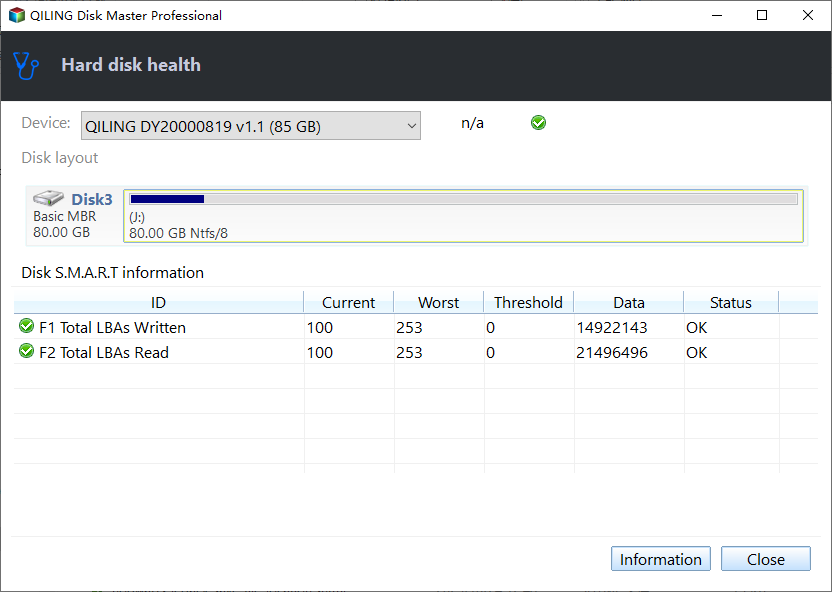
The tool will display a status as Good when everything works adequately, but if your drive has a few corrupted or bad sectors, it will show a status as Caution. It can monitor various SSD attributes, including the ones listed above.
- Drive's health, status, and disk usage
- Check the drive's overall data
- Check and repair bad drive sectors
- View and share detailed drive health and status reports
- Securely erase data
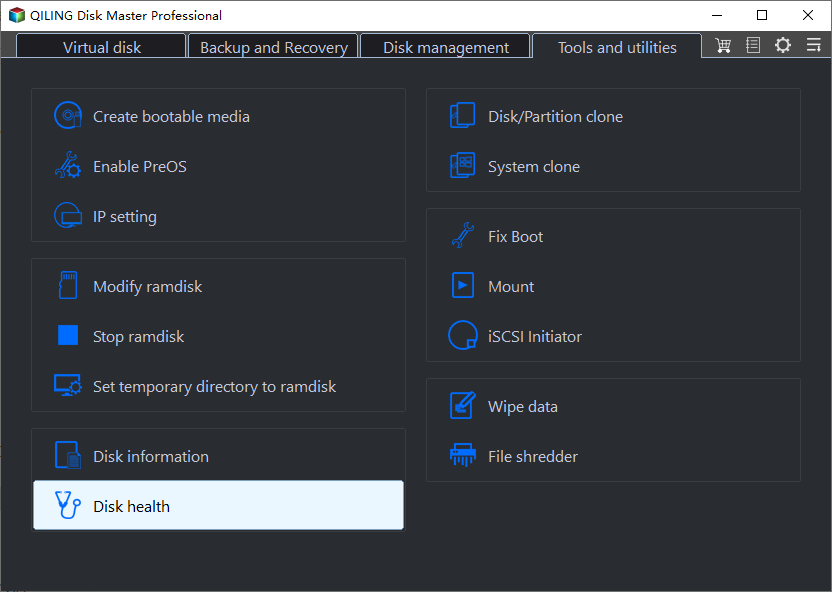
Step 1. Launch Qiling Disk Master and click the blue arrow to activate the "Disk Health" feature under the "Discovery" section.
Step 2. Select the target disk and click the "Refresh" button to view its health condition.
Qiling Disk Master can monitor and manage any state-solid drive, regardless of its manufacturer.
Let's have a look at its key features:
- Run USB health check
- Test SSD read/write speed
- It supports nearly all SSD drives
- Check SSD health on Windows 10
- Check external hard drive health
- Monitor real-time SSD performance in minutes
- Provide easy-to-understand details of SMART attributes
Download this expert tool now, and enjoy its effortless usability.
Conclusion
We hope this guide has covered all the essential aspects and efficiency of SMART to test, monitor, or indicate failure on your SSD, making you understand how this self-monitoring enables users to review the health of SSDs. The main motive of this article is to inform you about SSD SMART Status and the best way to use it, and we advise you to back up your critical data to an external drive.
You may also like:
SSD SMART Status FAQs
You can find answers here if they have further questions about how to check SSD SMART Status.
1. Does SMART reporting work on SSD?
SMART reporting can indeed work on SSDs, as it's a system designed to monitor the performance and health of the drive, providing detailed health information and predicting potential failures.
2. Should I disable SMART in BIOS?
We do not recommend disabling SMART in BIOS because there is no reason to turn it off, as it is an efficient mechanism.
3. What does SMART status mean?
The SMART status on a drive indicates whether it's functioning correctly or has issues, with PASS meaning it's working accurately and FAIL indicating a problem or potential failure.
Related Articles
- 100% Work | Activate Windows 10/11 Using CMD and Other Ways
- Tutorial on Windows 10: Move Partition to End of Disk [Step-by-Step Guide]
- How to Fix "Can't Convert to Dynamic Disk" Error 2023 [Step-by-Step Guide]
- How to Use the Apple Menu on Mac? [New Information]
- My Computer Turns on but the Screen Is Black Windows 10, How to Fix
Activating Windows through CMD is a straightforward process. To get started, you - New Computer Keeps Freezing? Find Causes & Solutions Here
Are you facing issues with your computer freezing and lagging? This article will provide reasons and solutions to overcome this problem, so keep reading to find out more!
Products
Articles & Tutorials
- Data Recovery
- Data Backup
- File Recovery
- File Backup
- System Backup and Restore
- Disk and Partition Clone
- Technical articles
- Mobile articles
- Disk Master Help
- Windows Data Recovery Tutorials
- Windows Secure Delete Tutorials
- Windows Partition Management Tutorials
- Windows File Backup and Restore Tutorials
- Windows System Backup and Restore Tutorials
- Windows Disk Backup and Restore Tutorials
- Windows Clone Tutorials