How to Fix "Can't Convert to Dynamic Disk" Error [Step-by-Step Guide]
Many Windows users have encountered issues with converting their disks to dynamic disks, with Disk Management tools displaying error messages in Windows 11, 10, 8.1, 8, or 7. This problem has been reported by customers who want to build mirrored and striped volumes using dynamic disk usage.
Why You Can't Convert to Dynamic Disk
The "Can't Convert to Dynamic Disk" error is a common issue that users encounter, and it's essential to understand why it happens. This error typically occurs when the system is unable to convert a basic disk to a dynamic disk, which is usually due to a software or hardware conflict, or because the disk is not compatible with the dynamic disk format.
- Invalid pack name
The error "Pack name invalid" occurs in China, Japan, and Korea when installing a new Windows, specifically on Windows Vista, 7, and 8. It prompts the user to name their machine during the installation process.
- The object does not support the operation
When trying to convert a basic disk to a dynamic disk, some users may encounter the error "The object does not support the operation." This is because dynamic disks do not support firmware or removable disks, and converting a volume that spans a detachable disk can cause the volume to break. Additionally, basic disks on laptops cannot be converted to dynamic disks.
- No storage
The error "no enough space to accomplish this process" occurs when converting a disk to a dynamic disk, requiring at least 1 MB of storage space in the Master Boot Record (MBR) to construct the database for the dynamic disk.
- Security is enabled
When trying to convert a basic disk to a dynamic disk through Disk Management, you might encounter the error "The disk could not be changed to dynamic because security is configured on the partition." This issue occurs because dynamic disks cannot be activated on disks with system partitions, and attempting to do so will result in the deletion of all disk partitions.
- Convert to dynamic disk option grayed out
When trying to convert a basic disk to a dynamic disk using Windows Disk Management, you may find the option to convert greyed out. This issue can occur due to various reasons, such as the disk being used by the operating system or having an active partition.
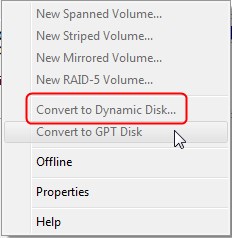
Four Fixes for "Can't Convert to Dynamic Disk" Error
If you're encountering the "Can't Convert to Dynamic Disk" error, you can try the following fixes to resolve the issue. First, you can try using the built-in Disk Management tool in Windows to convert the disk, or use a third-party tool like Qiling Partition Master to convert the disk.
Fix 2. Change/Modify PC's Name
Fix 4. Upgrade Motherboard Driver
To convert MBR to GPT, you'll need to boot from a Live USB, access the disk management utility, and select the disk you want to convert. Then, you'll need to create a new GPT partition table, which will overwrite the existing MBR partition table.
Fix 1. Convert MBR to GPT
A trustworthy disk conversion application like Qiling Disk Master Professional can help resolve the error. This tool allows you to easily switch your disk from MBR to GPT with just a few clicks, outperforming Disk Management and DiskPart on both fronts.
• Qiling Disk Master does not remove any partitions to facilitate disk conversion.
• Qiling Disk Master does not delete any data on the drive when migrating from MBR to GPT or vice versa.
Step 1. Download and launch Qiling Disk Master on your computer.
Step 2. Go to Disk Master, select "Disk management" tab page.
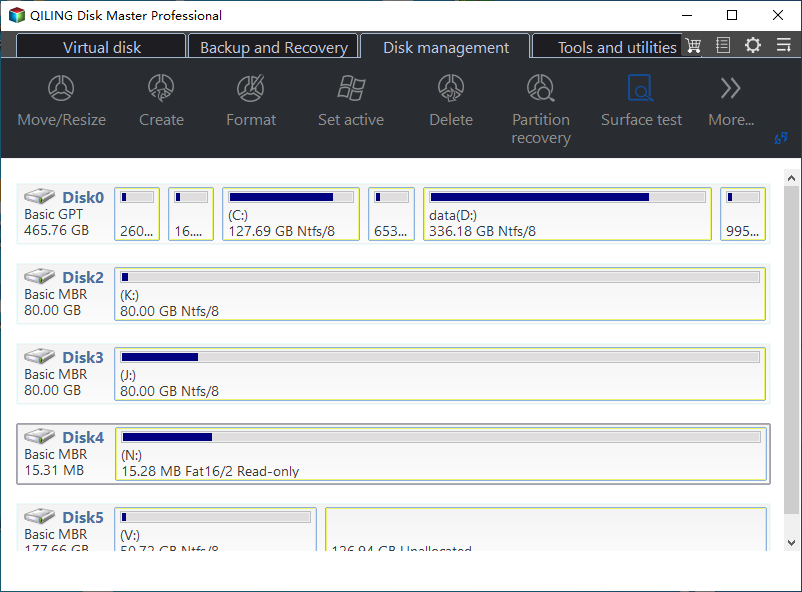
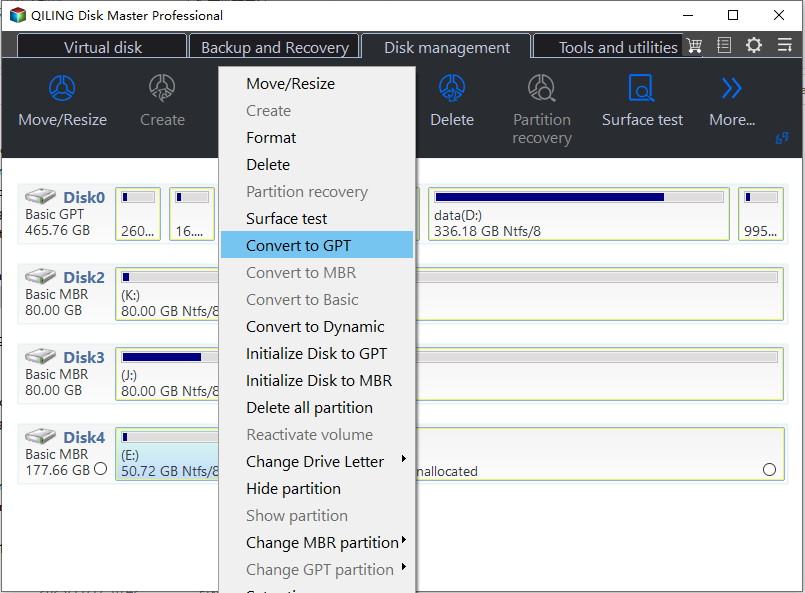
Step 3. To convert the target MBR disk to GPT, right-click it and select "Convert to GPT".
It would help if you familiarized yourself with the following list of key features offered by Qiling Disk Master:
- Convert MBR to GPT or vice versa
- Move Windows 11 to a new solid-state drive with a single click
- To fix the disk space issue caused by low disk space on C drive, extend the C drive over multiple disks by merging the free space from other drives into the C drive. This can be achieved by using the built-in disk management tool in Windows, which allows you to resize and reassign disk space.
- To switch from an MBR disk to a GPT disk for Windows 11, you'll need to use the built-in Disk Management tool. First, back up your data, then create a new GPT disk by deleting the existing MBR partition and creating a new GPT partition.
Fix 2. Change/Modify PC's Name
If you're getting the "the name is invalid" notice while trying to convert to a dynamic disk, altering your computer's name may help. Here, therefore, are the procedures in their entirety.
Step 1: To open the System Properties window in Windows, press the Windows key + R keys together to open the Run dialog box, then type in sysdm.cpl and click OK.
Step 2: In the pop-up box, select the desired options by clicking the Change button.
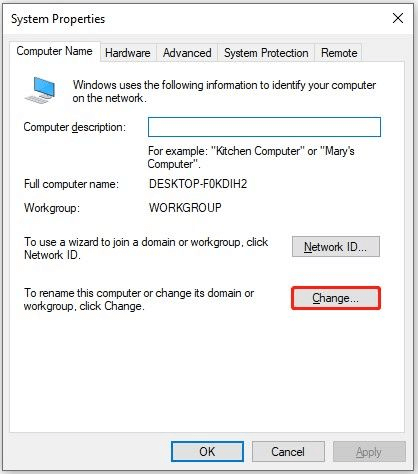
Step 3: To give your PC its new moniker, go to the system settings and click on "Rename this PC". Then, enter a new name that does not include any double-byte characters, and click on "Next". Finally, click on "OK" to permanently commit the new name.
Fix 3. Create Storage Pools
You can use Storage Pools to create a mirrored volume and prevent data loss from basic to dynamic disk when BitLocker is enabled. This allows you to utilize your storage space similarly to a mirrored volume without upgrading your basic disk to dynamic. To set up a storage pool, follow the steps outlined below.
Step 1: Open the Control Panel and navigate to System > Storage.
Step 2: Find More storage options, and click Manage storage spaces.
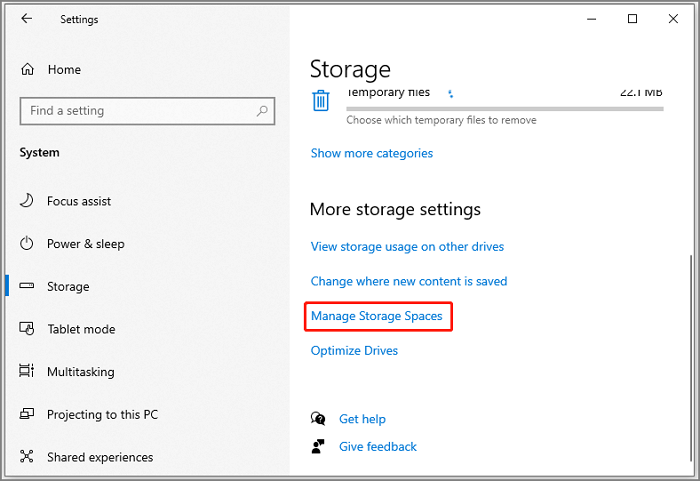
Step 3: To create a new pool and storage space, click on the "Create a new pool and storage space" option in the pop-up box. This will allow you to set up a new pool and storage space simultaneously.
Step 4: On the next screen, select the disks you want to use and click the "Create pool" button to finalize the storage pool creation process.
Step 5: Set up your fresh warehouse by modifying the storage area's name, drive letter, file system, resilience type, and size on the next page, and then press 'Create'.
Fix 4. Upgrade Motherboard Driver
If you're experiencing the "Operation not supported on this item" error message, even if the device in question isn't a detachable disk, upgrade your MB drivers to the latest Windows 64-bit drivers. This might allow you to successfully convert to a dynamic disk after the update.
Conclusion
If you're unable to convert a basic disk to a dynamic disk, don't worry! There could be several reasons for this, but you can try some methods to resolve the issue. If none of these work, you can use a tool like Qiling Disk Master to fix the problem without losing any data. This tool can help you convert the disk without any issues, ensuring your data remains safe and secure.
You may also like:
FAQs Related to Can't Convert to Dynamic Disk
We have discussed how to fix the "can't convert to dynamic disk" error. Now, if you have any further relative questions, read the answers below to help.
1. How much space do you need to convert to a dynamic disk?
To create a database for a dynamic disk, you need to have at least 1MB of unallocated space at the end of the MBR disk, which is automatically allocated in Windows 2000 and XP Professional.
2. Can I convert the C drive to a dynamic disk?
Follow these steps to change a basic disk to a dynamic one:
Step 1. To manage the computer, click the "Manage" button above, then right-click on the "Computer" icon.
Step 2. Choose Disk Management from the Computer Management menu.
Step 3. To convert a disk, select the disk you want to convert by right-clicking it in the window's bottom part.
Step 4. Once you've selected the disk you want to convert, click the OK button.
Step 5. Convert.
3. Can I convert a basic disk to a dynamic without losing data?
If you have a dynamic disk and want to use it with a simple disk format, you can convert it to a basic disk using Windows' built-in disk management utility. However, this conversion will fail if there are partitions on the dynamic drive.
Related Articles
- Not Enough Space for macOS Sonoma on MacBook Pro/Air [4 Proven Fixes]
- Fix Internet Explorer Keeps Crashing/Freezing/Not Responding Error
- How to Choose QNAP External Drive Format [2024 Detailed Tutorial]
- How to Fix Game Stuttering on Windows 11 [Step-by-Step Guide]
- How to Repair Raw Drive in Windows 10/11 [Efficient Solutions]
Repair a RAW drive in Windows 10, recover important files, and convert or format the drive safely when needed. - Repairing Disk Errors This Might Take an Hour - How to Fix?
If you're experiencing the 'repairing disk errors this might take an hour' error, the guide can help to fix this issue, simply follow the steps outlined here to resolve the problem and get your computer up and running smoothly again.
Products
Articles & Tutorials
- Data Recovery
- Data Backup
- File Recovery
- File Backup
- System Backup and Restore
- Disk and Partition Clone
- Technical articles
- Mobile articles
- Disk Master Help
- Windows Data Recovery Tutorials
- Windows Secure Delete Tutorials
- Windows Partition Management Tutorials
- Windows File Backup and Restore Tutorials
- Windows System Backup and Restore Tutorials
- Windows Disk Backup and Restore Tutorials
- Windows Clone Tutorials