How to Repair Raw Drive in Windows 10/11 [Efficient Solutions]
Knowing how to repair a RAW drive on Windows 10 is crucial. A RAW drive occurs when the file system on a hard drive becomes corrupted or is not recognized by the operating system, causing it to display as RAW. This can be caused by a virus, power outage, or other system crashes.
External and internal hard drives are the primary storage for your essential data, but encountering an error like needing to format the hard disk before use can be confusing. This error is often a symptom of the hard drive becoming RAW, which occurs when it loses its File System, making it unusable.
Why Raw Drive Appears in Windows 10/11
A hard drive becoming RAW in Windows 10/11 can be caused by various factors, ranging from sudden events to accumulated issues over time. Some possible reasons include sudden power outages, file system corruption, or physical damage to the drive, whereas others may be the result of gradual wear and tear, such as file system fragmentation, disk errors, or software malfunctions. These issues can lead to the drive becoming RAW, making it inaccessible and requiring immediate attention to prevent permanent data loss.
Bad sectors
The accumulation of bad sectors on a hard drive can lead to issues such as file damage or deletion, and in severe cases, can cause the hard drive to become RAW.
Corrupted partitions
The partitions on a hard drive can become corrupted, leading to the drive becoming RAW, meaning it's no longer readable by the operating system. This can cause issues with booting and accessing files.
File system errors
RAW drives are unformatted or corrupted hard drives that Windows can't identify a file system on, often labeled as "C drive is RAW" due to a file system error.
Improper use
The way you use and handle your external hard drive can contribute to it becoming RAW. This includes factors such as how you physically handle the drive, the type of files you store on it, and how you use it with your computer. Proper care and maintenance of your external hard drive can help prevent it from becoming RAW.
To repair a raw drive in Windows 10/11, you can use the built-in Check Disk utility (chkdsk) or a third-party tool like Deep Data Recovery Wizard. First, ensure the drive is safely disconnected from the computer.
How to Repair Raw Drive in Windows 10/11
If your hard drive has become RAW, it's not necessarily a lost cause. In most cases, a RAW hard drive can be repaired, meaning it's not permanently damaged. However, recovering the data stored on the drive is a different story. Fortunately, there are two ways to fix a RAW hard drive in Windows 10/11.
Guide 1. Repair Raw Drive in Windows 10/11 via Qiling Disk Master
In Windows 10/11, you can easily repair and manage your RAW hard drives using Qiling Disk Master Professional. This tool allows you to fully manage your hard drives and partitions, making it ideal for tasks like adjusting disk space, creating new partitions, merging partitions, and changing file systems. Additionally, you can convert disk partitions from MBR to GPT and vice versa, making it a great utility for various hard disk management needs.
To repair a RAW hard drive, download the Qiling Disk Master for free and follow its straightforward and quick process. The software guides you through the steps to recover your data from the damaged drive.
Step 1. Launch Qiling Disk Master.
Right-To format a RAW partition or RAW external hard drive/USB/SD card, click on it and select the "Format" option.

Step 2. Format RAW Partition and reset the file system.
Assign a new partition label, set the file system to NTFS, FAT32, EXT2, EXT3, EXT4 or exFAT, and cluster size to the selected partition.

Step 3. Execute the operations.
To start formatting your RAW partition/USB/SD/external hard drive, click the "Proceed" button.

Step 4. In the Warning window, click "Yes" to continue.
By clicking "Yes" to allow the program to format the target RAW partition to the selected file system format on your drive.
Key Features of Qiling Disk Master
- This tool enables you to fully utilize your hard drive storage by expanding partitions to incorporate unallocated space, such as moving unallocated space to the C drive.
- If you've added a new hard drive to your system or want to change the system drive, this tool can clone a partition to another hard drive without data loss.
- This tool helps convert file systems from NTFS to FAT32 without formatting the drive, which can resolve file system errors that may cause a drive to become RAW.
- You can hide or unhide partitions using this tool, which is useful for protecting sensitive data stored on your system. By hiding a partition, you can move the data to it and keep it secure, safeguarding your sensitive information.
- You can easily create or delete a partition with the help of a partition manager. For example, you can delete a FAT32 partition.
Qiling Disk Master is a versatile tool that provides easy access to numerous features for disk management. It offers a solution to significant Windows system errors while keeping your data secure, and is updated regularly to enhance its usability. With its support for the latest technologies, Qiling Disk Master is a must-have tool on your computer.
Guide 2. Repair Raw Drive in Windows 10/11 via CMD
You can use the CMD in Windows 10/11 to repair a raw drive, but be aware that it will format your hard drive. Alternatively, you can use Diskpart commands, a powerful inbuilt utility of Windows, to repair the hard drive without formatting it. To do this, follow the detailed steps for using CMD to repair your raw drive.
Step 1: To open the Command Prompt as Administrator, you can use the "Win + R" key to open the Run function and type "cmd" followed by the "Shift" key, or you can search for "Command Prompt" in the search bar and right-click on it to select "Run as administrator".
Step 2: To open the Command Prompt, run the "diskpart" command, then type "list volume" and press Enter to see all partitions, including the raw drive.
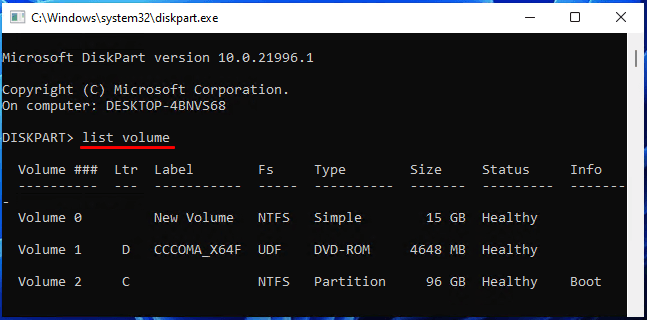
Step 3: Run the "select volume X" command to select the raw drive, then run the "format fs=ntfs quick" command to format it.
Conclusion
A hard drive becoming raw can be disastrous for your essential data, making it crucial to monitor their health closely. Qiling Disk Master is the ideal tool for managing hard disks and partitions, serving as a comprehensive toolbox for addressing hard drive-related issues. If a hard drive becomes raw, this tool can quickly and easily repair the drive, minimizing data loss and ensuring your important files remain safe.
You may also like:
Repair Raw Drive Windows 10 FAQs
Below we have answered most FAQs from the internet regarding raw drive repair in Windows 10. If you have any further questions regarding RAW drive repair, hopefully, they are answered below.
1. How to repair the raw drive using CMD?
To repair a RAW hard drive using the Command Prompt, you need to use the "diskpart" command to select the RAW volume, and then run the "format fs=ntfs quick" command to format and repair the drive. This will format the drive with the NTFS file system and perform a quick format, which should resolve the RAW issue.
2. How do I run CHKDSK on a raw drive?
It's not possible to run the CHKDSK command on a raw drive because Windows can't access it, making it impossible to perform disk checking. Additionally, many other Windows commands don't work on raw drives.
3. What causes a drive to become raw?
A hard drive can become "raw" due to various reasons, including unsafe removal, power failure, bad sectors, virus attacks, file system errors, and physical damage from factors like high temperatures, humidity, and dust.
Related Articles
- (2 Simple Solutions) How to Re-image a Computer for Windows 11/10/8/7
- How to Backup Google Account on Android and PC
- Why Is My Chromebook So Slow and How Do I Speed It Up? [Complete Guide]
- How to Fix 7 Days to Die Corrupted Save on PC (2024 New Guide)
Fix a corrupted 7 Days to Die save on PC. Learn how to locate save files, restore backups, and reduce the risk of losing progress. - How to Fix Windows Boot Manager Error Code 0xc0000225
If you receive Error Code - 0xc0000225 when you turn on your Windows PC, this post will help you resolve it using multiple methods. The methods are easy to follow, but ensure you take backup. Once the error code 0xc0000225 is fixed, you can get back to working on your PC. - How to Fix Error Code 41 Mac When Coping Files on macOS 13/12/11
If you're experiencing a Mac error code 41 while copying files, this article will help you understand what it means, why it occurs, and how to resolve the issue. You'll also find a bonus tip for recovering deleted files on your Mac.
Products
Articles & Tutorials
- Data Recovery
- Data Backup
- File Recovery
- File Backup
- System Backup and Restore
- Disk and Partition Clone
- Technical articles
- Mobile articles
- Disk Master Help
- Windows Data Recovery Tutorials
- Windows Secure Delete Tutorials
- Windows Partition Management Tutorials
- Windows File Backup and Restore Tutorials
- Windows System Backup and Restore Tutorials
- Windows Disk Backup and Restore Tutorials
- Windows Clone Tutorials