How to Backup Google Account on Android and PC
Google's virtual ecosystem has been at the forefront of online innovation, offering practical applications like Gmail, Google Photos, Google Chats, and Google Drive to keep people connected to the virtual world.

Google's widespread presence in daily life makes account security crucial, as logging in to a Google account grants access to various services, highlighting the need for robust security measures to protect user data.
If someone conducts cyber attacks on your Google account, leading to the loss of data, it can be a significant setback for you.
Backing up your Google account is essential to ensure that your data is safe and won't be lost unexpectedly. This article provides solutions on how to back up your Google account on both Android and PC, giving you peace of mind and protecting your Google data further.
You can get more Google information from these posts:
How to Backup Google Account on Android Device
You can back up your Google Account directly through the built-in features on your Android phone.
Here are 4 specific steps you can follow:
Step 1. Open Settings on your Android phone.
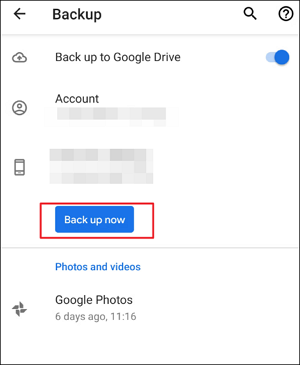
Step 2. Navigate to the Google> Backup options.
Step 3. The Backup option displays information about your Google account, device, and the date of your last backup.
Step 4. To start, hit the "Back up now" button, and the backup process will begin. Your backup copies will be saved in Google Drive.
- Tip
- The process of using a VPN on Android devices is generally the same, but details may vary due to differences between devices. To use a VPN, you can download and install a VPN app from the Google Play Store, or enable the VPN feature on your device if it's available.
Google gives each new user 15 GB of free Google Drive space to store data from Google Apps, and users can purchase more space through a Google One plan.
How to Backup Google Account with Google Takeout on PC
You can export your Google Account data from your computer and save it in another location for backup, in addition to having your Google Account automatically backed up on Android devices.
The specific tutorials are as follows:
Step 1. To access Google services, open the Google browser on your computer and log in to your Google account using your password. This will allow you to access your email, Google Drive, and other Google services.
Step 2. To export all content of your Google Account, navigate to the Google Takeout page.
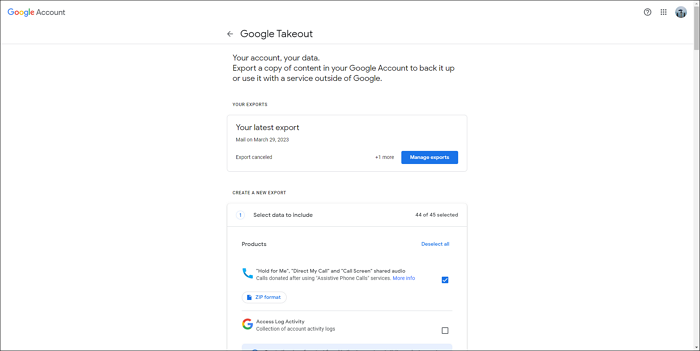
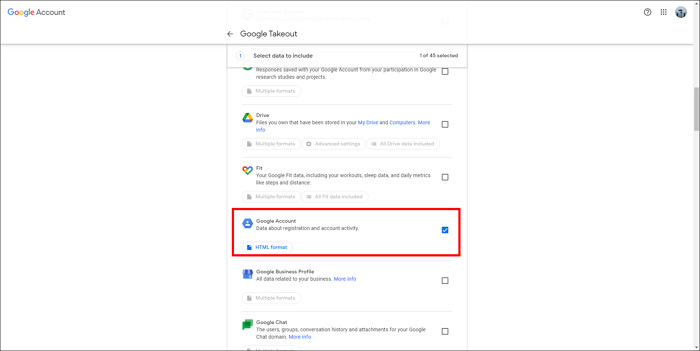
Step 3. To access the Google Account data, scroll down the page and select the "Google Account" option, which includes information about account registration and activity. Additionally, you can also back up relevant data from other Google applications by checking them together.
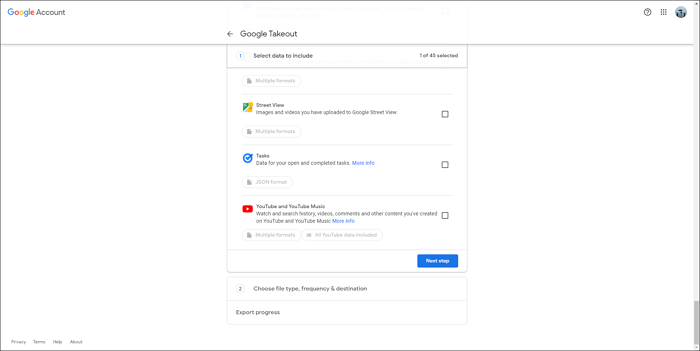
Step 4. After confirming your selection, move to the bottom of the page and click Next Step.
Step 5. To customize the settings, select the desired file type, frequency, and destination, then choose the option to send a download link via email. This allows you to download the data in Gmail and save it on a local or external disk, freeing up cloud space. Once all options are set, click "Create export".

Google Takeout can take a long time to export data, potentially up to a few hours or days, depending on the size of your Google Account.
Google Takeout is the most practical and comprehensive backup method for backing up Google Accounts, providing the best data security, making it worth the time spent.
Pro Tip: How to Further Secure Your Google Data
After exporting your Google Account on a PC using Google Takeout, it's recommended to download a copy of the data via email and save it on a local or external disk to avoid occupying limited space on your Google Drive.
To improve the security of Google Account data, consider following the 3-2-1 backup rule, which involves storing 3 different copies of data in 2 different media, and use professional data backup software like Qiling Disk Master Pro to facilitate the process.
Manually backing up important files can be a time-consuming operation, especially if you have a large amount of data. Even with Google's assistance, it can take several hours to export your data, and relying solely on copy-and-paste functions can be even more tedious.
Qiling Disk Master Pro, The offline backup software provides outstanding backup performance, allowing you to complete all backup tasks swiftly. It enables you to back up data into the cloud space it provides or other media, and also supports creating multiple backup tasks at the same time. This software helps you manage and classify your exported data, providing a stable and efficient backup solution.
The following are some features of Qiling Disk Master Pro:
- Automatic backup can be completed according to user needs
- Provides multiple advanced custom backup settings
- Provides multiple backup modes, including incremental backup
- To better protect your digital life, you can use a cloud backup service like Backblaze to automatically back up your computer's files and systems, including Gmail and other personal data. This way, you can have peace of mind knowing that your important data is safely stored in the cloud, and can be easily restored in case of a loss or disaster.
Go to the Google Account settings page and scroll down to the "Security" section. Click on the "2-Step Verification" option and then click on the "Get started" button.
Step 1. Click "Backup and recovery" tab page.

Step 2. There are four data backup categories, File, Disk, OS, and Mail, click File.

Step 3. Local and network files will be displayed on the left side, allowing users to extend the directory to select specific files to back up.

Step 4. You can store the backup on an external hard drive, a network drive, or a cloud storage service like Google Drive or Dropbox. Follow the on-screen instructions to select the location and confirm the backup settings.

To encrypt the backup with a password, click on "Options" in the "Backup Options" section, and then set up a backup schedule and choose to initiate a backup at a certain event in the "Backup Scheme" section, where other customization options for the backup process are also available.

Step 5. You can save the backup to a local disk, Qiling's online service, or a NAS.

Step 6. Qiling Disk Master allows users to backup data to both a third-party cloud drive and its own cloud drive.
If you want to back up data to a third-party cloud drive, select Local Drive, scroll down to add Cloud Device, add your account, and log in.
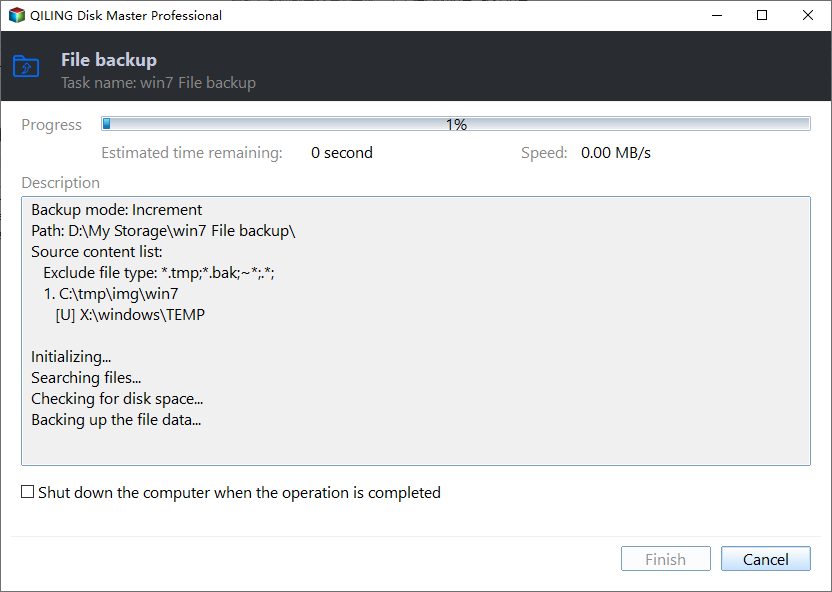
Step 7. To start the backup process, click "Proceed" on the panel. Once the backup is complete, it will be displayed as a card on the left side of the panel. You can then manage the backup job further by right-clicking on it.
Conclusion
To more comprehensively protect your data security, we recommend using Qiling Disk Master Pro to create a further backup plan for your important Google data. This will provide an additional layer of protection for your valuable information.
FAQs
1. Can you restore the backup from Google Drive to iPhone?
Google Drive backups cannot be restored to an iPhone due to compatibility issues with the iOS platform.
2. Do I need to backup my Google account?
Backing up your Google Account data is essential, as it allows you to restore your account in case of a security issue or account termination. This includes your contacts, calendar events, and other important information that you may not want to lose. By backing up your data, you can ensure that you have a copy of your account's contents, even if the original is lost or deleted.
To protect your Google Account data, it's crucial to regularly back up your information. This includes personal data, as well as data from Google apps and browsing history. Losing access to this data can be devastating, especially if it's due to a data disaster. By taking the time to back up your Account, you can ensure your data security and avoid potential losses.
Related Articles
- How to Solve No Usable Free Extent Could Be Found [Efficient Solutions]
- How to Fix DRIVER_IRQL_NOT_LESS_OR_EQUAL Error | 10 Ways on Windows 11/10
- 7 Days to Die File Disappeared? Find Causes & Solutions Here
- [Fixed] No Boot Disk Has Been Detected or The Disk Has Failed
When booting the computer, you may encounter the error: 'No boot disk has been detected or the disk has failed.' In this article, Qiling provides some valuable solutions to fix this error, and you can follow this tutorial. - How Do I Find My Autodesk Utility Design Product Key
Depending on the type of license you purchase, you may be prompted for an Autodesk product key during product activation. Here are methods to find it! - Where Do I Find Autodesk VIZ Product Key from 2021-2005
If you are a software coordinator or contract manager, Autodesk Account provides serial numbers and product keys for all products. Read on how to find it!
Products
Articles & Tutorials
- Data Recovery
- Data Backup
- File Recovery
- File Backup
- System Backup and Restore
- Disk and Partition Clone
- Technical articles
- Mobile articles
- Disk Master Help
- Windows Data Recovery Tutorials
- Windows Secure Delete Tutorials
- Windows Partition Management Tutorials
- Windows File Backup and Restore Tutorials
- Windows System Backup and Restore Tutorials
- Windows Disk Backup and Restore Tutorials
- Windows Clone Tutorials