[Fixed] No Boot Disk Has Been Detected or The Disk Has Failed
Key Takeaways:
- The "No boot disk has been detected or the disk has failed" error typically occurs when a computer is unable to boot from its primary boot device, usually the hard drive or solid-state drive (SSD), due to a failure or malfunction of the boot disk itself or an issue with the computer's boot process. This error message can be caused by a variety of factors, including a faulty or corrupted boot sector, a failing or dead hard drive, incorrect BIOS settings, or a malfunctioning boot loader.
- A wrong boot configuration or a corrupt boot disk can cause the "no boot disk has been detected" error.
- Qiling will provide six options to fix the error, and you can follow this tutorial.
HP or Acer users may receive a "no boot disk has been detected" error when booting their PC, as the system cannot find the boot information needed to load the operating system. Qiling can help analyze the cause and provide solutions to successfully boot the computer.
Why No Boot Disk Has Been Detected
The computer is unable to boot up because it can't find the boot information on the hard drive, or the hard drive itself has failed, leading to a failed boot process. This error can be caused by a faulty or missing boot sector, a failed or corrupted hard drive, or a boot disk that's not detected.
- Faulty or loose hard disk connection
- Incorrect boot order setting
- Corrupt boot configuration data
- Failed hard drive
- HDD/SSD missing operating system
After understanding the causes of the no boot disk has been detected or the disk has failed problem, we will continue to show you effective solutions to solve it. If you like this guide, click the social buttons below to share it with others in need.
Six Solutions to Fix No Boot Disk Has Been Detected Error
Knowing why the error occurred, you can jump directly to the target solution for error repair. However, if you're not sure why the error occurred, you can fix the undetected boot disk error through these troubleshooting steps in order:
- 1. Check the Hard Disk Connection
- 2. Change the Boot Order
- 3. Repair the Boot Sector
- 4. Check the File System
- 5. Run the Automatic Repair
- 6. Do A fresh install of Windows
This guide will provide detailed step-by-step instructions for each method:
📖Extend Reading: Default Boot Device Missing or Boot Failed
1. Check the Hard Disk Connection
Check the hard drive connection to your computer, ensuring it's properly connected, as laptop shaking can cause wires to loosen and lead to boot disk errors. Be cautious when handling it to avoid damaging the hardware.
Step 1. Remove the battery and hard drive from the computer to turn it off.
Step 2. Clean all ports and cables and reconnect the HDD.
Note: If you don't have the necessary tools and expertise, it's best to consult a computer professional or engineer for assistance.
Boot Device Not Found Hp Laptop? How to Fix?
If you're seeing an error on your HP laptop, such as 'Boot device not found HP laptop,' then continue reading this article as we show you how to fix this. To resolve the issue, you can try booting your laptop in safe mode, checking the boot order in the BIOS settings, or running a system file checker to identify and fix any corrupted system files.
2. Change the Boot Order
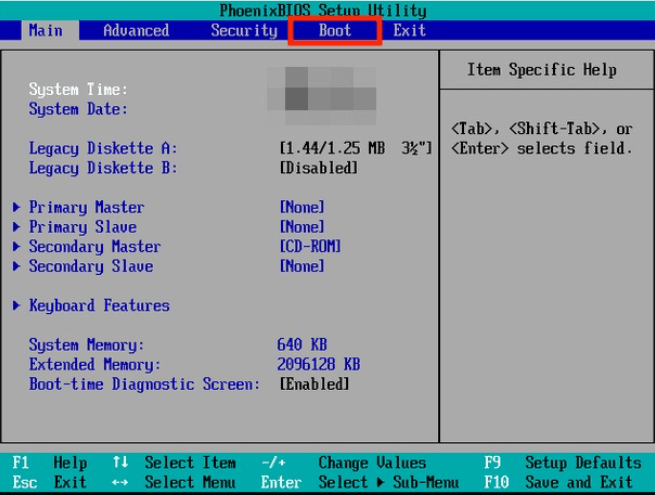
If the boot disk is not at the top of the boot order, the computer will try to boot from another source, potentially causing undetected disk errors if it can't find valid boot information. To resolve this, change the computer's boot order in the BIOS by following these steps:
Step 1. To access the BIOS settings on your computer, turn it on and immediately hold down the key that triggers the BIOS setup. This key is usually F1, F2, F12, or Del, but it can vary depending on the computer model.
Step 2. Select the Boot option from the list of options.
Step 3. To change the boot order, you can enter the BIOS settings by pressing the corresponding key (usually F2, F12, or Del) when the computer first starts up. Once in the BIOS settings, navigate to the "Boot Order" or "Boot Priority" section, and use the up and down arrow keys to reorder the devices.
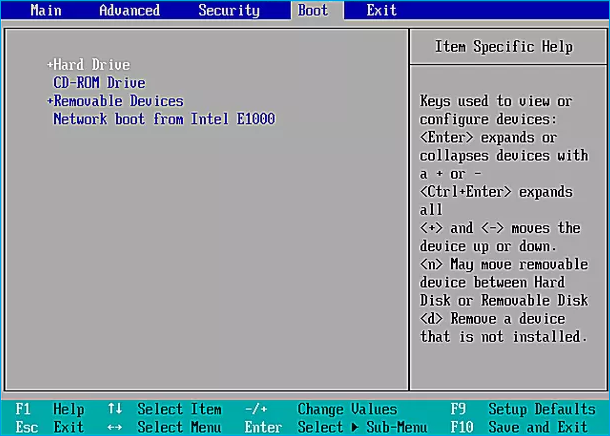
If the method isn't working, please continue to try other fixes.
Also read: The System Cannot Find Any Bootable Devices
3. Repair the Boot Sector
The master boot record (MBR) is a crucial component located at the beginning of the bootable hard disk, responsible for facilitating a successful computer boot-up. However, if the MBR becomes corrupted, it can prevent the system from recognizing boot information, ultimately leading to a failed boot. Fortunately, there are two ways to repair the boot sector:
Use Qiling Disk Master to Rebuild MBR
Qiling Disk Master is a user-friendly tool that simplifies the process of repairing the Master Boot Record (MBR) and creating a WinPE bootable disk, making it ideal for those who are not familiar with computer operations.
Free download this powerful tool and rebuild MBR:
Step 1. Create a WinPE bootable disk
- Launch Qiling Disk Master, click "Bootable Media" on the toolbar, and select "Create bootable media".
- Click "Next" to finish the process.

Step 2. Boot Qiling Disk Master Bootable USB
- Connect the bootable USB or CD/DVD to your PC.
- When you restart your computer, press F2 or Del to enter the BIOS screen. From there, set your computer to boot from a removable device or CD-ROM drive. This will allow Qiling Disk Master to run automatically once your computer boots up.
Step 3. Rebuild MBR
- In the "Disk management" tab, right-click the disk's head and select "Rebuild MBR".

- After selecting the type of MBR, click "Proceed" and the MBR will be successfully rebuilt on the specified disk.

If you encounter other boot errors, you can use Qiling Disk Master to resolve them:
Use CMD to Rebuild MBR
If you are familiar with computer commands, you should use the Windows Media Creation Tool to create bootable media and then use the command prompt to repair the MBR in the Windows recovery environment:
Step 1. To start the process, insert the Windows bootable installation CD or DVD into your computer's CD or DVD drive. Then, restart your computer.
Step To start the command prompt, select the "Troubleshoot" option from the "Choose an option" menu, and then select "Command prompt" from the "Advanced options" menu.
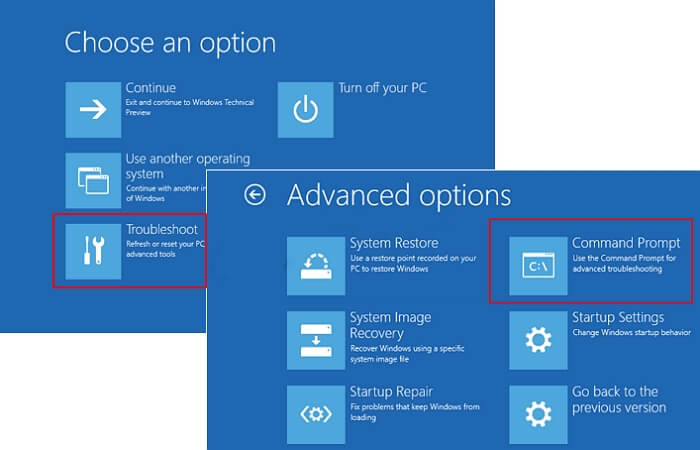
Step 3. Enter the following commands in sequence at the command prompt box and press enter:
- bootrec /fixmbr
- bootrec /fixboot
- bootrec /scanos
- bootrec /rebuildbcd
Be cautious when executing the commands to prevent data loss. After running the commands, restart your computer to verify if the issue with the failed disk has been resolved.
4. Check the File System
If your system hard drive has a file system error, you may get a "the disk has failed" error. To fix this, you can use bootable media to check and repair the file system. This process is similar to method 3 and involves creating bootable media. You can then use this media to check and repair the file system on your hard drive. This is a way to detect and fix the file system error on your hard disk.
Use Qiling Disk Master to Check File System
Qiling Disk Master provides "Check File System" and "Disk Surface Test" to help you find and fix hard disk errors, offering a simpler and more comprehensive alternative to Windows commands. After creating a bootable USB, you can use the tool directly to troubleshoot issues.
Step 1. Right-click the target partition that has a problem.
Step 2. Choose "Advanced" > "Check File System".
Step 3. Confirm if you want to hide the partition or not.
Step 4. In the Check File System window, select the "Fix the error on the disk" option.
Step 5. Click "Proceed" to check errors on your partition.
The tool can check hard drive health comprehensively and alert you if there are problems with hard drive performance or temperature.
Run CHKDSK to Check File System
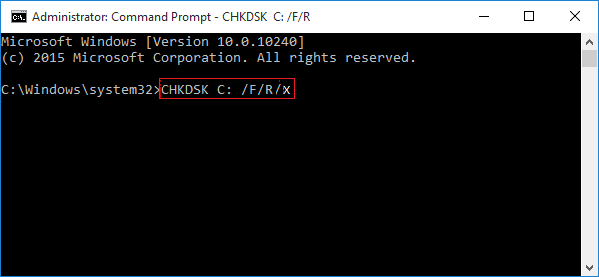
CHKDSK is a method Windows provides to detect and repair file system errors. To use it, go to the command prompt and type "chkdsk" followed by the drive letter of the drive you want to check, for example, "chkdsk C:" or "chkdsk D:". This will scan the drive for errors and prompt you to schedule a full disk check for the next reboot, giving you the option to automatically fix any errors it finds.
Step 1. Start your computer from a Windows bootable device.
Step 2. Go to Advanced Options and select Command Prompt.
Step 3. Type the command: chkdsk c: /f/R/X and press Enter.
Extend reading: How to Run CHKDSK on SSD
5. Run the Automatic Repair
To fix the error that prevents your PC from booting, you can run the Automatic Repair or Startup Repair on your system. However, before doing so, you must use Qiling Disk Master or Windows installation media to enter the Windows recovery environment.
Step 1. Boot from the CD/DVD and press any key to continue.
Step 2. Click on Repair your computer and select Troubleshoot.
Step 3. Select Advanced options>Automatic/Start-up Repair.

Step 4. Wait for Windows to finish repairing automatically.
6. Do A Fresh Install of Windows
If all solutions are not working, a Windows system may fail. To fix the error, you can do a fresh install of Windows, but this will erase all files, so it's recommended to back up important information before doing so. Alternatively, you can copy a partition to another drive to save your files. This will allow you to start fresh with a clean Windows install while preserving your data.
Read more about installing Windows at: How to Clean Install Windows
You May Also Like:
Conclusion
If you're experiencing a "no boot disk has been detected, or the disk has failed" error, don't worry - there are six potential solutions to fix it. Whether you're using an HP laptop or another computer, you can find a solution in this article. One quick and easy solution is to use Qiling Disk Master to create bootable media and resolve common errors.
FAQs About No Boot Disk Has Been Detected
Here are the answers to some frequently asked questions about the topic:
1. What should I do if no bootable device shows?
No bootable device is probably because you did not change the boot order. To fix the error, you should change the bootable device first, usually by entering the BIOS settings and selecting the correct drive as the primary boot device.
Step 1. Restart your computer and enter the BIOS screen.
Step 2. To prioritize the hard drive in the boot order, go to the Boot tab, locate the hard drive, and move it to the top of the list.
2. What does no boot disk has been detected mean?
"No boot disk has been detected" means your computer can't find its boot disk, which is usually the hard drive, and can't start up. This could be due to a corrupt or poorly connected hard drive.
3. Why does "media test failure, check cable" happen?
This error is caused by an issue with the computer's PXE, which can be due to problems with the boot sequence configuration, corrupt boot devices, corrupt boot sectors, or power supply issues.
Related Articles
- iMac Won't Turn on | Why and How to Fix
- [Fixed] The File Is Corrupted and Cannot Be Opened in Excel/Word
- What Is 'Format FS=NTFS Quick' and How to Use It? [2023 Full Guide]
- How to Fix Corrupted Recycle Bin in Windows 10 and Restore Lost Data
- Windows 10 Backup Features - All You Need to Know
Explore Windows 10 backup features including File History, Backup and Restore, and System Image. Learn how to protect your data from crashes, malware, and accidental deletion. - How to Fix Windows 10 Installation Has Failed [SOLVED]
You may encounter the error message 'the file is corrupt and cannot be opened in both Microsoft Excel and Word.
Products
Articles & Tutorials
- Data Recovery
- Data Backup
- File Recovery
- File Backup
- System Backup and Restore
- Disk and Partition Clone
- Technical articles
- Mobile articles
- Disk Master Help
- Windows Data Recovery Tutorials
- Windows Secure Delete Tutorials
- Windows Partition Management Tutorials
- Windows File Backup and Restore Tutorials
- Windows System Backup and Restore Tutorials
- Windows Disk Backup and Restore Tutorials
- Windows Clone Tutorials