iMac Won't Turn on | Why and How to Fix
Your iMac won't turn on after pressing the power button, possibly getting stuck on the Apple logo with a spinning wheel or loading bar before shutting down, preventing access to stored files.
If your iMac is experiencing issues such as not turning on or booting past the Apple logo, it may be due to software incompatibility or file system corruption. In this case, seeking expert help is recommended to resolve the issue as quickly as possible. The problem could be caused by a severe hardware issue that requires professional assistance to fix.
If your iMac won't turn on, don't worry - there are several solutions to this issue. In this article, we'll explore the top 5 methods to resolve the problem and also recommend the best data recovery software to use in case your iMac suddenly freezes. Let's get started!
| Workable Solutions | Step-by-step Troubleshooting |
|---|---|
| Fix 1. Restart Your iMac | The simplest approach to restart an iMac may be to select a few options from the panels...Full steps |
| Fix 2. Boot Mac into Safe Mode | Consider starting your iMac in Safe Mode to more quickly determine what's incorrect when...Full steps |
| Fix 3. Force Quit Apps on iMac | Forcing your iMac to quit unresponsive applications might solve iMac won't turn on issue...Full steps |
| Fix 4. Free up iMac's Disk Space | Emptying the Trash on an iMac is the best way to free up its disk space. Many folks start...Full steps |
| Fix 5. Reinstall in Recovery Mode | iMac recovery mode is a built-in retrieval system. Whenever the issue of iMac won't boot past...Full steps |
Ways to Fix the iMac Won't Turn on
If your iMac won't turn on, there could be several reasons, ranging from simple to complex issues. For the iMacs with no power, basic fixes like a loose power cord or a faulty power button might resolve the issue. However, if your iMac is slightly responsive, with the fan spinning but not turning on, it could be a more complex problem, potentially involving the logic board. In this case, professional assistance may be necessary.
If your iMac won't boot past the Apple logo and gets stuck on its loading screen, you can try resetting the System Management Controller (SMC), booting in Safe Mode, or running a System Restore. You can also try resetting the NVRAM, checking for loose connections, or running a diagnostic test.
Method 1. Restart Your iMac
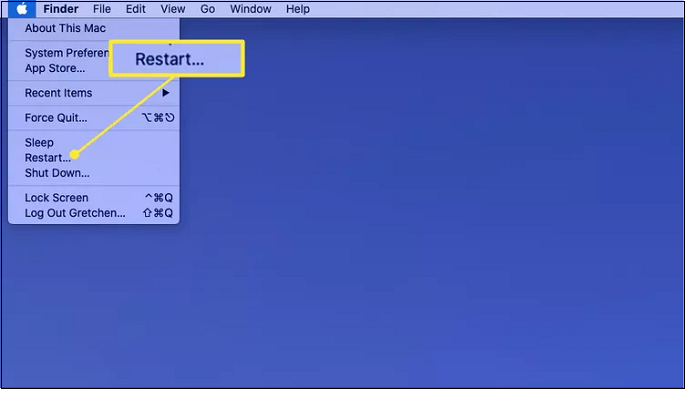
To restart your iMac, go to the Apple menu and select "Restart" from the dropdown list. Alternatively, you can press the power button located at the back or top of your iMac, depending on the model. If you're using an iMac with a touchscreen, you can also swipe down from the top right corner of the screen and tap "Restart" from the notification panel.
Step 1. Hit the Apple menu on the top left edge of your iMac screen, then hit the "Restart" button.
Step 2. When signing back in, ensure the "Reopen windows" option is checked if you want all your applications and files to reopen after the reboot.
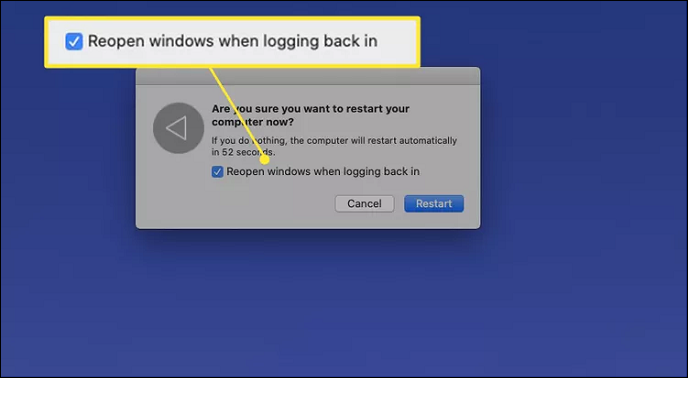
Step 3. To initiate the reboot, you can either restart your device or wait for the countdown to complete.
Method 2. Boot Mac into Safe Mode
Starting your iMac in Mac Safe Mode allows you to quickly identify the cause of the issue when it won't restart. This process involves scanning your initial drive and fixing any file system issues, providing a more straightforward approach to troubleshooting.
To resolve the iMac won't boot past the Apple logo issue, follow these steps to boot your iMac into safe mode. A secure boot can deactivate all login items and shift pointless caches to the Trash bin, making it easier to resolve the issue. By separating other relevant apps, you can easily resolve the problem. To start, you can try booting your iMac into safe mode, which can help you troubleshoot and resolve the issue.
Step 1. To shut down your iMac, keep pressing the power button located on the top right side of the device until it completely powers off. This is different from just putting it to sleep or turning it off through the menu.
Step 2. Restart your iMac by pressing the "Shift" key.
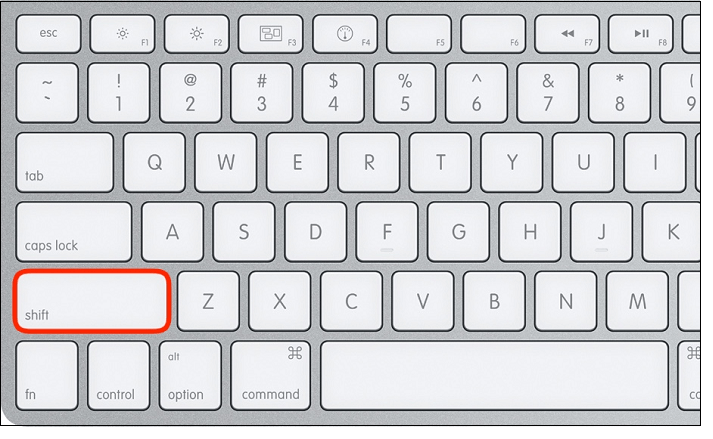
Step 3. Once you notice the loading bar, release that shift key.
Method 3. Force Quit Unresponsive Apps on iMac
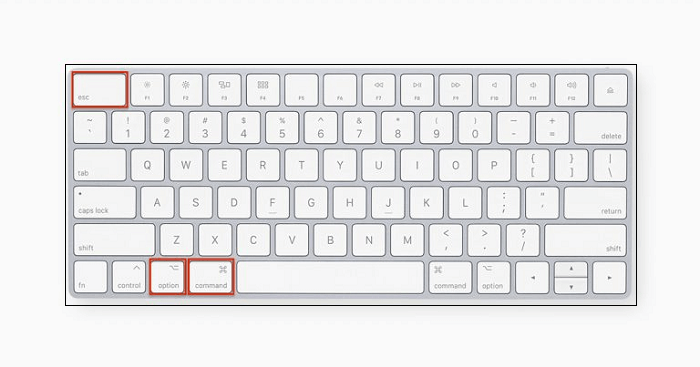
To force quit an unresponsive application on your iMac, you can use the keyboard shortcut Command (⌘) + Option (⌥) + Esc, which will open the Force Quit Applications window. From there, you can select the unresponsive application and click "Force Quit" to terminate it. Alternatively, you can press Command (⌘) + Option (⌥) + Shift + Esc to open the Force Quit Applications window directly.
Step 1. To force quit an application on an iMac, press and hold the "Command + Option + Esc" keys simultaneously on the keyboard. This will immediately bring up the "Force Quit Application" window.
Step 2. To resolve the issue with your Mac, select the frozen app from the Force Quit Applications window and click on "Force Quit". This will close the app and free up resources, allowing you to restart it or open a different app.
Method 4. Free up iMac's Disk Space
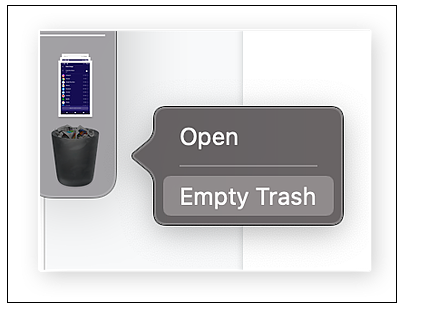
Emptying the Trash on an iMac is the best way to free up its disk space. Many folks start and finish their hard drive cleaning by discarding the trash, but on an iMac, the file you right-click and drag to the Trash still needs to be manually removed.
To free up space on your computer, simply navigate to your trash folder, select all the items inside, right-click and choose "Empty Trash" or "Delete Permanently". This will remove all the accumulated files, restoring your hard drive's capacity. The process is quick and straightforward, allowing you to reclaim your space without needing any additional software or configuration.
Step 1. You need to right-click on Trash on your iMac.
Step 2. Hit the "Empty Trash" option.
Method 5. Reinstall iMac in Recovery Mode
iMac recovery mode is a built-If your iMac won't boot past the Apple logo, you can try reinstalling it in recovery mode. To do this, follow these steps:
Step 1. Shut down your iMac by long pressing its power button.
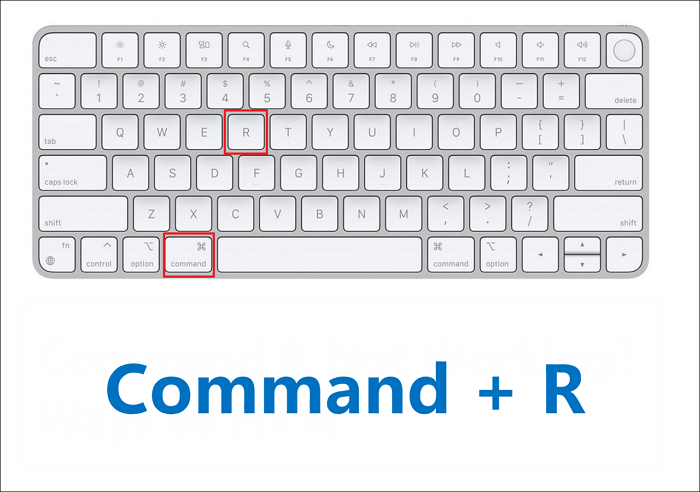
Step 2. To restart your Mac, quickly press the Command (⌘) + R keys together, and release them once you notice the Apple logo on the screen. This will initiate a restart of your Mac.
How to Recover Data After iMac Sudden Freezing
If your iMac suddenly stops responding, you might worry about losing important files. This can be especially concerning if you've got sensitive data or files that haven't been backed up. In such cases, a data recovery program can be a lifesaver, helping you retrieve lost files and safeguard your digital privacy.
You can use the Deep Data Recovery tool for Mac to recover lost data after file system errors, system failures, or accidental deletions. This user-friendly software allows even beginners to quickly retrieve files.
- With the assistance of Deep Data Recovery for Mac, difficult data loss situations can be resolved, and pictures, video content, music tracks, documents, and emails are applicable file types.
- Data and files can be retrieved from various Mac-based devices, including storage drives, memory cards, backup drives, cameras, and more.
- 79% of Apple users installed Time Machine to restore erased files on Macs, despite not having a backup.
Losing data without a backup can be frustrating. If you've lost all your data on your iMac, you can recover it through a professional data recovery platform like Qiling, which offers a new version with features such as.
- Enhanced retrieval quality of NTFS file system.
- The software now includes a Video Repair feature that allows users to repair damaged or corrupted video files on their Mac, providing an additional layer of functionality and convenience for users.
- Added the capability of ignoring problematic areas, and
recovering SD cards with bad sectors Mac.
Download this professional data recovery software for Mac and try out the following steps now to recover your lost files.
Final Thoughts
The iMac won't turn on or won't boot past the Apple logo because the iMac verifies hardware connections and crosschecks the CPU, GPU, RAM, and hard disk during startup, which can be faulty or malfunctioning, causing the issue.
The iMac installs the starting hard disk and its system partition, verifying the specifications are accurate, and displaying the Apple logo and a loading bar on the screen as it identifies the starting hard disk.
The iMac's unresponsiveness is caused by file system damage and software mismatch, which prevents it from booting past the Apple logo. This is because macOS takes over all software and hardware components, and if it can't retrieve necessary data or track some applications, it won't load.
If your iMac's files get deleted, it would be better to download a professional data retrieval software, Deep Data Recovery for Mac.
iMac Won't Turn on FAQs
If your iMac won't turn on, try the following steps: unplug it, wait for 30 seconds, and then plug it back in; check if the power cord is securely connected to both the iMac and the wall outlet; and press the power button for 30 seconds to discharge any residual power. If it still doesn't turn on, try resetting the System Management Controller (SMC) by unplugging the power cord, waiting for 30 seconds, and then plugging it back in.
1. How do you force restart an unresponsive iMac?
To access the iMac's startup options, press and hold the power button for 10 seconds until the startup options panel appears. Then, select the Options gear icon and click Continue to proceed.
2. How do I reset an unresponsive iMac?
- If your Mac keeps rebooting or is frozen on the screen, try the following: 1) Press and hold the power button until it turns off, then press it again to turn it back on. If this doesn't work, 2) Press and hold the Command (⌘) + Option (⌥) + P + R keys simultaneously for 10 seconds.
- Hold down the power button on your Mac for a maximum of ten seconds until it turns off.
- Reactivate your Mac.
- If the problem persists, hold the power button until your iMac shuts down.
- Restart your iMac.
3. How do I force my iMac to turn on?
To reset an iMac, you must hold the power button for 10 seconds, then press and release the power button, and immediately press and hold the Command + R keys. This will display an Apple logo.
4. Why is my iMac unresponsive?
A sluggish Mac is often caused by limited RAM or storage capacity, which can be overwhelmed by many things operating simultaneously, rather than a rare hardware failure. Additionally, clashing programs can also contribute to a Mac's slowness.
Related Articles
- Frustration and Loss: The Sandisk Extreme Pro Portable SSD Not Working
- How to Decide the Raid Redundancy over Performance [Everything You Should Know]
- How to Fix Windows 10 Stuck at Getting Files Ready for Installation
- How to Open .DAT Files in Windows 10/11
- HP Recovery Manager in Windows 10 [Free Download]
What Is and How to Use HP Recovery Manager? This guide gives a full understanding of HP Recovery Manager and covers a complete guide that you can follow to use HP Recovery Manager to Backup & Restore. - What Is Hyper-V Monitoring [All You Need to Know]
Hyper-V monitoring is the process of tracking and analyzing the performance and health of a Hyper-V virtualization environment. Learn how to optimize resource utilization, detect issues, and improve system reliability.
Products
Articles & Tutorials
- Data Recovery
- Data Backup
- File Recovery
- File Backup
- System Backup and Restore
- Disk and Partition Clone
- Technical articles
- Mobile articles
- Disk Master Help
- Windows Data Recovery Tutorials
- Windows Secure Delete Tutorials
- Windows Partition Management Tutorials
- Windows File Backup and Restore Tutorials
- Windows System Backup and Restore Tutorials
- Windows Disk Backup and Restore Tutorials
- Windows Clone Tutorials