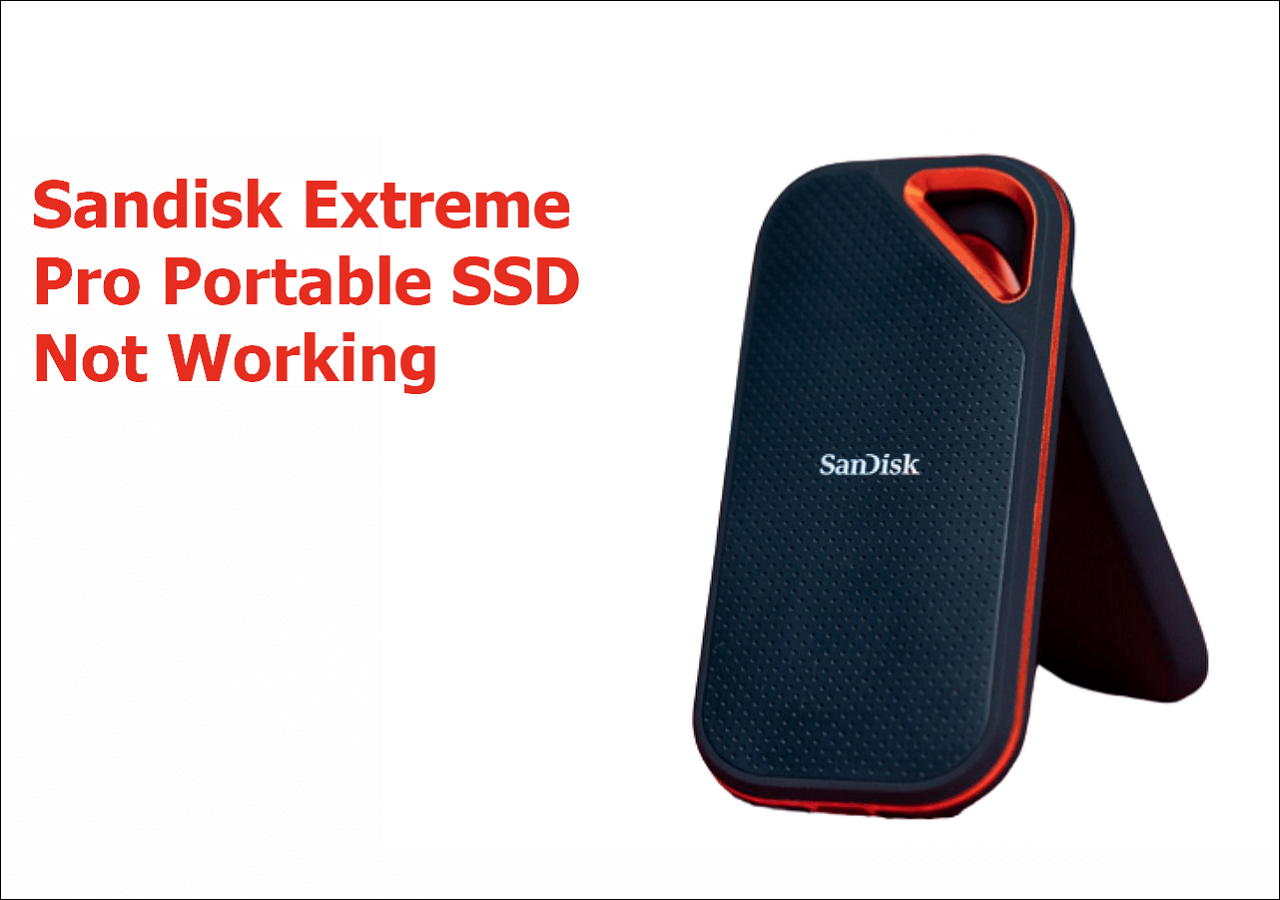
Frustration and Loss: The Sandisk Extreme Pro Portable SSD Not Working
In today's digital age, data storage and protection are crucial, and Sandisk Extreme Pro Portable SSDs are a popular choice for dependable and convenient data storage.
SanDisk's Extreme Pro portable SSD has been reported to have issues with some users, but SanDisk has not officially acknowledged these problems. Some users have experienced data loss or corruption when using the drive, while others have reported issues with the drive not being recognized by their computer. Despite these reports, SanDisk has not issued a recall or provided a clear solution for affected users.
The SanDisk Extreme Pro Portable SSD is a high-performance external storage device designed for professionals and enthusiasts who need to transfer large files quickly. However, it's not uncommon for users to experience issues with the drive not mounting or showing up in File Explorer after a period of inactivity. This problem is often caused by the drive's power management features, which can cause it to disconnect from the host device when it's not in use. To resolve this issue, you can try the following:
1. Device is not ready
2. Semaphore timeout period has expired
Tried on a few other Surface Pro Advance LTE. Same issue. Tried on a MacBook, and everything works without issue. I tried the following and noting can fix this issue:
1. Fresh Start
2. Install the latest firmware and drivers
3. Uncheck the "Allow the computer to turn off this device to save power" option for all USB controllers in the Device Manager to prevent the device from turning off USB controllers to save power.
Sandisk Extreme Pro Portable SSDs have been reported to malfunction, potentially leading to data loss, due to physical damage, compatibility issues, or firmware errors.
Losing important data can be a frustrating and stressful experience, but there are steps you can take to avoid data loss and restore lost data. To prevent data loss, it's essential to regularly back up your files and data to an external hard drive, cloud storage, or both.
Explanation: Sandisk Extreme Pro Portable SSD Malfunctions
There could be several reasons why your SanDisk Extreme Portable SSD or SanDisk Extreme Pro portable SSD is not detected or is not working, including hardware issues, software problems, or physical damage, which may cause the device to fail.
- ⚔️SATA compatibility: The SanDisk Extreme Pro SSD has a SATA interface, which may not be compatible with the adapter, dock, or case used with the drive, especially if it's a newer SATA version.
- 📄File system errors: Errors in the file system of the SSD can cause the device to malfunction, resulting in data loss or the inability to access files.
- 🦠Virus or malware infection: A virus or malware infection can cause an SSD to malfunction, corrupt files, or cause the device to become unresponsive.
- 🔋A power surge or voltage fluctuation: A sudden power surge or voltage fluctuation can damage the internal components of the SSD, causing it to malfunction.
Solutions: Fix Sandisk Extreme Pro Portable SSD Not Working
If your SanDisk Extreme Pro portable SSD suddenly stops working, the risk of data loss is high, which can have significant consequences. Before attempting to fix it, use SSD data recovery software, such as Deep Data Recovery, to restore your data from any disaster, including RAW disks.
To recover deleted files from a non-working SanDisk Extreme Pro portable SSD, start by checking if the drive is recognized by your computer. If it's not, try using a different USB port or a USB hub.
Step 1. Install and launch Deep Data Recovery, select the SanDisk Extreme Pro portable SSD where data was lost, and click Scan.
Step 2. After reviewing the Deleted Files and Other Missing Files folders, use the Filter and Search options to locate lost SanDisk Extreme Pro portable SSD data.
Step 3. To recover deleted data from a SanDisk Extreme Pro portable SSD, select the desired data and click the "Recover" button.
Fix 1. Update firmware and software
Updating the firmware and software of your SSD regularly can help prevent potential issues caused by outdated or corrupt firmware, ensuring optimal performance and reliability.
Fix 2. Run a disk check
To fix file system errors on your SSD, you can use the built-in disk check utility, which is available on both Windows and macOS, to scan and repair any errors on your solid state drive.
For Windows users,
Step 1. Open File Explorer to find the failed SSD, select "Properties,"
Step 2. Click on the "Tools" tab and click "Check."
Finally, follow the on-To repair errors on your SanDisk SSD, follow these steps: Insert the SanDisk SSD into your computer and launch the SanDisk SSD Dashboard software. If you don't have the software, you can download it from the SanDisk website.
For macOS users,
Step 1. Open Disk Utility from Finder.
Step 2. Choose the problematic SSD, and click "First Aid."
Fix 3. Format the SSD
If the issue persists and you have backed up your data, you can try formatting the SSD to resolve any file system errors or other issues, but keep in mind that this will erase all data on the device, so ensure you have a backup before proceeding.
Step 1. Connect your SanDisk Extreme Pro portable SSD to your computer.
Step 2. To format the SSD, open File Explorer, locate and right-click on the SSD drive, and select the "Format" option from the context menu. This will erase all data on the drive and prepare it for new data to be written.
Step 3. Set the new file system to SSD, then click "Start".
Step 4. To complete the formatting, use the "OK" button.
Prevention: Protect Sandisk Extreme Pro SSD from Data Loss
Preventing data loss is always better than trying to recover from it. To avoid losing important data, several measures can be taken, such as regularly backing up files, using secure data storage systems, and implementing robust cybersecurity protocols to protect against unauthorized access or cyber threats. By taking proactive steps to safeguard data, individuals and organizations can minimize the risk of data loss and ensure that their valuable information remains secure.
- Backing up data regularly on multiple devices or cloud storage is crucial to ensure that your information is safe and can be easily recovered in case of a loss or system failure.
- Investing in quality storage devices and ensuring proper care and maintenance can reduce the chances of data loss.
- To ensure a smooth and secure experience, it's crucial to keep both firmware and software up to date. This will prevent compatibility issues and ensure that your device runs optimally.
To ensure optimal performance and compatibility of your solid-state drive (SSD), it's essential to keep your computer's operating system and software up-to-date. This can help prevent issues with your SSD's compatibility and performance.
Conclusion
The Sandisk Extreme Pro Portable SSD, renowned for its speed and reliability, may still experience malfunctions due to various reasons. To prevent data loss and keep your SSD functioning optimally, follow the solutions and preventive measures outlined in this article.
Regularly backing up your data, updating firmware and software, and taking care of your device can help ensure your Sandisk Extreme Pro Portable SSD remains a reliable and high-performing storage solution for your creative needs.
Share helpful methods on social media to help others with the same problem.
Related Articles
- REFS Volume Showing as RAW: How to Fix Without Lossing Data
- Which Is the Best Time Machine Disk Format [Fast & Full Guide]
- How to Recover Unsaved/Lost/Corrupted Adobe Acrobat Files on Windows PC
- Google Drive for Desktop VS Backup and Sync [What's the Differences]
Compare Google Drive for desktop and Backup and Sync. Learn differences in file syncing, cloud backup, and Google Drive management. - All You Need to Know about GTA V File Location
Learn where GTA V files are stored on PC, how to find the GTA 5 file location, and how to move or manage game files safely.
Products
Articles & Tutorials
- Data Recovery
- Data Backup
- File Recovery
- File Backup
- System Backup and Restore
- Disk and Partition Clone
- Technical articles
- Mobile articles
- Disk Master Help
- Windows Data Recovery Tutorials
- Windows Secure Delete Tutorials
- Windows Partition Management Tutorials
- Windows File Backup and Restore Tutorials
- Windows System Backup and Restore Tutorials
- Windows Disk Backup and Restore Tutorials
- Windows Clone Tutorials