Which Is the Best Time Machine Disk Format [Fast & Full Guide]
Are you looking for the best Time Machine disk format? With numerous formats to choose from, it can be confusing. However, by understanding the different options, you can select the best format for your external hard drive Mac and ensure seamless backups.
Introduction
Time Machine is often used to back up files to external hard drives, but it has limitations in backing up all types of file systems. To use Time Machine effectively, you need to know the suitable disk formats for it.
What Format Does Mac Use for Time Machine?
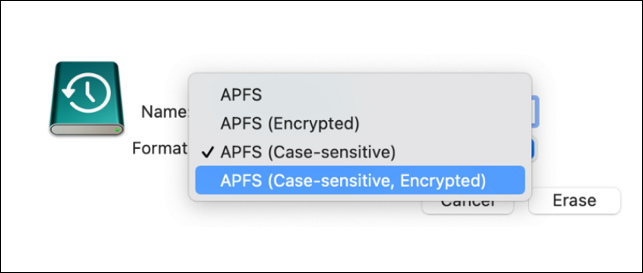
APFS and APFS Encrypted are the preferred formats for the Mac Time Machine disk, but if users select a new disk without formatting as an APFS format, they need to format the disk first. This is because APFS is optimized for Time Machine backups, providing better performance and reliability.
Why Is Time Machine Disk Format So Important?
The disk format is also known as the file system format, which determines how files are laid out on the drive and how Mac Time Machine reads and writes files from the disk drive. It's crucial that the Time Machine disk is in the best format.
The best Time Machine disk format depends on your specific needs and preferences. If you want a simple and easy-to-use solution, a single, large disk (e.g.
Time Machine Disk Format - 4 Main Types
Mac Time Machine still supports APFS and Mac OS Extended Journaled (HFS+), as well as FAT32 and exFAT, but APFS has its own set of pros and cons that are worth noting.
Time Machine Disk Format: APFS
The final code for APFS was released in 2017, allowing for increased read and write speeds on solid-state drives (SSDs), as well as maximizing storage space by optimizing available data on disk calculations.
Suitable System:
- Mac OS X Big Sur (v. 11.0) or above
The table provides a concise overview of the pros and cons of APFS, allowing users to quickly compare the advantages and disadvantages of this file system. It helps to identify the benefits of APFS, such as improved performance and security, as well as its limitations, including compatibility issues and potential data loss risks.
| File Format | Pros | Cons |
|---|---|---|
| APFS |
|
|
HFS+ is a file system that was first introduced by Apple in 1998, and it has been widely used on Mac computers. It supports file sizes up to 8 exabytes and supports file names up to 255 characters. HFS+ also supports case-insensitive file names, which means that files and folders with the same name but different capitalization are considered the same.
Time Machine Disk Format: HFS+
HFS+, also known as Mac OS Extended, was introduced in 1998 for Mac OS 8.1, designed to support the transition to a UNIX-based OS. Over the years, Apple added new features to HFS+, including journaling support, compression, and whole disk encryption, making it a robust file system.
Suitable System:
- Earlier Mac OS X versions like Catalina and Mojave
Read this table and learn more about HFS+.
| File Format | Pros | Cons |
|---|---|---|
| HFS+ |
|
|
If you want to know more difference between APFS and macOS extended, there is a link to help.
The choice of file system for your system depends on various factors. To help you understand the options, we've explained APFS (Apple File System) and Mac OS Extended in detail, providing you with a comprehensive understanding of these file systems to make an informed decision for your system.
There are two file formats suitable for Mac. These are the .pages file format and the .
Time Machine Disk Format: FAT32
FAT32 is a file system that allows a default cluster size of 4KB, supports hard drive sizes up to 2 TB, and is considered the most compatible file system type in existence, with specific features including.
Suitable System:
- Windows and Mac
- Linux and PS4
- GameCube and Xbox 360
You can know more about FAT32 from this table.
| File Format | Pros | Cons |
|---|---|---|
| FAT32 |
|
|
We've reached the last file format, exFAT. Let's dive into it: exFAT, short for Extended File Allocation Table, is a file system developed by Microsoft. It's designed to be used on removable media, such as USB drives and memory cards, and is particularly useful for large files and high-capacity storage devices.
Time Machine Disk Format: exFAT
exFAT, a file system developed by Microsoft, was released in 2006. It allows for efficient operation with no file size limitations, similar to FAT32.
Suitable System:
- Windows, Mac OS, and Android
- PS5, Xbox One, and Linux
Read this table and find its specific pros and cons.
| File Format | Pros | Cons |
|---|---|---|
| exFAT |
|
|
Now that we've learned about the four file formats, the next question is when to use them. Let's keep reading to find out!
Which Is the Best Time Machine Disk Format?
The four formats of a document (Word, PDF, Excel, and PowerPoint) have different features, allowing users to choose the best one for their needs and devices. A table can be used to compare and understand the characteristics of each format.
| File Formats | Suitable Occasions |
|---|---|
| APFS | Works on macOS 10.13 or later |
| FAT32 | Works on Windows and macOS |
| exFAT | This software works on both Windows and macOS platforms and is capable of handling file sizes exceeding 4GB. |
| HFS+ | Mac OS 8.0 and earlier |
The choice between HFS+ and APFS depends on individual needs, but APFS is the default file format for Time Machine. To format a disk to APFS, you can follow the steps.
How to Format Disk to APFS on Mac?
Now, follow these steps and you can format your disk to APFS.
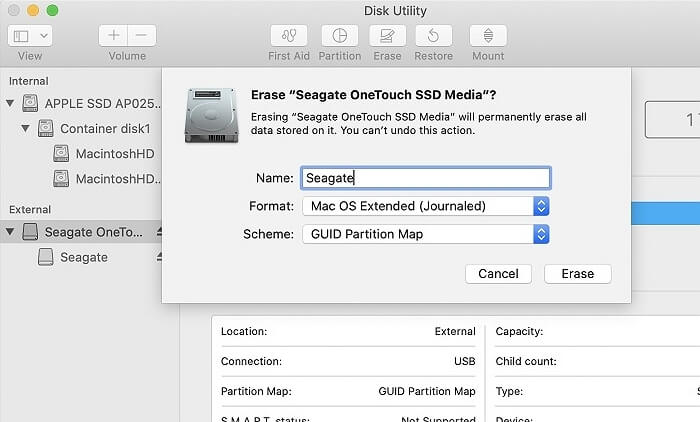
Step 1. Launch "Disk Utility" and find the disk or drive to format, then select it and click the "Erase" button to start the formatting process.
Step 2. Click "Erase" to format your disk.
Step 3. Type a name for your disk.
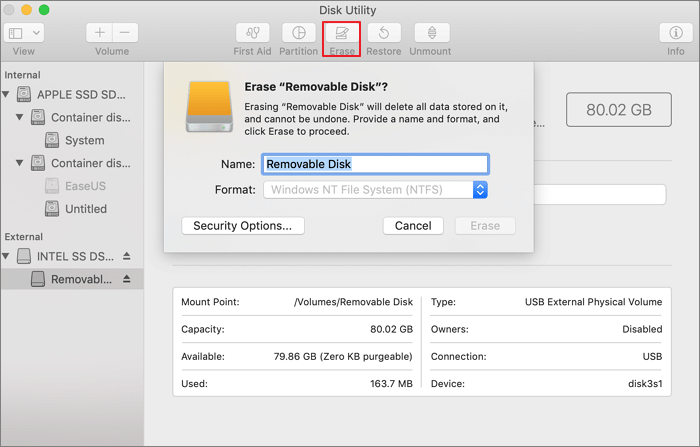
Step 4. Determine the format as APFS.
Step 5. Click "Erase" and then click "Done" after finishing the process.
If you're looking to format a disk for macOS usage, you can follow the steps above to convert it to APFS. However, what if the device you're working with is a Windows device? In that case, you'll need to find an alternative approach to format your disk drive for macOS usage, and reading on will provide more information on how to do so.
Bonus Tip: Professional Tool to Convert Formats on Windows for Mac Usage
To format a disk on Windows to a specific format, consider using a third-party tool like Qiling Disk Master Professional. This tool allows you to format your disk to any type of format you want.
Qiling Disk Master can make it easier to format a disk. It is far more than a Disk Management tool, providing features such as disk partitioning, formatting, and wiping, as well as disk cloning and backup. Its user-friendly interface and powerful functionality make it a valuable tool for users looking to manage their disks and ensure data security.
- Convert to MBR (Master Boot Record) or GPT (GUID Partition Table)
- Copy OS and data to another HDD or SSD
- Format disk, partition, and external hard drive
- Create, delete, resize, move, and extend partitions
You see. It is a multi-If you're struggling with formatting or converting file formats, a functional format tool can be a lifesaver. This type of tool is designed to help you easily convert between different file formats, making it a valuable resource for anyone who needs to work with various file types. With a functional format tool, you can quickly and efficiently format your files to meet your specific needs, whether that's converting a document to a specific format or formatting a spreadsheet to make it more readable.
Conclusion
This page discusses the suitable Time Machine disk format for macOS, elaborating on four file formats that are compatible with the operating system. Additionally, it introduces the Qiling Partition Manager, a utility format tool that can help format devices and manage partitions in a simple way, making it a helpful resource for those who want to format their device or manage their partitions.
FAQs About Time Machine Disk Format
There are three questions and answers to help you understand Time Machine disk formats. Do you have any other questions about Time Machine disk formats? If so, here are some additional questions and answers to help you.
1. Should I use APFS or macOS journaled?
On Macs, you can choose between Mac OS Extended and APFS as your file system. Mac OS Extended is best for older Macs with traditional hard drives, while APFS is a good choice for newer Macs with solid-state drives (SSDs) or flash drives.
2. Is APFS better than HFS+?
APFS is faster than HFS+ because it's optimized for SSDs.
3. Which Mac disk format is best?
APFS and Mac OS Extended (Journaled) format perform well on a Mac, with the choice between them depending on the device's version.
Related Articles
- How to Check If Disk Is Failing in Windows/Mac [2023 Complete Guide]
- [Solved] Your Computer Is Low on Memory Windows 7/8/10 in 8 Ways
- System Service Exception Stop Code 0x0000003B in Windows 10 [10 Fixes]
- macOS Cannot Verify That This App Is Free from Malware [Error Solved]
- Samsung 990 Pro vs WD Black SN850X: How to Choose?
Compare Samsung 990 Pro and WD Black SN850X SSDs by speed, gaming performance, reliability, and upgrade value. - [5 Quick Fixes] Samsung Data Migration Not Working
Samsung data migration not working may be caused by various issues, but can be easily fixed and analyzed with simple solutions, and an alternative method is available to transfer old hard drive data onto a new Samsung SSD.
Products
Articles & Tutorials
- Data Recovery
- Data Backup
- File Recovery
- File Backup
- System Backup and Restore
- Disk and Partition Clone
- Technical articles
- Mobile articles
- Disk Master Help
- Windows Data Recovery Tutorials
- Windows Secure Delete Tutorials
- Windows Partition Management Tutorials
- Windows File Backup and Restore Tutorials
- Windows System Backup and Restore Tutorials
- Windows Disk Backup and Restore Tutorials
- Windows Clone Tutorials