System Service Exception Stop Code 0x0000003B in Windows 10 [10 Fixes]
When your PC crashes or fails to work normally, it could result from system service exceptions, including error code 0x0000003B. This error may occur due to various reasons such as driver issues, malware attacks, or file corruption.
This article will discuss the system_service_exception stop code 0x0000003B, its causes, and the 10 possible fixes in a single paragraph. The system_service_exception stop code 0x0000003B occurs when a system service crashes, causing the operating system to stop responding.
| Workable Solutions | Step-by-step Troubleshooting |
|---|---|
| 1. Run Display Context Record | The command displays the registers for every context record. The primary function of this...Full steps |
| 2. Display Stack Backtrace Command | This command can also fix bug issues in your Windows computer that...Full steps |
| 3. Identify the Driver | Launch "Windows PowerShell" as an administrator. When the Windows Powershell...Full steps |
| 4. Fix MBR Error | Boot your PC from a Windows installation media. Press the relevant keys until...Full steps |
| Other Working Solutions | Rebuild BCD > Run Startup Repair > Reset BIOS > Disable Secure Boot...Full steps |
What Is SYSTEM_SERVICE_EXCEPTION with Code 0x0000003B
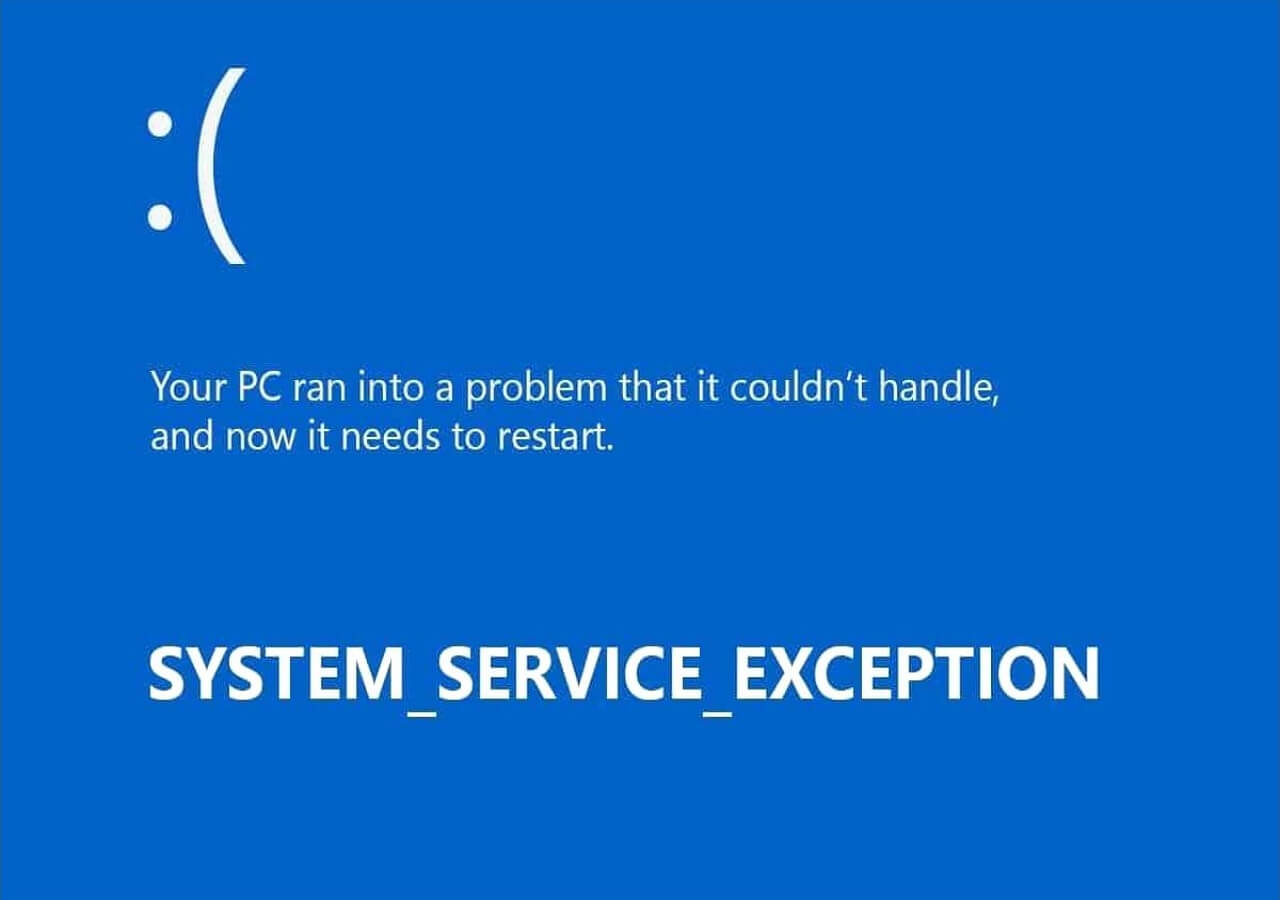
The system_service_exception error code 0x0000003B is a stop error on Windows that causes a fatal system crash, making it unsafe for further operations. It often occurs due to incorrect system file and device driver configurations, resulting in a blue screen of death.
When encountering the BSOD error 0x0000003B, your computer may crash and restart, losing unsaved data, and may also experience periodic freezes, system crashes, and sluggish system operations, often caused by incompatible software or hardware installations.
Causes of SYSTEM_SERVICE_EXCEPTION with 0x0000003B
The stop code error 0x0000003B, also known as system service exception 0x0000003B, can occur due to several reasons. Common causes include a faulty or corrupted driver, a malfunctioning system component, a hardware issue such as a failing hard drive or RAM, or a software problem like a virus or malware infection. Additionally, a recent system update or a change in the system configuration can also trigger this error.
Malware/virus attacks- Error 0x0000003B on Windows is often caused by a malware or virus attack, which can be triggered by infected downloaded or system files, disrupting the normal functioning of applications.
Corrupt drivers- Drivers can sometimes be outdated or corrupted, causing stop code errors due to their malfunctioning in hardware and software functioning.
Damaged system files- System files are crucial for the proper functioning of your operating system. If they become corrupted, it can lead to serious problems on your device.
Memory errors- All read-write operations on a computer are managed by the primary memory, which is responsible for executing programs stored on the hard disk through the Random Access Memory (RAM). If the RAM fails to function properly, it can lead to various system errors, including the stop code 0x0000003B.
Damage to the hard drive- The hard drive stores all data on a Windows computer. If it's damaged or malfunctions, it can cause system_exception_service_code errors.
Corrupted registry- The Windows registry stores information about installed applications. If its entries become corrupted, it can lead to a system_service_exception error.
How to Recover Data without Windows 10 (Bonus Tip)
You will likely experience data loss following the system_service_exception with a 0x0000003B error, and you can recover data using Deep Data Recovery WinPE, which supports different operating systems including Windows 11/10/8/7.
When your operating system crashes or fails to start properly, this software can be used as a bootable media to recover all files. It also offers a safer data recovery mode for a damaged system disk, ensuring that data is not lost in situations like constant computer freezing or frequent rebooting.
Features of Deep Data Recovery WinPE
Recover files without overwriting original data This software is 100% safe in recovering deleted files, ensuring it won't overwrite your existing data. Simply launch the application, and the data recovery process will begin.
No need to reinstall Windows You don't need to install another operating system before using Deep Data Recovery, as it can be run from a bootable USB drive or CD/DVD, saving you time and effort.
Allows you to create a bootable media To recover files after a system crash, you can create a bootable media with software that allows you to easily retrieve lost files.
Preview files before recovering them Qiling allows you to preview photos and audio before deciding on the files to recover, saving time by avoiding the recovery of unnecessary files.
To get started with Deep Data Recovery WinPE Edition, download and install it on your computer, and then follow the easy-to-use steps provided by the software.
Step 1. Create a bootable disk
Before creating a bootable disk using Deep Data Recovery WinPE Edition, prepare an empty USB drive. If the USB contains important data, copy it to another device to avoid losing it. Then, use the software to create a bootable disk on the prepared USB. Note that this process will erase the data on the USB.
Connect a USB drive to your PC, then launch Deep Data Recovery WinPE Edition. Select the USB drive and click "Create" to create a bootable disk.
Step 2. Boot from the bootable USB
Connect a bootable disk to the PC that won't boot, and change the computer's boot sequence in the BIOS. Typically, users can access the BIOS by restarting their computer and pressing F2 simultaneously. This allows the PC to boot from the external disk.
To boot your PC from an external source, such as a USB drive or CD/DVD, instead of the internal hard drive, press the "F10" key to save and exit the BIOS settings, allowing you to choose the boot order. This allows you to prioritize the boot sequence to start from a removable device or optical drive.
Step 3. Recover data from a hard drive that won't boot
When you boot from a USB, you can run Deep Data Recovery from the WinPE bootable disk, then select the drive you want to scan to find all your lost files.

Click "Scan" to start the scanning process.

After scanning, you can preview all recoverable files, select the targeted files, and click the "Recover" button to restore your files. It's recommended to save all recovered data to another place to avoid data overwriting. This will ensure that your recovered files are safely stored and protected from any potential data loss.

10 Ways to Fix System Service Exception Stop Code 0x0000003B
If you've faced issues with system_service_exception stop code 0x0000003B, it shouldn't worry you anymore since we have the possible fixes for you. In this section, we'll discuss ten ways to fix this error, including the method that could work best for you.
Fix 1. Run Display Context Record Command
Running the display content record command may solve the system_service_exception error, which is often caused by a bug on your system. This command helps display the context record in a given location address and determines the register context, providing insightful data for debugging your system by identifying unhandled exceptions.
The command displays the registers for every context record. To run the command, you can paste the following debug syntax in Command Prompt: `ASSISTANT`
.cxr /w [Address]
Replace "Address" with the correct system context record address.
Fix 2. Carry Out Display Stack Backtrace Command
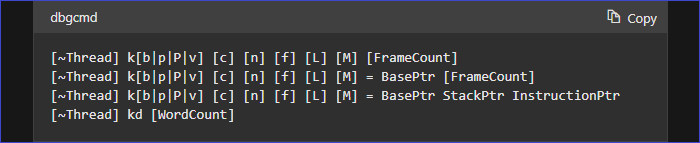
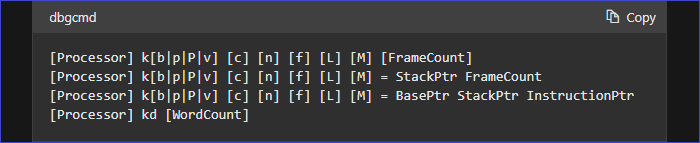
This command can fix bug issues in your Windows computer that are causing stop code 0x0000003B, and comprises different k commands that output the stack frame for a specific thread and its associated information, including stack frame base pointer, function names, and return address.
The kd and kp commands allow you to display the full parameter of a function in a stack trace, making it easier to identify the functions causing a malfunction. When a function is called, the kd and kp commands display the parameter's name, data type, and value, providing a clear understanding of the system's behavior. This feature is particularly useful for debugging and troubleshooting purposes, enabling developers to quickly pinpoint the source of issues and make necessary adjustments.
User-Mode, x86 Processor
Kernel-Mode, x86 Processor
Fix 3. Identify the Driver to Fix 0x0000003B Error
One of the major causes of system_service_exception error is problems with the drivers installed on your system, particularly unassigned drivers. To resolve this, you'll need to run a driver verify manager and check for all unassigned drivers, which can be causing the issue. By identifying and addressing these problematic drivers, you can potentially fix the system_service_exception error.
Step 1. Launch "Windows PowerShell" as an administrator.
Step 2. When the Windows Powershell window opens, type "verifier" and press Enter.
Step 3. On the dialogue box that opens, select "Create standard settings" and click "Next".
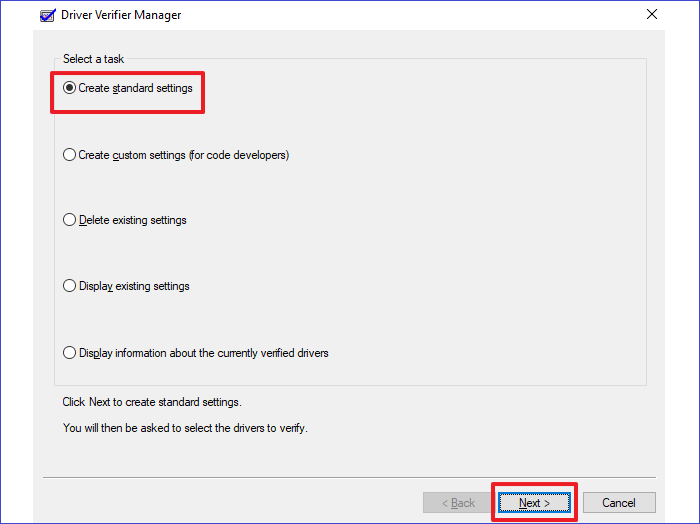
Step 4. The system will automatically select unassigned drivers and display their list after checking them on your PC.
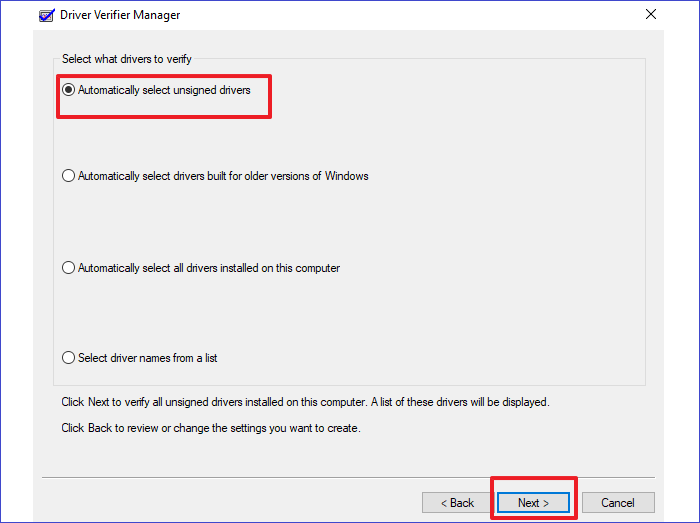
Step 5. Once the "Operation completed successfully" message appears, you can exit Windows Powershell and restart your PC to check if it has resolved the issue.
Fix 4. Fix MBR and File System Errors to Fix 0x0000003B Error
When your computer encounters MBR and file system errors, it's likely to face system_service_exception errors, including stop code 0x0000003B. To resolve this issue, you can fix the file system errors, which will help your computer come out of this mess. Here are the steps to follow:
Step 1. Boot your PC from a Windows installation media.
Step 2. Press the relevant keys until you reach "Windows Setup".
Step 3. To access the Command Prompt, click on the "Repair your computer" option, then go to "Advanced options > Troubleshoot > Advanced options > Command Prompt".
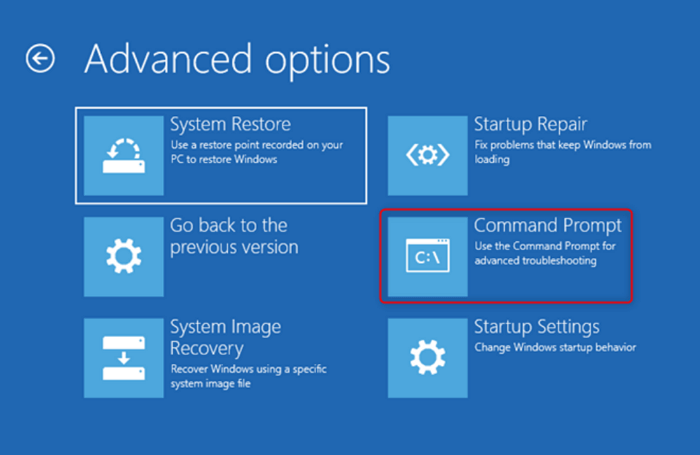
Step 4. Paste the following commands to the Command Prompt window:
chkdsk c: /r
sfc /scannow
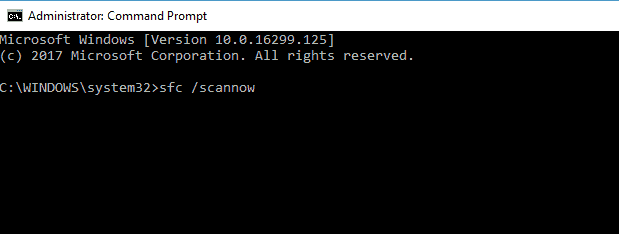
Step 5. Once the command has run successfully, close the window, then reboot your device.
Fix 5. Rebuild BCD to Fix Error Code 0x0000003B
To rebuild BCD and resolve error code 0x0000003B, access the "Advanced Startup" option on your device settings. If you're unable to access these settings due to the crash, try restarting your computer 3-4 times to reach the advanced startup option. Once you've accessed it, you can proceed with the necessary steps to rebuild BCD.
Step 1. Go to "Troubleshoot > Advanced options > Command Prompt".
Step 2. Next, paste the following commands on the Command Prompt window:
bootrec /fixmbr
bootrec /fixboot
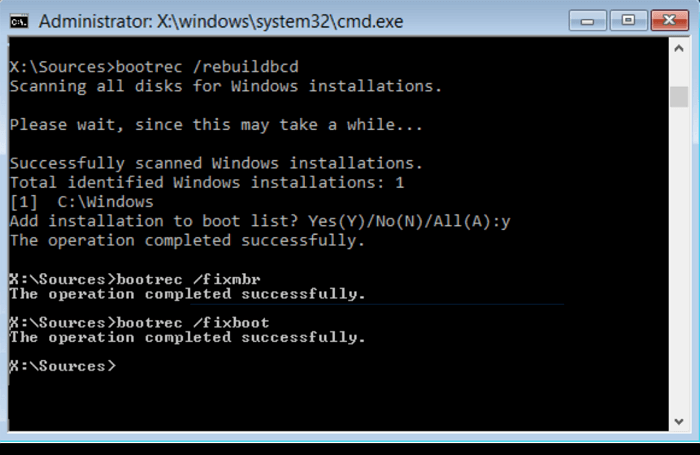
Step 3. Once the operation becomes successful, reboot your device.
Fix 6. Run Startup Repair to Fix Code 0x0000003B
Running a startup repair helps solve most startup issues, including system_service_exception stop code 0x0000003B, by scanning and attempting to fix issues on all drives, often resolving the problem and allowing the computer to start normally.
Below are the steps to apply this fix.
Step 1. Launch your computer from a bootable media.
Step 2. Follow the relevant steps until you access "Windows Setup".
Step 3. After selecting your language, click "Next".
Step 4. On the next Window, click "Repair your computer".
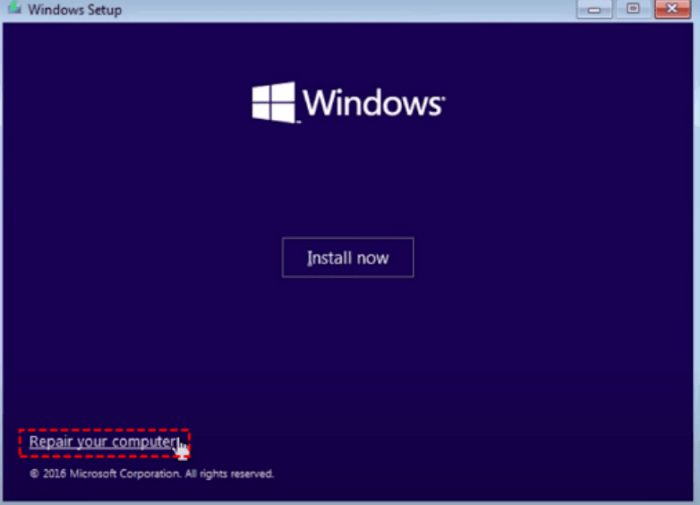
Step 5. If your PC has errors, selecting the "Troubleshoot" option and clicking on "Automatic Repair" can fix them and allow your PC to launch normally.
Fix 7. Perform a System Restore to Fix Code 0x0000003B
To resolve error code 0x0000003B, you can try restoring your system to a previous point in time when the issue did not occur. This can be done by going to System Protection in the Control Panel, selecting a restore point from a date before the problem started, and then restarting your computer. This will revert all system changes made since the selected restore point, potentially resolving the error.
Step 1. Open "Advanced options".
Step 2. Go to "Troubleshoot" and select the second option.
Step 3. Click on "System Restore".
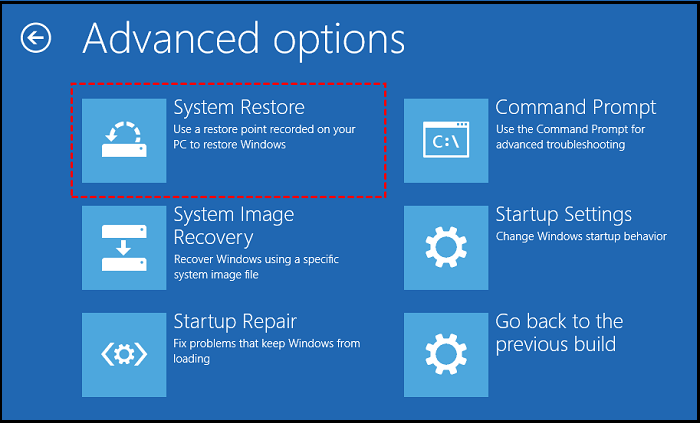
Step 4. To access Windows 10, you need to select a valid account, enter your password, and then click "Continue".
Step 5. Hit the "Next" button.
Step 6. To resolve the system_service_exception code error, select "Restore point" to restore your system to a previous point when the error was not present. This will help in resolving the issue.
Fix 8. Reset BIOS to Fix System Service Exception Error
Restoring your system's BIOS settings can sometimes resolve issues when your system malfunctions. In some cases, viruses may affect multiple programs, including your BIOS settings, and resetting the BIOS can help resolve the problem. To do this, you can follow these steps:
Step 1. Turn on your computer and press F2 until the "Entering Setup" message displays.
Step 2. Once the BIOS opens, you can reset it to its factory default settings, and the method to do so depends on the type of device you have.
- Select the button for "Load defaults".
- Press F9 on your keyboard.
- Press Alt+F.
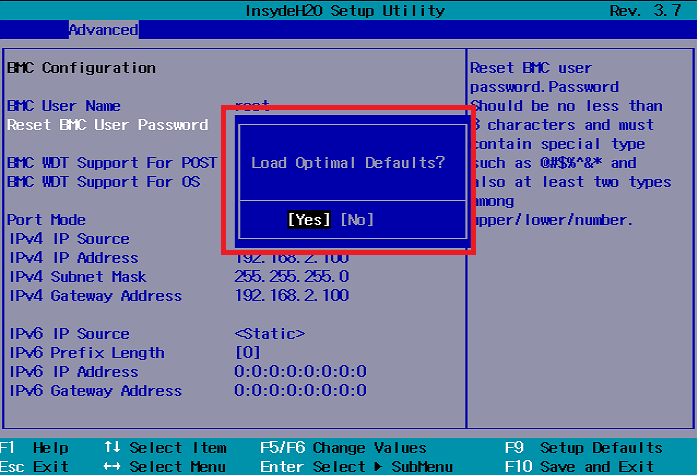
Step 3. Press the Esc key.
Step 4. Select "Save and exit" to save the changes you've made.
Step 5. Save all the other changes and exit BIOS, your computer will restart, and possibly the stop code error 0x0000003B will disappear.
Fix 9. Disable Secure Boot in BIOS to Fix the BDOS Error
Secure Boot is a Windows security feature that prevents system startup if errors like the 0x0000003B stop code occur, including system_service_exception. To resolve this, you can disable Secure Boot temporarily in the BIOS settings by following some steps.
Step 1. Restart your Windows computer.
Step 2. When the logo for your computer brand appears, press a function key (such as F1, F2, F10, F12, Delete, or Esc) to access the BIOS settings.
Step 3. Once in the BIOS settings, click on the tab for "Security."
Step 4. Navigate to the "Secure Boot" option and disable it.
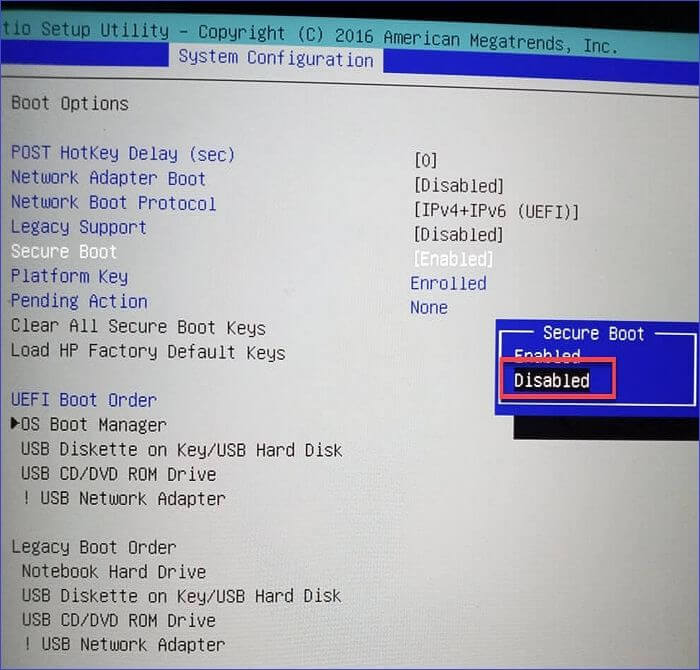
Step 5. Save your settings before exiting BIOS. Next, restart your system to check whether the stop code error 0x0000003B has disappeared.
Fix 10. Reinstall Windows 10 to Fix Windows Stop Code 0x0000003B
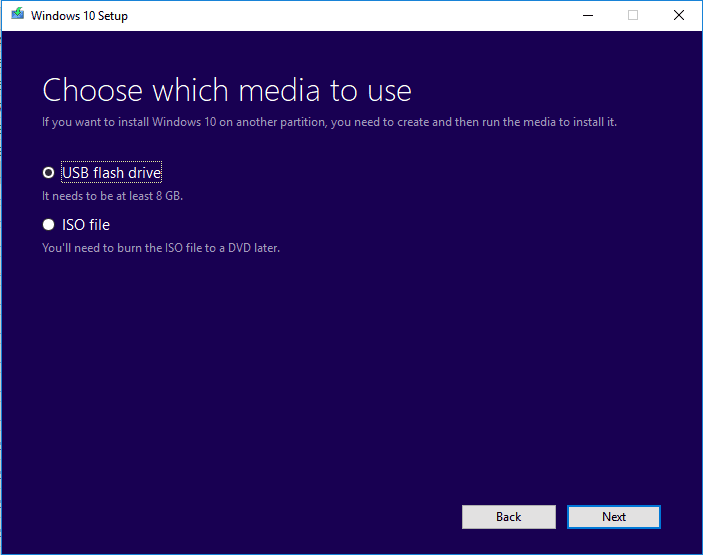
Reinstalling your operating system may fix many issues, including malware attacks, file corruption, and driver errors that could have resulted in error 0x0000003B. To reinstall Windows 10, you can create a bootable USB drive or CD/DVD, go into your BIOS settings, set the USB drive or CD/DVD as the first boot option, and then save and restart your computer. Once your computer boots from the USB drive or CD/DVD, follow the on-screen instructions to begin the installation process, which may involve formatting your hard drive and reinstalling your operating system.
- To restore your OS, you'll need to create a bootable USB drive or DVD.
- Next, connect the bootable USB drive or DVD to your computer and power it on.
- To access the Windows installation menu, press the relevant keys. Follow the on-screen instructions to continue the process.
- Once the Windows installation process is complete, restart your PC, and everything should work normally afterward.
Conclusion
The error code 0x0000003B is caused by a combination of factors such as virus attacks, corrupt drivers, damaged system files, memory errors, corrupted registry, and damaged hard drives, and can be resolved by addressing any of these underlying issues.
Since it's difficult to pick out a single fix that can help solve system_service_exception stop code 0x0000003B on your device, you should try out the different options outlined in this article, which vary in complexity and applicability, to prevent losing files when your computer encounters BSOD error 0x0000003B.
To recover deleted files, including photos and audio, we recommend using Deep Data Recovery WinPE. This software is easy to use and won't overwrite your original files. Simply download and install it on your computer to get started with recovering your lost data.
Windows 10 0x0000003B Error FAQs
Error code 0x0000003B in Windows is a common issue that can cause system crashes and freezes. It is often associated with hardware problems, such as faulty RAM or a failing hard drive, and can also be caused by software conflicts or driver issues.
1. How do I fix System Service Exceptions in Windows 11?
To resolve system service exception errors in Windows 11, you can try restarting your computer, running a System File Checker (SFC) scan, checking for Windows updates, and if the issue persists, running a DISM scan to repair corrupted system files. Additionally, checking for malware and viruses using an antivirus software can also help resolve the issue.
- Update your Windows 11 OS.
- Fix corrupted system files.
- Uninstall recently installed programs.
- Update drivers.
- Reset your computer.
2. Is the System Service Exception related to RAM?
The error could be caused by a failing RAM, virus attacks, corrupted registries, or driver errors. To identify if RAM is the issue, run a Windows Memory Diagnostic analysis. If the test reveals problems, consider replacing the RAM to resolve the issue.
3. How do you fix cannot install Windows 11?
Here are some possible ways to fix the issue of being unable to install Windows 11:
- Unplugging extra hardware.
- Uninstalling third-party security software.
- Running Windows updates.
- Creating enough disk space for OS installation.
- Checking for errors using Device Manager.
- Performing a "clean restart" for your PC.
4. Is Windows 11 better than Windows 10?
Windows 11 is an upgrade to Windows 10, offering new features to boost performance and design changes. As the latest Windows OS version, it's recommended to upgrade to Windows 11 for a better experience.
Related Articles
- How to Fix Desktop Refers to A Location That Is Unavailable Error
- What Is the Best exFAT Allocation Unit Size [Guide on How to Set]
- 4 Ways to Open Microsoft Management Console [2023 Step-by-Step Guide]
- Disk2vhd: Detailed Introduction to Convert Physical to Virtual Machine
- Windows Cannot Find Ms-Settings: How to Fix the File System Error
Are you unable to open the Windows Settings using the ms-settings shortcut? Then follow our guide to learn about 7 Fixes to the File System Error that can fix the Windows Cannot Find Ms-Settings. Many use shortcuts to open parts of Windows, and settings is an important one. - How to Fix Windows Update Error 0x800f0831 [5 Methods]
If you're encountering Windows update error 0x800f0831 while trying to download Windows Update on your PC, it's an easy fix. You can try the default method first, but if that doesn't work, you can install the update manually.
Products
Articles & Tutorials
- Data Recovery
- Data Backup
- File Recovery
- File Backup
- System Backup and Restore
- Disk and Partition Clone
- Technical articles
- Mobile articles
- Disk Master Help
- Windows Data Recovery Tutorials
- Windows Secure Delete Tutorials
- Windows Partition Management Tutorials
- Windows File Backup and Restore Tutorials
- Windows System Backup and Restore Tutorials
- Windows Disk Backup and Restore Tutorials
- Windows Clone Tutorials