How to Fix System_Service_Exception in Windows 10/11 Without Data Loss
Fix system_service_exception BSOD error in five ways:
| Workable Solutions | Step-by-step Troubleshooting |
|---|---|
| Fix 1. Update Drivers | Outdated or problematic drivers may lead to system_service_exception error. Update drivers...Full steps |
| Fix 2. Update Windows 10/11 | Unexpected errors may also cause by outdated system files. Update Windows to the latest version...Full steps |
| Fix 3. Fix Corrupted System Files | Fix and replace damaged system files with SFC commands. Go to the Start menu and type cmd...Full steps |
| Fix 4. Uninstall Installed Programs | Programs running in your system may become the reason for causing a system_service_exception...Full steps |
| Fix 5. Reset Your PC | Go to the "Settings," enter the "Update & Security", then click the "Recovery" and "Reset PC"...Full steps |
Windows 10 and 11 are the latest operating systems for desktops, released in 2015 and 2021, respectively. These operating systems have been widely adopted, with millions of users worldwide. However, despite their popularity, Windows 10 and 11 have also been troubled by errors and problems, with one common issue being the system_service_exception BSOD Error.
What Is System_Service_Exception
Facing a System Service Exception BSOD error in Windows can be frustrating, as it forces your system to restart suddenly, resulting in lost unsaved work. This error is common among Windows users, and it's especially annoying when it occurs while working on critical documents, such as a nearly completed PowerPoint presentation that needs to be submitted the next day. The lack of an autosave feature only adds to the frustration.
Most BSOD errors, including the System Service Exception error, are associated with system-related issues that send a stop code to Windows, leading to an instant system crash. This can result in lost data and corrupted files, with the error occurring without any warning. However, there is no need to panic, as following the given tips can help fix the System Service Exception or Blue Screen of Death error for Windows 10/11. The potential reasons causing this error include system-related issues, which can be addressed by following the suggested solutions.
The System Service Exception BSOD Error in Windows 10/11 is often caused by the operating system itself, triggered by outdated drivers or multiple apps trying to access and run Windows protected codes. Additionally, other factors such as hardware issues, faulty system files, or corrupted system registry entries can also lead to this error.
- Damaged, incompatible, or outdated drivers for Windows 10/11.
- Malware or other cyberattacks can cause this error
- An error or bug in the Windows 10/11
- Corrupted files in your windows or systems
- Inaccessible or damaged windows registry
- Bad divisions in the hard disk
- RAM issues
A BSOD error occurs when a system's running process attempts to move from non-privileged to privileged code, according to Microsoft. Examples of such error messages that may fit your case include:
- SYSTEM_SERVICE_EXCEPTION Windows 10/11: This error typically occurs in Windows 10/11, but can also be present in other operating systems like Windows 7, and is usually caused by issues with the system's ability to read or write to the disk, often due to hardware or software problems.
- SYSTEM_SERVICE_EXCEPTION 00000000'c0000005: The system_service_exception error code is caused by a problem in the system service. This issue can be resolved by checking the system service and resolving any issues that may be causing the problem.
- SYSTEM_SERVICE_EXCEPTION 0x0000003b: This error code is another type of error that appears on the blue screen of death, indicating a problem with the system.
- SYSTEM_SERVICE_EXCEPTION (Netio.sys): The error occurs when the Netio.sys system file is causing Windows 10/11 to crash. This file is a crucial component of the Windows operating system, responsible for managing network connections and data transfer.
How to Fix System Service Exception BSOD Error in 5 Ways
To fix the System Service Exception BSOD Error, you can try various methods, but since the system won't boot properly, you'll need to access Safe Mode first to check and resolve the issue. This involves activating Safe Mode, which you're familiar with, and then proceeding with the necessary steps to fix the problem.
Enter Safe Mode First
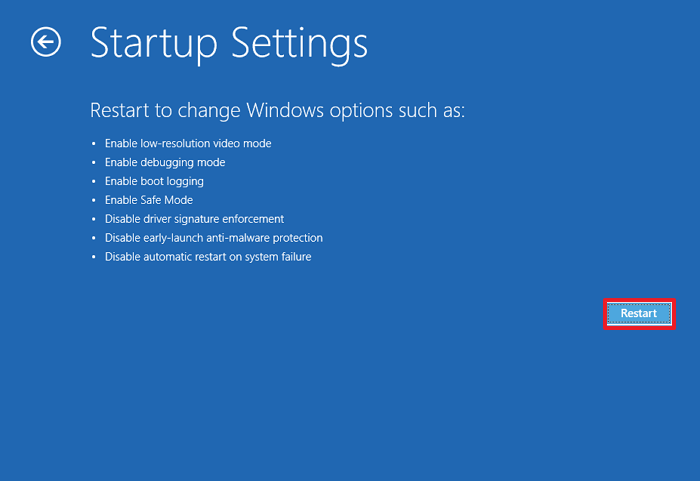
To start Windows 10/11 in Safe Mode, go to Settings, then Update & Security, then Recovery. Under "Restart now under the link "Advanced startup," click the "Restart now" button. On the next screen, select Troubleshoot, then Advanced options, and finally, Startup Settings. Here, you can choose to boot in Safe Mode by pressing the 4 or F4 key.
Step 1. To open Windows Settings, you can either search for "Settings" in the search bar or press the Windows key + I keys simultaneously. This will take you directly to the Windows Settings page where you can access various settings and options.
Step 2. To update Windows, go to the "Update & security" section, choose "Recovery", click "Restart now", and after Windows restarts, choose "Troubleshoot".
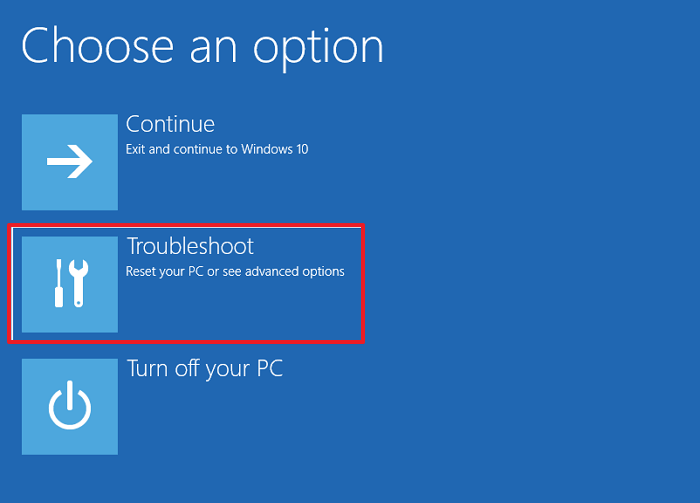
Step 3. Once entering the troubleshoot option, go with the "Advanced options".
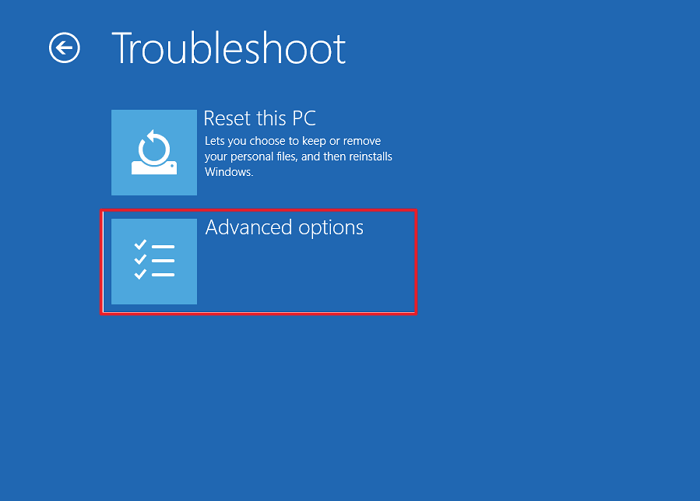
Step 4. To change Windows startup behavior, click on the Startup Settings section.
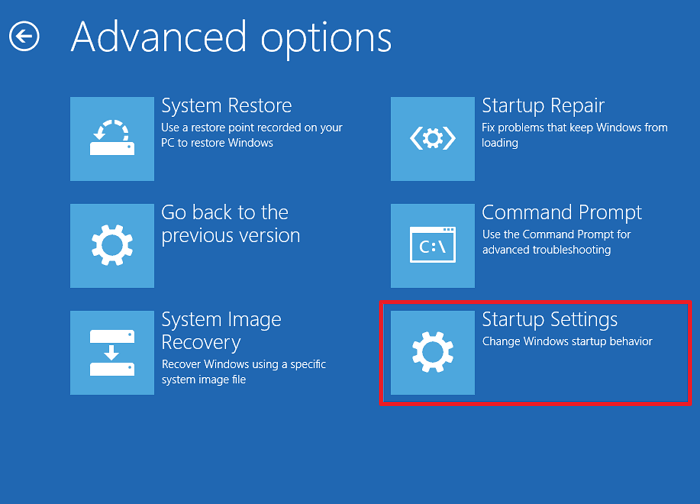
Step 5. Press the "Restart" button to restart your PC in Safe Mode.
Now start fixing your problems by following the given steps:
1. Update Drivers
Windows updating system helps keep system drivers up to date, but it may not always ensure that all apps are running with the recommended version, and sometimes even the system itself may not be using the correct version of drivers.
To check for the latest automatic driver updates, follow these steps: Go to the Start menu and select Settings, then click on Update & Security. In the Update & Security window, click on Windows Update.
To see the recently updated drivers, go to Settings > Update and Security > Windows Update > View update history. This will display a list of the drivers that have been updated.
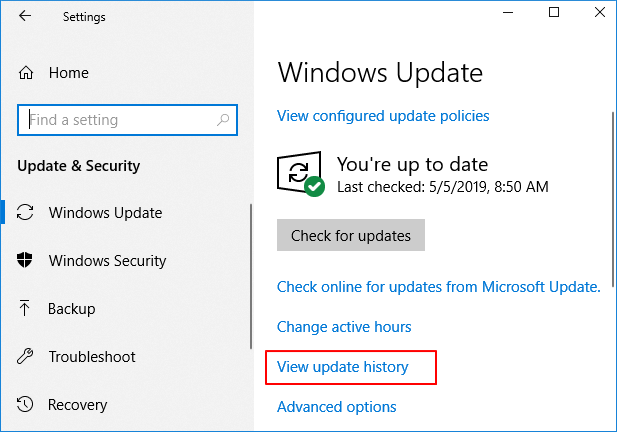
Step 1. To access Device Manager, you can type "Device Manager" in the Start menu and select the best match.
Step 2. Scroll down the list and find the error symbol, then update the problematic driver by right-clicking on it. If you find a yellow alert symbol, open the section by using the dropdown arrow and then update the driver. If you find no error symbol, the drivers are unlikely to be the source of the errors.
Step 3. Select "Search automatically for updated driver software". It will help windows automate the process of drivers update for you.
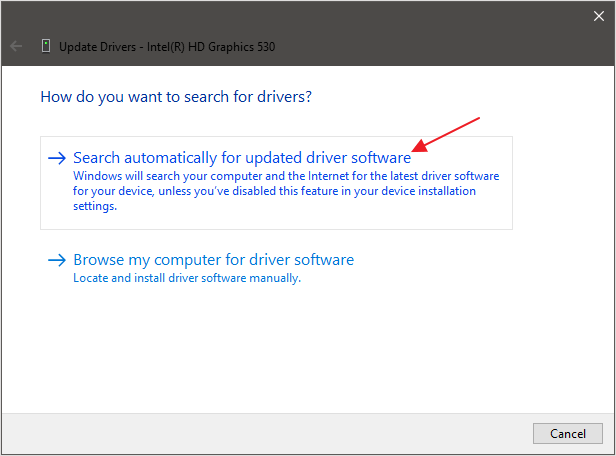
You can also use a third-party source or tool that helps you update all your system drivers at once.
2. Update Windows to the Latest Version
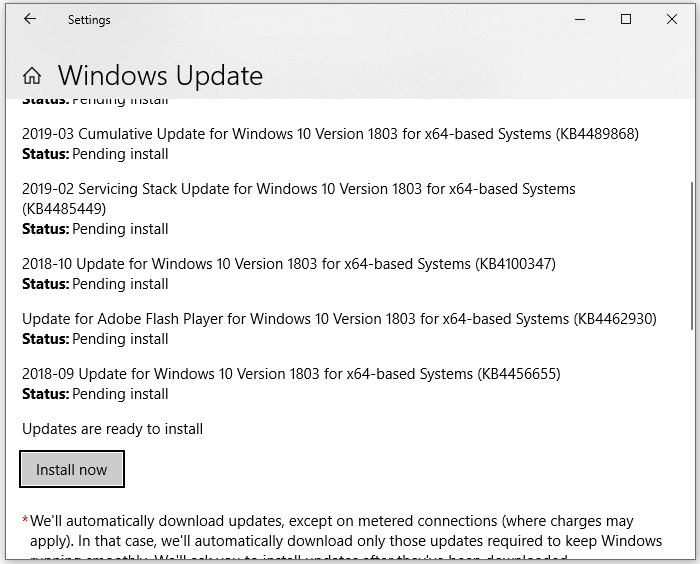
To diagnose the problem or fix the errors, check if a Windows update is required, as unexpected errors may be caused by outdated system files. You can do this by checking for pending updates. To do so, follow these steps:
Step 1. To check for updates on Windows, press the Windows key + l to open the "Settings", then navigate to the "Update & Security" section to see if there are any pending updates.
Step 2. If you have any pending updates, save all your files and click "Install Now" to proceed. This process will automatically reboot your system.
3. Fix Corrupted System Files
The Windows system tool, System File Check (SFC), helps identify and fix corrupt and missing Windows system files. Before running SFC, it's a good idea to ensure it's fully functional. To check its functionality, follow these steps.
Step 1. To open an elevated Command Prompt, go to the Start menu, type "CMD", right-click on Command Prompt, and select "Run as administrator".
Step 2. Type the command sfc /scannow and hit Enter.
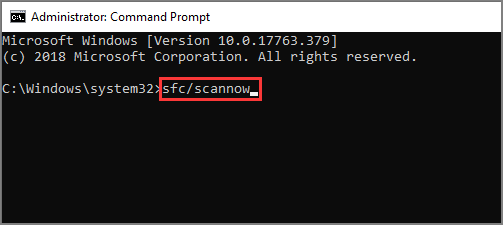
Wait for the command to be processed, which may take up to 20 minutes, and let the process complete even if it gets stuck at times.
4. Uninstall Recently Installed Programs
Unfortunately, sometimes, several programs running in your system may become the reason for causing a system_service_exception Windows 10 error. Now it comes to checking the recently installed programs or apps.
Users may encounter the SYSTEM_SERVICE_EXCEPTION error after installing a new program, and the type of program that causes the issue can vary. Some users report the error after installing antivirus software, while others experience it after installing a VPN. Regardless of the type of program, uninstalling the recently installed software can help identify the problematic program.
5. Reset Windows 10
If nothing else works, you need to reset Windows 10 to refresh your system files. This will replace your system files with a completely new set of files, and theoretically, it may help keep most of your important files intact. To reset your windows, follow these steps:
Step 1. To reset your PC, go to the "Settings" app, click on "Update & Security," then select the "Recovery" section. From there, you can initiate the "Reset PC" process.
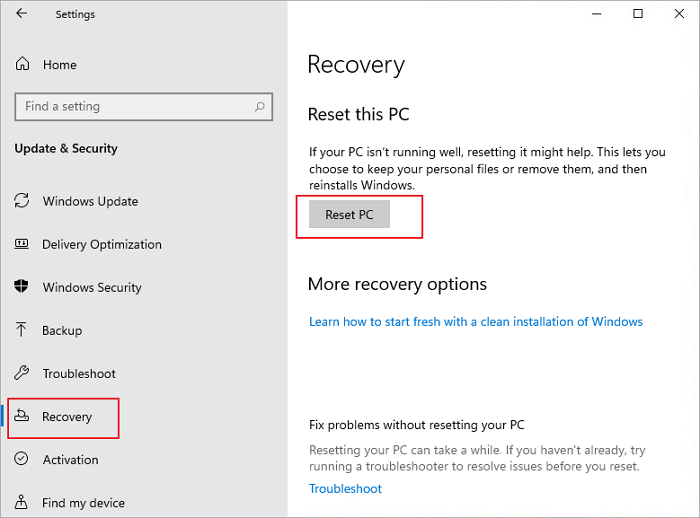
Step 2. Your system will restart right after hitting the button. Make sure to back up all important files and data before proceeding.
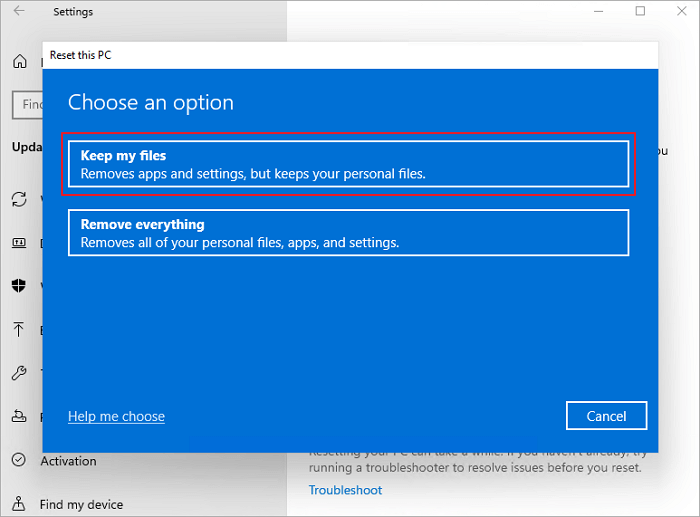
Step 3. After your system restarts, you will have the option to "Keep my files" or "Remove everything".
How to Restore Data from a Computer with a Booting Problem
If you're experiencing system_service_exception issues or other booting problems that prevent you from accessing your computer and data, or if Windows resets and you lose important data, don't panic. You can use a professional data recovery software like Deep Data Recovery to efficiently restore lost data from an unbootable computer or hard drive in WinPE mode.
This software provides a comprehensive data recovery solution, allowing users to recover deleted, formatted, and raw files, including NAS files, and 1000 different file types such as documents, graphics, videos, emails, audios, and more. It is user-friendly and efficient, restoring all necessary data quickly.
Step 1. Create a bootable disk
To create a bootable USB, first prepare an empty USB drive by copying any important data to another device, as the process will erase the existing data. Then, you can use Deep Data Recovery WinPE Edition to create a bootable disk on the prepared USB drive.
Connect a USB drive to your PC, then launch Deep Data Recovery WinPE Edition. Select the USB drive and click "Create" to create a bootable disk.
Step 2. Boot from the bootable USB
Connect a bootable disk to the PC that won't boot, and change the boot sequence in the BIOS. This usually works when you restart the computer and press F2 at the same time to access the BIOS.
To boot your PC from a device other than the hard drive, press F10 to save and exit the BIOS settings, then select "Removable Devices" or "CD-ROM Drive" as the boot priority. This allows you to boot from a USB drive or CD/DVD.
Step 3. Recover data from a hard drive that won't boot
When you boot from a USB, you can run Deep Data Recovery from the WinPE bootable disk, which allows you to select the drive you want to scan to find all your lost files.

Click "Scan" to start the scanning process.

After scanning the computer or laptop, you can preview all recoverable files, select the targeted files, and click the "Recover" button to restore your files. It's recommended to save all recovered data to another place to avoid data overwriting.

Conclusion
Facing a system_service_exception BSOD Error is not uncommon, as it can be caused by a variety of factors, including outdated drivers, corrupted or bug files, malware, damaged Windows registry, hard disk bad sectors, or even issues with the RAM.
This article helps diagnose the causes of system_service_exception Windows 10 BSOD Error and provides a detailed guide on how to fix it, allowing readers to manage their problems by going through it carefully.
If your computer can't boot easily, you may want to restore important files instead of performing a full system recovery. In this case, using Deep Data Recovery can quickly help you recover your essential files.
Related Articles
- Qiling Data Recovery Software Full Review [Tested in 2022]
- Windows 10 Free Download Full Version 32 or 64 Bit ISO
- Best Way to Store Digital Photos Long Term
- Fixed: USB Flash Drive Not Showing Up in Windows 10/11
- Recover Data After Format: Complete in Seconds
Formatting a drive does not permanently erase data. Learn how to recover data after format using professional data recovery software. Act quickly to maximize your chances of successful recovery. - Recover Files from SSD: Easy Steps to Retrieve Your Lost Data
In this post, we will explore a powerful Windows data recovery tool to recover files from SSD on Windows 11, 10, 8, and 7, ensuring you have the best chance of retrieving your valuable data.
Products
Articles & Tutorials
- Data Recovery
- Data Backup
- File Recovery
- File Backup
- System Backup and Restore
- Disk and Partition Clone
- Technical articles
- Mobile articles
- Disk Master Help
- Windows Data Recovery Tutorials
- Windows Secure Delete Tutorials
- Windows Partition Management Tutorials
- Windows File Backup and Restore Tutorials
- Windows System Backup and Restore Tutorials
- Windows Disk Backup and Restore Tutorials
- Windows Clone Tutorials