How to Fix Desktop Refers to A Location That Is Unavailable Error
The "Desktop refers to a location that is unavailable" error can be resolved in three ways. First, try restarting your computer to fix the issue. If the problem persists, check the file path to ensure it is correct and try accessing it again. If it still does not work, try accessing the Desktop folder from a network location or cloud storage service if it was stored there previously.
| Workable Solutions | Step-by-step Troubleshooting |
|---|---|
| Fix 1. Copy the Desktop folder path | Launch File Explorer in Windows 10/8/7. Go to the C drive, click the "Users" folder and then your username...Full steps |
| Fix 2. Restore the default path | Launch File Explorer. Go to C drive, click the "Users folder" and then your username. Find the "Desktop"...Full steps |
| Fix 3. Change desktop location | Press the "Windows + R" keys simultaneously to pull up "Run", type regedit and press enter. Navigate to...Full steps |
Error Details and Explanation
When your PC's system crashes, you might log into an empty desktop, with missing application and folder icons, and receive an error message that starts with "C:\windows\system32\config\systemprofile\desktop refers to a location that is unavailable".
Your system files may have been damaged or corrupted. The system crash can occur while shutting down or during a Windows update. The full error message is: "Your system files have been damaged or corrupted."
The message is indicating that the path "C:\Windows\system32\config\systemprofile\Desktop" is unavailable, possibly due to a disk issue or network connection problem. To resolve this, ensure the disk is properly inserted or that you're connected to the Internet or your network, and then try again. If the issue persists, the information might be stored elsewhere.
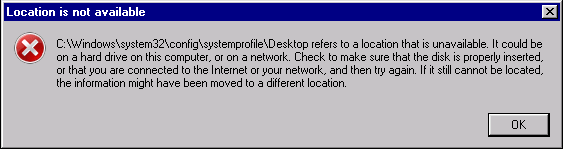
To fix the issue where C:\windows\system32\config\systemprofile\desktop refers to an unavailable location, you can reset the default startup path by moving your desktop to C:\windows\system32\config\systemprofile\. This allows the system to reach your user desktop, or you can restore to the default path or manually enter the correct path.
Before making any changes to your system, create a system restore point to ensure you can revert back to a previous state if needed. This precautionary step is essential when editing system paths, as it allows you to avoid potential damage and go back to a working configuration if anything goes wrong.
Create a System Restore Point
The simplest and most organized way to create a system backup is with Qiling Backup, a completely free software that allows you to create and restore system backups using its PC version, with the same features as its paid versions.
To create a system backup on your device, go to Settings, then select System, and finally Backup. From there, you can choose what you want to back up, such as your data, apps, and settings, and select a location to save the backup. You can also set up automatic backups to run at regular intervals.
Download Qiling Backup Free for PC
Step 1: Launch Qiling Backup & Start a Task
In the top-side panel, select System Backup.

Step 2: Initiate System Backup
Select your system, choose the destination for the backup file, and click Proceed.

You can set up a customizable backup schedule before proceeding, which is useful if you only need a single restore point. This way, no further actions are required.
With the safeguard in place, we can now focus on resolving the 'system32\config\systemprofile\desktop refers to a location that is unavailable error. This issue requires a more technical approach than creating a system backup, but we'll guide you through the process step by step.
How to Fix Desktop Refers to A Location That Is Unavailable Error
Solution 1. Copy the Desktop folder path under Users to the target location
Since the error prompts an incorrect and unavailable desktop location, simply find the desktop folder under Users and copy it to C:\Windows\system32\config\systemprofile so the system can pick up on your desktop.
- Step 1: To access your desktop in Windows 10/8.1/8/7, open File Explorer, navigate to the C drive, click on the "Users" folder, select your username, and then find the "Desktop" folder within your user account.
-
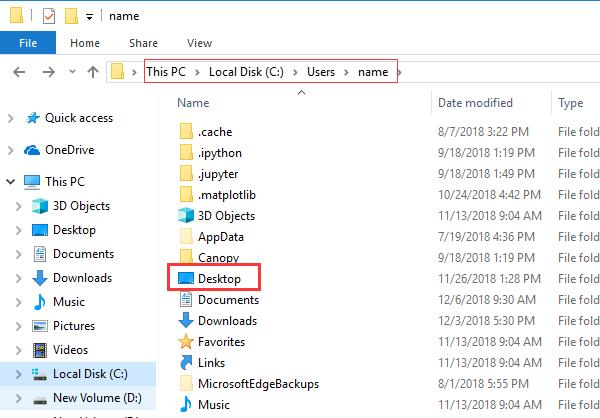
- Step 2: Leave the first File Explorer window open, and open another. Navigate to C:\Windows\System32\config\systemprofile (capitalizing System32 for Windows 10) either by clicking into folders in this order or by typing this path into the bar at the top.
- Step 3: To complete the path, drag and drop the Desktop folder from Step 1 into the systemprofile folder, which will reveal the path as C:\Windows\System32\config\systemprofile\Desktop.
-
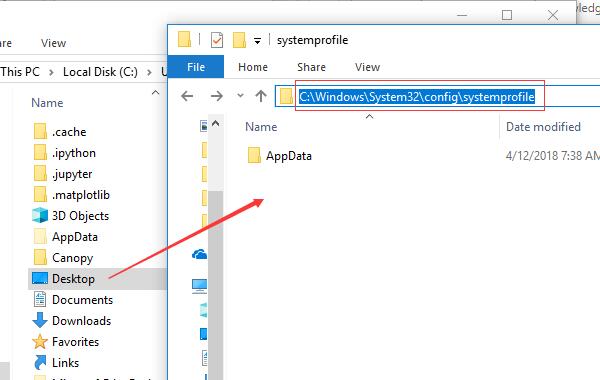
- Step 4: Try restarting your PC and see if the desktop location can be accessed on startup. If it still doesn't work, there may be an issue with your user account or a system file.
Solution 2. Restore the Default Path
- Step 1: To access your personal files, launch File Explorer, navigate to the C drive, click into the "Users" folder, and then select your username.
- Step 2: Find the "Desktop" folder, right-click it, and select "Properties".
- Step 3: To reset the location settings, switch to the "Location tab", click "Restore Default", apply the changes by clicking "Apply", and then confirm by clicking "OK".
-
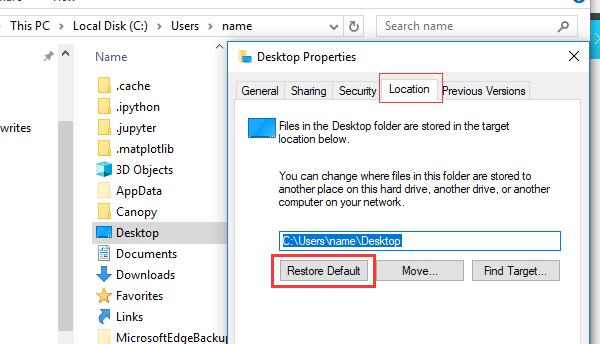
- Step 4: To resolve the issue, simply restart your PC and see if the problem persists on startup. This will help determine if the issue is hardware or software related.
Solution 3. Change Desktop Location through Registry Editor
If resetting the default Desktop location or changing the path to C:\Windows\system32\config\systemprofile\Desktop doesn't work, you can manually reset the path to your Desktop folder through the Registry editor. This is a last resort solution.
- Step 1: To open the Registry Editor in Windows, press the "Windows + R" keys at the same time to open the "Run" dialog box, type "regedit" in the text field, and then press the "Enter" key. This will launch the Registry Editor, allowing you to view and edit the Windows registry.
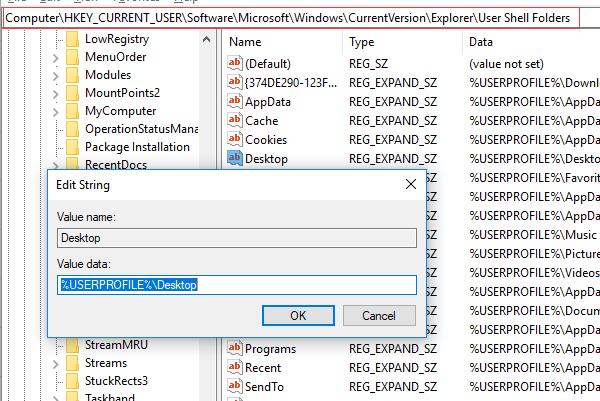
- Step 2: To access the User Shell Folders, navigate to Computer > HKEY_CURRENT_USER > Software > Microsoft > Windows > CurrentVersion > Explorer > User Shell Folders. You can do this by clicking on the folders in sequence or by copying and pasting the path into the address bar at the top.
- Step 3: In the "User Shell Folders" section, double-click "Desktop" and ensure the value under "Value data" is either %USERPROFILE%\Desktop or C:\Users\%USERNAME%\Desktop. Then, click "OK" and close the registry editor.
-
- Step 4: Restart your system and check if the problem is fixed.
Additional Solution - Data Recovery
If the provided solutions didn't work, the problem is likely not just with the path setting, but rather that the Desktop folder is missing or damaged. In this case, further troubleshooting may be necessary, potentially involving creating a new user account, fixing a corrupted user profile, reverting to a previous Windows build, or repairing the Windows system with an in-place upgrade.
If you lose data during the troubleshooting process, you can use Qiling Data Recovery Software to recover lost system files from your hard drive. This software is free for recovery under 2GB, so it's worth scanning to see if it picks up on any critical files. You can use it to look for your Desktop Folder or other relevant data.
If you're experiencing the 'C:\Windows\system32\config\systemprofile\Desktop refers to a location that is unavailable' error on startup, try retrying the solutions listed here once you have the necessary data back. If the issue persists, you may need to troubleshoot further.
Related Articles
- How to Factory Reset PS4 [2022 Complete Guide]
- Solved: Can't Start Windows 10, No Access to Boot Menu or Can't Repair Windows 10
- Fixed: Windows 10 Will Not Update with Error Code 0x80240fff
- A File Error Has Occurred While Saving Word Document
- How to Fix Zsh Command Not Found Brew Error [Mac Terminal Guideline]
This article addresses the zsh command not found brew error on Mac or Linux, providing five fixes to resolve the issue. It offers step-by-step instructions to resolve the zsh command not found brew problem on a Mac using the terminal. - Solve Zsh: Command Not Found: Pip on Mac | 4 Fixes
If you're encountering the zsh: command not found: pip error, this issue can be resolved using one of the top 4 methods outlined in this article.
Products
Articles & Tutorials
- Data Recovery
- Data Backup
- File Recovery
- File Backup
- System Backup and Restore
- Disk and Partition Clone
- Technical articles
- Mobile articles
- Disk Master Help
- Windows Data Recovery Tutorials
- Windows Secure Delete Tutorials
- Windows Partition Management Tutorials
- Windows File Backup and Restore Tutorials
- Windows System Backup and Restore Tutorials
- Windows Disk Backup and Restore Tutorials
- Windows Clone Tutorials