How to Check If Disk Is Failing in Windows/Mac
A hard drive failure can cause operating systems to not boot, run slowly, or accidentally delete data. Due to varying usage scenarios, it's impossible to accurately predict a hard drive's lifespan. However, there are often subtle signs before a disk fails, and ignoring these small symptoms can lead to a full-blown problem.
To check if a disk is failing, look out for signs such as sudden crashes, slow performance, or unexplained errors. On Windows and Mac, use professional tools like CrystalDiskInfo, HDTune, or Disk Utility to check the health of your hard drive. These tools can provide detailed information about disk usage, temperature, and potential issues, helping you identify any problems before they cause data loss.
Signs on How to Check If Disk Is Failing
Hard drive failures are typically categorized into physical and logical failures, both of which can often be repaired if caught early. Recognizing the symptoms of a failing hard drive can help prevent data loss by allowing for timely intervention. To check if a disk is failing, look out for physical signs such as unusual noises, vibrations, or visible damage, as well as logical indicators like slow performance, frequent crashes, or errors during file access.
- Overheating
- Strange noises
- Bad sectors
- Computer runs slower
- Operating system fails to start
- Blue/black screen problems
- Computer frequently crashes
- Files suddenly disappear or cannot be opened
- Files are slow to open or require multiple attempts
If your disk is failing, physical phenomena such as heat, noise, etc, can be easily noticeable. However, there are some physical phenomena that need to be detected before problems appear, indicating that your disk is failing.
You may also like:
We will use software to check if the disk is failing and check hard drive health.
How to Check If Disk Is Failing on Windows
Physical damage can be done by removing the computer case, checking cable connections, and removing dust and debris. Logical corruption can be checked using Qiling Disk Master to check SMART data and bad sectors on the disk.
Method 2. Run Disk Surface Test
Method 3. Run CMD to Check Health
Let's see how to check if disk is failing by using the three methods.
Method 1. Run S.M.A.R.T Test
SMART (Self-Monitoring, Analysis, and Reporting Technology) Hard Drive Test monitors different aspects of your hard drive. It can analyze threats of hard drive failure and reports the results. Qiling Disk Master provides a Disk Health feature to support SMART technology and can easily detect disk health, temperature, performance, and more.
The tool is easy to use. To check if the disk is failing, please follow these steps:
Step 1. Launch Qiling Disk Master and click the blue arrow to activate the "Disk Health" feature under the "Tools and utilities" tab page.

Step 2. Select the target disk and click the "Refresh" button to view its health status.

With Qiling Disk Master, you can also check the health status of the SSD.
To check the health of your SSD on Windows 10, you can use the built-in tool called "Disk Management" or the third-party software "CrystalDiskInfo". First, open the Disk Management tool by pressing the Windows key + R, typing "diskmgmt.
Knowing how to check SSD health is crucial for protecting your data, as solid-state drives (SSDs) have become increasingly popular due to their speed and reliability, replacing traditional hard drives in many cases.
You can also use CHKDSK or CMD on Windows to check the SMART status of your disks, in addition to Qiling Disk Master.
Method 2. Run Disk Surface Test
An increase in bad sector data is a sign of disk failure, leading to information loss and accumulated bad sectors that are hard to identify. Slow computer operation and disk noise are also symptoms, and running a disk surface test with Qiling Disk Master can determine the number of bad sectors, marking unusable sectors as red.
To check if your disk is failing, follow these steps: run a disk check to scan for bad sectors, which can indicate a failing disk. This process can help identify any issues with the disk's physical integrity, such as scratches, dents, or other damage that may be causing the disk to malfunction.
Step 1. Open Qiling Disk Master. Right-click the disk that you want to check, and then click "Surface Test".
Step 2. The operation will be immediately performed and all bad sectors will be marked as red.
Qiling Disk Master can repair and fix damaged file systems on bad sectors, but if there are many, a simple repair may not be enough. In that case, cloning the hard drive or migrating data to a new disk may be necessary and then replacing the failed disk.
Method 3. Run CMD to Check Health
If you don't like to use third-Here are the steps to check the operating status of your hard drive using Windows command line:
Step 1. To open a Command Prompt window, press and hold Windows+R, then type "cmd" and press Enter.
Step 2. Type wmic diskdrive get status and press Enter.
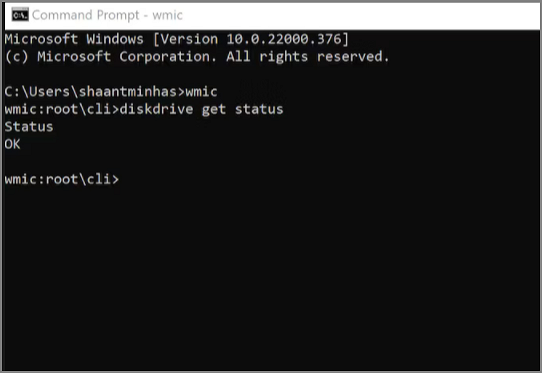
Step 3. If your drive shows "OK" in the test, it's likely functioning properly. However, if it displays "Pred Fail", it indicates that the drive is experiencing issues and may be on the verge of failure.
You may wonder if a disk is new, used, dying, or bad. To clarify, you can check if a disk is failing by following a guide that suits your needs and learning tips for testing your hard drive. This will help you determine the disk's status and take necessary actions.
How to Check If Disk Is Failing on Mac
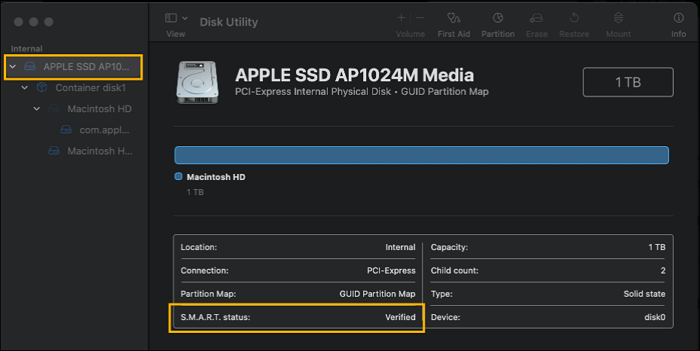
If you're experiencing strange noises, overheating, or performance issues on your Mac, it may be a sign that your hard drive is damaged. You can use the Disk Utility tool provided with your Mac to test your hard drive. To do this, go to Applications > Utilities > Disk Utility, select your hard drive from the list on the left, click the "First Aid" button, and follow the on-screen instructions. This will scan your hard drive for errors and attempt to repair any issues it finds. If your hard drive is severely damaged, you may need to consider replacing it.
Step 1. Open Application and select Disk Utility under Utilities.
Step 2. Select the target disk on the left side.
Step 3. In SMART status, check the status of the hard drive. If it says "Verified", it means your Mac hard drive is fine. If it says "Failing", it means your hard drive is bad.
Conclusion
You can now check if a disk is failing after reading the list of usual indicators of hard drive failure and also check disk health or find bad sectors using Qiling Disk Master.
If your disk is deteriorating, consider replacing it with a healthy one or using a professional disk partition tool to fix damaged sectors. This can help prevent further data loss and ensure your system runs smoothly.
FAQ of How to Check If Disk Is Failing
To check if a disk is failing in Windows, what steps can be taken? Firstly, check the Event Viewer for any disk-related errors. Secondly, run the built-in Check Disk (chkdsk) tool to scan for errors and fix them. Thirdly, use the Disk Cleanup tool to remove temporary files and free up space.
1. How do I know if my hard drive is physically damaged?
Accessing the drive often produces a clicking sound, and the computer may not turn on or function properly. Additionally, physical damage to the hard drive can cause files to open slowly, display data access issues, or lock up with errors.
2. Do hard drives fail suddenly?
Hard drives can fail suddenly or deteriorate over time, eventually reaching the end of their lifespan, regardless of the device they're used in.
3. How do I test if my hard drive is failing?
Try Qiling Disk Master to check the hard drive health:
Step 1. To access the "Disk Health" option, open Qiling Disk Master and click the blue arrow to navigate to the "Discovery" section, where you can find the "Disk Health" option.
Step 2. Choose the target disk and press "Refresh." The state of your disk's health will then be visible. The disk's health will be shown on the screen.
If you suspect your hard drive is failing, try running a diagnostic test, checking for physical damage, and looking for signs of corruption. You can also check for BIOS updates and ensure your operating system is up-to-date. If you're still unsure, consider consulting the manufacturer's support resources or seeking help from a professional.
Related Articles
- Beginner's Guide on Linux File System Types [Detailed Explanation]
- How to Free Up Space on SSD in Windows 10/8/7
- How to Optimize Mac Performance | 8 Proven Ways to Speed Up Slow MacBook Pro
- Black Screen After BIOS Update [Causes & Fixes]
- How to Fix Spotlight Search Not Working Ventura/Sonoma
How to fix Spotlight Search not working? Keep reading this article to know why a malfunctioned Spotlight Search option exists and the solutions below. Also, if you have lost data while implementing these fixes, there's a professional data recovery platform, Deep Data Recovery for Mac. - What's The Best SSD Allocation Unit Size in Windows 11/10
Learn the best SSD allocation unit size for Windows 10 or 11, how cluster size affects storage, and when to change it.
Products
Articles & Tutorials
- Data Recovery
- Data Backup
- File Recovery
- File Backup
- System Backup and Restore
- Disk and Partition Clone
- Technical articles
- Mobile articles
- Disk Master Help
- Windows Data Recovery Tutorials
- Windows Secure Delete Tutorials
- Windows Partition Management Tutorials
- Windows File Backup and Restore Tutorials
- Windows System Backup and Restore Tutorials
- Windows Disk Backup and Restore Tutorials
- Windows Clone Tutorials