Quickly Check If a Hard Drive Is Failing Using SMART on WIndows 10/11 [2023 New Guide]
You can learn the signs of a failing hard drive and two ways to check SMART status on this page.
If your hard drive is about to fail, SMART can alert you to order a replacement and move your data before it's too late. In this article, we'll explore ways to check if your hard drive is failing using SMART, allowing you to take action and prevent potential data loss.
What Are the Signs of a Failing Hard Drive
Before using SMART, it's essential to understand the signs of a failing hard drive. Possible symptoms include sudden changes in disk usage, unusual noises, overheating, sluggish performance, and frequent crashes. Additionally, if your computer is making grinding or clicking sounds, or if you notice data corruption or loss, it may be a sign that your hard drive is failing.
- Overheating
- Bad sector
- Strange noises
- Computer running slow
- Files suddenly disappear
- Blue/black screen problems
- Computer frequently crashes
- The operating system fails to start
- Files are slow to open or require multiple attempts
If symptoms persist after reinstalling the operating system or while in Windows Safe Mode, they are likely due to a failing hard drive.
If you notice any of the signs of a failing hard drive, such as clicking, grinding, or whirring sounds, or if your computer is slow or freezing frequently, check the SMART status to see if the hard drive is failing. You can learn more about SMART status from the provided link.

What Does SMART Status Mean? Everything You Want Here
S.M.A.R.T. (Self-Monitoring, Analysis, and Reporting Technology) is a monitoring system found in solid-state drives and hard disk drives that helps computers keep track of their performance and reliability.
How to Check If a Hard Drive Is Failing Using SMART - 2 Ways
Here are two methods to check a failing hard drive using SMART:
Way 1. Use Qiling Disk Master to Check SMART Status - Easy
The Disk Health tool in Qiling Disk Master supports SMART technology, enabling it to monitor and detect various disk health factors, including temperature, performance, and more.
Qiling Disk Master has a built-in feature called "Disk Health and Surface Test" which includes a "Disk Health" module that scans the hard disk for temperature and displays the SMART indicator, showing details such as Critical Warnings, Unsafe shutdowns, and media integrity.
Step 1. Launch Qiling Disk Master, click the blue arrow to activate the "Disk Health" feature under the "Tools and utilities" tab page.

Step 2. To check the health condition of your disk, select the target disk and click the "Refresh" button. This will display the current status of your disk.
Features of Qiling Disk Master:
As a professional disk manager, this tool can help with a lot more than just checking the SMART status, including disk management, disk cloning, disk wiping, and more, making it a valuable addition to one's toolkit.
- Test the "SSD slow write speed" issue
- Check SSD health on Windows 10
- Copy a partition to another hard drive
- Speed up hard drive/computer performance
- Wipe/format/extend/shrink/split/merge partitions
- Check bad sectors on external hard drive/internal hard drive
With Qiling Disk Master, you can check your hard drive's health and performance using SMART technology. This app provides a comprehensive analysis of your hard drive, including temperature, usage, and error rates.
Way 2. Use CMD to Check SMART Status - Difficult
To check the SMART status of your hard drive using Command Prompt, follow these steps:
Step 1. To run the Command Prompt as an administrator in Windows, you can follow these steps: Type CMD into the Windows Start menu, right-click on the result and choose Run as administrator from the context menu, then click the "Yes" option on the User Account Control window.
Step 2. Copy and paste the following command and press Enter:
- wmic
- diskdrive get status
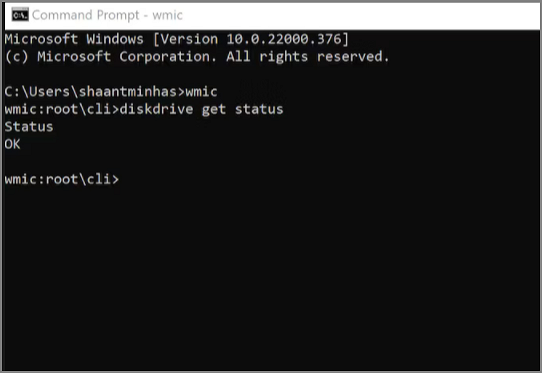
Step 3. Check if the result is OK in the Status column. Note that any internal drive installed on your device will be OK.
When you've completed all the steps, and the status says OK, everything is functioning normally. However, if the status is bad, unknown, or cautious, or if the command has trouble getting the status from the drive's firmware, the hard drive is likely to experience a hardware failure soon.
You may also like:
Qiling Disk Master is an easy-to-use tool that doesn't require commands and provides detailed SMART status information.
If you're looking for a quick reference, a video is available that provides critical information and 5 easy ways to check the health of your hard drive. This resource is a concise and practical guide for anyone who wants to ensure their hard drive is functioning properly and prevent potential data loss.
Conclusion
After examining the list of common signs of hard drive failure, you may be able to determine whether your disk is failing. Qiling Disk Master also allows you to discover bad sectors or check the health of your drive.
If your hard disk shows a SMART error, it doesn't necessarily mean it will fail immediately, but it's likely to fail soon. In this case, consider replacing it with a more reliable one or use a specialized tool to repair damaged sectors. This should help resolve the issue.
Check If a Hard Drive Is Failing Using SMART FAQs
Below are the frequently asked questions and their answers about the hard drive failing using SMART. Find answers if you have further questions about our topic.
1. What is the SMART status test for a hard drive?
SMART, or Self-Monitoring, Analysis, and Reporting Technology can detect issues with a hard disk, including overheating, and alert the user to potential problems, allowing for early intervention to prevent data loss. This technology can be used on both Windows and Mac systems, providing a simple way to monitor the status of a hard disk and identify any issues that may arise.
2. What does a hard drive SMART check "fail" mean?
SMART faults can indicate that a drive is likely to fail soon, even if it appears to be functioning normally. Despite passing a few diagnostic tests, a SMART error can still occur, indicating that the drive's health is deteriorating and a failure is imminent.
3. Can CHKDSK fix SMART errors?
Bad sectors on a hard drive may be causing the SMART status to be bad. To resolve this, running chkdsk to repair the corrupted file system and bad sectors may help resolve the SMART hard disk problem.
Related Articles
- Fixed: SFC (SFC / SCANNOW) Is Not Working on Windows
- How to Turn off System Restore Windows 10 [Three Ways]
- Bash Profile on Mac - One Post for All Information
- How to Fix It: Your Hard Drive Is Full Battle Net
- Sorry, No Manipulations with Clipboard Allowed on Mac [with 5 Proven Fixes]
Are you facing Mac's frustrating 'Sorry, no manipulations with clipboard allowed' prompt? You'd be glad to know that we can help you with this. Here's how! - How to Split Your Screen on a Windows 10/11? [Step by Step]
This guide explains how to split screen on Windows using snap layouts and shortcuts.
Products
Articles & Tutorials
- Data Recovery
- Data Backup
- File Recovery
- File Backup
- System Backup and Restore
- Disk and Partition Clone
- Technical articles
- Mobile articles
- Disk Master Help
- Windows Data Recovery Tutorials
- Windows Secure Delete Tutorials
- Windows Partition Management Tutorials
- Windows File Backup and Restore Tutorials
- Windows System Backup and Restore Tutorials
- Windows Disk Backup and Restore Tutorials
- Windows Clone Tutorials