Sorry, No Manipulations with Clipboard Allowed on Mac [with 5 Proven Fixes]
If you're experiencing issues copying and pasting on your Mac, you're not alone. The problem often arises due to the "Sorry, no manipulations with clipboard allowed" prompt, making it difficult to transfer text or files between apps. To resolve this, you can try resetting the System Management Controller (SMC) or the cache of the app you're using. Additionally, checking for any software updates or reinstalling the app can also help resolve the issue. If the problem persists, you may want to consider seeking further assistance from a technical support specialist.
This article will help you understand the issues with copying and pasting on your Mac, and provide simple solutions to improve your computer's copy-paste functionality, helping you overcome the "Sorry, no manipulations with clipboard allowed" message, even if you're a Mac beginner.
| Workable Solutions | Step-by-step Troubleshooting |
|---|---|
| Fix 1. Relaunch Pasteboard Server | Open the Applications folder and then go to Utilities. Launch the Activity Monitor...Full steps |
| Fix 2. Restart WindowServer | Access the Activity Monitor by using the Spotlight Search feature, and navigate to CPU...Full steps |
| Fix 3. Restart Your Mac | Click the Apple menu in the top-left corner, and choose Restart to reboot your Mac...Full steps |
| Fix 4. Check Suspicious Software | Open Applications and find the suspicious software. Right-click it and click Move to Trash...Full steps |
| Fix 5. Check Software Update | Click the Apple icon in the top-left corner, and choose System Preferences...Full steps |
What Does Sorry, No Manipulations with Clipboard Allowed Mean
The error "Sorry, no manipulations with clipboard allowed" appears when trying to cut and paste files on a Mac, restricting clipboard use to prevent abuse.

The system does not allow the requested activity, such as copying sensitive or protected material, accessing the clipboard from a restricted program, or violating security or privacy standards.
Why Sorry, No Manipulations with Clipboard Allowed Occurs
The frustrating "Sorry, no manipulations with clipboard allowed" message can appear due to various reasons, such as a corrupted clipboard, incorrect clipboard settings, or issues with the Windows clipboard, which can be caused by a faulty system file, a problematic application, or a hardware problem.
⛔Permission Problems: If the source or destination of your copy-paste operation is denied on Mac, your Mac might put its foot down and display the dreaded message. This can happen if your Mac gets selective about who can access and modify certain files or information.
😰Clipboard Overload: When your Mac's virtual clipboard gets overwhelmed, it may stop cooperating, similar to a physical clipboard that's too full. This can happen if you've been copying and pasting many things quickly.
⚠️Background Apps Misbehaving: Just like how it can get confusing when someone interrupts your conversation, background apps on your Mac can cause issues if they misbehave or compete for attention, potentially messing up your copy-paste function.
❌Software Glitches: Even the most advanced software can have technical issues, which can cause problems with clipboard functions on a Mac. This can prevent proper clipboard manipulation.
🔒Security Software Interference: Your Mac's security software may be blocking legitimate clipboard actions, causing the "You can't paste this" message to appear, due to its overzealousness in detecting potential threats.
How to Fix No Manipulations with Clipboard Allowed on Mac
Here are some practical fixes to eliminate the error on Mac:
Fix 1. Relaunch Pasteboard Server
Here are two ways to do so:
Using Activity Monitor
To relaunch the Pasteboard server on your Mac, you can use the Activity Monitor or the Terminal. In the Activity Monitor, search for "pasteboard" and select it, then click the "X" button to quit the process. Alternatively, you can use the Terminal by typing "killall pasteboard" and pressing Enter. Once the process has been terminated, the Pasteboard server should automatically relaunch, resolving the issue.
Step 1. To access the Activity Monitor, open the Applications folder and then navigate to Utilities, where you can launch the Activity Monitor.

Step 2. In the Activity Monitor window, type "pboard" in the search bar.
Step 3. Force quit the process named "pboard" by selecting it and clicking the "X" button at the top-left corner of its window.
Step 4. Confirm the action by clicking the "Quit" option when prompted.
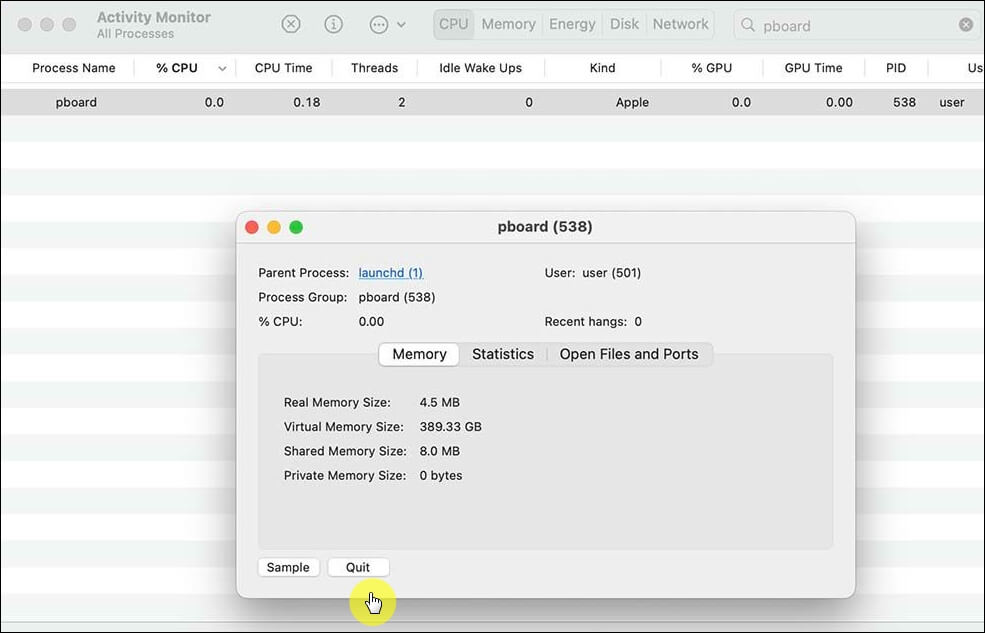
Step 5. After force quitting the "pboard" process by pressing Ctrl Alt Del, it will automatically relaunch, restoring clipboard functionality.
Using Terminal
To restart the pasteboard server through the Terminal, you can simply type the command "killall pasteboard" and press Enter. This will stop the pasteboard server process and then restart it, which should resolve any issues you were experiencing.
Step 1. To access the Terminal, locate and click on the Launchpad icon in your Dock.
Step 2. To find the Terminal application, simply open the Launchpad on your Mac, click on the search bar at the top, and type in "Terminal". This will bring up the Terminal application icon, which you can then click on to open it.
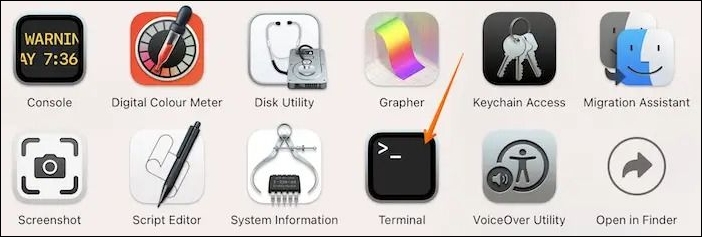
Step 3. After launching Terminal, input the following command and press "Enter".
sudo killall board
Step 4. Enter your Mac's password, then press "Enter" again, allowing the process to complete before testing your copy-and-paste functions once more.
If the "Force Quit" button is unresponsive on some apps, try restarting your Mac, checking for software updates, or using the Activity Monitor to quit the app, and if that doesn't work, reset the System Management Controller (SMC) or try a different user account.
Force Quit Not Working on MacBook Pro/Air
The Force Quit feature on MacBook Pro and Air has stopped working, causing frustration for many users. To fix this issue, try restarting your MacBook in Safe Mode and see if the problem persists. If it does, try resetting the System Management Controller (SMC) and the Power Management Unit (PMU).
Fix 2. Restart WindowServer
The WindowServer is crucial in managing all visual elements on your screen. A simple restart of the WindowServer can potentially resolve the issue at hand without affecting other system functions, making it a viable solution for many users.
Step 1. To access the Activity Monitor, start by clicking the Spotlight Search icon in the top right corner of the screen. Alternatively, you can use the keyboard shortcut Command + Space.
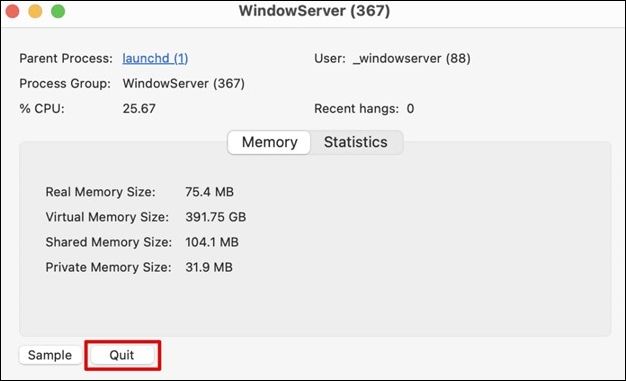
Step 2. Once inside the System Information app, navigate to the "CPU" section and type WindowServer into the search bar.
Step 3. To access the WindowServer option, double-click on it to open a new window.
Step 4. To quit the program, go to the Apple menu, select "Force Quit", and confirm by clicking "Force Quit".
To resolve the issue, you can try restarting your system to see if the problem is fixed. This will ensure that any recent modifications take effect. After restarting, test the function again to verify the issue has been resolved.
Fix 3. Restart Your Mac
If you're experiencing the "no manipulations with clipboard allowed" error on your Mac, a simple solution is to restart or force restart your device, which can help resolve temporary glitches or issues causing the problem. To restart your Mac, you can simply click the Apple logo in the top left corner, select Restart, or use the keyboard shortcut Command (⌘) + Option (⌥) + Power button to force restart. This can often resolve the issue and get your Mac back to normal.
Step 1. Click the Apple menu in the top-left corner.
Step 2. Choose "Restart" from the drop-down menu.
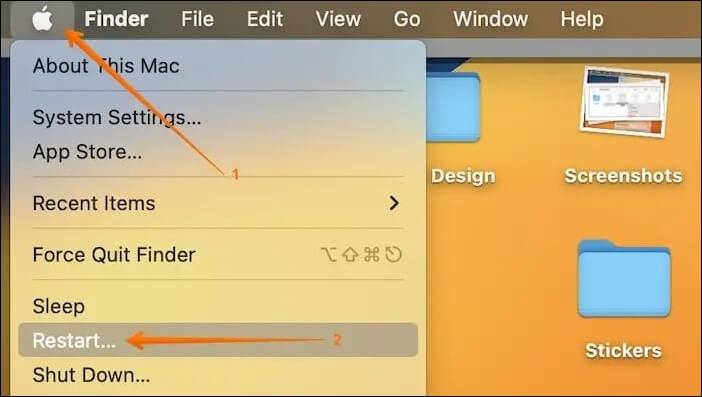
Wait for your Mac to shut down and then start up again. Once your Mac has restarted, try using the clipboard and see if the issue persists.
The "Sorry, no manipulations with clipboard allowed" error occurs when a user tries to copy and paste data from a website into a spreadsheet or other application. This is due to the website's security settings, which prevent clipboard access.
Fix 4. Check Suspicious Software
If you're experiencing issues with the clipboard on your Mac, it's possible that certain software is causing conflicts or restrictions. Try removing any suspicious or troublesome applications to the Trash bin to see if that resolves the issue.
Step 1. Open "Applications" and find the suspicious software.
Step 2. Right-click the software and choose "Move to Trash".
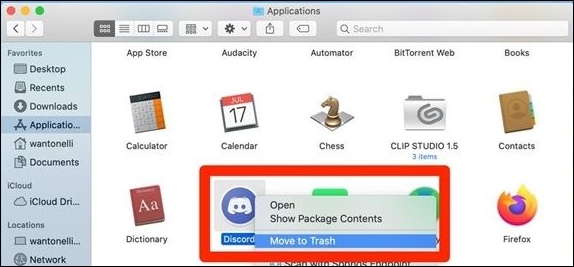
Step 3. Enter your admin password if prompted.
Step 4. To completely remove a software on a Mac, you need to empty the Trash. This will permanently delete the software, removing it from your computer.
Step 5. Restart your Mac and check if the clipboard functions normally.
When you're unable to delete a file or folder on your Mac, try emptying the Trash, restarting your Mac, or using the "Move to Trash" option from the context menu. If the issue persists, check for any locked files or permissions issues, and consider using the "Secure Empty Trash" option. If none of these solutions work, try resetting the System Management Controller (SMC) or the Power Management Unit (PMU), or seek further assistance from Apple Support.
On a Mac, files that won't be deleted can be a frustrating issue. To force delete these files, you can try using the Terminal command "rm -rf" followed by the path to the file or folder you want to delete. This command will permanently delete the file without moving it to the Trash.
Fix 5. Check Software Update
To optimize speed and fix bugs and compatibility concerns, update your Mac and applications. This can be done by checking for software updates, which is a straightforward process. By ensuring your operating system and applications are up-to-date, you can resolve various issues and improve overall performance.
Step 1. Click the Apple icon in the top-left corner.
Step 2. Choose "System Preferences" from the drop-down.
Step 3. Click "Software Update" in System Preferences.
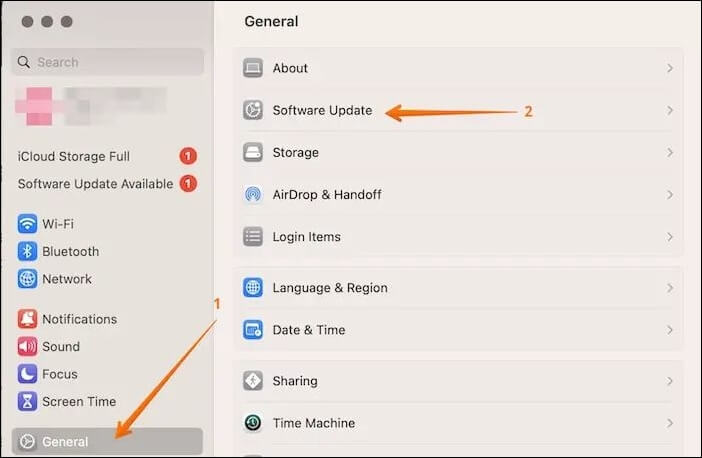
Step 4. To resolve the clipboard issue on your Mac, click "Update Now" and follow the on-screen instructions to install the latest updates. After the update is installed, restart your Mac to see if the problem is resolved.
If your Mac is experiencing issues with software updates, such as the update not working or no update being available, there are steps you can take to resolve the problem. First, try restarting your Mac and then check for updates again. If the issue persists, run the built-in software update tool in recovery mode, which can be accessed by restarting your Mac and holding down the Command (⌘) + R keys.
When a Mac says there's no update available, it may be due to several reasons such as outdated software, corrupted system files, or a problem with the App Store. To resolve this issue, try restarting the Mac, checking for updates in the System Preferences, and ensuring the App Store is set to automatically update. If the problem persists, consider reinstalling macOS, resetting the App Store, or seeking assistance from Apple Support.
🏆Recover Accidentally Deleted Files Using Software
As you update your macOS, it's essential to be aware that the process can sometimes cause unexpected issues, potentially leading to data loss. To avoid this, it's a good idea to back up your important files, photos, and information before proceeding with the update. This way, you can rest assured that your valuable data is safe and secure.
Before updating, consider taking a precautionary step by creating a backup of your important files using Deep Data Recovery for Mac. This software can help you recover permanently deleted files on Mac, in case you accidentally delete files, experience a system crash, or suffer data loss due to an update gone awry.
Having a digital detective like Deep Data Recovery software can be a lifesaver when dealing with data loss scenarios, such as Mac update deleted everything. This software scans your device, locates missing files, and brings them back to life, providing a safety net for your digital life. By practicing proactive backup habits and having reliable data recovery software at your disposal, you can navigate potential data loss situations with confidence.
Conclusion
Overcoming the frustrating "No Manipulations with Clipboard Allowed" message on your Mac can be a productivity game-changer. By understanding the underlying reasons and implementing practical fixes, you can regain control over your copy-paste routine and take your productivity to the next level.
Deep Data Recovery for Mac is a standout solution for safeguarding your data. In the event of data loss due to updates or other unforeseen circumstances, Qiling is ready to restore your valuable files, serving as a reliable partner in your Mac usage and maintenance journey.
Sorry, No Manipulations with Clipboard Allowed FAQs
When the "Sorry, no manipulations with clipboard allowed" error occurs, people often ask questions like "What does this error mean?", "Why can't I copy or paste?
1. Why can't I copy anything to my clipboard?
The problem could be caused by permission issues, software glitches, or the clipboard being overwhelmed. Check the permissions on the source and destination files, try restarting the pasteboard server or WindowServer, and avoid copying and pasting too many items in a short time.
2. Why is my Mac not letting me copy and paste?
When your Mac refuses copy-The paste actions issue is often caused by problems with the pasteboard server, interference from background apps, or software bugs. This can be resolved by restarting the pasteboard server, quitting any misbehaving apps, or restarting your Mac.
3. How do I enable copy and paste?
Copy and paste functions on a Mac are typically enabled by default, but issues may arise if standard keyboard shortcuts (Command + C to copy, Command + V to paste) are not used, or if the system is experiencing difficulties. If problems persist, troubleshooting using the provided fixes may be helpful.
4. Why is right-click copy and paste not working?
If right-Click copy and paste may not be working due to various factors, including a faulty context menu, software conflicts, or mouse settings issues. To resolve this, ensure that your right-click function is enabled, check for software updates, or try using standard keyboard shortcuts as an alternative.
Related Articles
- Fix: Blue Yeti Not Recognized on Windows 10/11 [Step by Step]
- Clean Install macOS Sonoma: Latest Update Steps
- Mac Safe Mode | Boot Mac to Safe Mode in macOS 13/12/11 [ 2023 Guideline ]
- Can SSD Overheat? Full Explanation and Reasons Here!
- Is RAID 0 SSD Worth It for Gaming [Complete Guide in 2023]
Are you curious about this question: is RAID 0 SSD worth it for gaming? This article covers everything about RAID 0, and you can know the complete answer about RAID 0 SSD for gaming. - Is Windows 11 Good For Gaming? Your Best Answer in 2024!
Is Windows 11 good for gaming? Should I upgrade to Windows 11? To know this answer, you should know the features in Windows 11 that are dedicated to gaming. Qiling will lead you to get the complete answer to Windows 11 gaming performance and how to optimize it.
Products
Articles & Tutorials
- Data Recovery
- Data Backup
- File Recovery
- File Backup
- System Backup and Restore
- Disk and Partition Clone
- Technical articles
- Mobile articles
- Disk Master Help
- Windows Data Recovery Tutorials
- Windows Secure Delete Tutorials
- Windows Partition Management Tutorials
- Windows File Backup and Restore Tutorials
- Windows System Backup and Restore Tutorials
- Windows Disk Backup and Restore Tutorials
- Windows Clone Tutorials