Force Quit Not Working on MacBook Pro/Air, How to Fix
If you're experiencing issues with an app on your Mac that won't close after trying to force quit, don't worry, there are solutions to resolve the "force quit not working on Mac" error. You can try restarting your Mac, checking for any background processes that might be causing the issue, or using the Activity Monitor to identify and quit the problematic app. Additionally, you can try resetting the System Management Controller (SMC) or the Power Management Unit (PMU) to see if that resolves the problem. If none of these steps work, it may be worth considering reinstalling the app or seeking further assistance from Apple Support.
You have an app on your Mac that's labeled as "not responding" and won't force quit or open, and you've tried shutting down the computer and force closing it through various methods.
Fortunately, there are multiple methods one can use to resolve the force quit not working on Mac error. One way to resolve this issue is to use the Activity Monitor app, which allows you to quit a frozen app and restart it.
| Workable Solutions | Step-by-step Troubleshooting |
|---|---|
| Fix 1. Fix Force Quit Not Working Using Activity Monitor | Select Applications, go to Utilities, and open Activity Monitor to go to the CPU header...Full steps |
| Fix 2. Disable Launch Agents to Fix Force Quit Not Working | Disable the launch agents to fix the Force Quit Not Working error on MacBook Pro/Air...Full steps |
| Fix 3. Use Terminal to Make Force Quit Working Properly | Open Terminal on your Mac and type killall [application name]. Hit Enter to fix the error...Full steps |
| Fix 4. Restart Your Mac to Return Force Quit Function to Normal | Go to the Apple icon and choose the Restart option from the drop-down menu to restart your Mac...Full steps |
| Fix 5. Reinstall/Update Misbehaving Apps to Fix Force Quit Issue | Go to the Apple logo, choose App Store from the drop-down menu, and select the Update button...Full steps |
Why Force Quit Not Working on Mac?
On macOS, force quit may not be working due to various reasons, but knowing the necessary force quit Mac shortcuts is vital.
To force quit on a Mac, press the "Command + Option + Escape" keys simultaneously. This will open a pop-up window allowing you to select the application to force quit. If the keys are not pressed at the same time, the pop-up will not appear.
A keyboard issue, such as damage or a glitch, could be causing the keys not to function properly. Additionally, the accumulation of dirt and dust may also be a contributing factor.
If you're unable to force quit an app and it's not related to the keyboard, it might be due to app errors or system bugs. In this case, you may need to restart your system to resolve the issue.
Fix 1. Fix Force Quit Not Working Using Activity Monitor
To resolve the force quit not working error, users can use the Activity Monitor (Task Manager on Mac) to review the performance of their system's different processes, making it a straightforward solution to the issue.
To force quit apps on a Mac, press Command + Option + Esc. This will open the Force Quit Applications window, where you can select the app you want to quit and click "Force Quit".
Step 1. Select "Applications".
Step 2. Go to "Utilities".
Step 3. Open "Activity Monitor".
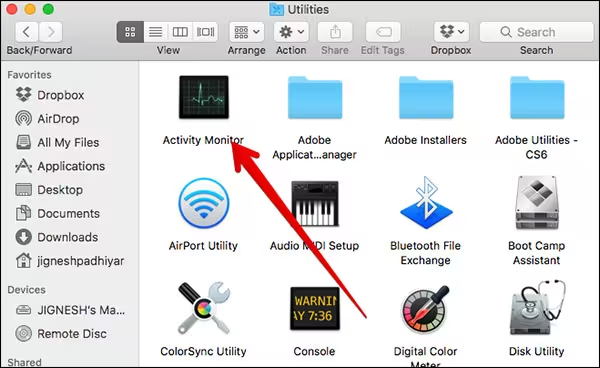
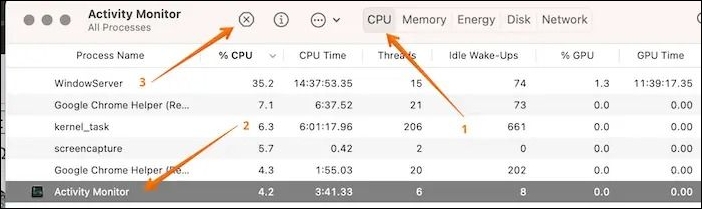
Step 4. To quit an application on a computer, go to the CPU header, look for the application you want to quit, and click on it to close it.
Step 5. Select the app and click "X" to close.
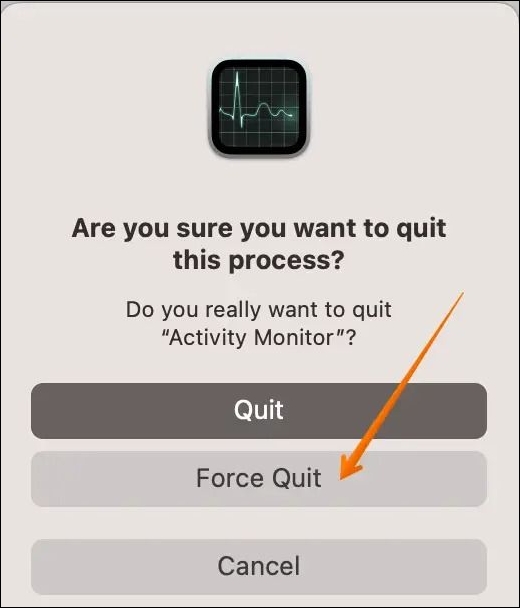
Step 6. Click on "Force Quit" once a window appears.
Fix 2. Disable Launch Agents to Fix Force Quit Not Working
Disabling launch agents is another way to fix the force quit not working error on MacBook Pro/Air. Launch Agents are applications or scripts that manage system processes automatically, and disabling them can resolve the issue.
To disable Launch Agents, you can use trusted security apps that offer the option to force quit unwanted Launch Agents, providing a viable alternative when the usual force quit method is ineffective.
To fix the force quit not working on Mac issue, try restarting your Mac, checking for software updates, and ensuring that the Force Quit menu is accessible. If the problem persists, reset the System Management Controller (SMC) and the Power Management Unit (PMU), and try booting your Mac in safe mode.
Fix 3. Use Terminal to Make Force Quit Working Properly
If Activity Monitor doesn't help resolve the error, you can use Mac Terminal to quit unresponsive apps with ease by using a particular command.
Take a look at the steps you need to follow:
Step 1. Open "Terminal" on your Mac.
Step 2. Type killall [application name].
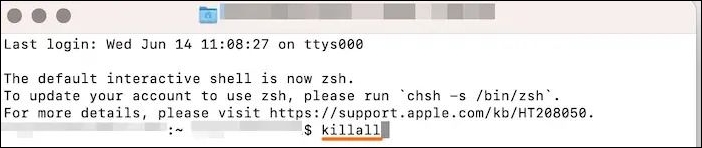
Step 3. Hit "Enter".
To get the list of running apps and their PIDs, you can use the Terminal command "ps aux" and then kill the app by its PID using the "kill" command. For example, to kill the app "Google Chrome" with PID 1234, you can use the command "kill 1234".
Step 1. Open "Terminal".
Step 2. Type ps -ax.
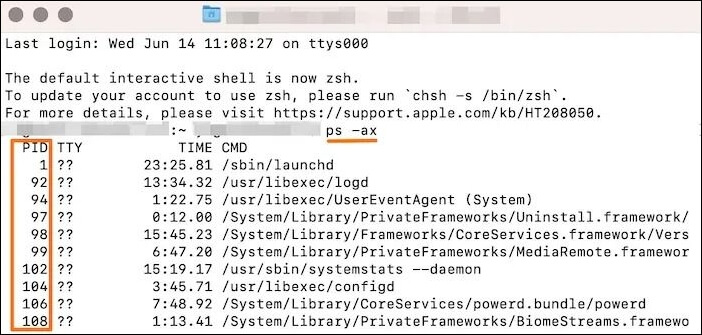
Step 3. A list of applications will appear on the screen, along with their corresponding process IDs.
Step 4. Note down the PID you want to remove.
Step 5. Open "Terminal" again.
Step 6. Type kill [PID].
Fix 4. Restart Your Mac to Return Force Quit Function to Normal
If you're experiencing a force quit error on your MacBook Pro/Air, a simple solution is to restart your device. This removes temporary glitches and allows the system to start afresh. To do this, go to the Apple icon and choose the "Restart" option from the drop-down menu.
If the screen is unresponsive and the first method to restart is not possible, press and hold the Power button until the Apple logo appears, then release it. Wait a few seconds for the system to restart.
Note: Force quitting software can cause data loss, especially when force-quitting unresponsive office documents, resulting in lost unsaved changes and inconvenience to work.
Opting for professional data recovery software like Deep Data Recovery is a great idea, as it enables users to quickly restore lost or deleted data, including audio, video, photo, and document files.
Deep Data Recovery for Mac can be used to recover data in various loss situations, including deleted files, formatted disks, and data loss due to system crashes or software issues.
- It can recover deleted files on Mac from accidental deletion due to human error.
- It supports NTFS recovery on Mac or other partition loss or repartition that causes data loss.
- Data recovery involves retrieving lost or deleted data from various situations, such as formatting, system crashes, virus attacks, and more.
- It supports recovery from unsaved documents, such as recovering unsaved Excel files on Mac.
To recover lost or deleted data on your Mac, start by stopping using the device immediately to prevent overwriting the deleted data. Next, check the Trash for the deleted file and restore it if it's still there.
Step 1. Scan for deleted files
Select the drive where your files were deleted and click "Search for lost files".

Step 2. The Qiling Mac data recovery software performs quick and deep scans on a selected volume to find deleted files, allowing users to filter results by file type and location.

Step 3. To recover deleted files, double-click on them to preview, then click the "Recover" button to restore them.
Fix 5. Reinstall/Update Misbehaving Apps to Get Force Quit Right
To troubleshoot misbehaving apps, consider reinstalling or updating them, and try force quitting to see if that resolves the issue. If not, deleting the app and reinstalling it from the App Store may be necessary. Additionally, it's essential to also delete any junk files, scripts, or cache files that may be causing the problem.
To update apps from the App Store, open the App Store, tap your profile icon, then tap "Purchased" and select the app you want to update, tap "Update" and confirm the update. Alternatively, you can also update apps directly from the app by going to the app's settings or home screen, where you'll find an update option.
Step 1. Go to the Apple logo.
Step 2. Select the "App Store" option from the drop-down menu, and you will see the "Updates" section.
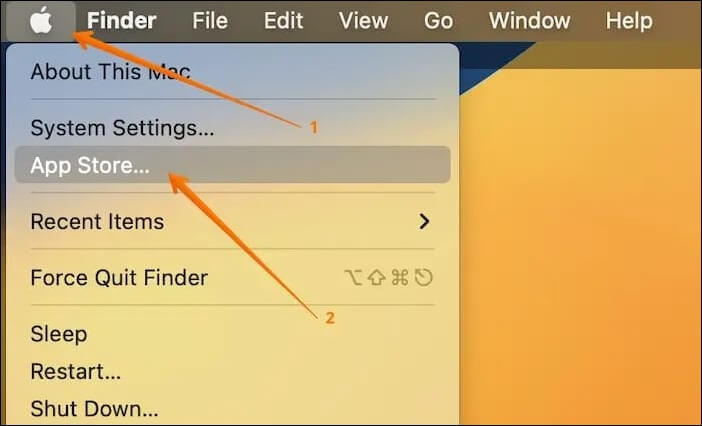
Step 3. Select the "Update" button to start.
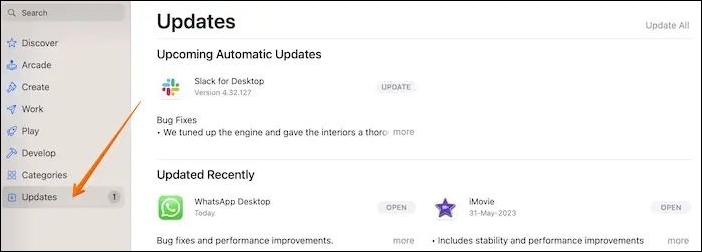
To update the app, you can open it and go to the menu bar, click on your name, and select the "Check for Updates" option.
Conclusion
Force Quit not working on a Mac can be frustrating, but there are alternative methods to close an unresponsive app. Users can try using the Activity Monitor, which allows them to quit the app directly, or use Terminal commands to force quit the app. These alternatives provide a workaround when Force Quit is not working as intended.
If you experience data loss, it's recommended to seek professional assistance from data recovery software. The Deep Data Recovery for Mac is a reliable and user-friendly option that can help quickly restore data from various Mac devices.
Force Quit Not Working on Mac FAQs
Gathering more knowledge on force quit not working on Mac is imperative. For that, check out these questions and answers.
1. What to do if force quit doesn't work?
If force quitting doesn't work, the best option is to restart the system. To do this, press the "Power" button and hold it until you see the Apple logo on the screen, then release it. This will shut down the system and then restart it. This is usually the most effective way to resolve the issue.
2. How do I force quit an app that won't close?
To force quit an app that won't close, go to the Activity Monitor, select the app in the "CPU" tab, and click the "X" that appears.
3. How do you force quit on a Mac with a frozen keyboard?
If your Mac's keyboard is frozen, click the Apple icon, select "Force Quit" from the menu, and in the resulting window, select and force quit the frozen app.
Related Articles
- How to Fix macOS 14 Sonoma Update Not Showing Up on Mac
- How to Fix Windows 10 Upgrade Error Code 0xc0000017
- Universal Control Not Working? How to Fix on Mac/iPad
- How to Fix Cannot Delete a Protected Partition in Diskpart [Ultimate Guide]
- Bitlocker Encryption: The Guard of Your Data [All You Need to Know]
If you're concerned about data security threats or want to safeguard your private data, Bitlocker Encryption is a reliable solution. It ensures that your data remains protected, and you can learn more about its benefits by reading on. - A Comprehensive Introduction to Boot Sector Virus [Updated 2023]
Do you know what is boot sector virus? You may have searched for information about it online but still have not gotten the answer you want. Try the methods in this pose, you will have a full understanding of the boot sector virus as soon as you read this article.
Products
Articles & Tutorials
- Data Recovery
- Data Backup
- File Recovery
- File Backup
- System Backup and Restore
- Disk and Partition Clone
- Technical articles
- Mobile articles
- Disk Master Help
- Windows Data Recovery Tutorials
- Windows Secure Delete Tutorials
- Windows Partition Management Tutorials
- Windows File Backup and Restore Tutorials
- Windows System Backup and Restore Tutorials
- Windows Disk Backup and Restore Tutorials
- Windows Clone Tutorials