How to Fix macOS 14 Sonoma Update Not Showing Up on Mac
Why does the macOS Sonoma Update Not Show Up
If the macOS 14 Sonoma update is not showing, users can try restarting their Mac, checking for available updates in System Preferences, and ensuring their internet connection is stable. They can also check the Apple System Status page to see if there are any known issues with the update. Additionally, users can try updating their Mac in Safe Mode or resetting their System Management Controller (SMC) and Power Management Unit (PMU). If none of these steps resolve the issue, users can contact Apple Support for further assistance.
Before proceeding with the solution, it's essential to understand the reasons behind the issue. The macOS 14 Sonoma update not showing can be caused by various factors, and identifying the root cause is crucial to resolving the problem.
- ⚔️Incompatibility: The Mac needs to be compatible with macOS 14 Sonoma to receive the update, so check the list of models that support Sonoma.
- 🎚️Beta updates turned off: If the beta updates option is turned off, you won't receive system updates. To fix this, check the software update section and turn it back on.
- 🍎Not joined the Apple Developer program: To access the Sonoma update, you need to sign up for the Apple Developer program since the beta version is not publicly available. Without membership, you won't be able to find the update.
- 🌐Poor internet connection: Unstable internet connection may prevent the update from showing. Ensure a stable and robust network connection to resolve the issue.
How to Fix macOS 14 Sonoma Update Not Showing
If you're experiencing issues with the macOS 14 Sonoma update not showing up, don't worry - there are several solutions you can try to resolve the problem.
Here is a list of fixes you can try –
- 1. Check the macOS 14 Sonoma Supported Macs
- 2. Check and Correct Apple's Date & Time
- 3. Restart Your Mac Device
- 4. Check the Internet Connection on Mac
- 5. Verify the macOS Status to Fix the Update Not Showing
- 6. Update the macOS 14 Sonoma in Safe Mode
- 7. Disable Suspicious Applications on Mac
- 8. Update the macOS Sonoma from Bootable USB
1. Check the macOS 14 Sonoma Supported Macs
To resolve the issue of the macOS 14 Sonoma update not showing, check the compatibility of your system with Sonoma. This can be done easily to determine if your system meets the requirements for the update.
To view information about your Mac, click on the Apple icon, then select "About This Mac". This will display details about your system, including the operating system, processor, and memory.
Here is the list of models that are compatible with downloading macOS 14 Sonoma –
| iMac Pro (2017) |
| iMac (2019 or later) |
| Mac Mini (2018 or later) |
| MacBook Pro (2018 or later) |
| MacBook Air (2018 or later) |
| Mac Pro (2019 or later) |
| MacOS Ventura and the latest models |
| Mac Studio |
2. Check and Correct Apple's Date & Time
If incorrect dates and times are causing issues with the update, fixing them might resolve the problem.
For that, take a look at the steps you need to follow –
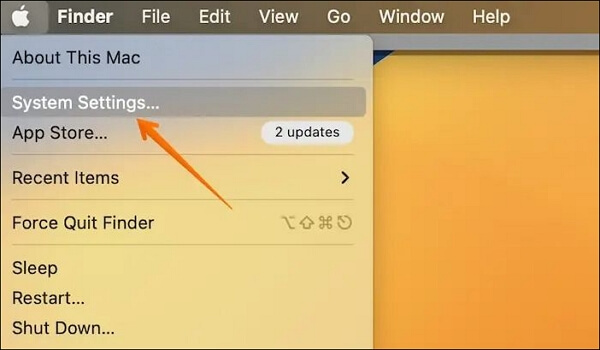
Step 1. Click on the Apple logo.
Step 2. Go to System Settings from the drop-down menu.
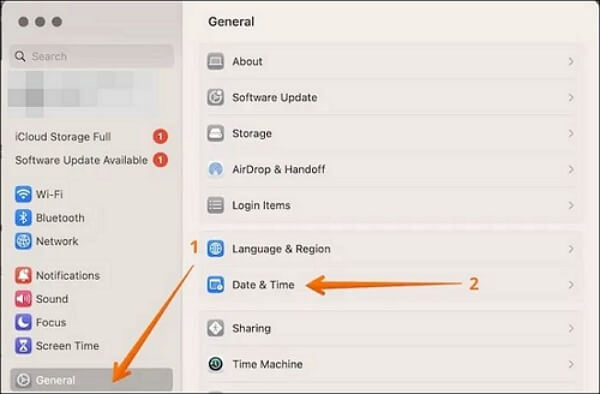
Step 3. Choose General from the left-hand side.
Step 4. From the right-hand side, click on "Date & Time".
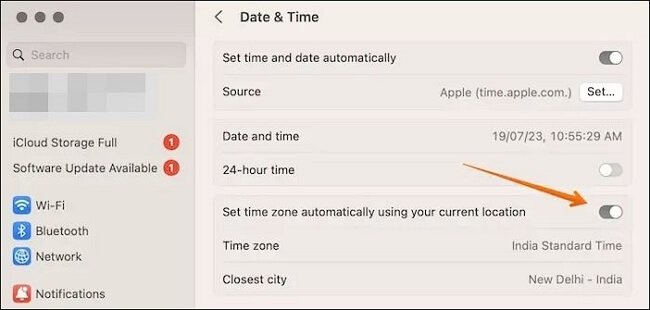
Step 5. Turn on "Set time zone automatically using your current location".
To update your system to macOS 14 Sonoma, first check if your system is compatible. If it's not, you'll need to explore alternative solutions. If it is, you can proceed with the update.
3. Restart Your Mac Device
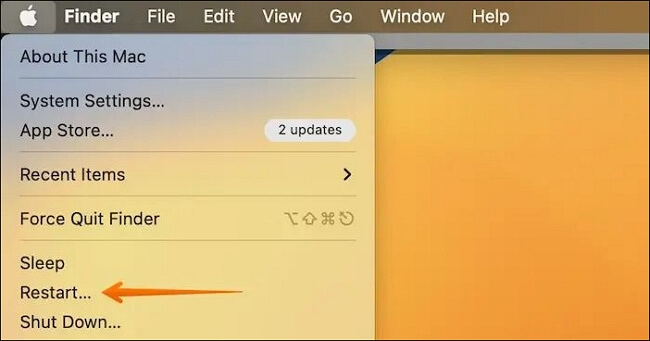
To fix the macOS Sonoma update issue, try restarting your system, which should only take a few seconds and might resolve the problem. If the screen is frozen, you can force restart the system by going to the Apple icon and clicking the Restart option from the drop-down menu. This simple hack might be all you need to get your system up and running again.
To force restart your device, press and hold the power button until it turns off, then press and hold it again to turn it back on. This can help the App Store identify and update any necessary processes.
4. Check the Internet Connection on Mac
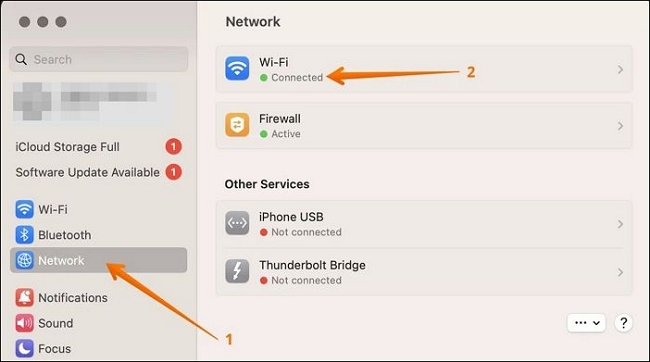
If you're having trouble updating, check your internet connection by opening Safari and visiting a website to see if you can access it.
Here are the steps to follow –
Step 1. Click on the "Apple" logo.
Step 2. Go to "System Settings".
Step 3. Choose "Network" from the left-hand side.
Step 4. You are connected to the Internet if you see a green dot under WiFi or Internet connection.
5. Verify the macOS Status to Fix the Update Not Showing
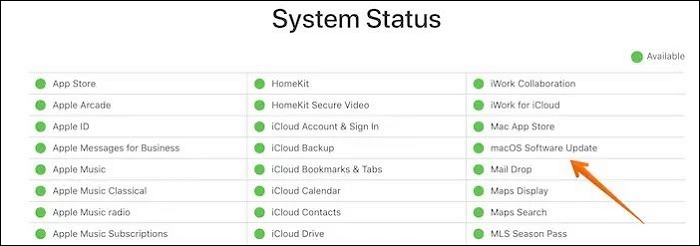
The macOS update might be delayed due to an issue on Apple's end, which can be checked on the Apple System Status page. If there's a problem with the "macOS Software Update" option, it could be the reason why you're unable to install the update. You can check the status by visiting the Apple System Status page and looking for the "macOS Software Update" option. If it's green, it means everything is fine and the update should proceed as usual. If it's not green, it could indicate a delay or issue with the update.
If you're experiencing issues with the macOS 14 Sonoma update not showing, one helpful method is to share it on social media platforms like Facebook, Twitter, Instagram, and others, in hopes that it might resolve the problem.
6. Update the macOS 14 Sonoma in Safe Mode
You can also try updating the macOS 14 Sonoma in Mac Safe Mode. The steps differ based on the model you are using.
For Silicon-based Mac –
Step 1. Go to the Apple menu.
Step 2. Click on "Shut Down".
Step 3. Press the power button and hold it.
Step 4. Release it when you see "loading startup options."
Step 5. Press the Shift key and hold it.
Step 6. Choose "Continue in Safe Mode".
Step 7. Try to update the system.
For Intel-based Mac -
Step 1. Go to the "Apple" menu.
Step 2. Click on "Shut Down".
Step 3. Turn on the system.
Step 4. Press the Shift key and hold it.
Step 5. Log into the system.
Step 6. Try to update the system.

Apple Silicon Mac | Everything You Should Know
Advances in technology have made it possible for individuals to accomplish various tasks using a MacBook.
7. Disable Suspicious Applications on Mac
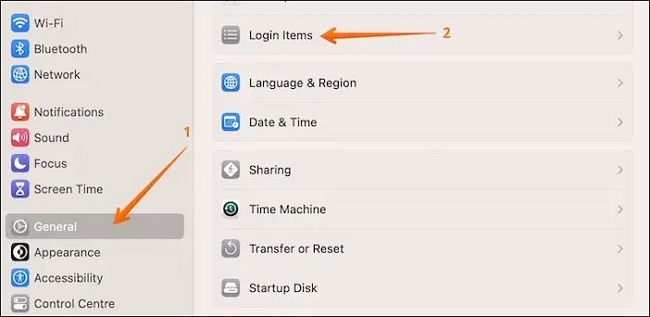
Malware or suspicious applications can sometimes interfere with updating the system, but you can remove them from the login items to resolve the issue. To do this, follow these steps:
Step 1. Click on the Apple menu.
Step 2. Go to System Settings.
Step 3. Select General.
Step 4. Go to the Login Items tab on the right-hand settings.
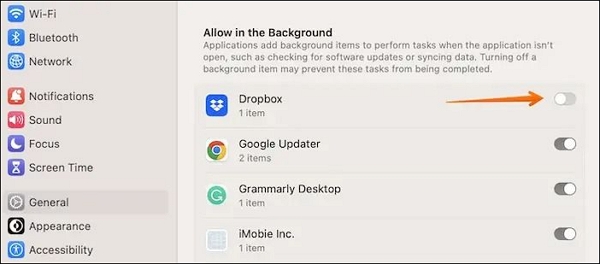
Step 5. Disable any suspicious apps in the background to prevent them from running.
Step 6. Restart the system.
8. Update the macOS Sonoma from Bootable USB
To install macOS Sonoma on your Macbook, first create a bootable USB drive using the installer and Disk Utility, then follow the installation instructions specific to your Macbook model.
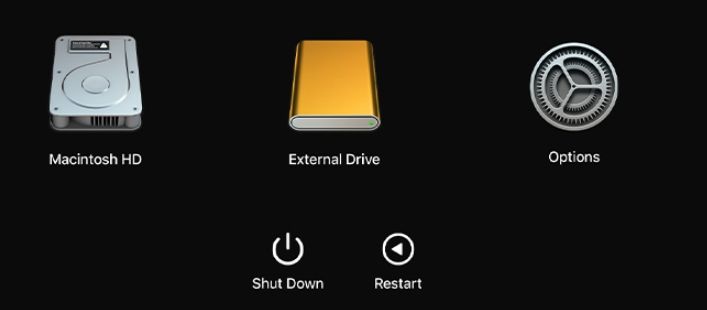
For Silicon Macs:
Step 1. Turn on the system by pressing the power button and holding it until the startup options window appears.
Step 2. The system will now display bootable volumes, which includes the USB.
Step 3. Choose the volume with the macOS High Sierra installer, and click the Continue button.
Step 4. Follow the on-screen instructions to install macOS Sonoma
For Intel-based Macs:
Step 1: Power on your Macbook, and press and hold the Option key.
Step 2. To view the list of bootable volumes, you can use the command "diskutil list" in the Terminal app on a Mac. This command will display a list of all volumes on the disk, including those that are bootable. The output will show the device name, size, and bootable status for each volume.
Step 3. Select the USB, and press the Enter key.
Step 4. Choose Install macOS.
Step 5. Select Continue and follow the on-screen instructions.
How to Recover Data After macOS Sonoma Update
If you're concerned about losing data after the macOS Sonoma update, you're not alone - data loss can indeed occur. However, you can take steps to protect your files by using professional data recovery software, such as Deep Data Recovery for Mac.
The Deep Data Recovery for Mac is a user-friendly data recovery tool that efficiently restores photos, videos, documents, and more, regardless of the situation.
Data loss can occur due to various causes, including hardware failures, software glitches, human errors, cyber attacks, natural disasters, and power outages, resulting in
- Losing data due to partition loss can be a stressful experience, but fortunately, there is a reliable solution available. With the help of excellent Mac data recovery software, you can recover your lost data and avoid the panic that often comes with it.
- Despite best efforts, humans still make mistakes, leading to accidental data loss, but this reliable data recovery tool can effectively counteract it.
- Protecting your system from virus attacks is crucial to prevent the loss of crucial data due to malware.
- System crashes or errors on a Mac can lead to data loss, but using Deep Data Recovery for Mac can help restore deleted files.
If you are eager to use Deep Data Recovery for Mac, follow the steps listed below -
Note: To create a backup, click on "Disk Backup" on the left. This allows you to recover data from a backup image if the disk is damaged or data is accidentally deleted or lost.
Step 1. Select the location
After updating to macOS Sonoma/Ventura/Monterey/Big Sur, select the disk where you lost data. Click on "Search for lost files" to initiate the recovery process.

Step 2. Find lost data after the scan
Deep Data Recovery for Mac scans the selected disk volume and displays the scanning results, allowing users to find specific data using file type and path.

Step 3. Recover data after macOS update
Select the target files that were unknowingly lost during or after the update, then click the "Recover" button to retrieve them all.

Summary
If the macOS 14 Sonoma Update is not showing, don't worry! Issues like incompatibility, poor internet connection, or beta updates not being available can cause the problem. However, you can resolve it with some simple fixes, such as checking the system's compatibility or restarting the system.
Data loss can occur during the macOS 14 Sonoma Update Not Showing issue, but using trustworthy data recovery software can help restore different types of data in a user-friendly way.
macOS 14 Sonoma Update Not Showing FAQs
The macOS 14 Sonoma update is not showing up for some users, and the reasons for this issue are varied. Some users are experiencing issues with the Software Update mechanism, while others are facing problems with their internet connection.
1. Why isn't my Mac showing the latest update?
Your Mac may not be showing the latest update due to various reasons such as an unstable internet connection, temporary glitches, or system incompatibility with the software.
2. How to install macOS 14 Sonoma?
To install macOS 14 Sonoma, go to System Settings, download the beta updates, install macOS 14 Sonoma beta 1, and then restart the system.
3. How to fix the requested version of macOS is not available?
Try rebooting the router or checking your Wi-Fi connection to ensure a stable internet connection before updating the system again.
4. How to download the macOS Sonoma developer beta?
To download the macOS Sonoma developer beta, you can follow these steps:
- To access the Apple Developer account, click on the "Account" tab and enter your Apple ID and password in the "Sign in to Apple Developer" section.
- Accept the terms and conditions.
- Now, you can go to System Settings and download the beta updates.
Related Articles
- Mac Internet Recovery Mode, How to Start Up [Full Guideline]
- How to Fix Windows Boot Manager Error Code 0xc0000225
- How to Fix Last USB Device Malfunctioned Error on Windows [Efficient Ways]
- [Solved] Fix Error Code 36 on Mac with 5 Available Solutions
- All Information About WannaCry Virus [Updated 2022]
Learn about the WannaCry ransomware virus - its definition, impact, how it spread globally, and preventive measures to protect your computer from future attacks. - Ways to Delete Windows 7 Backup [Updated 2023]
You need to delete Windows 7 backup on your computer, and this article will guide you through the process. It provides information on why deleting the backup is necessary and offers a step-by-step guide on how to do it.
Products
Articles & Tutorials
- Data Recovery
- Data Backup
- File Recovery
- File Backup
- System Backup and Restore
- Disk and Partition Clone
- Technical articles
- Mobile articles
- Disk Master Help
- Windows Data Recovery Tutorials
- Windows Secure Delete Tutorials
- Windows Partition Management Tutorials
- Windows File Backup and Restore Tutorials
- Windows System Backup and Restore Tutorials
- Windows Disk Backup and Restore Tutorials
- Windows Clone Tutorials