How to Download macOS Sonoma on Mac, MacBook, iMac | How & Why
macOS 14 Sonama Overview
Apple's macOS Sonoma is expected to be released in September 2023, following its June WWDC announcement. This will be the 2023 big version of macOS for Apple's Mac models, offering an exciting update for users.
Apple has used California landmarks to name each new version of macOS since macOS 10.9 Mavericks. The next version, macOS 14, might be a maintenance release with some new features, and could be named after a location near the previous version, macOS Ventura. However, it seems that the next version is actually called macOS Sonoma, according to the WWDC in June.
Apple is rumored to be considering combining iPadOS and macOS in the next macOS 14 release, building on previous initiatives such as Catalyst and Universal Control, while also improving features like Stage Manager and Freeform for a seamless user experience.
The new features of macOS 14 include.
- Apple has enhanced Safari functions on macOS Sonoma, allowing users to have a better privacy experience when using the website browser.
- macOS 14 also prioritizes accessibility for individuals with hearing impairments by introducing additional features that cater to their needs.
- macOS Sonoma introduces the macOS Game Mode, which provides a better user experience for playing games on Mac devices.
Apple's upcoming Mac operating system will prioritize seamless integration with all Apple devices, allowing users to access and use programs and features across their entire Apple ecosystem.
If you're wondering how to download macOS Sonoma, its capabilities, and how to upgrade to macOS 14 from older versions, this guide can help. It explore the answers below, and don't forget to share this page! Additionally, you can download the Deep Data Recovery tool to recover lost data after upgrading to macOS 14.
macOS Sonama Capability: Can My Mac Run macOS 14 Sonoma
Mark your calendars for an exciting week of tech and community, where you can learn about Apple platforms, technologies, and tools, and engage with experts and other developers, all online and at no cost, as part of Apple WWDC23.
Apple presents macOS 14 at the 2023 Worldwide Developers Conference (WWDC), which usually takes place around the first week of June.
- June 5: The developer beta will be released after revealing macOS 14.
- July: Apple will announce the first public beta.
- June to September/October: During the beta period, Apple releases numerous beta updates, which is a phase that comes after the initial release of the new iOS version.
- September/October: macOS 14 will be made public.
macOS 14 Compatibility
The compatible device list for macOS 14 Sonoma is similar to Ventura, as there haven't been any speculations that Apple will stop supporting any Macs this year. The list is as follows: 1. Mac Pro (2019 and later) 2.
- MacBook Pro models from 2018 or later
- MacBook Air models from 2018 or later
- Mac mini models from 2018 or later
- Mac Pro models from 2019 or later
- iMac models from 2019 or later
- iMac Pro (Every model)
- Mac Studio 2022 or later
While some features of macOS 14 may be available on Macs with Intel-based processors, others may require Apple silicon chips, potentially limiting their functionality on older Macs.
Apple Silicon Mac | Everything You Should Know
The all-new Apple silicon Mac is making waves, and if you're curious about it, the steps below can help!
How to Download macOS 14 on Mac from the App Store
macOS 13.4 has a modified beta version, but once macOS 14 Sonoma emerges, the entire method will likely be divergent. It's a good idea to check your Mac's capabilities before downloading macOS 14.
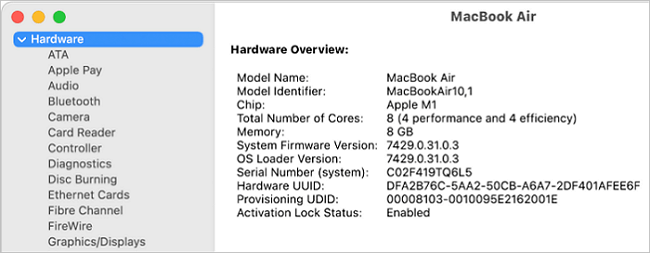
Follow the steps below to download the macOS Sonama on Mac from the App Store:
Step 1. The availability of macOS 14 can be checked on the Apple App Store.
Step 2. Once you've clicked the "Get" button, the macOS 14 installer will begin downloading to your computer. This process may take a few minutes, depending on the speed of your internet connection.
Step 3. Once downloaded to your Applications area, the installation of macOS 14 begins immediately. To proceed, simply follow the on-screen directions.
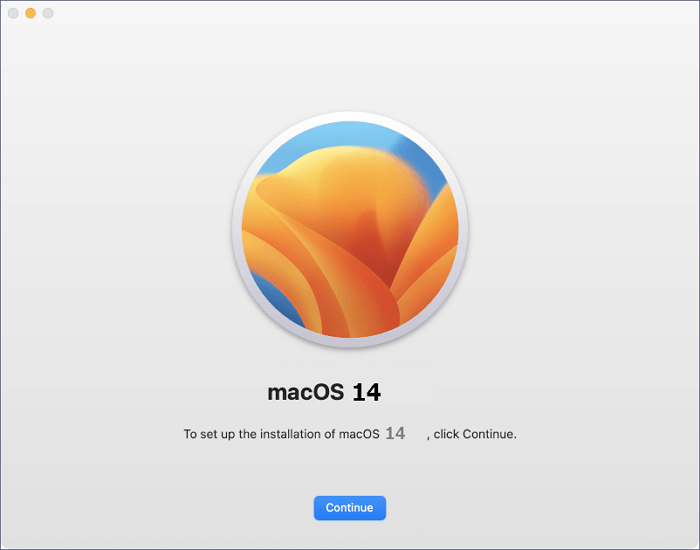
Note: Beta versions of software, such as macOS Ventura, are not as reliable as the final product. They may have added or removed functionalities, or they might not function properly, and the user interface may change. Furthermore, there is no guarantee that third-party apps will be compatible with beta versions.
How to Download and Install macOS 13 Ventura [Step-by-Step Navigation]
We'll guide you through the process of downloading macOS 13 Ventura. If you're looking to install it on multiple devices, you can read more about that elsewhere.
How to Download macOS Sonoma Developer Beta
Users who couldn't experience Sonoma before its publication in November can now download the macOS Sonoma Developer Beta through the Apple Developer application.
Step 1. The App Store on your Mac/MacBook can be opened by clicking the App Store icon, then searching for "Apple Developer" in the search bar.
Step 2. To download the Apple Developer app, select "Get" and enter your Apple ID password.
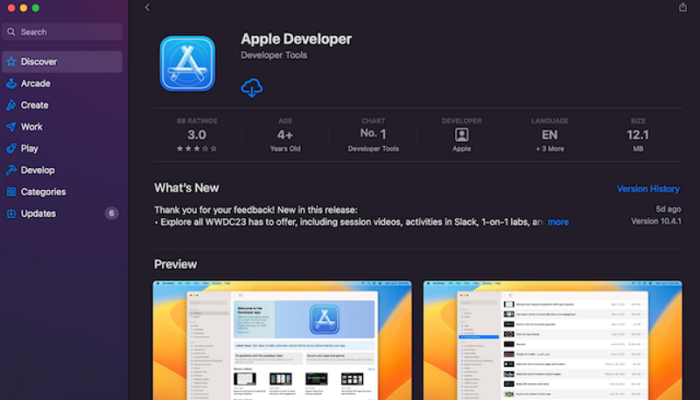
Step 3. If you're not a developer, try joining the developer program first, then log in with your developer account.
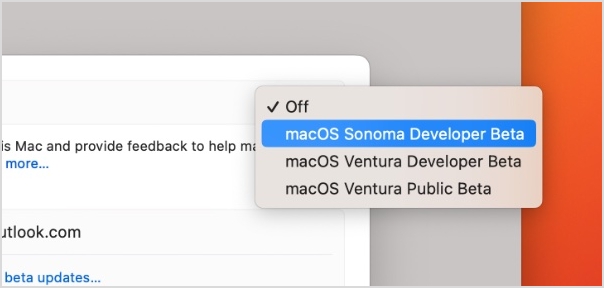
Step 4. To download the macOS Sonoma Developer Beta, go to System Settings, then General, followed by Software Update, and finally Beta updates, where you can find and download "macOS Sonoma Developer Beta".
How to Upgrade to macOS 14 in Software Update
Even though macOS has all the OS 14 features, the leading advantages of upgrading to macOS 14 Sonoma lie in its additional benefits beyond the standard features.
macOS 14 is highly secure
The upcoming macOS 14 version includes several security patches that help resolve vulnerabilities, making it more protected than previous versions. Despite Apple's continuous software updates to address new viruses and shortcomings, if you choose not to migrate to macOS 14, your Mac will still function properly, but may be more susceptible to ransomware and other safety hazards.
Brand-new features
macOS 14 has several brand-macOS has been enhanced with new features, including a multi-item clipboard, refined system settings, seamless syncing across all devices, a game mode, and many more exciting enhancements.
macOS will be expeditious on the different MacBook models
The latest updates to macOS have been speedier than before, and macOS 14 is reportedly a little faster than macOS Ventura, which may also be true for the final public release.
Follow the steps below to upgrade to macOS 14 in the Mac Software Update:
Step 1. Go to the Software Update section.
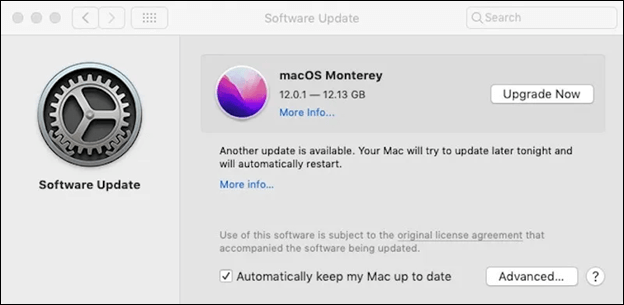
Step 3. A new tab titled "Updates" will be displayed, showing the currently running version.
Step 4. If you want to install the beta, choose macOS 14 Public, and if you want to go back to Ventura, select Off.
Step 5. You have to wait for Apple to release macOS 14 in the fall, and then you can install it via Software Update in system settings.
If you're unable to upgrade to macOS 14 on your Mac, there are a few potential solutions to try. Firstly, ensure that your Mac meets the system requirements for the update, which can be found on the Apple website.
Why Can't I Update My Mac? Fix It and Update Mac to The Latest macOS Big Sur
How to Create macOS Sonoma Installation USB
New versions of operating systems can be installed on a Mac using a bootable disc or a USB flash drive, which can start a program to replace or run a new macOS, such as Sonoma. Formatting the storage drive is often a choice on a brand-new macOS, but creating a bootable USB on macOS 14 offers several advantages.
- Dual-To boot your macOS Sonoma, you can either run it as the sole operating system on your Mac or install it alongside other versions of macOS, such as Ventura and Monterey, allowing for dual-booting.
- Wipe your macOS 14 clean and reinstall macOS.
- Install the required macOS on several devices.
- Reinstall macOS 14 without an internet connection.
To create a macOS 14 installation USB, you'll need a 16 GB or larger USB drive, a Mac computer, and a stable internet connection. First, ensure your Mac is running the latest version of macOS and has enough free storage space.
The latest macOS version, macOS 14, can be easily installed on a USB drive by downloading the installation software from the App Store, providing a hassle-free way to create a macOS 14 installation USB.
To download macOS 14, open the App Store, search for "macOS 14" in the search bar, and click the "Get" button to initiate the download. You can also check out the article on how to create a macOS Ventura bootable USB, which can be used to install macOS Sonoma on unsupported Mac models.
To create a macOS Ventura bootable USB, follow the steps outlined in the article. The process involves using the built-in Terminal command "createinstallmedia" to create a bootable installer, which can then be used to install macOS Ventura on a Mac. The article provides detailed instructions and troubleshooting tips to help users successfully create the bootable USB drive.
Summary
With the release of macOS 14, many Mac users are feeling left behind. Apple has already announced the main features of the new operating system, but the major modifications that come with it require significant research and development, leaving some users feeling exited.
If you're experiencing data loss while upgrading to macOS 14, consider using Deep Data Recovery for Mac, a reliable software that can retrieve lost data of any type. Download it now to resolve all your Mac-related issues.
Download macOS 14 Sonama FAQs
Go through the FAQs below to better understand the latest macOS features:
1. How to update my Mac to macOS 14?
To update your outdated Mac, you can search for software updates on the panel's edge or open the App Store application, located in your Applications folder, and hit the "Updates" tab to look for updates to macOS 14.
2. Will I lose data after upgrading to macOS 14?
Although upgrading to the latest macOS 14 won't delete files on your Mac, it's a good idea to have a backup plan. If you've lost data during the upgrade, you can try downloading Deep Data Recovery for Mac to retrieve it.
3. What are the new features of macOS 14?
Some of the brand-macOS 14 has been announced to have improved privacy protection and accessibility features, and will also introduce a unique game mode for a better gaming experience on Mac devices.
4. How do I know if my Mac is capable of macOS 14 or not?
The MacBook Air 2019 or older models, iMac, and other compatible Macs can install macOS 14, but you need to check the list of compatible Macs first.
Related Articles
- File System Verify or Repair Failed. : (-69845) | How to Fix
- How to Solve "Format FS=NTFS Stuck at 0% or 10%" [Full Guide]
- How to Fix Windows Boot Manager Boot Failed [Full Guide]
- Restore Deleted/Crashed Notepad ++ Files from Backup
- How Much Storage Do I Need on My Laptop [Windows/Mac]
This post will guide you on how to check the laptop's storage on your Windows/Mac. We will tell you the appropriate storage for your laptop. I hope this article can help you with your questions. - How to Change DNS Settings [2023 New]
Changing DNS settings is crucial for accessing the internet, especially when the default DNS fails. This process varies across different operating systems and devices, including Windows 11 and 10, macOS, iPhone, and Android.
Products
Articles & Tutorials
- Data Recovery
- Data Backup
- File Recovery
- File Backup
- System Backup and Restore
- Disk and Partition Clone
- Technical articles
- Mobile articles
- Disk Master Help
- Windows Data Recovery Tutorials
- Windows Secure Delete Tutorials
- Windows Partition Management Tutorials
- Windows File Backup and Restore Tutorials
- Windows System Backup and Restore Tutorials
- Windows Disk Backup and Restore Tutorials
- Windows Clone Tutorials