How to Fix Windows Boot Manager Boot Failed [Full Guide]
Windows manager software allows a computer to boot into an operating system, but sometimes it can't load the OS and start normally, resulting in errors or a black screen.
Windows Boot Manager Boot Failed can be a frustrating issue, but there are ways to troubleshoot it. If you're experiencing problems, this article will guide you through the process of booting Windows normally. Let's dive into the details!
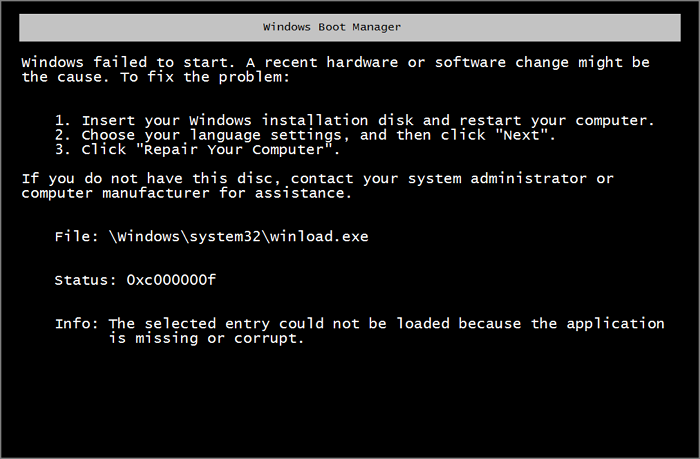
Why Windows Boot Manager Boot Failed
The Windows Boot Manager may fail to boot due to various reasons, such as a corrupted Windows installation, a faulty hard drive, or a malfunctioning boot sector, among others.
- Corrupt Master Boot Record (MBR): The Master Boot Record (MBR) is a critical data structure located on the hard drive's first sector, containing boot code and a partition table, which may be corrupted and prevent the operating system from loading.
- Damaged hard drive cable: If the cable connecting the hard drive to the motherboard is damaged, the boot manager may not be able to access the operating system files on the hard drive.
- Improper shutdown of the computer: If a computer is shut down improperly, it can damage the system files that the boot manager relies on, leading to issues with the computer's ability to boot up properly.
- Hardware missing: A missing or improperly installed hardware component can cause the boot manager to fail.
A boot failure can occur due to hardware or software issues that prevent the boot manager from loading the operating system, requiring different solutions.
📖Extend Reading: Default Boot Device Missing or Boot Failed
You can click on the link to check the health status of your hard drive to see if the problem is with your hard drive.
How to Check Hard Drive Health in Windows
In Windows 11 and Windows 10, it's essential to monitor hard drive health to prevent unexpected crashes and resulting data loss.
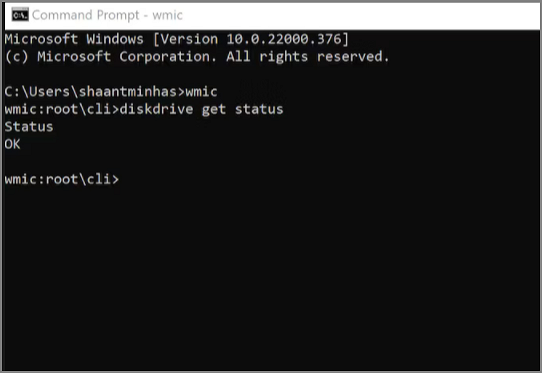
Now that you understand what a Windows Boot Manager boot failure is, let's move on to the solution. In the next section, we'll explore the steps to fix this issue, providing you with a clear and concise guide to get your system up and running smoothly again.
How to Fix Windows Boot Manager Boot Failed
If the Windows Boot Manager boot fails, there are several troubleshooting methods to try. To resolve the issue, you can try running a System File Checker scan, checking for corrupted system files, and running a DISM scan to repair any issues with the system image. Additionally, you can try booting in Safe Mode, checking for any hardware issues, and running a disk check to identify any disk errors. You can also try resetting the Windows Boot Manager, updating the BIOS, and checking for any malware or viruses that may be causing the issue.
- Fix 1. Rebuild MBR
- Fix 2. Repair the Boot Manager
- Fix 3. Edit Windows Boot Manager
- Fix 4. Update Your BIOS or UEFI
To fix the Windows boot manager boot failed error, you can try various methods. One approach is to use the built-in System Restore feature to revert your system to a previous point when it was working properly.
Fix 1. Rebuild MBR
If the Master Boot Record (MBR) is damaged or corrupt, it can prevent the Windows Boot Manager from booting the computer. To resolve this issue, you may need to rebuild the MBR, which involves replacing the damaged or corrupt MBR with a new, functional one.
Qiling Disk Master is a partition management software that can repair or rebuild the Master Boot Record (MBR) on a hard drive, which can be useful in fixing a Windows Boot Manager boot failure caused by a corrupt MBR.
With Qiling Disk Master's rebuild MBR function, you can easily replace a damaged MBR with a new one, ensuring the operating system boots normally.
Step 1. Create a WinPE bootable disk
- Launch Qiling Disk Master, click "Bootable Media" on the toolbar, and select "Create bootable media".
- Click "Next" to finish the process.

Step 2. Boot Qiling Disk Master Bootable USB
- Connect the bootable USB or CD/DVD to your PC.
- To enter the BIOS screen, press F2 or Del when restarting your computer. Once in the BIOS, set your computer to boot from the "Removable Devices" or "CD-ROM Drive". This will allow Qiling Disk Master to run automatically when your computer starts up.
Step 3. Rebuild MBR
- Click "Tools and utilities" and choose "Fix boot".

- To proceed, select the disk and the type of MBR, then click "Proceed".

- The message indicates that the Master Boot Record (MBR) has been successfully rebuilt on Disk X, signifying the completion of the MBR rebuilding process.
The Diskpart command in Windows can be used to repair a corrupted MBR, but Qiling Disk Master simplifies the process and also allows for easy MBR fixing on both internal and external hard disks.
Fix 2. Repair the Boot Manager
To repair the Boot Manager, you can use the Bootrec.exe tool, which is part of the Windows Recovery Environment (RE). Follow these steps: Boot your computer from the Windows installation media, select "Repair Your Computer" and then "Troubleshoot," and finally "Command Prompt." At the command prompt, type "Bootrec /fixboot" and press Enter. Next, type "Bootrec /rebuildbcd" and press Enter.
Step 1: Boot up your system with windows installation media.
Step 2: To begin the Windows 11 installation process, select your language, time and currency format, and keyboard or input method. Then, click the "Next" button to proceed.
Step 3: To repair your computer, select the "Repair Your Computer" option and click on "Troubleshoot".
Step 4: To access the Command Prompt in Windows 10, click on the Start button, then click on the Settings icon. In the Settings window, click on the Update & Security option.
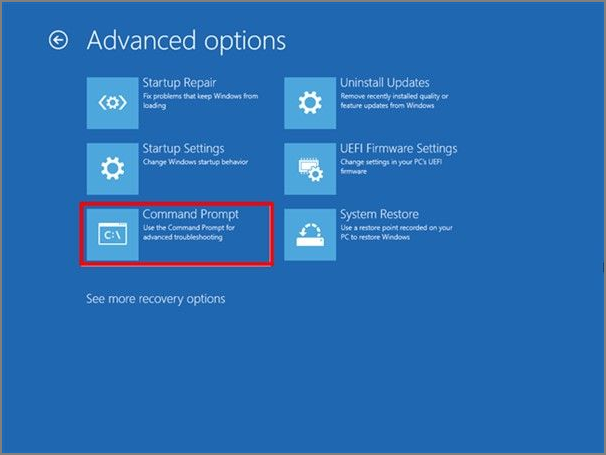
Step 5: Run the command `bootrec.exe /fixmbr` and press Enter to repair the Boot Manager.
Step 6: Type `bootrec.exe /fixboot` and press Enter to repair the boot sector.
Step 7: Run the command `bootrec.exe /rebuildbcd` in the Command Prompt and press Enter to rebuild the Boot Configuration Data (BCD).
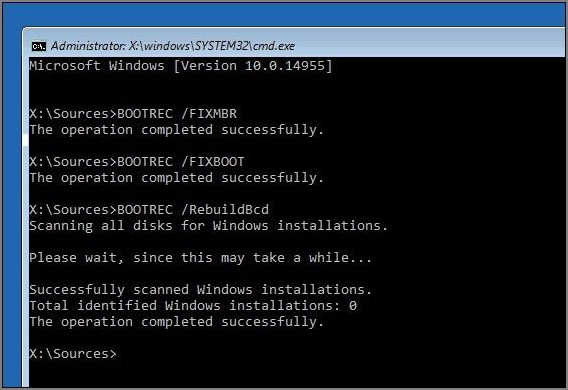
Step 8: You can try to remove the media and restart your computer. Entering the above commands successfully will assist you in normally booting your system. If the issue persists, you may want to consider seeking further assistance from a computer professional.
Fix 3. Edit a Windows Boot Manager
The Windows Boot Manager can become corrupted or damaged, causing issues with booting into the operating system. Editing the Windows Boot Manager may be able to fix problems such as a corrupt boot configuration or an incorrect boot order, allowing you to resolve these issues and successfully boot into the operating system.
Step 1: Run your system with the help of windows installation media.
Step 2: To set up your Windows 11 device, select your language, keyboard or input method, and time format, then click Next.
Step 3: To repair your computer using the Windows Recovery Environment, select the "Repair Your Computer" option from the Startup Settings menu, and then click "Troubleshoot" using the arrow keys. This will allow you to access the Windows Recovery Environment, where you can run various diagnostic tools and repair your computer if necessary.
Step 4: Select "Advanced Options," then select "Command Prompt."
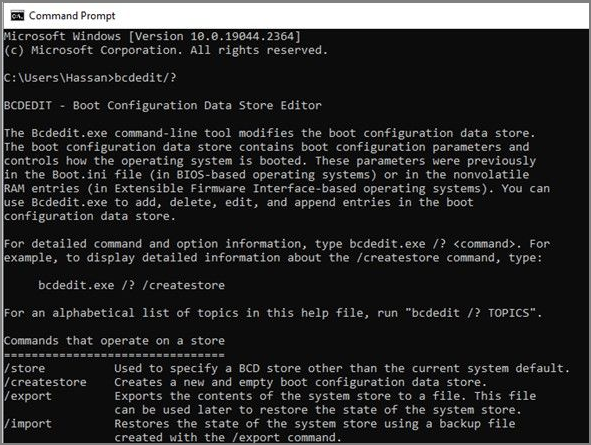
Step 5: Enter bcdedit/? to check commands for editing.
Step 6: Enter bcdedit/? default to set the default entry.
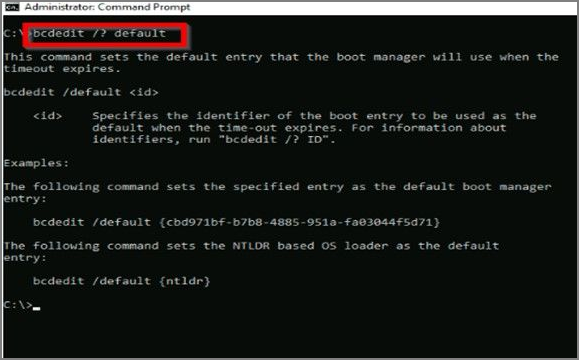
The commands provided earlier are designed to resolve booting issues on a system by removing unnecessary packages, updating the system, and configuring the boot manager. These commands will ensure that the system boots correctly, and you can access the command line interface.
Fix 4. Update Your BIOS or UEFI
Updating your BIOS or UEFI can provide several benefits, including fixing bugs, improving system performance, and enabling support for new hardware or devices.
Here are the steps to update your BIOS or UEFI:
Step 1: Open the Microsoft store and search MSI center.
Step 2: Click on the Get button to download.
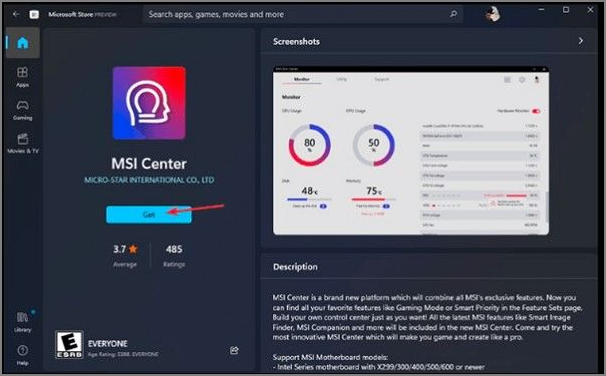
Step 3: To update the BIOS, navigate to the Support section and select Advanced Options. From there, choose the BIOS update option and wait for the process to complete.
Updating your BIOS or UEFI can be a complex process that may potentially cause system instability or even render your system unusable if not done correctly. It's crucial to exercise caution and follow proper procedures to minimize risks.
You May Also Like:
Conclusion
We discussed various fixes to resolve the Windows Boot Manager Boot Failed issue, including checking the boot order, running the System File Checker, and resetting the PC to its original settings. These solutions can help troubleshoot and resolve issues preventing the system from booting normally.
To improve your system's efficiency, we recommend using Qiling Disk Master as a powerful tool for managing and optimizing your system's disk space, which can solve all partition errors except for rebuilding MBR.
FAQs About "Windows Boot Manager Boot Failed" Error
What is the Boot error? The Boot error is a problem that occurs when a device fails to start or load the operating system.
1. How do I fix Windows Boot Manager failed to start?
If Windows Boot Manager fails to start, there are four ways to fix the issue. One possible solution is to use a tool like Qiling Disk Master to rebuild the Master Boot Record (MBR), which can help resolve the problem.
Step 1. Launch Qiling Disk Master and click "Bootable Media" on the toolbar. Select "Create bootable media" to proceed.
Step 2. To boot from a USB drive, connect the bootable USB to your PC and immediately press the F2 key to access the BIOS settings. This will allow you to configure the boot order and select the USB drive as the primary boot device.
Step 3. Click "Toolkit" and choose "Rebuild MBR."
2. What is Boot Manager failure?
When the boot manager can't boot the operating system, it displays an error message or gets stuck on a black screen, resulting in a Boot Manager failure.
3. How do I get past Windows Boot Manager?
Here are the steps to repair Windows Boot Manager and get past the error:
Step 1: Boot up with installation media and select language and formatting.
Step 2: To access the Command Prompt in Windows, go to Start > Select "Repair your computer" > Troubleshoot > Advanced options > Command Prompt. This will open a Command Prompt window where you can execute various commands to troubleshoot and repair your computer.
Step 3: Write bootrec.exe /fixboot, then press Enter.
Step 4: Run the command "bootrec.exe /fixmbr" and press Enter. Then, run the command "bootrec.exe /rebuildbcd" and press Enter again.
Related Articles
- macOS Monterey Update Not Found | How to Solve Monterey Update Issue
- 4 Ways to Factory Reset ASUS Laptop Without Password
- Windows 10 Creators Green Screen of Death Fix
- How to Fix Smart Failure Predicted on Hard Disk 0, 2, 4
- [SOLVED] The Action Can't Be Completed Because the File Is Open in Another Program
Fix the action cannot be completed because the file is open error. Close apps, stop processes, restart Explorer, and delete or move files safely. - Backup Windows Registry with 3 Possible Ways
Do you know what Windows registry is and how to backup Windows registry? This article will describe the Windows registry and ways to back up the Windows registry. After reading this post. you will have an overview of the Windows registry.
Products
Articles & Tutorials
- Data Recovery
- Data Backup
- File Recovery
- File Backup
- System Backup and Restore
- Disk and Partition Clone
- Technical articles
- Mobile articles
- Disk Master Help
- Windows Data Recovery Tutorials
- Windows Secure Delete Tutorials
- Windows Partition Management Tutorials
- Windows File Backup and Restore Tutorials
- Windows System Backup and Restore Tutorials
- Windows Disk Backup and Restore Tutorials
- Windows Clone Tutorials