How to Check Hard Drive Health in Windows [Six Working Solutions]
The hard drive, a crucial data storage component in computers, has a limited lifespan that shortens with frequent reading and writing operations, making it an essential component that cannot be replaced like other software or hardware.
To maintain a close eye on hard drive health in Windows 11 and Windows 10, it's essential to regularly check for any issues that could cause unforeseen crashes and data loss. This can be done by running the built-in Check Disk tool, which scans the hard drive for errors and fixes any problems it finds. Additionally, using the System File Checker tool can also help identify and replace any corrupted system files that may be causing issues. Furthermore, monitoring the hard drive's temperature and usage can also provide valuable insights into its overall health.
When Do We Need to Check Hard Drive Health on Windows 11/10
To ensure your hard disk remains healthy and avoid corrupted hard drives, be on the lookout for signs of trouble. Since it's impossible to predict how long your hard disk will last, staying alert for any indications of issues is crucial. Some key signs to watch for are listed below.
Physical Hard Drive Failure Symptoms:
- Overheating
- Sharp screeching or clicking sounds
- Slow boot or slow processes
Logical Hard Drive Failure Symptom:
- Blue screen of death appears
- Frequent system crashes
- Files/folders disappearing
- Operating system is unable to boot
- Longer file load times in File Explorer
To avoid data loss and hassle, identify potential problems with your hard disk drive (HDD) before they occur. If your HDD is nearing the end of its useful life, consider purchasing a new storage drive to prepare for potential issues.
How to Check Hard Drive Health on Windows 11/10
To check for physical and logical hard drive damage, you can perform various tests. Physically, inspect the hard drive for any signs of physical damage, such as dents, cracks, or burn marks. Logically, run diagnostic tests like a built-in disk check, a chkdsk command, or a third-party disk utility to scan for errors and bad sectors.
#1. Via Qiling Disk Master
Qiling Disk Master is a comprehensive disk partitioning software for Windows that provides a "Disk Health" feature to monitor various aspects of a hard drive, including free space, health, temperature, and performance.
This tool simplifies the process of Windows built-in tools making it easy for even a computer novice to master computer skills like a technical expert. It helps users check the health of their disk by providing a step-by-step guide.
Step 1. Launch Qiling Disk Master and click the blue arrow to activate the "Disk Health" feature under the "Tools and utilities" page.

Step 2. To check the health condition of your disk, select the target disk and click the "Refresh" button. This will display the health status of your disk.

The tool can perform various disk health checks, including a disk surface test to identify corrupted file systems or bad sectors, and repair them if necessary. This feature allows users to monitor disk health and take proactive measures to prevent data loss. By using this tool, users can easily identify potential issues and take corrective action, making it a valuable asset for maintaining healthy and reliable storage.
You may also like:
#2. Via CMD
Windows provides command line tools to check hard drive health, offering simple conclusions like "OK" or "Pred Fail." A hard disk health check can be done quickly using WMIC (Windows Management Instrumentation).
Follow the steps to check hard drive health via CMD:
- To open the Command Prompt on Windows, press the Windows key + R to open the Run window, type "cmd" in the text field, and press Enter. This will open the Command Prompt window where you can execute commands and interact with the system.
- Type "wmic" and press Enter.
- To view the disk health status, type "wmic diskdrive get status" and press Enter.
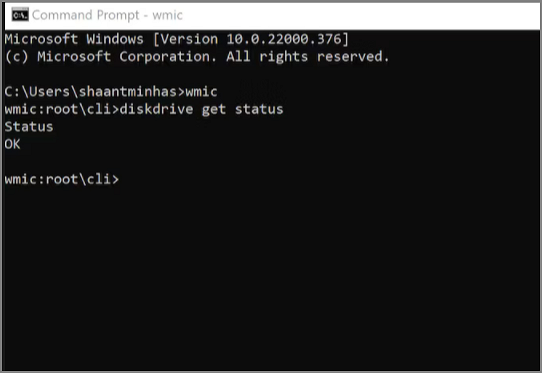
If you receive "OK," the drive is in good condition. If you receive "bad," "unknown," or "caution," the disk drive is faulty and needs to be repaired with Qiling Disk Master.
#3. Via CHKDSK
CHKDSK is an abbreviation for "check disk." It's a Windows command that checks the file system's integrity and fixes logical errors. It's used to ensure the operational status of the disk.
- Open a Run window and type cmd.
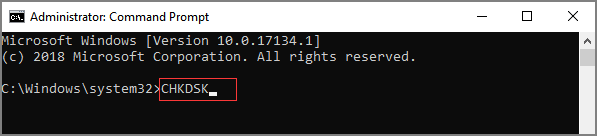
- To run a basic scan, type "chkdsk" in the Command Prompt window and press Enter. This will initiate a basic check on the disk.
- If you want to repair errors on your hard drive, use the chkdsk/f/r command.
You can find more information about hard drives by clicking the link below.
What Laptop Hard Drive Size Should I Use [2023 Explanation]
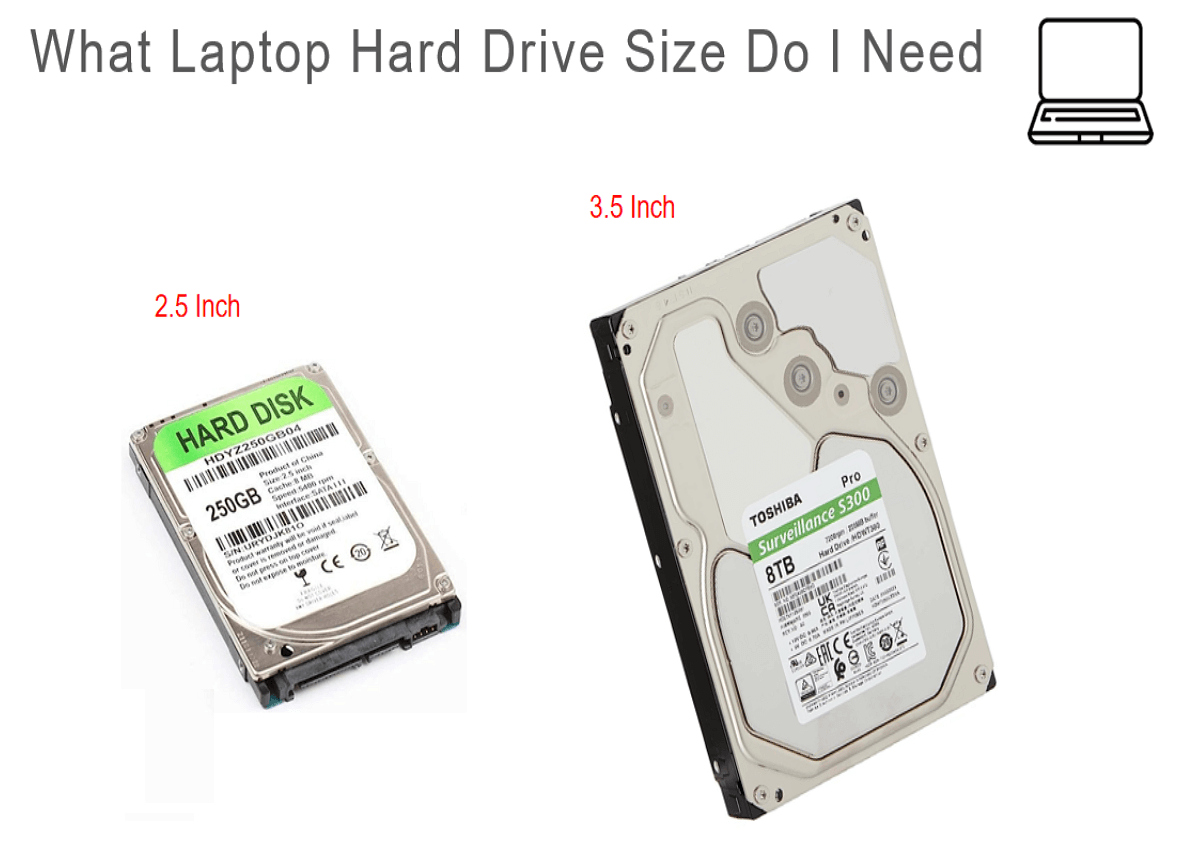
What size of a hard drive do I need to choose for my laptop? 2.5 inch. The 2.5-inch hard drive is typically designed for laptops, while the 3.5-inch is for desktops.
#4. Via Defrag and Optimize
The Windows disk defragmenter can detect the level of fragmentation on your hard disk and help reorganize fragmented data, enhancing disk health and improving overall computer performance. To complete defragmentation, follow these steps:
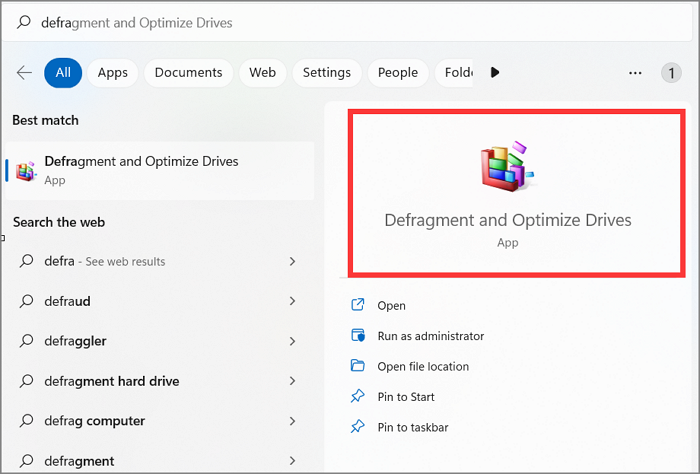
Step 1. To defragment and optimize your driver, click on the search box, type "defrag," and select "Defragment and Optimize Driver."
Step 2. Click on the hard drive you want to defragment, then select "Optimize" from the context menu to initiate the defragmentation process.
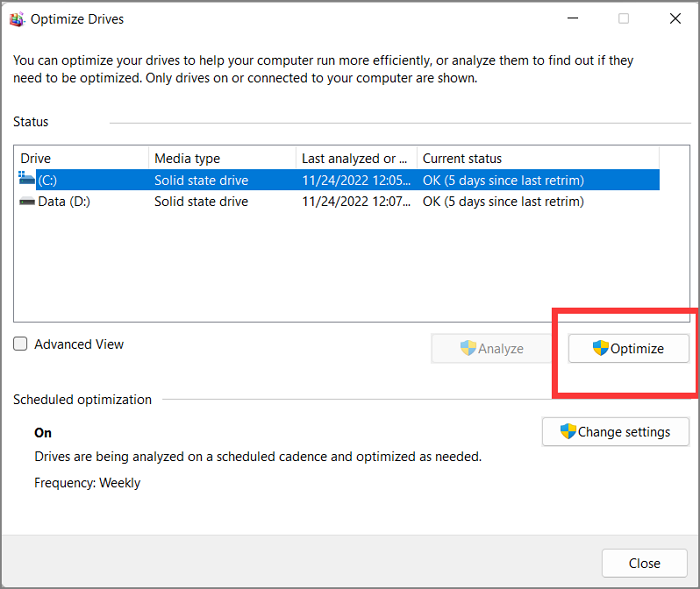
- Notice:
- If you're using a traditional hard drive, defragmentation may be necessary to prevent wear and tear on the hardware, potentially shortening its lifespan. However, if you're using a solid-state drive (SSD), defragmentation is not necessary and can even be counterproductive.
Video Tutorial of Checking Hard Drive Health
This video demonstrates the various methods for viewing hard drive health from different perspectives. If you need a more detailed guide, you can follow along and learn more about the comprehensive methods provided on this page.
#5. Via HDD Manufacturer's Tools
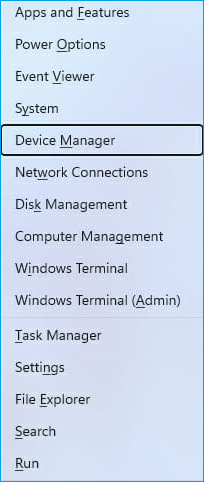
Most hard drive manufacturers, including Western Digital, Samsung, and Seagate, offer free diagnostic tools to check the health and performance of their hard drives. If you're unsure of your hard drive's manufacturer, you can check in Device Manager to identify it, and then look for the corresponding diagnostic tool.
Step 1. Right-click on the Windows icon and select "Device Manager."
Step 2. To view the list of storage devices, click on "Disk Drives".
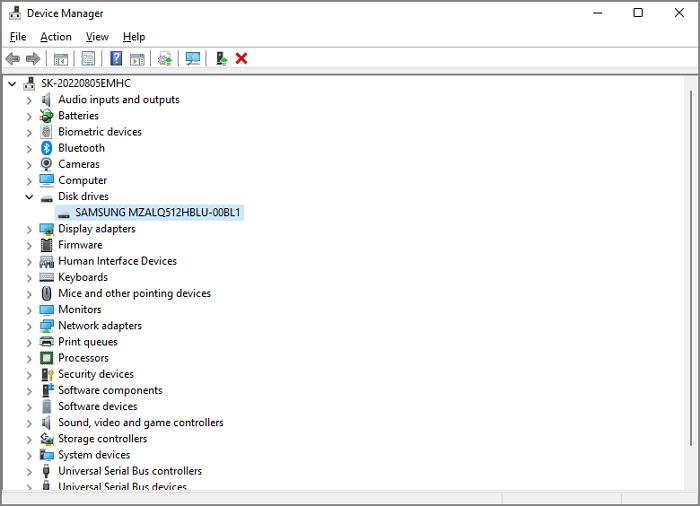
Step 3. To find the drive's manufacturer, identify the model number, which can be found on the drive itself or in the device's settings, and copy it to Google search. This will display the manufacturer's name in the search results.
Step 4. The manufacturer's tool should be downloaded and installed to analyze the drive's status.
Download page for some well-known hard drive brands:
#6. Check Hard Drive Health Physically
To check the health of your hard drive, simply open your computer case safely and follow the steps to determine its status. This is the fastest and simplest way to do so.
Step 1. Check the connections of the cables to ensure they are securely linked and properly connected.
Step 2. To clear dust and debris from a computer case and hard drive, use a can of pressurized air to safely blow away any dust that has accumulated.
Step 3. Inspect the vehicle for any visible signs of damage, such as dents, scratches, or broken lights. Also, listen for unusual noises while the engine is running, which could indicate internal damage.
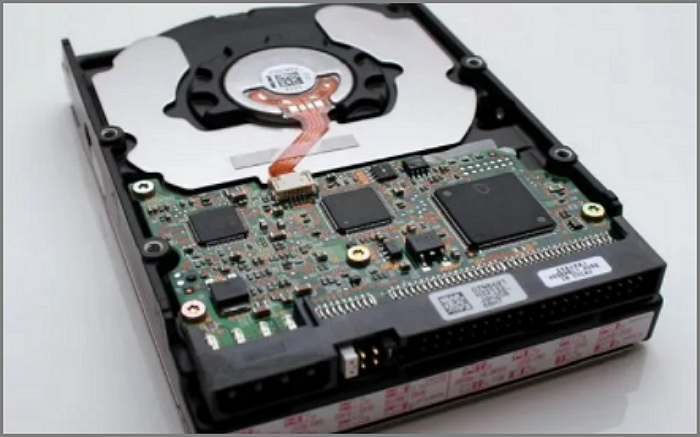
If your hard drive is physically damaged, you'll need to replace it with a new one. If it's not physically damaged, you can try checking it logically by following the methods above.
Here are six ways to check hard drive health:
Conclusion
Regular hard drive checks are essential to prevent potential damage. You should perform a disk check when you notice unusual noises, excessive heat from the hard drive, or frequent error messages, as these signs indicate that your hard drive's health is deteriorating and needs attention.
To check hard drive health on Windows 11/10, consider using Qiling Disk Master, a powerful tool that not only checks hard drive health but also provides the ability to repair corrupted file systems and bad sectors if they exist, making it the easiest option among the five effective ways.
This tool can be used to determine if a hard drive is bad, as well as to identify whether a hard drive is new or used. It can also be applied to other purposes.
FAQs Of Checking Hard Drive Health
What are some other questions people ask about checking the health of their hard drive?
1. How do you check if an HDD is dying?
If any of these signs are present, your hard drive (HDD) may be experiencing issues, which could potentially affect its lifespan. These signs include sudden shutdowns, unusual noises, or slow performance, which can indicate mechanical failures or other problems that may compromise the drive's longevity.
- The hard drive is constantly noisy and hot
- Slow boot and processing speeds
- Many bad sectors on the hard drive
- Data is lost, and files cannot be opened
- Frequent blue or black screens on your computer
2. What is the best program to check HDD health?
Qiling Disk Master is a powerful tool for checking HDD health, and it can also repair bad sectors and corrupted file systems. Alternatively, Windows users can utilize the built-in command line tool CHKDSK, which offers robust functions, though caution is needed to avoid parameter errors when entering commands.
3. How can I test the health of my hard drive?
You can either download Qiling Disk Master and test the hard drive's health or use the command line tool with Windows.
Step 1. To open the Command Prompt, hold down the Windows key and press the R key, then type "cmd" in the Run window.
Step 2. Type CHKDSK and press Enter.
Related Articles
- How to Format New SSD in Windows 10/11 [100% Working Solutions]
- How to Install Windows 11 on Windows 7 [Get In-depth Guide]
- How to Use DiskPart to Merge Partitions
- Download Partition Magic Server Software for Windows Server 2012/2012 R2
- Blue Screen While Playing Games? 2024 Fixes Here
If your computer crashes with a blue screen while playing games, there are several solutions you can try. One approach is to use automatic repair tools, such as Windows' built-in diagnostic and repair tools, to identify and fix the problem. - How to Boot Acer Laptop From USB on Windows 10/11
This guide shows you how to boot your Acer laptop from a USB drive. To do this, you'll need to access your laptop's boot options, which can be done by following step-by-step instructions. Once you've accessed the boot options, you can easily install the Windows operating system from your USB drive.
Products
Articles & Tutorials
- Data Recovery
- Data Backup
- File Recovery
- File Backup
- System Backup and Restore
- Disk and Partition Clone
- Technical articles
- Mobile articles
- Disk Master Help
- Windows Data Recovery Tutorials
- Windows Secure Delete Tutorials
- Windows Partition Management Tutorials
- Windows File Backup and Restore Tutorials
- Windows System Backup and Restore Tutorials
- Windows Disk Backup and Restore Tutorials
- Windows Clone Tutorials