Blue Screen While Playing Games? 2024 Fixes Here
- To fix the Blue Screen of Death when playing games automatically, you can try running a System File Checker scan, which can identify and replace corrupted system files. You can also try using the System Restore feature to revert your system to a previous point when it was working correctly.
- Blue Screen of Death When Playing Games - 4 Manual Tips
The Blue Screen of Death is a frequent issue, particularly when playing high-definition games, causing significant problems for Windows users, including those with Windows 10 and Windows 11.
Blue screen errors often appear when playing games due to the high graphics intensity of the game, which can expose underlying hardware weaknesses, trigger overheating, or reveal latent software conflicts, pushing a PC's hardware to its limits.
Setup issues/Dust problems/Memory and graphics card issues/Driver issues
Don't worry; we suggest you try the following quick fix first:
💡Unplug and reinsert the graphics card:
- Disconnecting and reconnecting the graphics card can resolve loose connections or potential contact issues, which may be causing the problem.
💡Restart your computer:
- A simple reboot may resolve the temporary glitch or conflict causing the blue screen issue and return your system to normal operation.
The reasons for a slow computer can be attributed to various factors, including outdated software, cluttered hard drives, and malware infections. To address these issues, users can start by updating their operating system and software to the latest versions. Additionally, they can free up space on their hard drives by deleting unnecessary files and programs, and consider upgrading to a solid-state drive (SSD) for improved performance.
Blue Screen When Playing Games - Automatic Fix
Here, we'll talk about a tool that can automatically fix the blue screen error - Qiling Disk Master Professional. It has a "Boot Repair function" that can fix blue screens caused by software conflicts, outdated drivers, or random errors with one click, making it beginner-friendly.
The software is highly compatible with Windows 11/10/8/7 and can be easily downloaded and installed. Following the provided tutorial, users can start using it to repair their system.
Step 1. After connecting the external drive/USB to your computer, start Qiling Disk Master, go to the "Tools" section and click on "Create bootable media".

Step 2. Insert a USB drive or CD/DVD and click "Proceed" to continue the installation process. Alternatively, you can burn the Windows ISO file to the chosen storage media.

Step 3. Connect a bootable drive to the new computer, then reboot by pressing F2/Del to enter the BIOS. Set the bootable drive as the boot disk and exit the BIOS by pressing F10.
Step 4. Boot the computer again and enter the WinPE interface. Then, open Qiling Disk Master, click "Tools" and select "Fix Boot" option.

Step 5: Select the system you want to repair and click "Proceed".

Step 6. The system is now online and functioning normally. You can proceed with your tasks as usual.
This method enables you to directly resolve your blue screen error without entering safe mode, allowing you to quickly return to the game.
You can learn more details about this blue screen troubleshooter at the following link.
Blue Screen While Playing Games - 4 Manual Tips
To fix the blue screen error manually, you can try to enter safe mode on your Windows 10/11 system, which can be accessed through this link. Once in safe mode, you can follow the manual methods to resolve the BSOD errors that occur when playing games.
Fix 1. Change Power Settings
To resolve blue screens while playing games by modifying power settings in the Control Panel, go to the Control Panel and click on "Hardware and Sound." Then, click on "Power Options." From there, click on "Change plan settings" and select "High performance" or "Ultimate performance" to disable power-saving features.
Step 1. Open the control panel on your computer.
Step 2. To access Power Options, click on the Start button and select the Settings icon. From the Settings window, click on the System option.
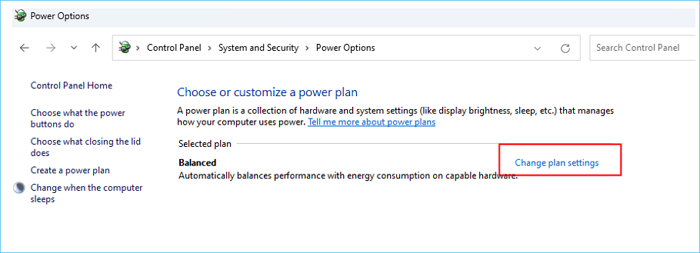
Step 3. To change advanced power settings, click on the "Change advanced power settings" option. This will allow you to customize the power settings for various system components, such as the hard disk, monitor, and processor, to suit your specific needs and preferences.
Step 4. To disable the "Link State Power Management" option, navigate to the "Battery Powered" and "Plug-in" sections under PCI Express in the subsequent window, and toggle the switch to disable it in both sections.
If you're experiencing a Blue Screen of Death (BSOD) error while playing games, it's likely due to a hardware or driver issue. To resolve this, try updating your graphics drivers, as outdated drivers can cause compatibility problems.
Fix 2. Uninstall and Reinstall the Display/Graphic Driver
To fix a Windows 10 blue screen while playing games, try uninstalling and reinstalling the graphics card driver, which may be outdated or buggy, causing the issue.
Step 1. To uninstall the graphics/display driver on your Windows PC, launch the Device Manager tool and browse the device list to find the graphics driver. Right-click on it and select the uninstall option, and if prompted, choose to Remove the driver software for this device.
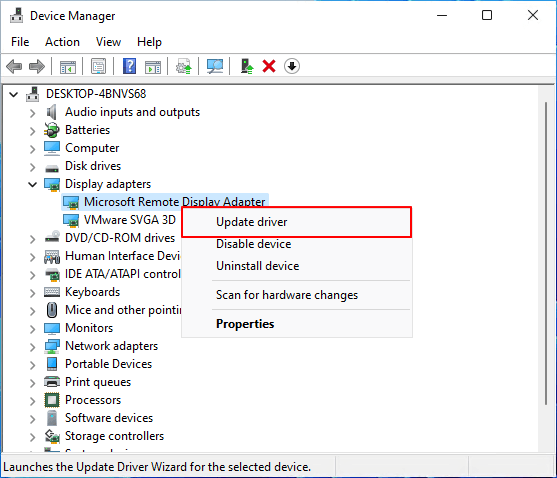
Step 2. After uninstalling the driver, restart the computer. Then, open Device Manager, select "Scan for hardware changes" and let Windows 10/11 automatically detect and install the necessary drivers, ensuring a stable internet connection.
Read Also:
Fix 3. Run Clean Boot on Windows 10/11
To diagnose and resolve blue screen issues during gaming on Windows 7/8/10/11, perform a clean boot by following these steps:
Step 1. To access the Windows PC, ensure you are logged in as an administrator. If you don't have an administrator account, create one or use the existing credentials to log in.
Step 2. To launch the system configuration, simply type "msconfig" in the search box on the taskbar. This will open the system configuration window, allowing you to make adjustments and changes to your system settings.
In the System Configuration Window, go to the Services tab, select "Hide all Microsoft services" and then "Disable all".
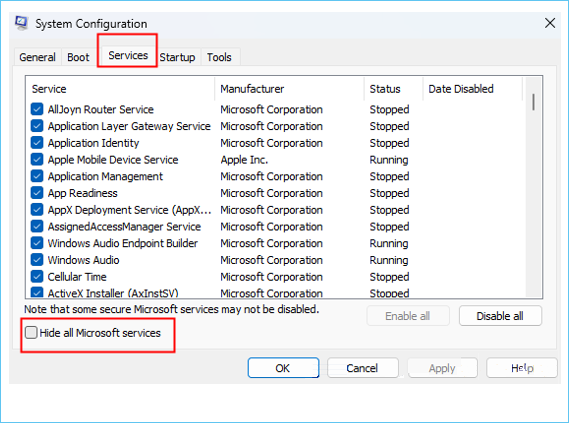
Step 3. Go to the "System Configuration Startup" tab and click "Open Task Manager".
Step 4. To disable startup items, open Task Manager, go to the Startup tab, and select each item to disable it by clicking the Disable button.
Fix 4. Enable UEFI Boot
Enabling UEFI boot on your PC may be the solution to resolving blue screens while gaming. To correct the error, follow these steps: enable UEFI boot in your BIOS settings, ensure that your PC's firmware is updated, and verify that your graphics drivers and operating system are up-to-date. Additionally, check for any software conflicts and consider updating your BIOS to the latest version.
Step 1. To resolve the issue, start your Windows computer, navigate to C: > Windows > Software Distribution > Downloads, and delete all contents in this directory. Additionally, consider deleting the $Windows.~BT folder in the root of C:. This should resolve the problem.
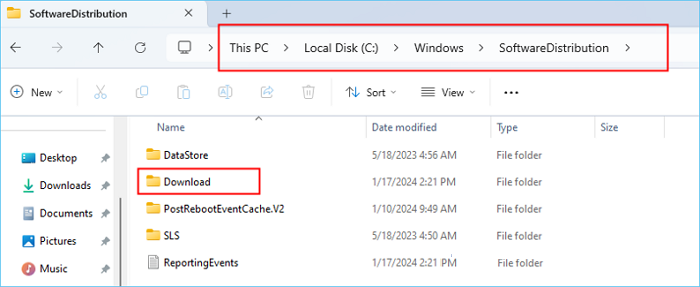
Step 2. To resolve the issue, restart the computer and select Access BIOS during the reboot. Use the Boot Menu key (usually F2, F8, Esc, or Del), which varies by computer model, to access the BIOS interface. In the BIOS, locate and enable UEFI Boot to resolve the issue.
Step 4. To increase stability, reset all processor overclocking settings. Save the BIOS settings and exit once done.
In case you run into any roadblocks, remember that our knowledgeable support team is here to assist you at any time.
Qiling experts are available 24/7 to provide one-on-one manual services to fix Windows boot errors, BSOD, and computer boot loops. They offer free evaluation services and use their expertise to diagnose and resolve system boot failures, Windows stop codes, and OS lagging issues.
- 1. To fix the BSOD error due to Windows update or other reasons, restart your computer in Safe Mode, then uninstall any recently installed updates. If the issue persists, try running the System File Checker (SFC) tool to scan and replace any corrupted system files.
- 2. To resolve Windows boot errors like "no bootable device found" or BCD file corruption, try the following steps in order: 1) Boot from a Windows installation media, 2) Use the built-in System Restore feature to restore the system to a previous point when it was working correctly, 3) Run a System File Checker (SFC) scan to scan and replace any corrupted system files, 4) Run a DISM scan to scan and repair the Windows image, and 5) If none of the above steps work, you may need to reinstall Windows. Additionally, you can try booting in Safe Mode, checking the Event Viewer for errors, and running a virus scan to rule out malware as the cause of the issue.
- 3. To fix 0X000_error codes on Windows system or OS boot loop issues, you can try the following steps. Firstly, boot your computer in safe mode and check if the issue persists.
Conclusion
If you're experiencing blue screen errors while playing games, there are some effective solutions you can try. This guide, which focuses on Windows 10 but is still relevant for Windows 11, 8, and 7 users, provides helpful tips to fix the issue. For beginners, using Qiling Disk Master is a great option as it's easy to use and can help you recover from blue screen errors and get back to gaming quickly.
Blue Screen While Playing Games FAQS
The blue screen issue when playing games is often caused by overheating, outdated graphics drivers, or incompatible software. To fix the blue screen error, try updating your graphics drivers, ensure your computer is properly ventilated, and disable any unnecessary software or background programs that might be interfering with your game. Additionally, consider adjusting your in-game settings to reduce the graphics load, or try running the game in a lower resolution to see if that resolves the issue. If the problem persists, it may be worth considering upgrading your computer's hardware or seeking further technical assistance.
1. Why does my screen go blue when playing games?
The PC blue screen while gaming is often caused by the game's high graphical demands, which can expose hardware weaknesses, trigger overheating, or reveal software conflicts.
2. Can RAM cause a blue screen?
Hardware issues such as faulty memory (RAM), hard drives (HDDs), solid state drives (SSDs), motherboards, processors, or power supplies (PSUs) can cause blue screen crashes.
3. How do I fix the blue screen glitch?
Uninstalling and reinstalling the graphics/display drivers may resolve Windows 10 blue screen issues when playing games, as old or outdated drivers can cause problems. To fix this, uninstall the problematic driver and then reinstall the latest versions through Device Manager.
Related Articles
- How to Format HDD/External Hard Drive to FAT32 [Your Step-by-Step Guide Is Here]
- Partition Clone Guide | Clone EXT4/EXT3/EXT2 Partitions in Windows 10
- Partition Manager Windows 11 Free Download in 2024 🏆
- How to Securely Erase or Wipe SSD in Windows 11/10
- What Is the Best MBR to GPT Convert Tool? Your Checklist Here
If you need to convert MBR to GPT, follow this easy guide to find a reliable MBR to GPT convert tool that works for your storage device. We have included a table comparison of pros and cons for each of these features, making it simple to select the best tool for your needs. - MMC Format Tool: SD Card Formatter Free Download [2024 Full Guide]
Are you looking for great tools to help you format your USB or SD cards? This post provides you a detailed introduction to MMC Format Tool, which allows you to format your multimedia cards, SD cards, and USB drives. So keep reading and learn more about MMC Format Tool! - LiveKernelEvent 141 in Windows 11: Causes and Fixes (2026)
- Fix CLOCK_WATCHDOG_TIMEOUT BSOD (0x00000101) in Windows 11
- Fix VIDEO_SCHEDULER_INTERNAL_ERROR 0x119 in Windows 11
Products
Articles & Tutorials
- Data Recovery
- Data Backup
- File Recovery
- File Backup
- System Backup and Restore
- Disk and Partition Clone
- Technical articles
- Mobile articles
- Disk Master Help
- Windows Data Recovery Tutorials
- Windows Secure Delete Tutorials
- Windows Partition Management Tutorials
- Windows File Backup and Restore Tutorials
- Windows System Backup and Restore Tutorials
- Windows Disk Backup and Restore Tutorials
- Windows Clone Tutorials