How to Fix PC Black Screen While Gaming in 6 Ways
Seeing a PC black screen while gaming on Windows OS can be frustrating, as it interrupts your gaming experience. This issue is common, but it's still annoying for many gamers. Several factors can contribute to a PC black screen while gaming, and understanding these causes is key to resolving the problem. By identifying and addressing the underlying reasons, you can prevent this issue from occurring and enjoy uninterrupted gaming sessions.
You can read more tips from these posts:
Why Is Your PC Black Screen While Gaming in Windows 10/11
The PC screen turns off when playing games, indicating a severe problem with the system's hardware or software, possibly due to a faulty or outdated graphic card driver, third-party application interference, or issues caused by a Windows update.
Modern games often require specific graphic card standards to run smoothly, and any issues with these requirements can cause a PC to display a black screen while gaming, such as when trying to launch Steam games.
If you're experiencing a black screen with no cursor on Windows 11, not related to gaming, this post can help you resolve the issue.

[2023 New Fixes] Windows 11 Black Screen No Cursor
To resolve the Windows 11 black screen with no cursor issue, follow these 5 guides with detailed steps and screenshots:
6 Ways to Fix PC Black Screen While Gaming in Windows 10/11
If you're experiencing a black screen while gaming, the fixes below can help! We've curated a list of 6 effective solutions to help you fix the issue and get back to gaming. Try each solution one after the other to see which one works best for you.
- Fix 1. Check the Power Supply
- Fix 2. Restart Your PC
- Fix 3. Examine the Hardware Devices
- Fix 4. Examine the Graphics Card
- Fix 5. Clean Boot
- Fix 6. Reset Windows 10/11
Fix 1. Check the Power Supply
If the computer screen turns black during gameplay, it may be due to an insufficient power supply unit (PSU). If the PSU is not powerful enough to support the game applications, it can cause the system to freeze or shut down, resulting in a blank screen. In such cases, the computer may display errors or simply go blank in the middle of gameplay.
Check the power supply, reconnect the plugs to the PC, and try playing the game again to see if the PC black screen while gaming issue resolves.
Further Reading: Windows 11 Black Screen with Cursor
Fix 2. Restart Your PC
Restarting your computer can be a blessing, as it loads up the operating system and gives it a fresh start, resolving minor software issues. If you're experiencing a PC black screen issue while gaming on Windows 10/11, check if the power supply is intact first, and then try restarting your computer to see if the problem resolves itself.
Fix 3. Examine the Hardware Devices
Hardware devices provide the necessary backend support for software to run smoothly, but their effectiveness can wear off over time. To maintain optimal performance, it's essential to monitor and update drivers, such as display adapters and graphic card drivers, to ensure they remain compatible and functioning correctly.
In some cases, hardware may not meet minimum requirements, leading to compatibility issues, potentially requiring hardware replacement to resume gaming.
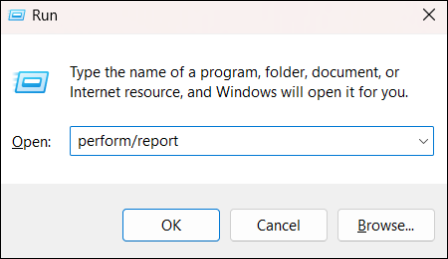
Step 1. To open the Run dialog, press the Windows key + R keys simultaneously. Then, type "perfmon" in the text field and press the Enter key to run the command. This will open the Performance Monitor, where you can view system performance metrics and troubleshoot issues.
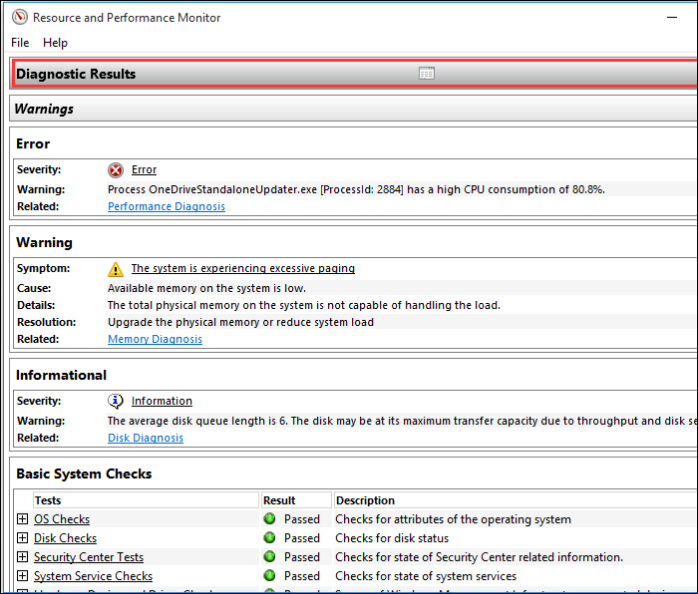
Step 2. After 60 seconds, click on the Diagnostic Results section to view the condition of your computer components in the subsections.
Fix 4. Examine the Graphics Card
If your system's graphics can't handle the game's graphics or resolutions, the PC black screen while gaming on Windows might be due to outdated or unsuitable graphic card drivers. Ensure the graphic cards are updated and meet the minimum game requirements. You can monitor their performance using the task manager.
To find out what graphics card you have, you can follow the steps provided in the link I shared, which will guide you through the process of identifying your graphics card.
Screen Goes Black When Playing Games with Nvidia
If your PC screen goes black when playing games with Nvidia, it could be due to a driver or overclocking issue, which has been reported by players of games like League of Legends, Minecraft, and Overwatch.
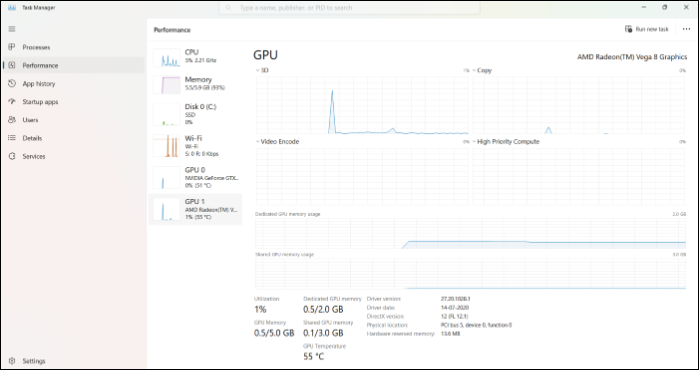
To resolve the issue, update to the latest driver version from the official website or roll back to an older version if the new one causes problems.
Black Screen While Gaming with AMD
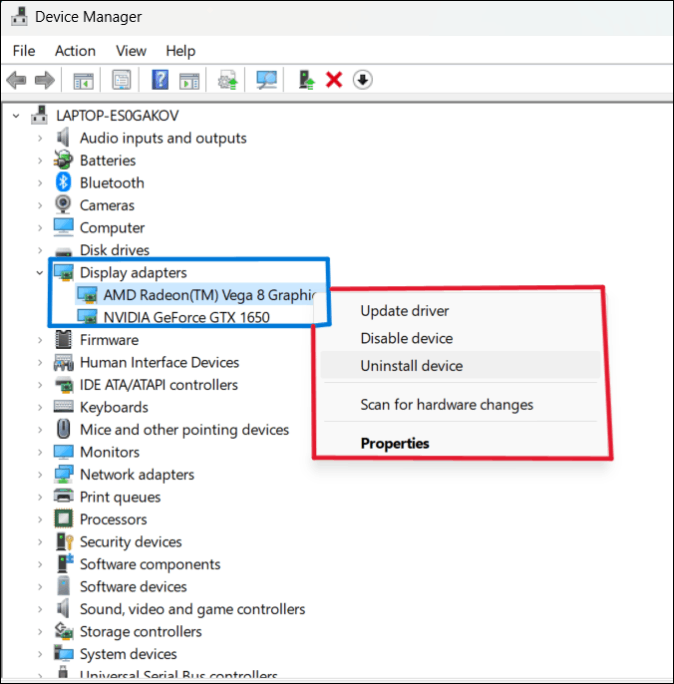
The PC black screen issue while gaming is not exclusive to NVIDIA, as AMD graphic drivers also frequently experience this problem. The causes are often the same, and AMD drivers have a history of crashing, making it essential to update or check them to determine the reason and take necessary action. To address this, users can open the device manager and update the drivers to resolve the issue.
Fix 5. Clean Boot
Since third-If a third-party application is interfering with your system, a clean boot can help you identify and resolve the issue. This involves restarting your computer in a state where no third-party applications run, allowing you to isolate the problem and potentially fix it. This can be a useful troubleshooting step to take if you're experiencing issues with your system.
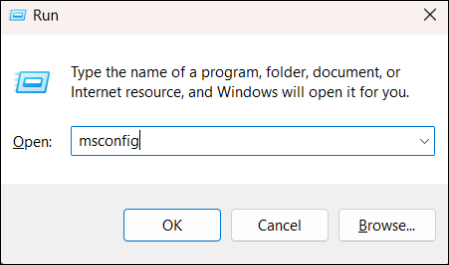
Step 1. Press Windows + R to open the Run window, type msconfig, and hit Enter. This will open the System Configuration window.
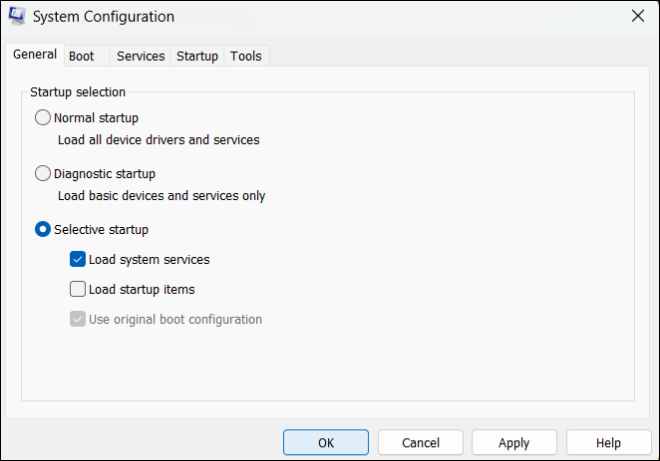
Step 2. To access the General tab, navigate to it and check the Selective startup checkbox. Additionally, ensure that Load system services and Use Original boot configuration are selected.
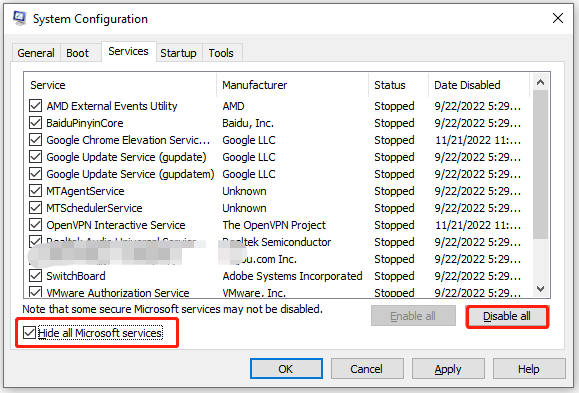
Step 3. Go to the Services section, check the Hide all Microsoft Services box, and click Disable All.
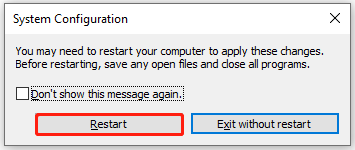
Step 4. A window with a message prompts you to click Restart to run the computer into the clean boot.
Step 5. If the black screen issue disappears, enable the programs one by one to identify the faulty one, uninstall it, and then try playing the game again.
Fix 6. Reset Windows 10/11
A reset on Windows 10/11 indicates making all the settings default. You can do this either without losing all data or losing everything on your computer. Factory resetting a PC without losing data lets you perform a clean installation with the up-to-date OS, improving the device's performance, battery, and security.
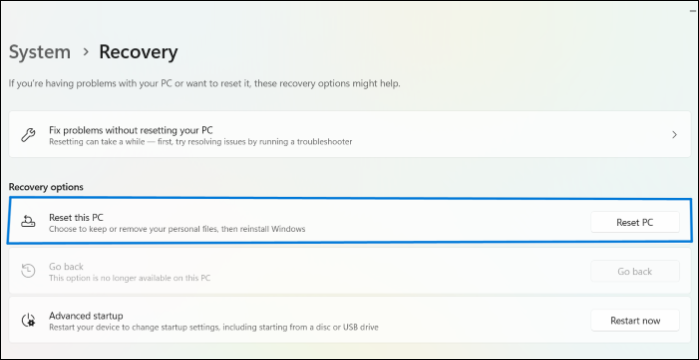
Step 1. To reset your PC, navigate to Start, then click on Settings, followed by System, and finally Recovery. From there, you can click on "Reset this PC".
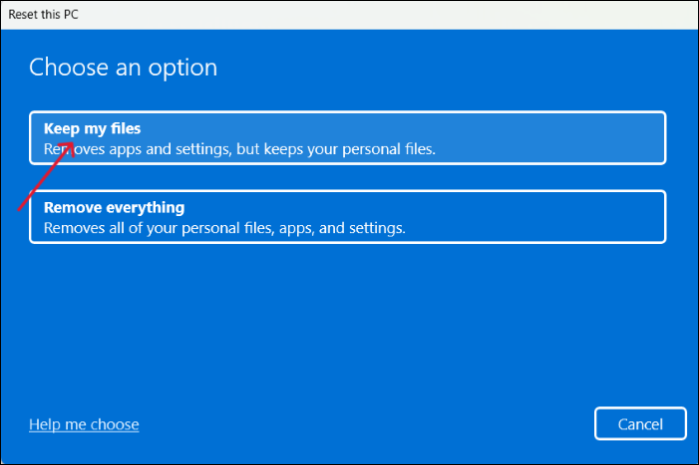
Step 2. On the Reset this PC screen, you can choose the option you want. For this, go with the "Keep my files" option.
Step 3. In the next windows, choose Local reinstall for the reinstallation of the OS on your device.
Step 4. Follow the onscreen instructions and restart the PC after completion to see if the PC black screen while gaming issue resolves.
Pro Tip. How to Backup Your Game Saves in Windows 10/11
Many popular games still save game data locally, which can be prone to security issues if progress is lost. For gamers who want to back up and restore game data at will, Qiling Disk Master is a professional backup and restoration tool that offers a reliable solution for all types of backup needs.
Qiling Disk Master Qiling is a tool for backing up PC game saves, allowing users to securely protect their game data. It enables users to back up files such as Steam cloud saves, config files, and custom data, as well as the entire game disk, making it a useful tool for players to safeguard their game progress.
Qiling allows you to create scheduled backup plans, automatically updating a copy of your game data whenever your progress changes, thanks to its advanced backup options.
Key features of Qiling Disk Master in other areas.
- Automatic backup and more advanced backup functions are offered.
- A complete backup system, app data, personal settings, and local or external disk are all essential components that should be included in a comprehensive backup plan. This ensures that all important files, configurations, and user data are safely stored and can be easily restored in case of a system failure, data loss, or other disaster.
- Clone hard drive in Windows 11/10
- Offer free cloud storage of up to 250GB.
- Support types of backup.
These steps are provided for you to follow:
Step 1. To start backup, click the Select backup contents.

Step 2. There are four main categories of data backups: File, Disk, OS, and Mail.

Step 3. On the left-hand side, you'll see a list of local and network files, which can be expanded to select the files to be backed up.

Step 4. Follow the on-screen instructions to select the desired location for storing the backup.

In the Backup Options, you can encrypt the backup with a password, set a backup schedule, and choose to start the backup at a specific event in the Backup Scheme. This allows for customization of the backup operation to suit individual needs.

Step 5. Backups can be stored on a local disk, in Qiling's cloud service, or on a network attached storage device (NAS).

Step 6. Qiling Disk Master allows customers to back up data to a third-party cloud drive or the company's own cloud storage.
To back up your data to a third-party cloud drive, select Local Drive, scroll down to add Cloud Device and enter your account information.
Step 7. To start a backup, click Proceed. The backup will appear as a card on the left-hand panel once it has been completed. You can manage the backup job further by right-clicking on it.
Conclusion
The most common reason for a PC black screen while gaming on Windows 10/11 is due to outdated or corrupted graphics card drivers. In rare cases, other issues may be the culprit. To resolve the problem, try the troubleshooting steps mentioned in the articles, and if hardware is the issue, consider running the built-in troubleshooters or replacing the faulty components.
For gamers, protecting game files is crucial. A smart backup solution can be created using the auto-backup software Qiling Disk Master Pro to ensure game data security.
FAQs
1. Why does my PC screen goes black but still run?
If your PC screen goes black, check if the issue is with the screen or the graphic card. Try using another monitor to confirm the problem. If it's the screen, replace or repair it. If it's the graphic card, try fixing driver issues using the provided fixes to get your screen back.
2. Can the black screen of death fix itself?
The black screen of death can be caused by a software glitch, which can be repaired, or a hardware issue, which may require repair or replacement.
If the monitor loses signal or turns off during a game, follow Screen Turns Off When Playing Games for display, driver, temperature, and power checks.
Related Articles
- [100% Working] 3 Easiest and Successful Ways to Unprotect Excel
- Sims 4 Saves Location: Where and How to Find It
- What Is optical Disc Drive (Definition & Function & Types)
Learn what an optical disc drive is, how it reads CDs, DVDs, and Blu-ray discs, and what types and uses ODD devices have. - Ultimate Guide to Choosing the Right SD Card for Nintendo Switch
Are you using a Nintendo Switch and running out of space? You need to know what an SD Card for Switch is. Read this post to find the answer and also learn about the best SD Card for Switch. - What Are the Benefits of Dynamic Disk [Detailed Elaboration]
The benefits of dynamic disks are numerous, but should you convert your basic disk to dynamic. - Guide on Best Allocation Unit Size for Gaming [2024 New]
Learn the best allocation unit size for gaming, how cluster size affects storage, and what settings to use when formatting a drive.
Products
Articles & Tutorials
- Data Recovery
- Data Backup
- File Recovery
- File Backup
- System Backup and Restore
- Disk and Partition Clone
- Technical articles
- Mobile articles
- Disk Master Help
- Windows Data Recovery Tutorials
- Windows Secure Delete Tutorials
- Windows Partition Management Tutorials
- Windows File Backup and Restore Tutorials
- Windows System Backup and Restore Tutorials
- Windows Disk Backup and Restore Tutorials
- Windows Clone Tutorials