Guide on Best Allocation Unit Size for Gaming [2024 New]
Your hard drive's allocation unit size or cluster size can affect your gaming experience. When you format your hard disk, the system divides it into many small blocks or sectors to store files. The default allocation unit size or cluster size is usually set by the system, but you can adjust it to optimize your gaming performance. However, this is not a common practice and is usually not necessary for most users.
To optimize your system for gaming, you should set your allocation unit size to 4096 bytes, which is the recommended size for gaming. This can be done through the Disk Management tool in Windows. By setting the allocation unit size to 4096 bytes, you can improve your system's performance and provide a smoother gaming experience.
What Is the Best Allocation Unit Size for Gaming
64K cluster size is best for gaming due to its optimal balance between storage efficiency and system performance, making it the most suitable choice for gaming systems.
With a 4K cluster size, your file will be divided into smaller clusters, using storage efficiently, but resulting in a higher cluster count.
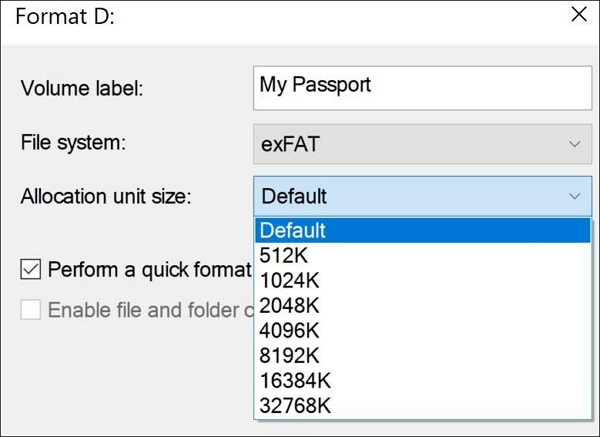
When using a 4K cluster size, accessing a larger file requires the system to jump through a significantly larger number of clusters, leading to increased system loading, which is undesirable, especially when playing games.
Users who store large files prefer 64K cluster size because it reduces the number of clusters the system has to jump through, making it faster to access the desired file.
By the way, if you are curious about the best exFAT allocation unit size, there is a link to help.
The best exFAT allocation unit size depends on the intended use of the drive. For general use, a 4096-byte (4KB) allocation unit size is recommended, as it provides a good balance between space efficiency and performance.
In the best case scenario, using a large cluster size is beneficial for big files, enhancing read/write efficiency.
Let us now consider how you can set the best allocation unit size for gaming on your PC.
Set the Best Allocation Unit Size for Gaming
To change the allocation unit size to 64K, you can either use a disk management tool or delete an old disk partition and create a new one with the 64K allocation unit size.
To avoid system failure and data loss, it's recommended to take a system backup before deleting or making any changes to the disk. This precautionary measure ensures that important data and system settings are safely preserved in case of unexpected outcomes.
Qiling Disk Master is a good alternative to the traditional method, offering a built-in partition manager to hide, unhide, and delete partitions, as well as cluster size options to easily change your PC's cluster size.
To change the cluster size to 64K, you can follow these steps:
Step 1. Right-click the partition that needs to change its cluster size, select "Advanced" and click "Change Cluster Size".
Step 2. To adjust the cluster size for a disk partition, click the size list below the New size section and select a desired cluster size from the available options.
Step 3. Click "Proceed" to confirm the operation.
The software offers several features that provide added benefits, including the following features.
- The tool helps rebuild the Master Boot Record (MBR), the boot sector located at the beginning of your system partition.
- The app helps you check for file system errors and automatically scans for system errors to fix storage-related errors on your PC.
- Using this tool, you can easily change the cluster size to meet different needs, such as adjusting the NTFS allocation unit size.
This makes Qiling Disk Master a great tool for changing the allocation unit size for gaming.
Allocation unit size, or cluster size, is a file system setting that determines the minimum size of a contiguous block of space allocated to a file. While a smaller allocation unit size can improve SSD performance by reducing physical locations accessed, it can also increase fragmentation and reduce storage efficiency.
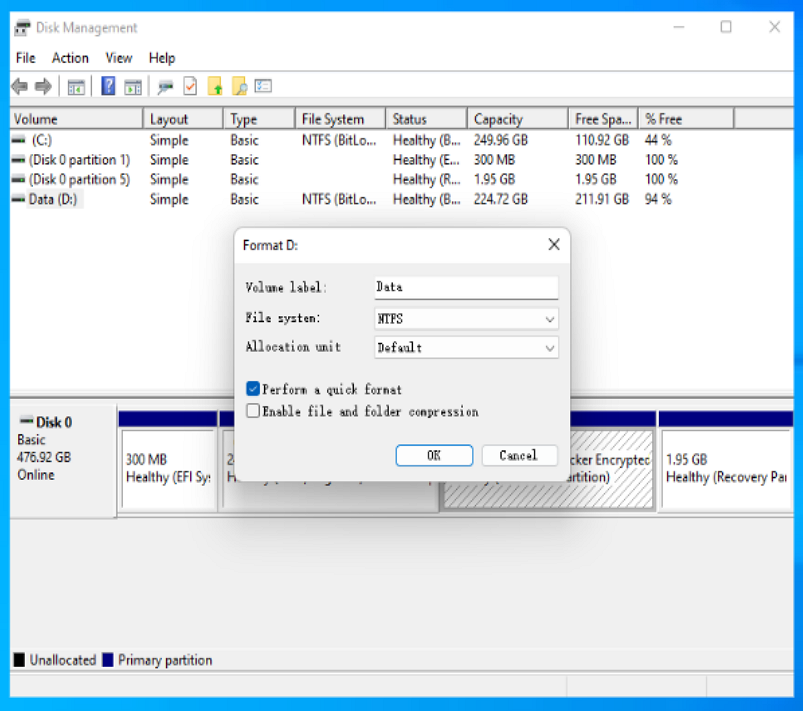
What's The Best SSD Allocation Unit Size in Windows 11/10
The best SSD allocation unit size in Windows 11/10 is a topic of discussion, and finding the optimal size can be crucial for maximizing storage performance. To determine the ideal allocation unit size, you can use the built-in Disk Cleanup tool or third-party software, and adjust the size accordingly. By optimizing the allocation unit size, you can potentially improve your SSD's read and write speeds, making it a worthwhile tweak for users looking to squeeze out the best performance from their storage device.
Conclusion
64K allocation unit size is ideal for gaming, enhancing system performance and providing the fastest loading times. We recommend using Qiling Disk Master to set the allocation unit size for your PC, as it's fast, secure, and user-friendly.
To achieve the best gaming experience, it's recommended to allocate the optimal size for the allocation unit. This will ensure that your games run smoothly and efficiently, without any lag or glitches. By setting the optimal allocation unit size, you can enjoy the most enjoyable game experience possible, with the best graphics, sound, and overall performance.
You may also like:
Best Allocation Unit Size for Gaming FAQs
We covered all aspects of the best allocation unit size for gaming. However, if you have any further questions, please see the FAQs section below.
1. Does allocation unit size affect speed?
To achieve maximum performance for gaming, it's essential to have optimal clusters, specifically those with a 64K allocation size. This is because large clusters, such as those with a 4K allocation size, require more processing time, and visiting many small clusters one by one can be inefficient, making it harder to reach the desired cluster.
2. What is the best allocation unit size for exFAT 1TB?
The best allocation unit size for a 1TB exFAT drive is 128K, as recommended by Microsoft, which provides larger clusters and optimizes storage files for efficiency.
3. What allocation unit size should I use for NTFS gaming?
Set the allocation unit size for NTFS to 64K, which is ideal for larger files like games and movies, resulting in faster file lookups and improved game loading times.
Related Articles
- How to Fix Mac/MacBook Pink Screen? Here Are Reasons and Solutions
- Working on Updates 100% Complete Don't Turn Off Your Computer [6 Fixes]
- How to Fix Hogwarts Legacy Not Saving [For Steam/PS5/Xbox/Switch]
- This Device Cannot Start Code 10 - 12 Methods Included
- Outlook 2016 Not Working with Gmail | How to Fix
Outlook 2016 often experiences issues with Gmail accounts, and this article aims to address the problem, providing a solution to get Outlook 2016 working with Gmail. - How to Fix Overwatch Voice Chat Not Working on Windows 11/10
Are you facing the Overwatch voice chat issue? Now you can fix Overwatch voice chat not working by using the practical solutions we suggested.
Products
Articles & Tutorials
- Data Recovery
- Data Backup
- File Recovery
- File Backup
- System Backup and Restore
- Disk and Partition Clone
- Technical articles
- Mobile articles
- Disk Master Help
- Windows Data Recovery Tutorials
- Windows Secure Delete Tutorials
- Windows Partition Management Tutorials
- Windows File Backup and Restore Tutorials
- Windows System Backup and Restore Tutorials
- Windows Disk Backup and Restore Tutorials
- Windows Clone Tutorials